
Pricing Management in Dynamics 365 SCM
Chapter 5 – Price Groups and Pricing Priorities
Hello everyone! Hope you are all doing well.
In the last chapter the sunflower oil ended up with several prices at the same time: a general price of 98, a price of 95 for Central hypermarkets and a September price of 92 for Western hypermarkets. The system always picked the most specific rule, the one with the highest combination rank.
But what if the business wants to say "this price list is more important than that one", regardless of how specific the conditions are? For example: the key account team negotiates prices for all hypermarkets, and those prices must win over the regional promotions. This is where price groups and pricing priorities come into the picture.
Our requirement for today
- A Key accounts price list for all hypermarkets (PM-HYPER): sunflower oil at 97.
- A Central region price list for all customers in the Central region (hypermarkets and minimarkets): sunflower oil at 96.
- Al Madina Hypermarket is a hypermarket and in the Central region, so it qualifies for both. The business first wants the regional price to win, and later changes its mind.
Today's agenda
- What is a price group in Pricing Management?
- Pricing priorities – a prerequisite we found the hard way.
- Creating price groups with conditions and a rank.
- Assigning price groups to trade agreement lines.
- Test: which price wins now?
- Test: changing the rank.
- The calculated pricing priority.
- Summary.
1. What is a price group in Pricing Management?
In classic D365 a price group is simply a code that you put on the customer (Customer > Sales order defaults > Price group) and then use in trade agreements. In Pricing Management a price group works differently: it has conditions built from price attributes, and every customer who matches the conditions automatically belongs to the group. You do not assign the group to customers one by one.
A price group has three important properties:
- Price group / Name: the code and description.
- Rank: how important the group is. When a customer matches rules of several price groups, the group with the higher rank wins.
- Conditions: a price attribute group (for example PMCustomerHeader) and the attribute values (for example Customer group = PM-HYPER) that define who belongs to the group.
Then you link the price group to pricing rules: trade agreement lines, price adjustments and discounts. The price group's rank is then used when those rules compete with other rules.
2. Pricing priorities – a prerequisite
I started by creating the first price group directly: New, Price group = PMKEYACC, Name = Key accounts – hypermarkets, Rank = 10. When I saved, the system answered:
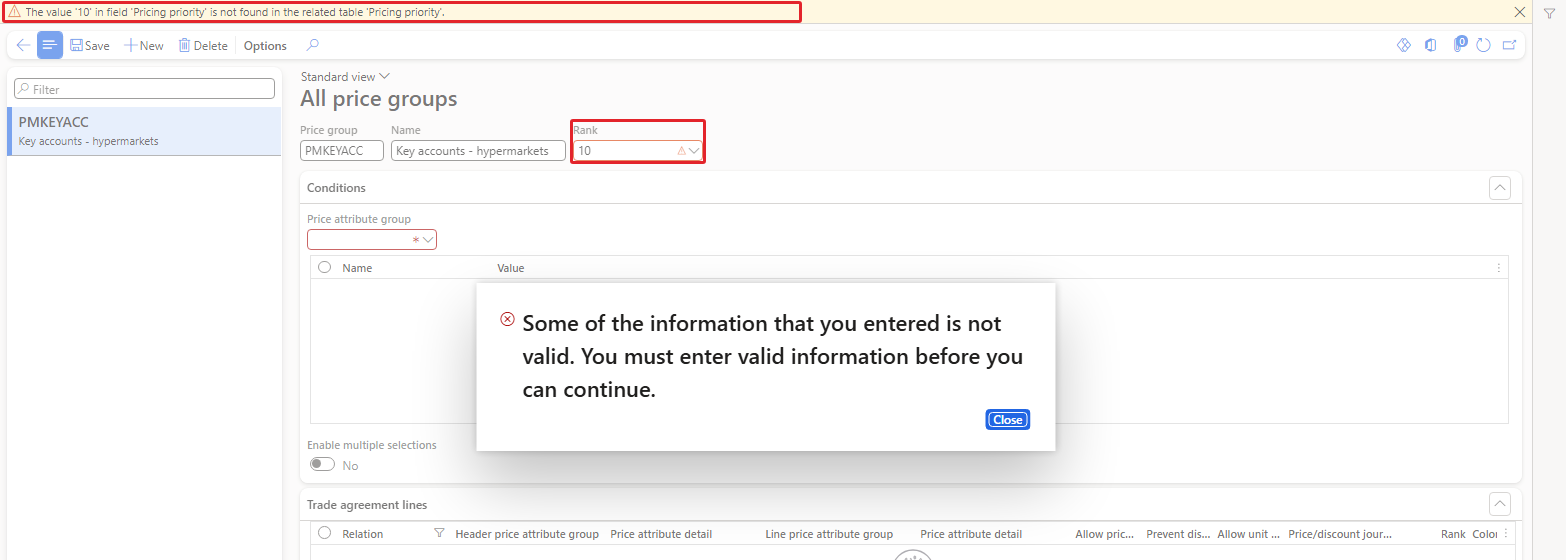
"The value '10' in field 'Pricing priority' is not found in the related table 'Pricing priority'."
So the Rank field is not a free number. It must be one of the values defined in Pricing priorities, and in USMF that list was empty. This is an important dependency: pricing priorities must exist before price groups can get a rank.
Navigation: Pricing management > During-sales pricing > Price groups > Pricing priorities
To create a pricing priority follow the below steps:
- Click New.
- Enter the Pricing priority number and the Pricing priority name.
- Save.
I created two priorities: 10 – Key account prices and 20 – Regional prices. A higher number means a higher priority.
The page also has two FastTabs: Retail price groups lists the price groups that use the selected priority, and Price adjustments and discounts lists adjustments and discounts that use it. The screenshot below was taken at the end of the chapter, after the rank swap of section 6, so priority 10 shows the price group PMCENTRAL:
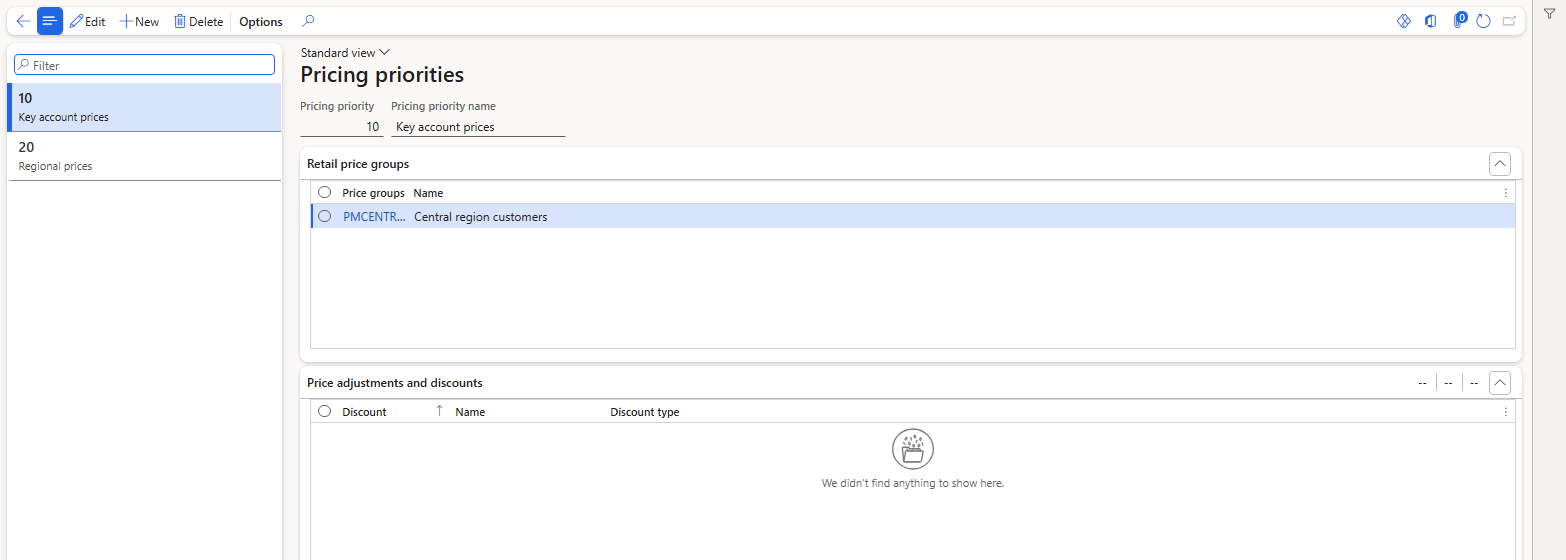
Pricing priorities 10 and 20 – priority 10 selected, used by PMCENTRAL
3. Creating price groups
Navigation: Pricing management > During-sales pricing > Price groups > All price groups
To create a price group follow the below steps:
- Click New.
- Enter Price group (PMKEYACC), Name (Key accounts – hypermarkets) and Rank (10).
- On the Conditions FastTab select Price attribute group = PMCustomerHeader. The grid shows its attributes (Customer group, PM-Region).
- Enter the value PM-HYPER for Customer group and leave PM-Region empty.
- Save.
| NOTE: When I saved before selecting the price attribute group, the system said "Field 'Price attribute group' must be filled in." In this form the price attribute group is mandatory, so select it before saving. |
|---|
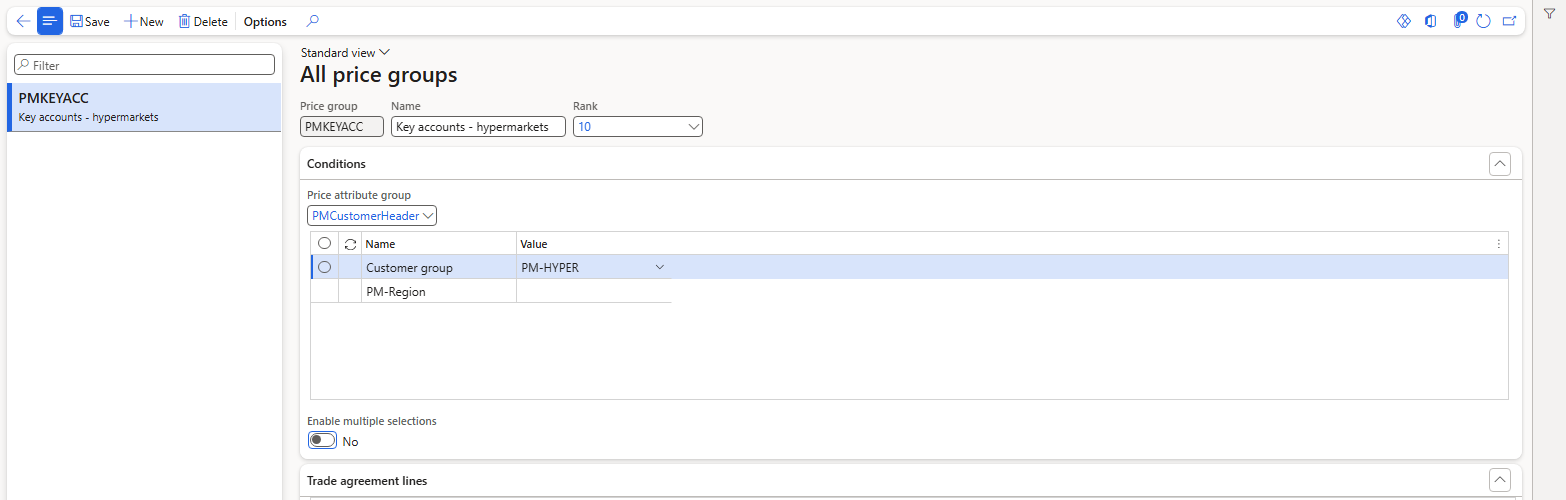
Price group PMKEYACC – rank 10, condition Customer group = PM-HYPER
In the same way I created PMCENTRAL – Central region customers, Rank 20, condition PM-Region = Central (Customer group left empty, so hypermarkets and minimarkets both qualify).
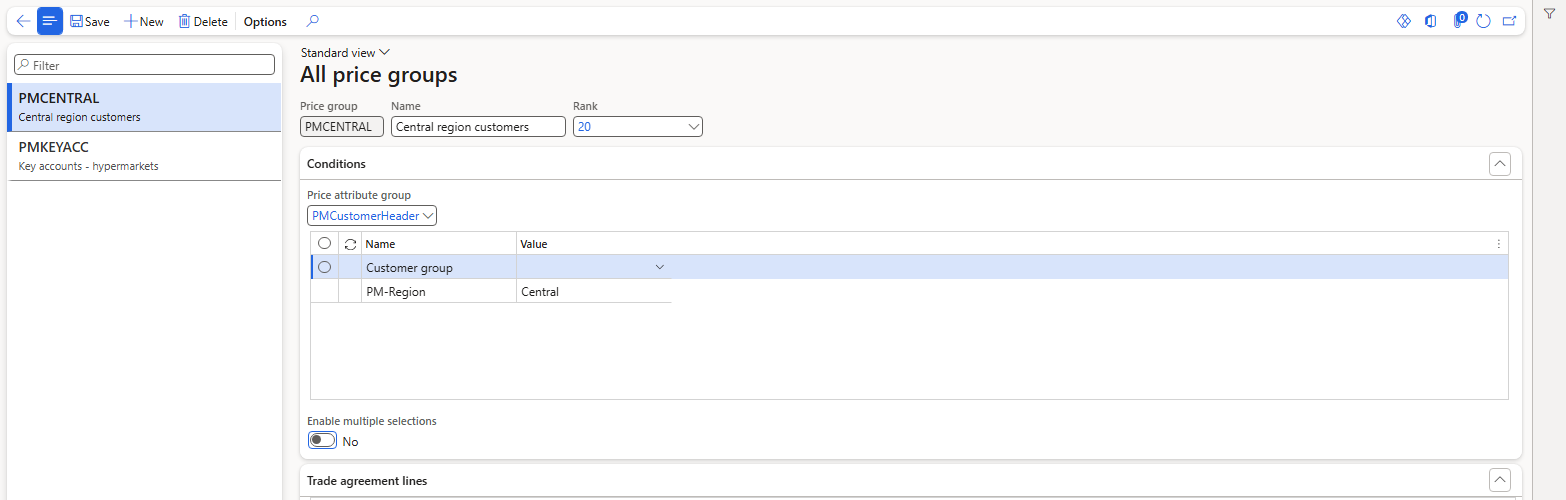
Price group PMCENTRAL – rank 20, condition PM-Region = Central
Membership per customer, based on the values from Chapter 2:
| Customer | Group / Region | PMKEYACC (PM-HYPER) | PMCENTRAL (Central) |
|---|---|---|---|
| PM-C001 Al Madina Hypermarket | PM-HYPER / Central | Yes | Yes |
| PM-C002 Green Valley Hypermarket | PM-HYPER / Western | Yes | No |
| PM-C003 Corner Street Grocery | PM-MINI / Central | No | Yes |
| PM-C004 Royal Palm Hotel | PM-HORECA / Eastern | No | No |
The lower FastTabs of the price group (Trade agreement lines, Price adjustments, Discounts, Shipping discounts, Tender discounts) show the rules that use the group, so a price group is also a good place to see "everything we give to key accounts" in one screen.
4. Assigning price groups to trade agreement lines
I created a new trade agreement journal PDJ-00062 "Price group prices" with the journal name PMPRICE and two lines. Both lines have header Group type = All, combination All-PMProductLine and Item number = PM-OIL-5L – so on their own they would apply to every customer. What restricts them is the Price group column on the line:
| Line | Price group | Amount |
|---|---|---|
| 1 | PMCENTRAL | 96.00 |
| 2 | PMKEYACC | 97.00 |
Select the line and type the price group in the Price group column (the lookup lists PMCENTRAL and PMKEYACC). Then enter Unit and Amount and save.
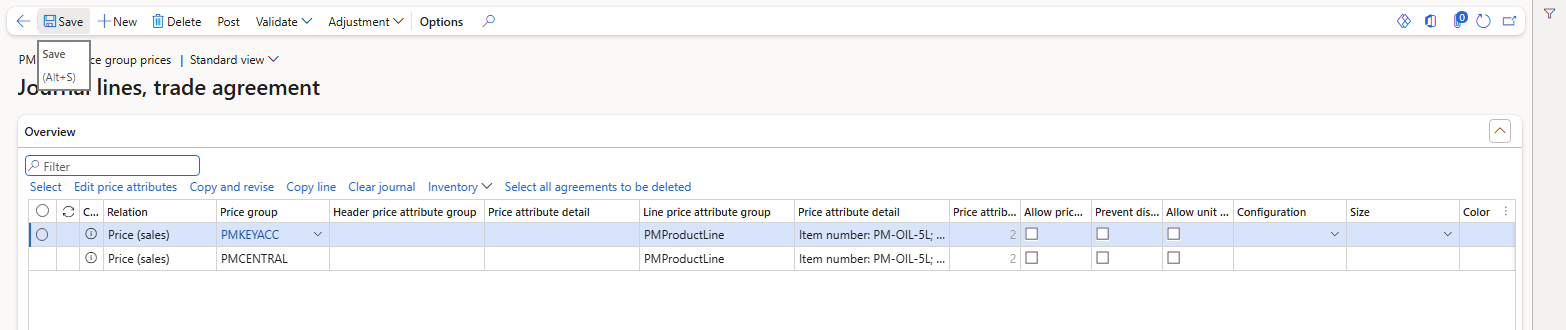
Journal PDJ-00062 – two oil lines with a price group
| NOTE: The Price group column is at the left of the grid. After entering the amount the grid scrolls to the right; scroll back (not with a horizontal swipe, which can navigate the browser back) before setting the price group of the next line. In my first attempt the second line's values ended up on the first line – always check the lines before posting. |
|---|
Then I posted the journal ("Journal has been posted.").
5. Test – which price wins now?
Remember the oil prices that already exist from the previous chapters: 98 for everybody (rank 2), 95 for Central hypermarkets (rank 2002), 92 for Western hypermarkets in September (rank 2002). Now we add 97 for PMKEYACC (rank 10) and 96 for PMCENTRAL (rank 20). I created one order per customer with 10 × oil:
| Order | Customer | Matching prices | Expected | Actual |
|---|---|---|---|---|
| 001360 | PM-C001 | 98, 95, 97 (PMKEYACC 10), 96 (PMCENTRAL 20) | 96 | 96.00 |
| 001361 | PM-C002 | 98, 92 (Sept), 97 (PMKEYACC 10) | 97 | 97.00 |
| 001362 | PM-C003 | 98, 96 (PMCENTRAL 20) | 96 | 96.00 |
| 001363 | PM-C004 | 98 only | 98 | 98.00 |
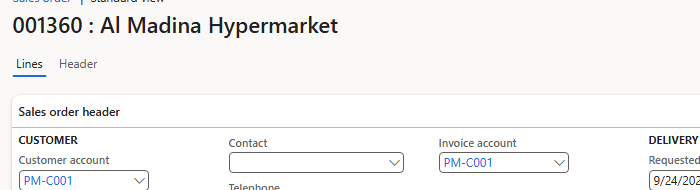
Order 001360 – PM-C001

The oil at 96.00
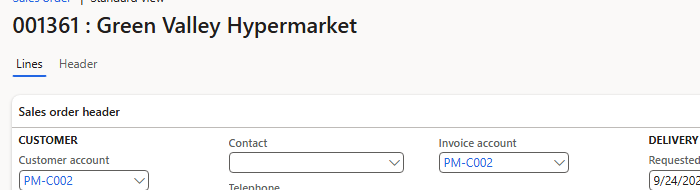
Order 001361 – PM-C002

The oil at 97.00
Now you can see the effect of price groups:
- For PM-C001 the 95 from Chapter 3 (the most specific rule, combination rank 2002) no longer wins. The price group rules win, and between the two groups the one with the higher rank, PMCENTRAL (20), gives 96.
- For PM-C002 the September promotion of 92 no longer wins either; the PMKEYACC price of 97 is applied.
- PM-C003 is only in PMCENTRAL (96), and PM-C004 is in no group, so it still gets the general 98.
So a price group rule beat rules without a price group, even when those rules had a more specific combination, and between price groups the rank decided. I checked all four prices in the database as well.
| TIP: This is powerful but also dangerous. Once price groups with a rank are in use, a "more specific" price list without a price group can silently stop working for the customers in the group. Decide the priority strategy with the business before creating price groups. |
|---|
6. Test – changing the rank
The business changes its mind: key account prices must win over regional prices. We do not change the prices at all – only the ranks. I opened the price groups and swapped the ranks: PMCENTRAL = 10, PMKEYACC = 20.
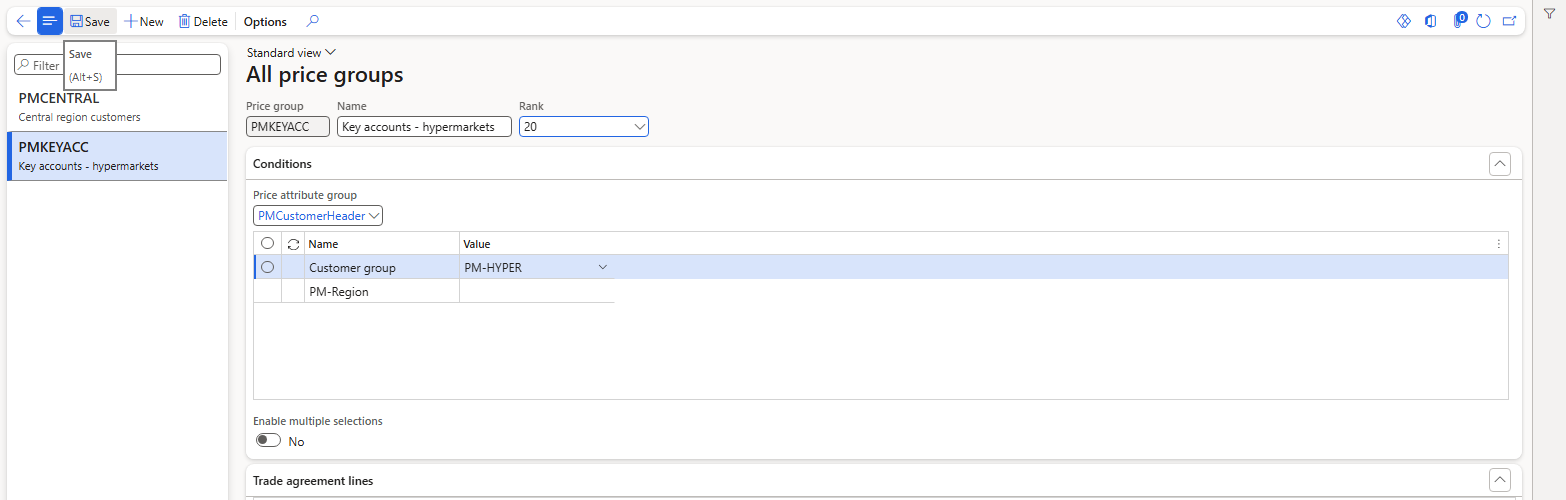
PMKEYACC with rank 20
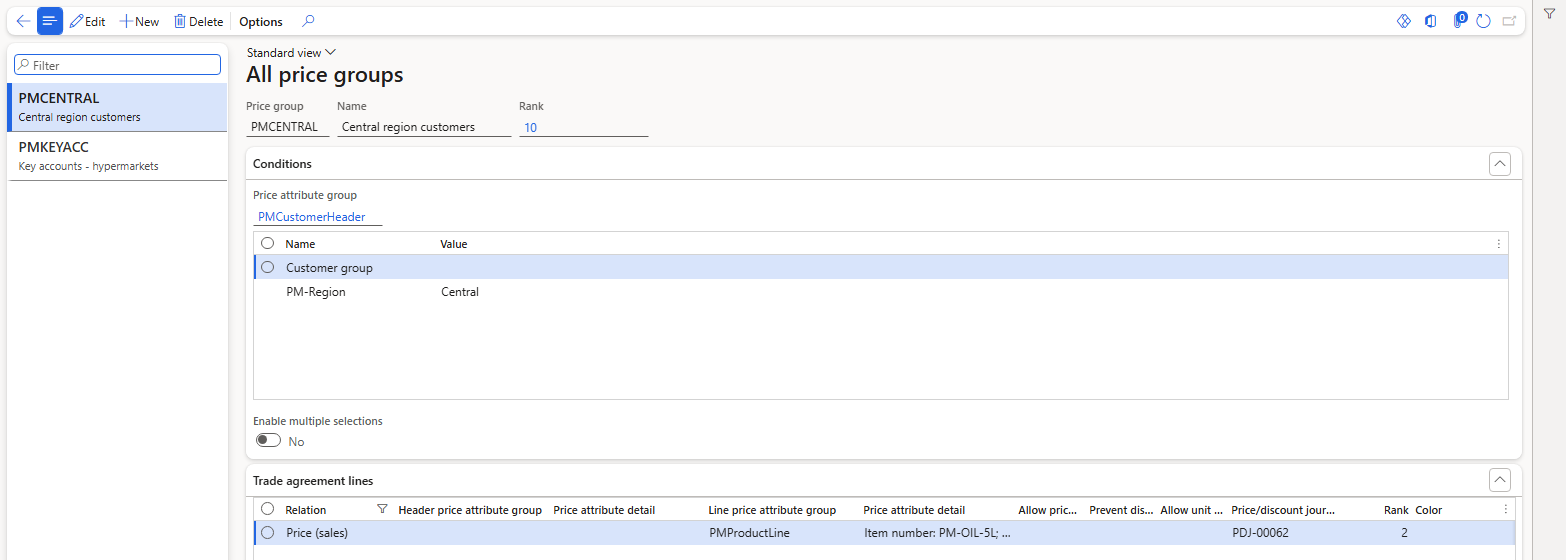
PMCENTRAL with rank 10 – the Trade agreement lines FastTab shows its line from PDJ-00062
Then two new orders:
| Order | Customer | Groups (rank) | Before the swap | After the swap |
|---|---|---|---|---|
| 001364 | PM-C001 | PMKEYACC (20), PMCENTRAL (10) | 96 | 97.00 |
| 001365 | PM-C003 | PMCENTRAL (10) | 96 | 96.00 |
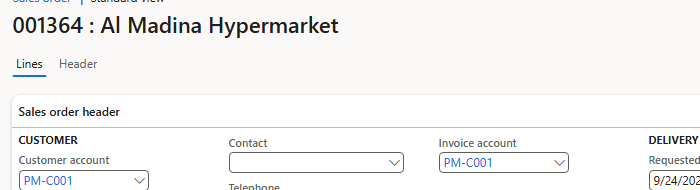
Order 001364 – PM-C001

The oil at 97.00 after the swap
| RESULT: Only the rank changed, and PM-C001 moved from 96 (PMCENTRAL) to 97 (PMKEYACC). PM-C003, which belongs only to PMCENTRAL, still gets 96. The price group rank decides between price groups. |
|---|
7. The calculated pricing priority
In Chapters 3 and 4 the Price details of every trade agreement line showed a Calculated pricing priority of 998, and we left it unexplained. Now look at the Price details of order 001360 (PM-C001, before the swap):
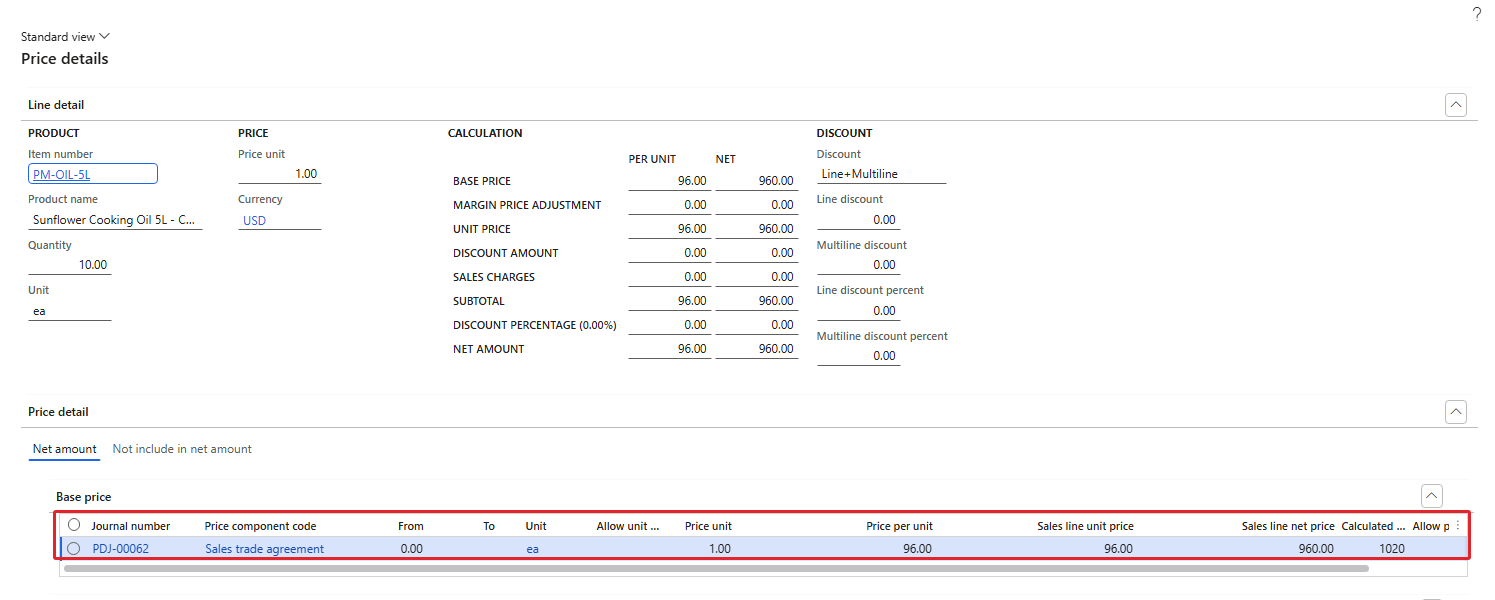
Price details of 001360 – journal PDJ-00062, calculated pricing priority 1020
The rule from journal PDJ-00062 (the PMCENTRAL line, 96.00) shows a calculated pricing priority of 1020. These numbers fit the pattern described in the Microsoft documentation on price group priorities:
- A rule without a price group: 1000 − pricing sequence of its component code in the price tree. Sales trade agreement has pricing sequence 2 (Chapter 3), so 1000 − 2 = 998.
- A rule with a price group: 1000 + rank of the price group. PMCENTRAL had rank 20, so 1000 + 20 = 1020.
Because 1020 is higher than 998, the price group rule wins – which is exactly what we saw in section 5.
But here is something I cannot fully explain. After the rank swap, the Price details of order 001364 show the PMKEYACC line (97.00, now rank 20) with a calculated pricing priority of 1010, not 1020. I created one more order (001366) to rule out a one-time effect: again 97.00 and again 1010. So the selected price followed the new ranks correctly, but the displayed calculated priority did not follow the simple "1000 + rank" pattern after the rank change. This was not explained in the current environment; treat the displayed value as information and always test the resulting price.
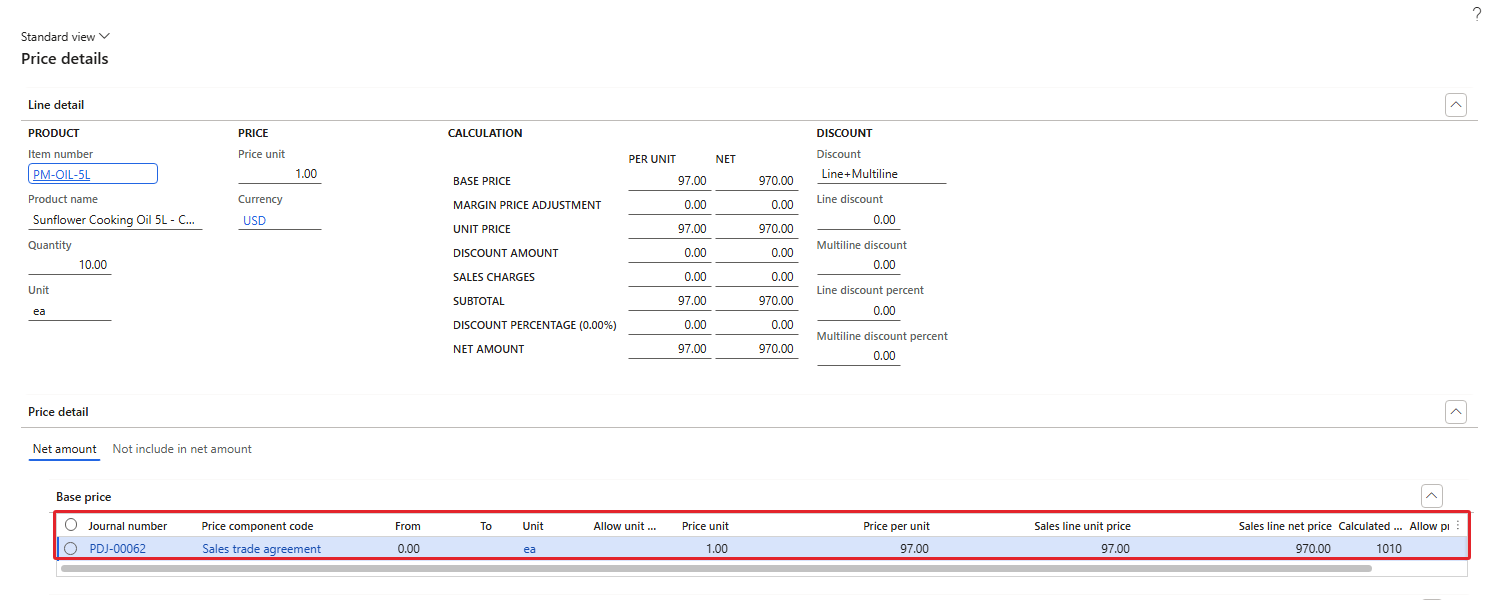
Price details of 001364 after the swap – PMKEYACC line 97.00, calculated pricing priority 1010
8. Summary
- A Pricing Management price group has conditions (a price attribute group with values) and a rank. Customers that match the conditions belong to the group automatically.
- The rank must exist in Pricing priorities first ("The value '10' in field 'Pricing priority' is not found…"). The price attribute group is mandatory on the price group.
- A trade agreement line gets a Price group in its grid; combined with header = All it applies to the members of the group.
- Price group rules won over rules without a price group, even over more specific ones (96/97 instead of 95 and 92). Between price groups, the higher rank won, and swapping the ranks changed the price from 96 to 97.
- Calculated pricing priority: 998 (= 1000 − pricing sequence 2) for trade agreements without a price group and 1020 (= 1000 + rank 20) for the PMCENTRAL rule. After the rank swap the displayed value (1010) did not follow this pattern, although the price did.
In the next chapter we move to the next step of the price calculation: margin price adjustments – percentage and amount adjustments on top of the price, and the first real test of our own component code PM Segment adjustment and the price tree.
That's all for today, folks. See you in the next chapter!
Cheers!
Salman Ahmad
D365 F&O Consultant (Finance, SCM, Project Accounting)
← Previous: Pricing Management in Dynamics 365 SCM — Chapter 4 – Sales Trade Agreement Prices: General Prices, Quantity Breaks and Dates | Next: Pricing Management Chapter 6 →