
Mastering Capacity Planning and Scheduling in Dynamics 365 Supply Chain Management
A Guide for Discrete Manufacturing

MASTERING CAPACITY PLANNING AND SCHEDULING IN DYNAMICS 365 SUPPLY CHAIN MANAGEMENT
A GUIDE FOR DISCRETE MANUFACTURING
Salman Ahmad
D365 Functional Consultant
Scheduling options
The role of the scheduling system in Supply Chain Management is to plan the actual production process so that each operation in the production route is assigned a starting and ending date and time, and that the materials needed for production are available when the operation starts.
Watch the following video to see a high-level demonstration of production orders in discrete manufacturing.
The scheduling concept that you decide to use will depend on your production and scheduling needs. The concepts include:
- Scheduling levels - operations scheduling and job scheduling
- Scheduling direction
- Finite and infinite capacity
- Efficiency percentage
- Finite materials
- Resource Allocation
- Property scheduling
Scheduling levels
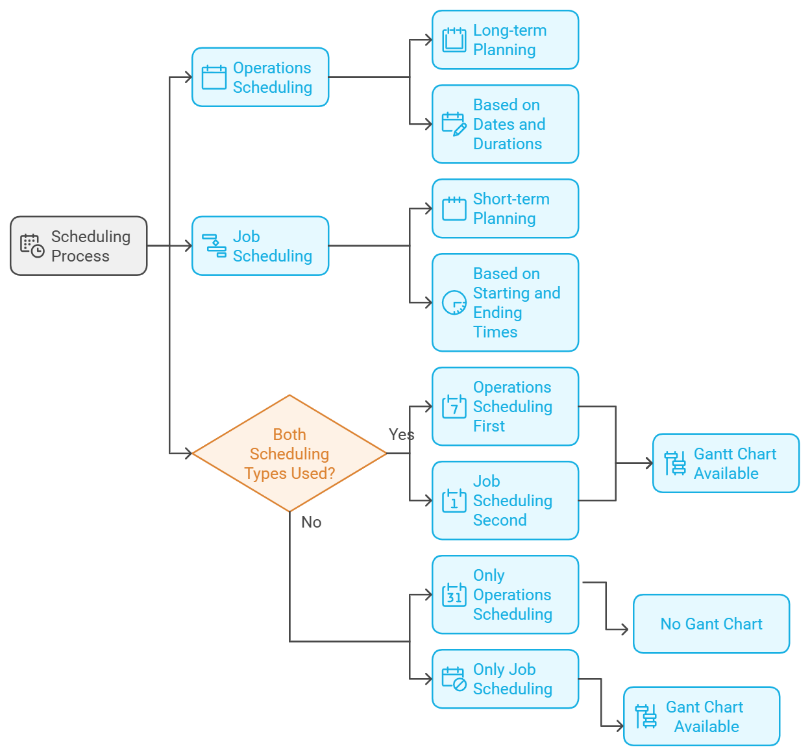
Similarly, operations scheduling and job scheduling enable you to schedule multiple productions in the order of their assigned priority; however, they differ in their level of detail. Generally, operations scheduling is used for long-term scheduling at a resource group level, while job scheduling is used for short-term scheduling at a detailed or specific resource level.
Operations scheduling is calculated based on dates (while also calculating the duration of individual operations), and job scheduling is calculated based on the starting and ending times of individual operations. Additionally, the way that operations are planned and how scheduling is carried out is significantly different. Job scheduling splits the different operations into their specific jobs, which are planned in detail for each of the resources. Operations scheduling does not split up operations in the production route in this way and typically plans the operations at the resource group level.
Operations and job scheduling can be run independently, or together, any number of times. When operations and job scheduling are run together, operations scheduling is typically run first. You can only use the Gantt chart for production orders that have been job scheduled. This option is not possible for orders that have been operations scheduled.
Scheduling direction
One of the basic principles of scheduling is to decide on the scheduling direction. The scheduling direction that you select forms the basis of the scheduling process. You can either schedule production forward or backward from any date, depending on your timing and scheduling needs.
Production control > Production orders > All production orders > Schedule tab > Schedule operations
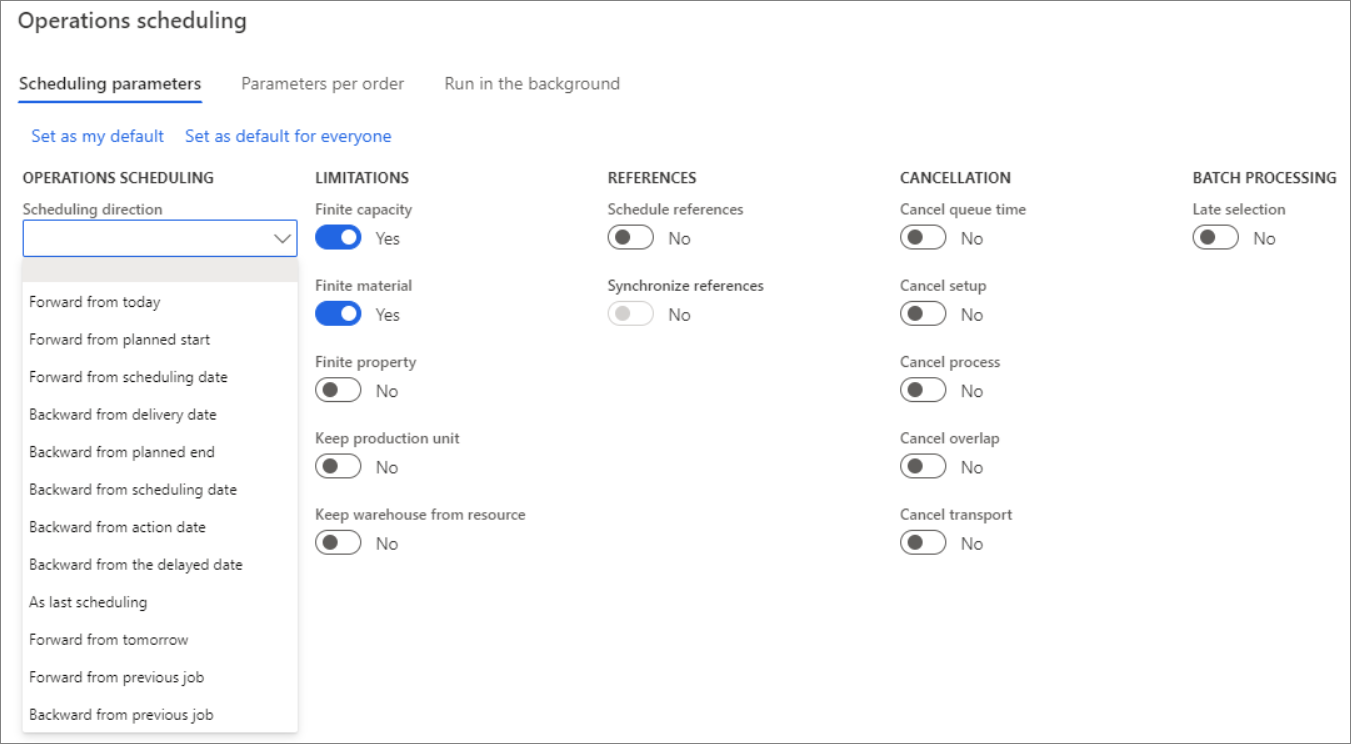
The main scheduling directions are:
- Forward from scheduling date (forward scheduling)
- Backward from scheduling date (backward scheduling)
Forward from scheduling date
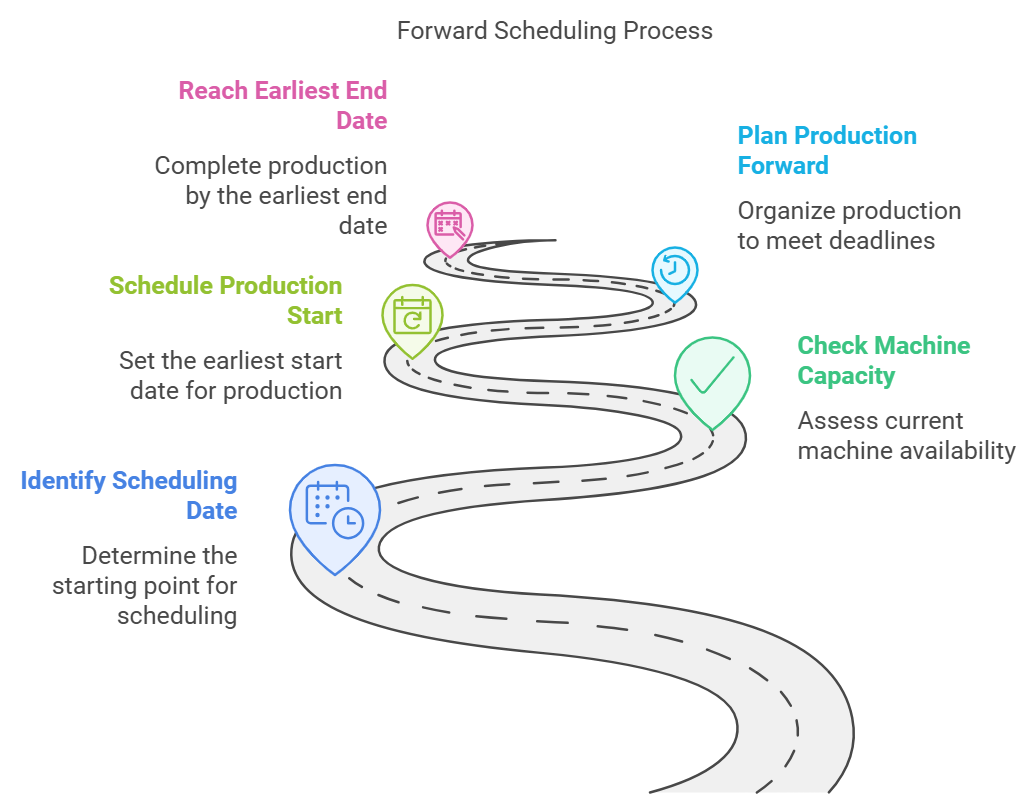
The Forward from scheduling date option (forward scheduling) helps you schedule your production to start at the earliest date possible. The scheduling will run forward in time and the production will be scheduled to end at the earliest possible end date.
If machine capacity is booked today, this scheduling option will schedule production to start at a time when machine capacity is free (earliest start date). It will then plan production forward in time from this date to reach the earliest possible end date.
This option is also known as the "push" method because production is pushed through the process. You can schedule production to start today, tomorrow, or at any date in the future. Today's date is set up for the Scheduling date by default.
Backward from scheduling date
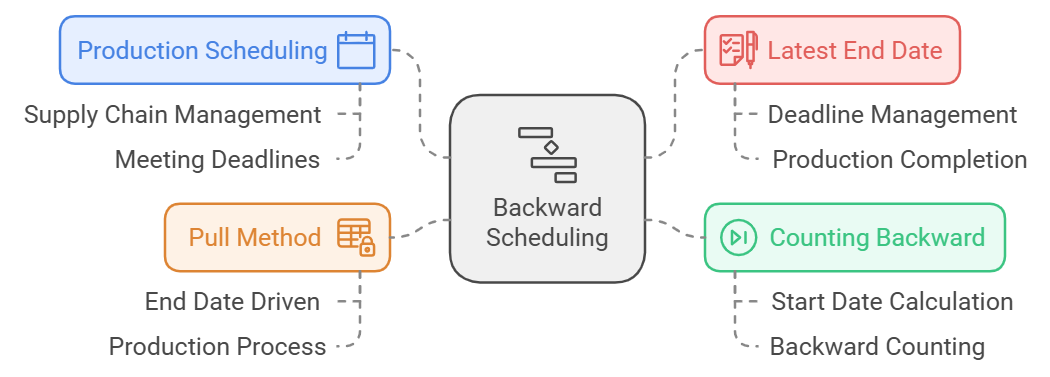
If you use Backward from scheduling date (backward scheduling), Supply Chain Management schedules the production to begin as late as possible, without jeopardizing the target deadline from being met.
Backward scheduling is based on the date that the production must be completed (latest end date) rather than when it is started. The schedule is prepared by counting backward to the latest possible date that the production can be started.
This option is also known as the "pull" method because production is driven by the end date and pulled back through the production process to its start date.
Finite and infinite capacity
When you consider capacity in production scheduling, you can select from two different methods:
- Infinite - Unlimited capacity
- Finite - Limited capacity
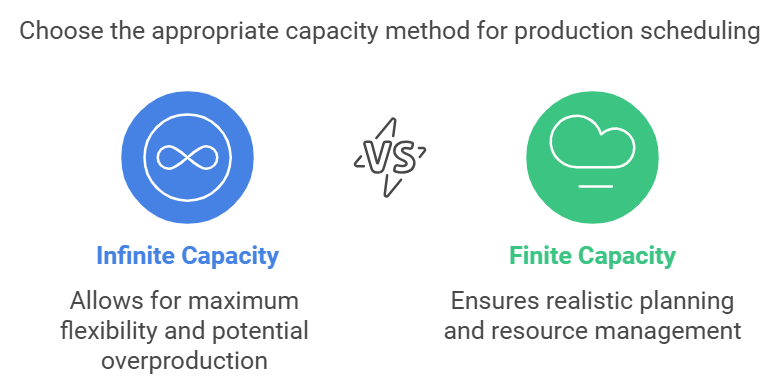
If production is scheduled with infinite (unlimited) capacity, capacity that is already reserved on the resource or resource group from previously scheduled production orders is not considered.
Unlimited capacity allows the planner to determine how much capacity must be available for the individual resources to achieve optimal load and the shortest possible process time.
When finite capacity is used, scheduling is influenced by the fact that the total load on the resource must not be greater than the capacity of the resource. Available time is defined as an interval when the resource, according to its calendar, is open and no other reservations are on capacity.
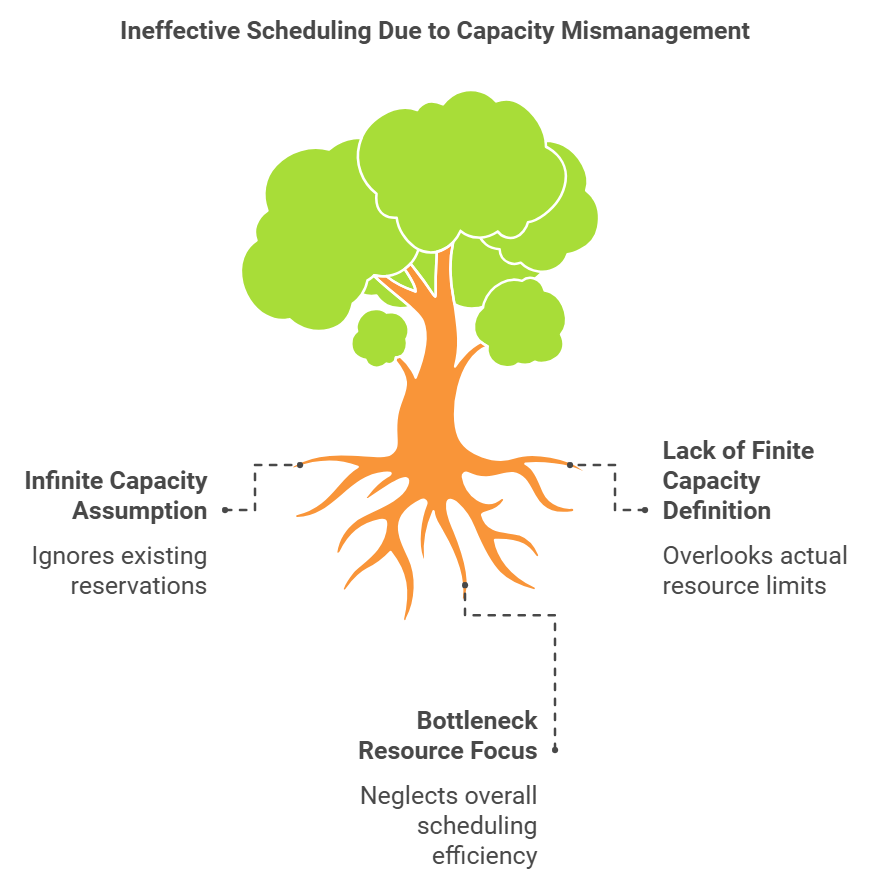
Operations or job scheduling that is based on finite (limited) capacity depends on the actual capacity that is available in the resource group or resource. If finite capacity is not defined on the resource or resource group, it is of no relevance if it is selected during scheduling because the resource or group setup overrides the scheduling setup. In other words, selecting finite capacity on the resources and resource groups is a prerequisite for them being considered as having finite capacity.
The strategy behind this functionality is that only bottleneck resources and groups are set up to operate with finite capacity, whereas scheduling of the other resources and groups reflects the possibility of increasing the capacity, for example, with overtime.
Operations scheduling percentage
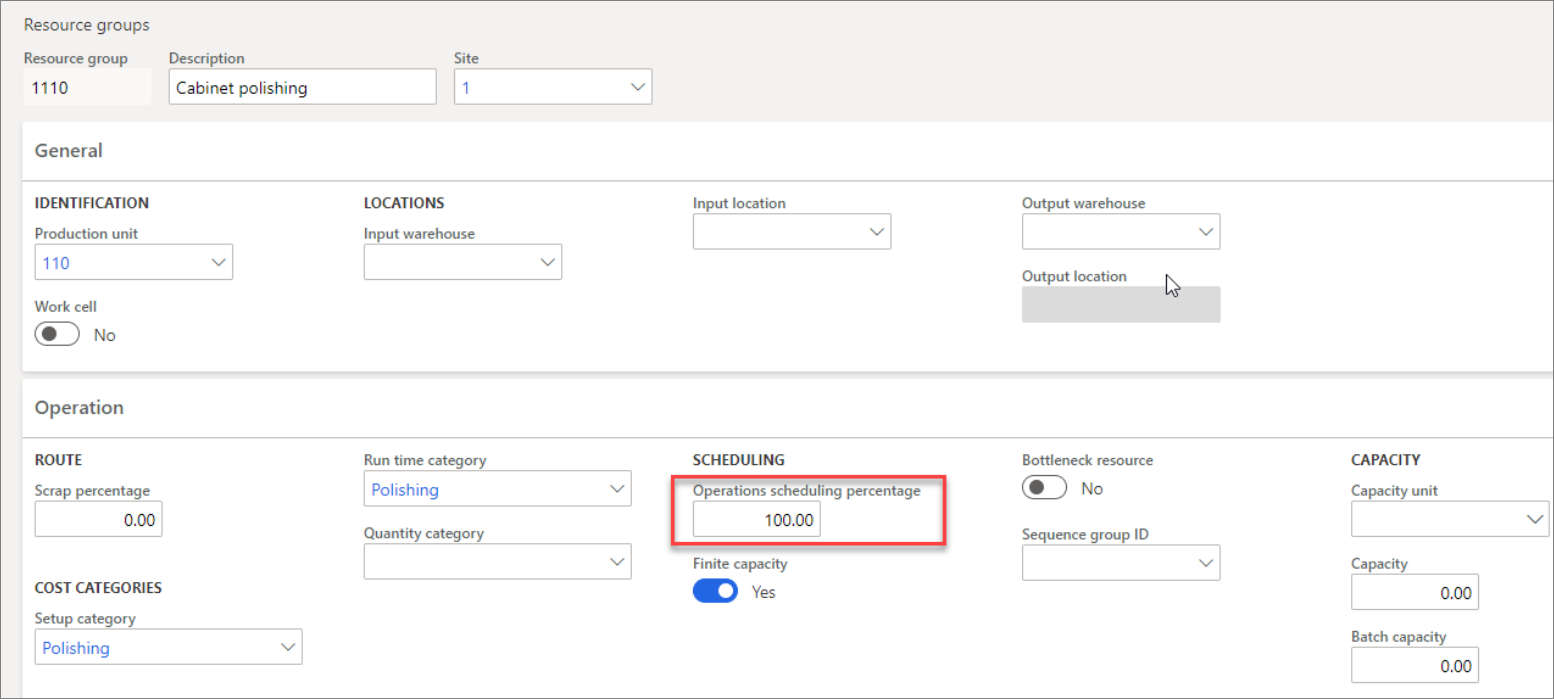
The operations scheduling percentage field on the Operation tab of the Resources groups and the Resources pages show the maximum percentage of the daily capacity that can be scheduled for each production on either the group or the resource level.
To allow for flexibility in capacity during job scheduling, you should set this percentage to less than 100 percent.
Therefore, if a resource group or a resource is available eight hours a day, according to the calendar, and the operation scheduling percentage is set to 50 percent, the availability for scheduling is four hours.

Production control > Setup > Resources > Resource groups
Efficiency percentage
You can schedule production in your resources and resource groups by applying an efficiency percentage to them. The main purpose of an efficiency percentage is to adjust the available capacity of the resource. It is also a way to reduce or increase the time that is reserved for the resource or group and, as a result, to increase or decrease the lead time. As with finite capacity, you can define the efficiency percentage directly on the resource group or resource.
For example, if the efficiency percentage is set to 50 percent, a job that is scheduled on the resource or resource group requires 50 percent of the capacity that is available according to the calendar, which means that the processing time is two times as long.
This formula applies: Scheduling time = time×100/efficiency percentage

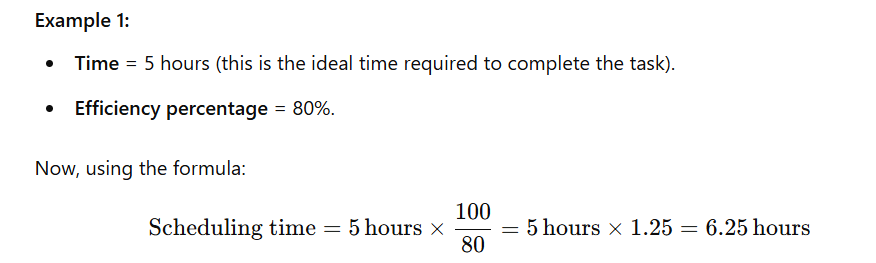
The Efficiency percentage field on the General tab of the Resources page or the Resource group page is used to reduce or increase the duration of the individual jobs that are scheduled on the resource or the resource group.
The efficiency percentage allows for the default operating efficiency of this resource to be changed. Changes to this setting either increase or decrease the duration of the individual jobs that are scheduled on the resources or the resource groups.
A resource cannot be available for production in the full time of a capacity period. For example, if the resource is down for maintenance 10 percent of the time, then you can reflect that with an efficiency percentage of 90.
Scheduling with finite materials
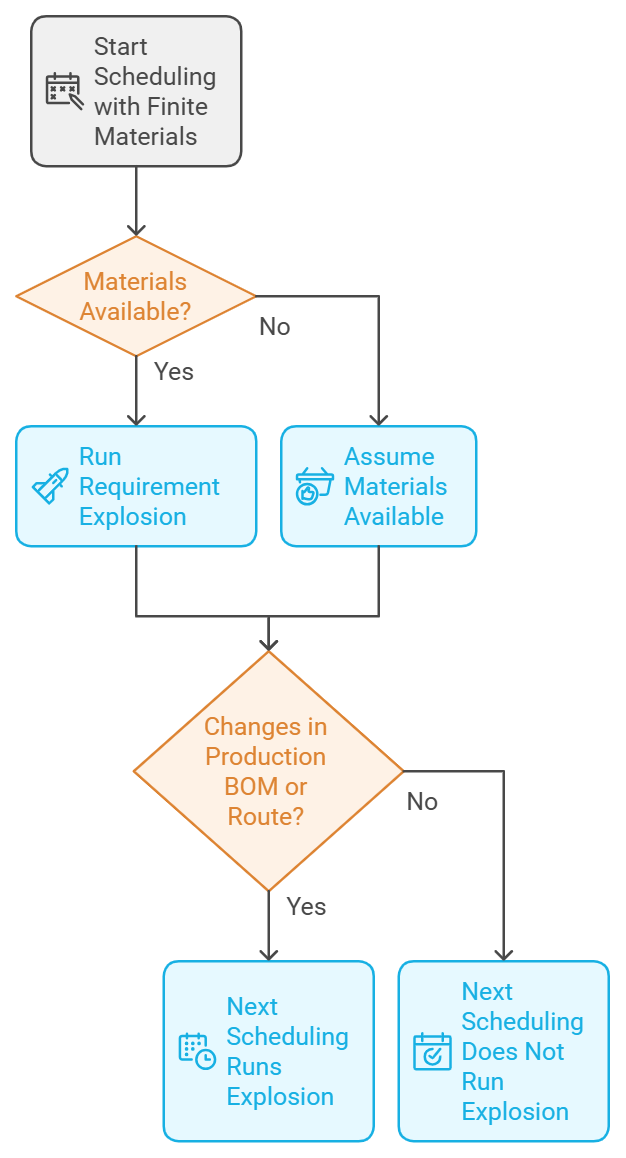
Scheduling with finite materials requires that component materials must be available when the operation that is using them is started. The general coverage situation in inventory sets these limitations because the scheduling system uses a requirement explosion to determine when the component items can be made available. If you are not scheduling with finite materials, then all component items are assumed to be available when they are needed.
If scheduling takes place several times, only the first scheduling will run an explosion and make reservations. If you make changes in the production BOM or route, then the next scheduling will run an explosion. A cleared Finite material check box indicates that the materials are always considered available. Therefore, scheduling does not consider whether the materials are on-hand at the time of requirement.
Capacity planning and finite capacity
The planning of production orders in Supply Chain Management is determined by the amount of capacity that is available in the resource groups and/or specific resources, based on production calendars and requirements. The Resource groups and Resources pages contain a Finite capacity check box.
If the Finite capacity option is selected, the capacity is limited, which means that operations or jobs are scheduled based on the actual capacity that is available on the resource group or resource. If the check box is cleared, operations or jobs are scheduled with unlimited capacity and the already reserved capacity on a resource group is not considered.
When finite capacity is set either on the resource group or resource level, the next time that Master scheduling is run, depending on the settings on the master plan, Supply Chain Management views the current orders scheduled and the requirement dates of the new orders and automatically schedules them based on availability.
You must define finite capacity in the resource group or resource if you want to run finite capacity during scheduling.
Production and project capacity planning
Capacity planning determines which orders are considered when you are scheduling production. It considers the capacity of a resource group or specific resource to determine how to plan production and project orders.
Feedback on consumption during production
You can direct the system to update production journals to provide feedback automatically after production is started. To use this method, select the relevant option on the Production control parameters page in Production control > Setup > Production control parameters.
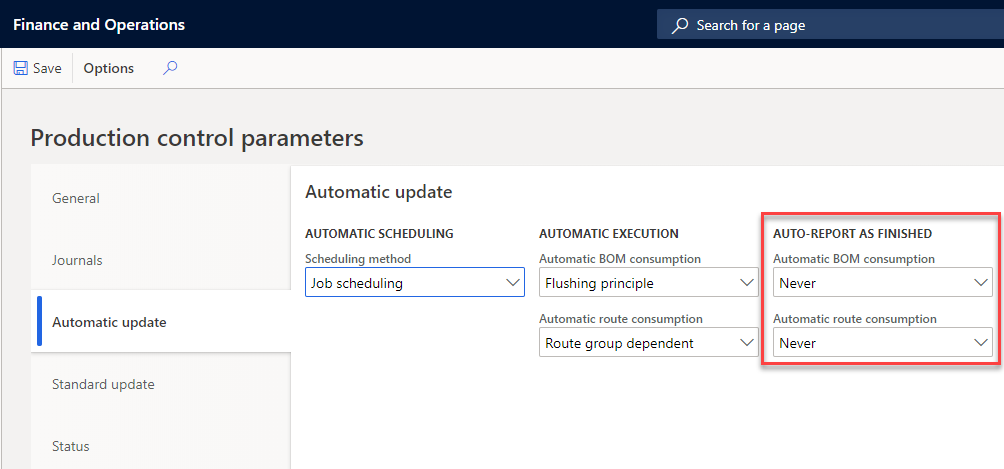
You can specify the following parameters for Automatic route consumption:
- Route group dependent - If automatic consumption is selected in the routing group feedback and you include the setup and processing times, the route has automatic consumption. If not, the consumption must be entered manually.
- Always - All route consumption is entered automatically.
- Never - All route consumption is entered manually.
Properties
You can use properties to become more efficient in the production process on the production floor and assign a property to a route operation. On the working time for the calendar, specify the time interval in which you can schedule jobs with a specific property to use in the scheduling process. Properties are tied directly to the Working time template.
For example, if you assign the property "red" to a paint operation, the scheduling engine will only schedule a job for the operation in a time slot where the same property is defined in the calendar for the selected resource.
Properties are associated with the following characteristics:
- An item number
- A production order
- An operation
If you associate a property with the item, it automatically updates the production order. Before you start the planning process, use the production order property to prioritize and group productions that share the same properties. This approach ensures that the productions are planned sequentially if there is available capacity. A property for an item or production order affects the planning and provides an overview of any similarities between production orders.
Properties for operations only enable certain operations to be produced for a resource during a period. By using this method, you can specify that a type of product and/or operation must be worked with at any time for the resource, thereby minimizing setup times.
Example
A company uses a resource for painting cabinets, and all the cabinets to be painted in red are to be in a single operation.
On the capacity calendar, you have indicated that you are painting red in a specific time interval. In other time intervals, you are painting a different color. The scheduling engine will group all the items that need to be painted red in that time interval. Typically, you will use infinite capacity for this operation.
You assign the operation Color red to the property Red. The property Red is then associated with the resource where the painting is to occur.
The Painting operation is to be conducted by the Human resources group and is associated with the property of Painting. When job scheduling is run, users can only reserve resource capacity for those operations with the property of Painting.
Operations to be produced sequentially have the same properties and use the same resources that also have these properties. Moreover, when job scheduling is run with limited capacity and limited properties, the setup time is automatically canceled and does not reserve resource capacity.
Property planning
You can use property planning to schedule jobs that need to go through the same process, but the process is only available during a limited time span, such as on Thursdays from 8:00 AM to 1:00 PM. In that case, you would then use a property to specify the characteristics of this process.
For example, on Thursdays from 8:00 AM to 1:00 PM, you conduct heat treatments. Therefore, all jobs that need heat treatment will be scheduled on Thursdays from 8:00 AM to 1:00 PM. Frequently, you use unlimited capacity, assuming that the heat treatment process can take an unlimited number of items.
By running operations with identical properties one after the other, you can minimize setup times and implementation problems. For example, a property for paint can be a color. Fewer color changes mean that fewer setups are needed where the resource requires cleaning.
Property planning is used to accomplish the following results:
- To minimize setup times when planning
- To group jobs that must be run sequentially on the same resource
- As a sorting code to facilitate the re-planning of jobs for resources
Exclusivity
Though it is not directly related to property parameters, another setting to consider in the resource is the Exclusive check box on the General tab of the Resources page.
If primary and secondary operations are used in the route, you can select this parameter to reserve the resource exclusively for a job. If this check box is left blank, and a resource is not being used at 100 percent, other jobs can reserve capacity.
Production control > Setup > Resources > Resources
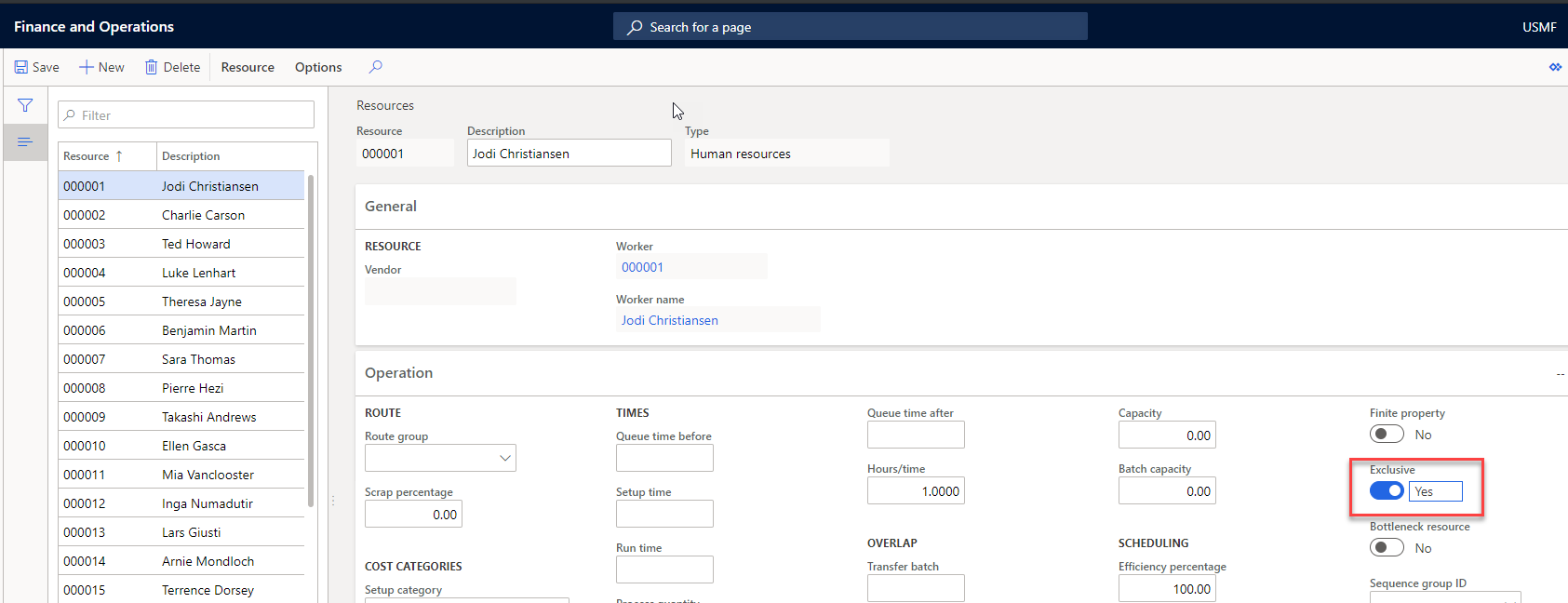
The Finite property on the resource works similarly to the settings for Finite capacity and Finite material. It needs to be set on the resource for the resource to be considered finite in property scheduling.
On the Job scheduling page, the setting that is specified when scheduling is run will then determine whether the scheduling run should use finite property or not for the resources that are selected.
Priority scheduling
You can use the priority to control in which order to schedule selected production orders. For example, if you use the sorting order of Priority and delivery date, then orders will be scheduled in that order.
Priority sorting
To schedule the productions in the order based on their priority, they must be sorted according to priority. You can do this by using the Sorting button in the Job scheduling or Operations scheduling page.
The Sorting button provides the following options:
- Ascending item level and delivery date
- Descending item level and delivery date
- Status and scheduled start
- Priority and delivery date
The Priority field on the Setup tab of the Production order details page contains a priority number. The higher the number that is inserted in the production order, the higher its priority. You can use the priority setting when scheduling multiple production orders to maintain control of the sequence that the orders are scheduled.
The Item level is automatically assigned as zero (0) unless you are working with a subproduction. Then, it is assigned 1, and a subproduction of a subproduction is assigned 2. This value is on the Production order details page on the References tab in the Reference level field.
React to last-minute changes in production
Manufacturers frequently encounter the need to promptly respond to last-minute alterations in production orders. These changes might arise from updates to items, routes, margin additions, or scheduling adjustments aimed at optimizing the utilization of available inventory. In Supply Chain Management, these capabilities can help streamline your organizations business processes:
- Add margins to manual scheduling - Introduce buffer time between production orders by incorporating an issue margin, receipt margin, and/or reorder margin when rescheduling production orders.
- Make the best use of on-hand inventory and planned receipts - Increase your order fulfillment rate by using on-hand inventory and planned receipts for last-minute orders.
- Avoid releasing to warehouse when materials are missing -You can withhold the release of production orders necessitating full reservation to the warehouse until all materials are ready for pickup.
- Change items on production orders - Replace items in scheduled production orders, finalize remaining stock of discontinued products according to the recorded discontinuation time, or make adjustments based on available inventory.
- Change routes on production orders - Update routes across multiple scheduled production orders when modifications are necessary for setup, runtime, or resource allocation.
Split a Production Order
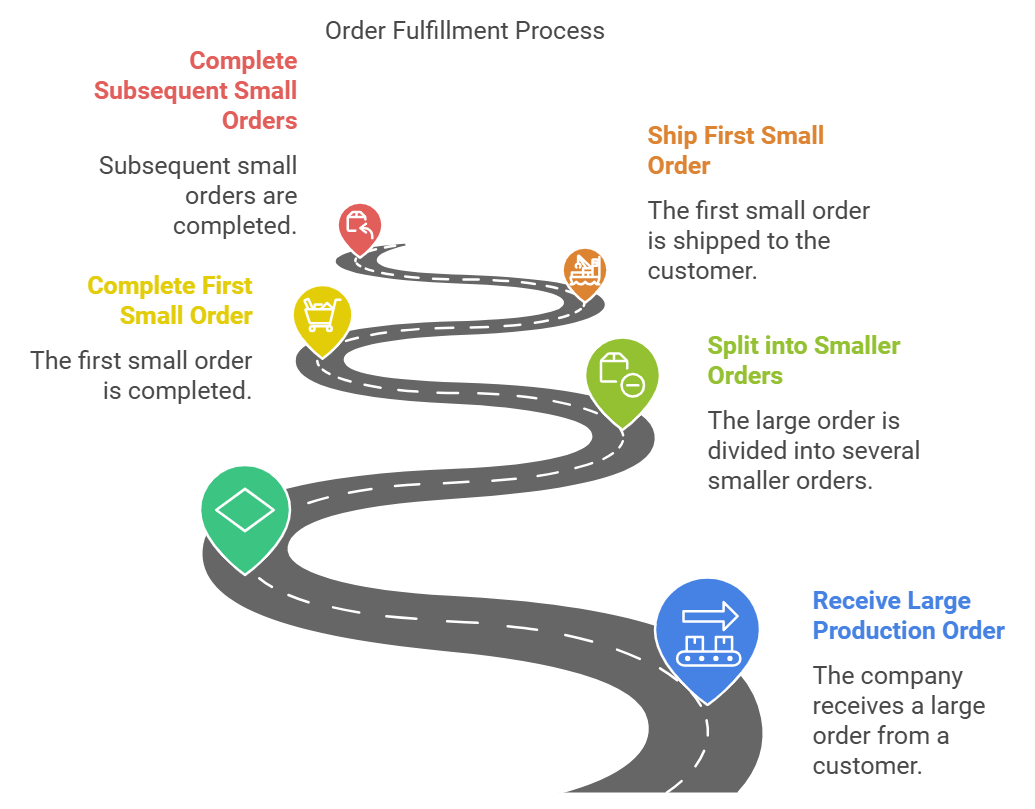
Until the total scheduled quantity of production is started, the production can be split. Splitting the production means that the current production's scheduled quantity is decreased, and a new production is created for the quantity that is split from the original production. For example, you can split production for customers who have already placed a large order but then decided to have part of the ordered quantity delivered as soon as possible.
Consider the following options when using the split functionality:
- You can only split production quantities that have a status of Created, Estimated, Scheduled, or Released.
- When you split a production order, the original production order and reference-derived production orders and purchase orders are rescheduled by using forward scheduling. The split will start at the actual scheduled start time. You can schedule the new split productions by using backward scheduling, and then start them on the calculated date by counting backward from the assigned delivery time.
- The maximum quantity that you can split is the quantity that has not yet started in production.
- Supply Chain Management checks the status and quantity that is available on derived productions and purchases before performing the split. You cannot split a production if the whole quantity of a derived production has already been started or if a derived purchase has already been registered in total.
Example
A company started a large production order for a customer. The customer wants to receive the order as quickly as possible. Though the company cannot increase production for the order, it can ship products in smaller batches instead of waiting for the whole order to be completed. The company can split the large production order into several small orders so that, as each order is finished, it can be shipped without waiting for the whole order to be completed.
Operations scheduling
After a production order has been estimated, you can use operations scheduling to schedule production on a broad level.
Operations scheduling provides you with a first cut, a rough overview of your production. It is often used to gain an overview of the planning that is necessary to run the production processes, and it is run before job scheduling, if job scheduling is also used.
Operations scheduling reserves capacity at the resource group level. It does not select specific resources in the group, as is the case with job scheduling. In other words, operations scheduling provides you with the sum of all available capacity based on the capacity in the resources that comprise the resource groups. It is also possible to load individual resources in operations scheduling, but a specific resource requirement must exist for that specific resource on the operation.
An operations schedule results in all operations being date-scheduled in the order that is specified by the production route. The duration of the operations is calculated, but no actual start and end times are scheduled, as is the case with job scheduling.
The main characteristics of operations scheduling involve the planning method, the capacity of the resources, and material optimization. The settings that you define allow you to complete the following tasks:
- Control the scheduling direction (for example, forward or backward schedule from a date).
- Schedule productions based on the capacity of the resources (finite capacity).
- Use capabilities in resource requirements in the route.
- Schedule resources exclusively.
- Schedule productions based on material availability (material optimization).
- Schedule subproductions.
When you run an operations schedule, each of the operations in the production route is date-scheduled based on the operation's resource requirements. Additionally, the duration of each operation is stamped on the production route.
Unless the resource requirements for an operation identify a specific resource, operations scheduling reserves capacity on the resource group and does not select specific resources in the group.
In such situations, it is the sum of available capacity on the resources involved that makes up the capacity for the resource group and that is considered in connection with finite capacity or limited capacity. Operations scheduling results in all operations being date-scheduled in the order that is specified by the production route.
Contrary to job scheduling, no starting and ending times are given for the operations, although the duration of the operation is considered.
When operations scheduling is complete, the result is as follows:
- Dates are displayed in the relevant fields on the production order.
- Capacity reservations are generated for the selected resource groups or resources.
- The status of the production is changed to Scheduled.
Cancellations can still be made to certain parts of the routing, which are included in the next stage of the production process.
Job scheduling
You can use job scheduling to produce an overall schedule for the jobs that are to be performed in the resources at the manufacturing facility or on the shop floor.
Job scheduling explodes all operations in the resources into their specific jobs and then date and time-schedule them in the order that the production route specifies.
You can run job scheduling alone or after operations scheduling.
Production control > Production orders > All production orders > Schedule tab > Schedule jobs
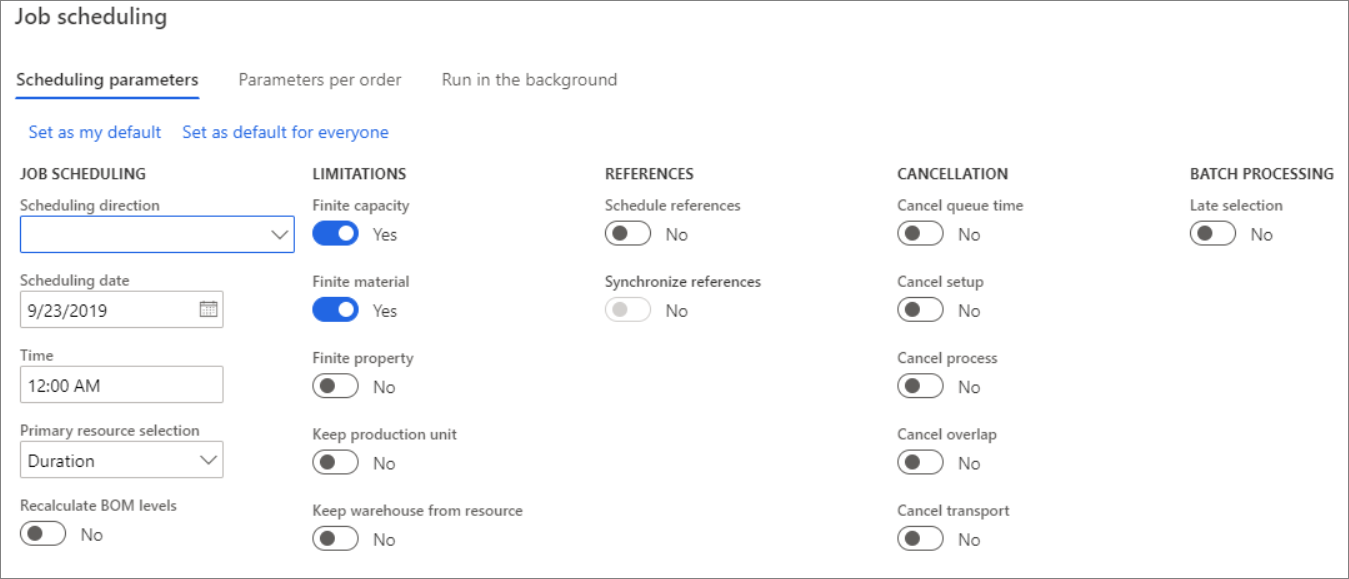
The following list summarizes how the various scheduling parameters and scheduling options are considered by Supply Chain Management when you run job scheduling:
- Scheduling references - Job scheduling allows the synchronization of the production order's other jobs and any references that are associated with the current job. A start and end time are specified for the job and then job scheduling is run on that basis.
Whether the time is start or end time depends on the choice of scheduling direction. This method is useful if a given job can only be run on one machine at a certain time or in connection with optimization of the job run for each of the resources.
- Scheduling direction - Apply forward scheduling to begin the production as early as possible and backward scheduling to begin the production as late as possible.
- Finite capacity - When limited capacity is applied, job scheduling considers the fact that the scheduled capacity reservations cannot be greater than the capacity that is available for the resource. Available time is defined as the time interval where the resource is open and where no other reservations are on capacity.
- Finite material - Job scheduling with limited materials ensures that the required materials are available when the operation begins. The general coverage rules set these limits because scheduling uses a requirement explosion to establish when the component items are available. If you schedule without setting limited materials, the system will assume that all items are available when needed.
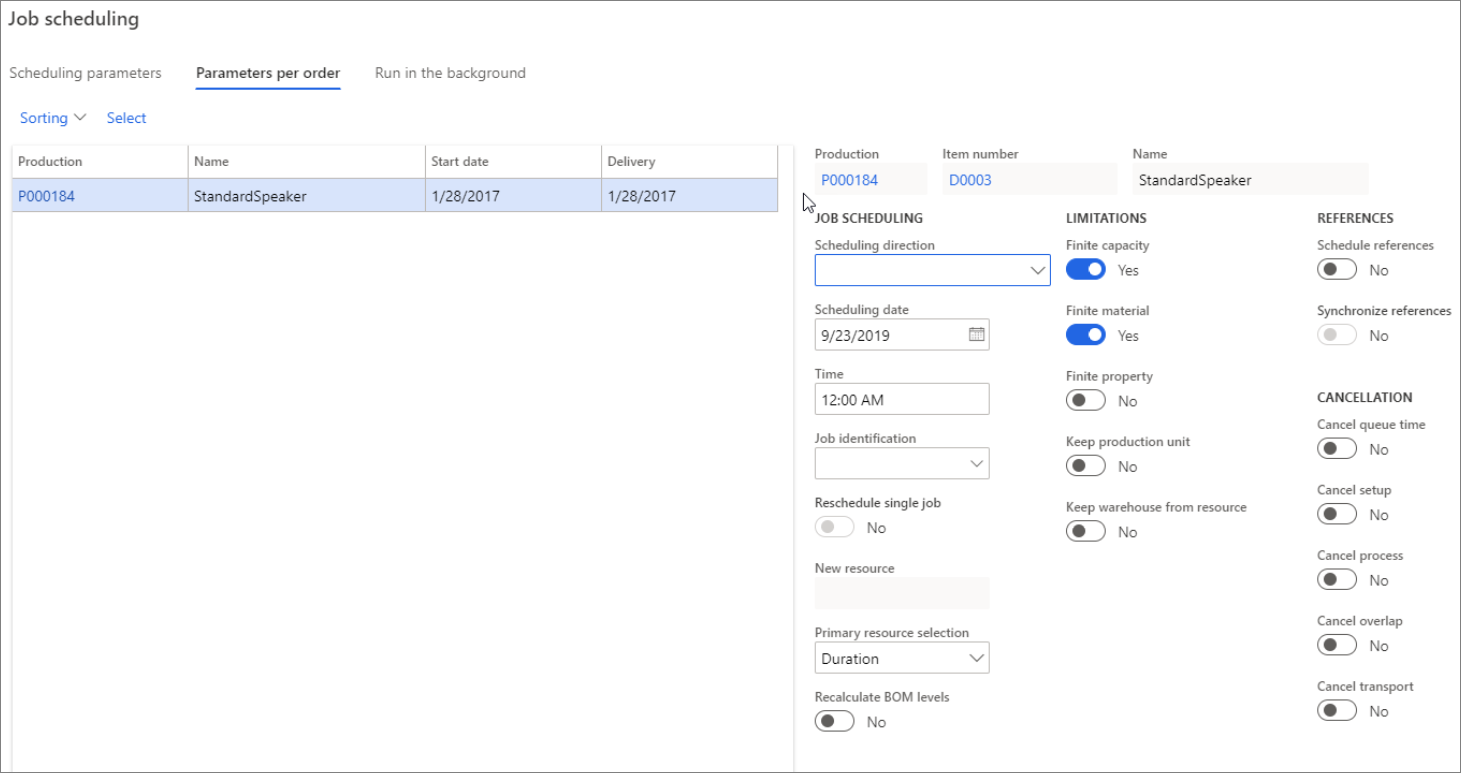
Additional considerations when you are running job scheduling:
- Finite property - Job scheduling with limited properties requires that properties be specified for the production route's operations. These properties must be fulfilled to reserve capacity.
- References - Job scheduling will schedule all reference productions that are associated with the current production. If a production has one or more pegged production orders, they should be scheduled with the main production because the main production cannot be launched until the related pegged production orders are finished.
- Resource Efficiency - In job scheduling, efficiency percentages that are specified for the resources are also used. Efficiency percentages are set up on the resource. The main purpose of an Efficiency percentage is to adjust the available capacity of the resource. It is also a way to reduce or increase the time that is reserved for the resource. Consequently, lead time is also increased or decreased. The rule for calculation is: Scheduling time = Time * 100 / Efficiency percentage (where time is the run and setup time).
- Schedule resources - Job scheduling examines all possible resources that match the resource requirements and then selects either the one with the shortest lead time or the one with the highest priority, depending on configuration settings.
Scheduling production order with operations and job scheduling
If you need to check the availability of materials for scheduled operations and jobs, you can navigate to
Production floor management workspace > Production orders to release.
Here, you can view the Production orders to release page, which now lists and indicates material availability for both orders that use the Schedule operations scheduling type and for orders that use the Schedule jobs scheduling type.
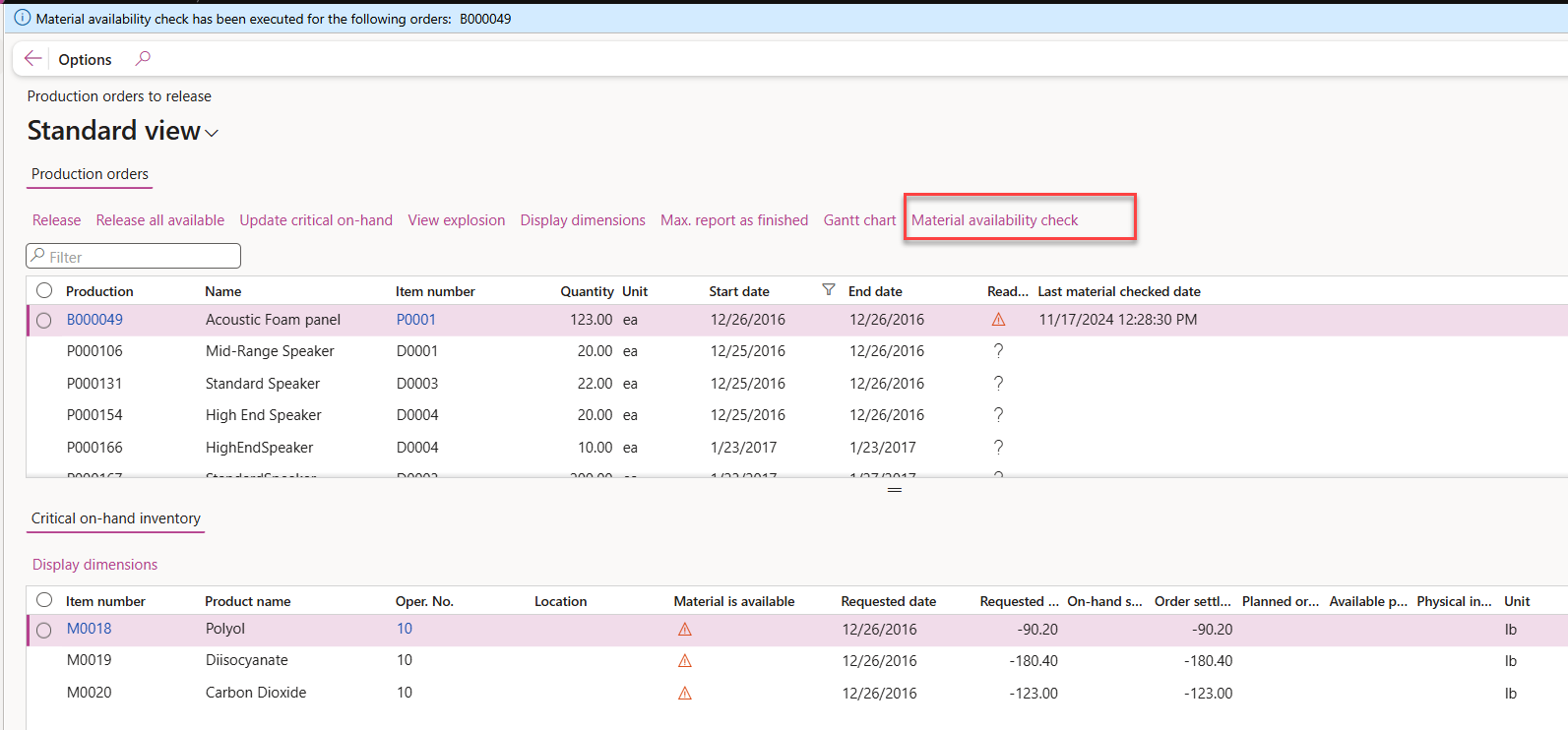
This can help you ensure that you have the necessary materials on hand before releasing production orders, allowing for a smoother and more efficient production process. This is particularly useful for businesses that rely on complex production processes, where multiple materials are required to complete a single order. By providing real-time visibility into material availability, you can quickly identify any potential shortages, and take proactive steps to address them before they become a problem, avoiding costly delays and disruptions, and ensuring that you are able to meet your production targets and deadlines.
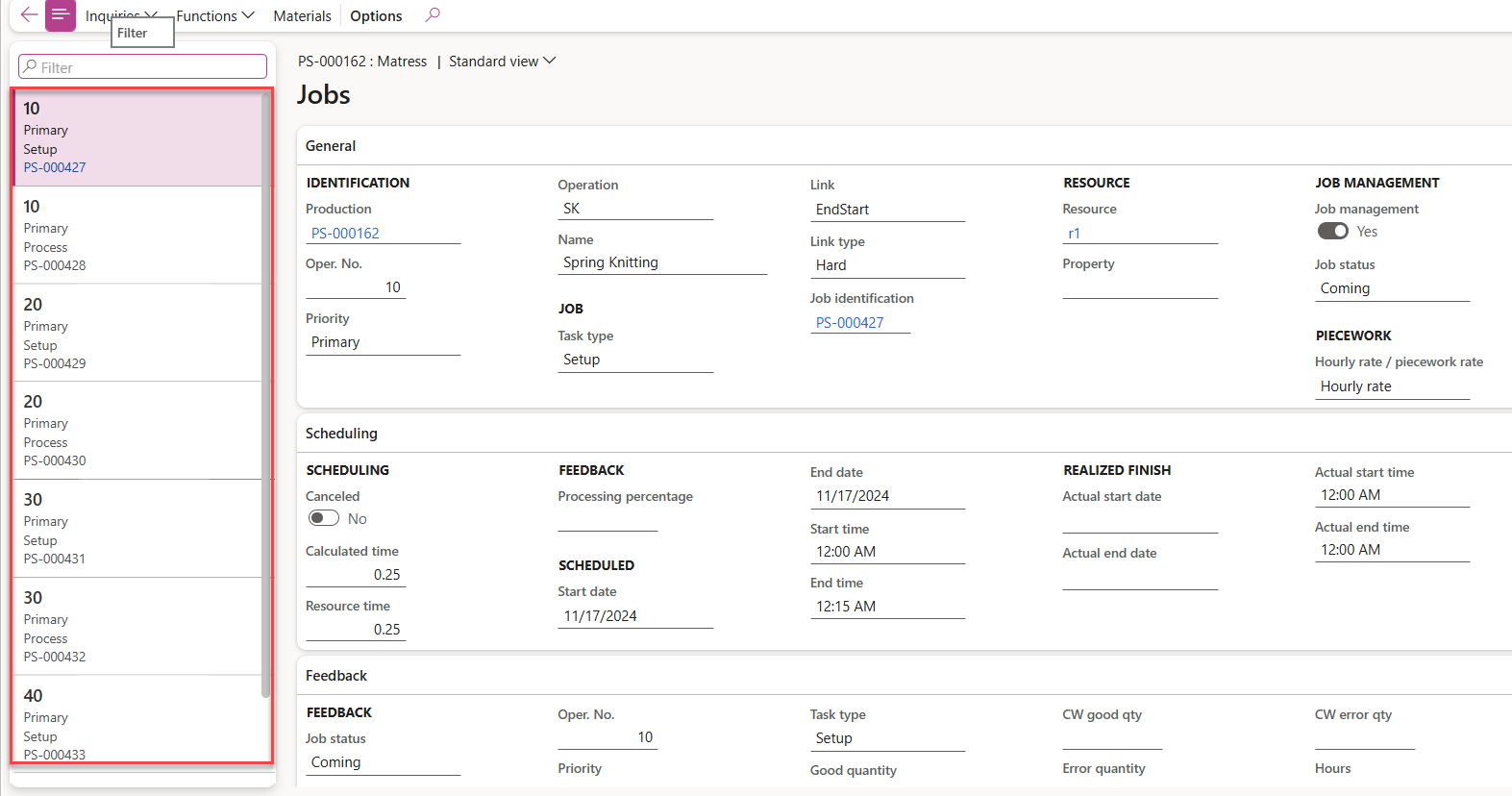
No jobs are created with operations scheduling whereas jobs are created with job scheduling. The demo data company used to create this task is USMF. This procedure is intended for the production manager, production planner, or shop floor supervisor working in a discrete manufacturing environment.
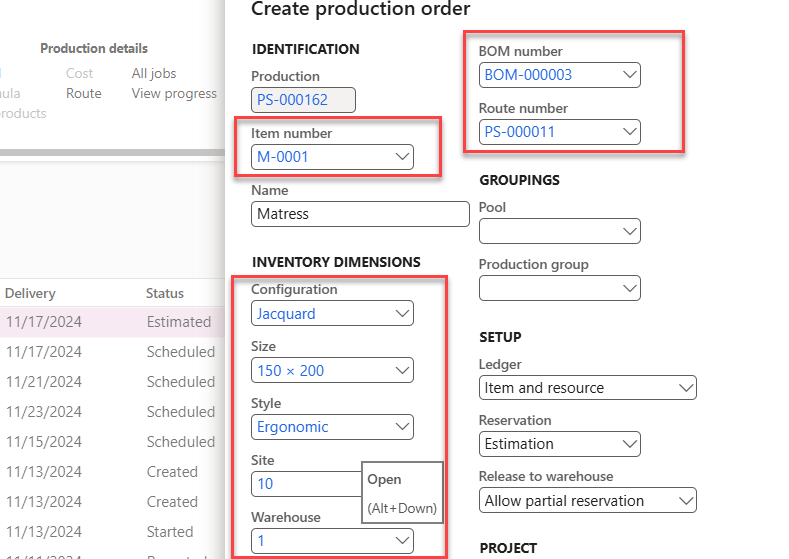
Create production order
- Go to Production control > Production orders > All production orders.
- Select New production order.
- In the Item number field, enter or select a value. Select Item number #####.
- Select Create.
Schedule operations for production order
- Mark the newly created row.
- On the Action Pane, select Schedule.
- Select Schedule operations.
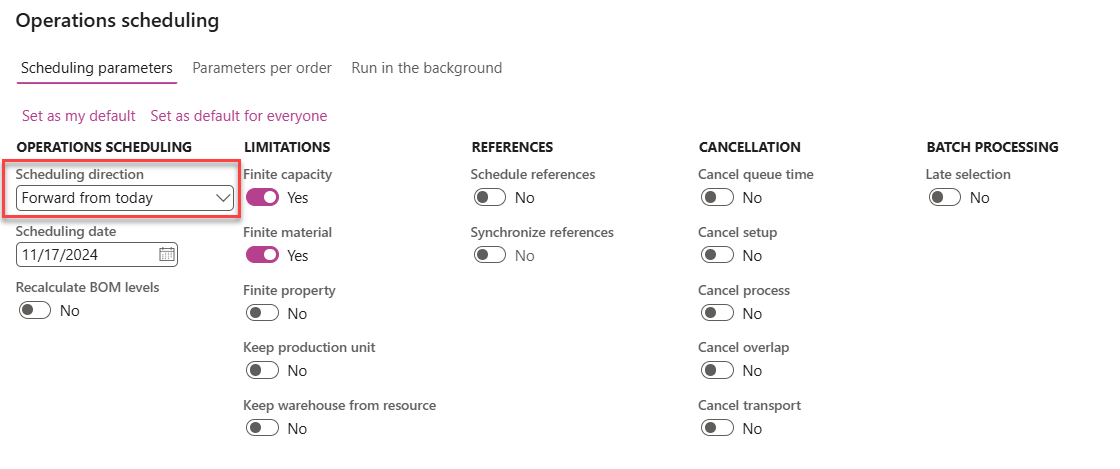
- In the Scheduling direction field, select Forward from scheduling date.
- In the Scheduling date field, enter a date. Select a future date, for example, today plus one week. With the selected Scheduling directions, the production order will be scheduled forward from this date.
- Select OK.
- In the list, mark the selected row. Note that the status is changed to Scheduled.
- Select All jobs.
Note
No jobs are created with scheduling operations.

Schedule jobs for production order
- On the Action Pane, select Schedule.
- Select Schedule jobs.
- In the Scheduling direction field, select Forward from scheduling date.
- In the Scheduling date field, enter a date. Select a date in the future, for example, today plus one week. With the selected Scheduling direction, the production order will be scheduled forward from this date.
- Select OK.
- On the Action Pane, select Production order.
- Select All jobs.

Note
Based on the active route, jobs are created with job scheduling.
Scheduling options from the Gantt chart
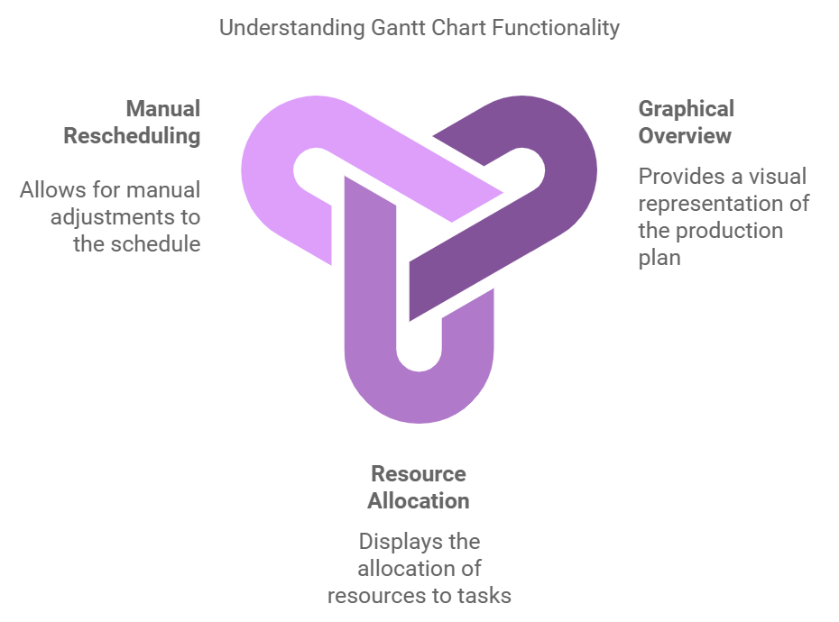
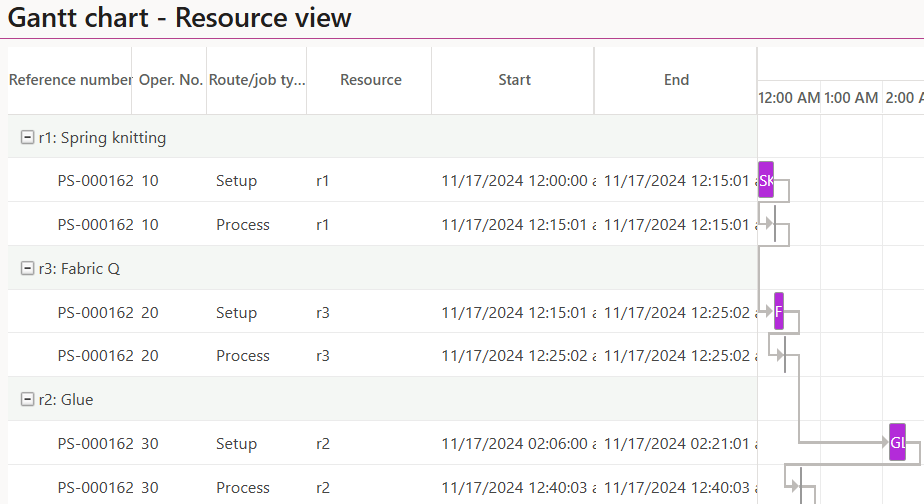
The Gantt chart displays a graphical overview of the current production plan that is scheduled for the selected resource or production order. You can also use Gantt chart functionality to manually reschedule the production.
Production control > Production orders > All production orders > Schedule tab > Schedule jobs > Parameters per order
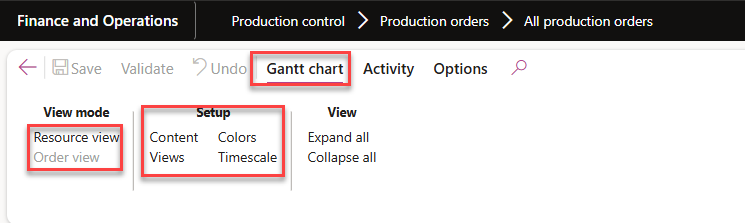
From the View Mode you can change the View either you want to see job wise or Order wise.
From setup tab you can change the colors and time units.
Scrap and waste
Scrap, or waste, is an excess that occurs during the process of manufacturing an item and cannot be used. It is often factored as an ongoing company expense. Businesses typically strive to design processes that produce the desired quantity of products with minimal scrap and overhead.
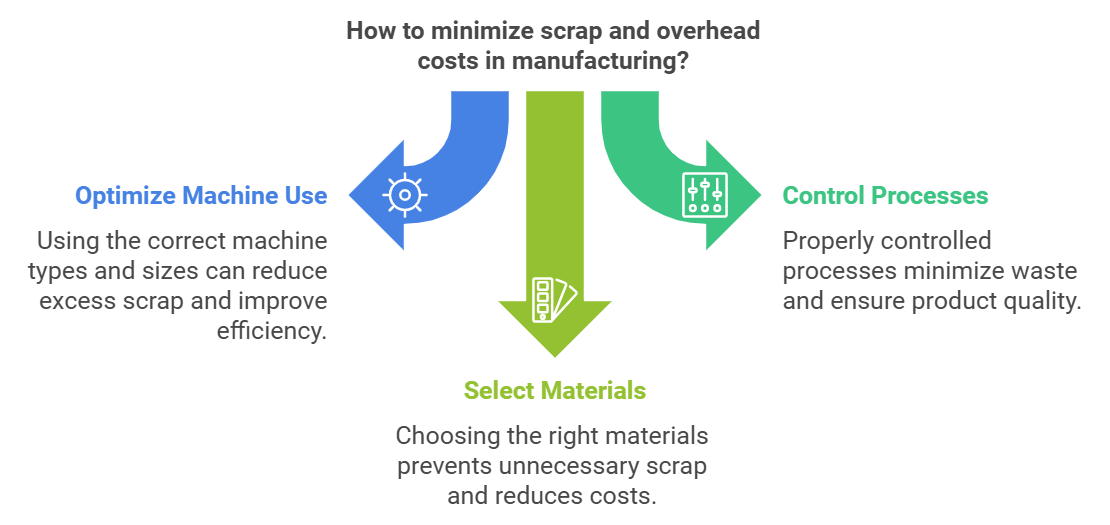
Scrap and other overhead costs occur in the following scenarios:
- Wrong machine types or sizes are used
- Processes are not controlled correctly
- Wrong types of materials are used
Supply Chain Management allows you to manage and calculate scraps. However, before applying the settings, you must have a working knowledge of the scrap percentages that exist in your production and the relevant factors that pertain to your process.
Scrap settings
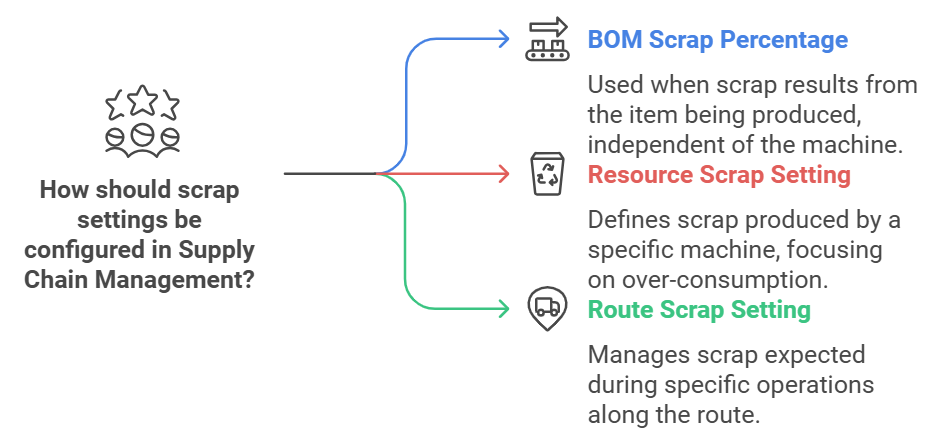
You can apply scrap settings in Supply Chain Management on the following levels:
- Scrap percentage set on the BOM - This setting is used when the scrap results from the item being produced, not from the machine it is being produced on. The system generates the requirements for production orders based on this percentage, regardless of where the item is produced.
- Scrap setting configured on the Resource - If you want to define scrap that is produced by a specific machine, the scrap setting must be configured on the resource. You can define the expected over-consumption for an operation by entering a value in the Scrap percentage field on the resource.
- Scrap set on the route - In addition to managing scrap types on BOMs and resources, you can use Supply Chain Management to manage scrap on routes. To use this method, specify a scrap percentage for operation(s) in which scrap is expected.
BOM scrap
Scrap settings on the BOM are defined as an expected amount of extra material or waste that is left over after the manufacturing of a BOM component. Because it is an ongoing company expense, unused material costs are tracked and calculated.
For example, the production team at a company has been monitoring the scrap that is produced during television production. It seems that as the company's orders have increased, the scrap has increased, but it has not been considered in the cost of the finished goods. The production team has requested a meeting with the design team to set up BOMs with the appropriate scrap.
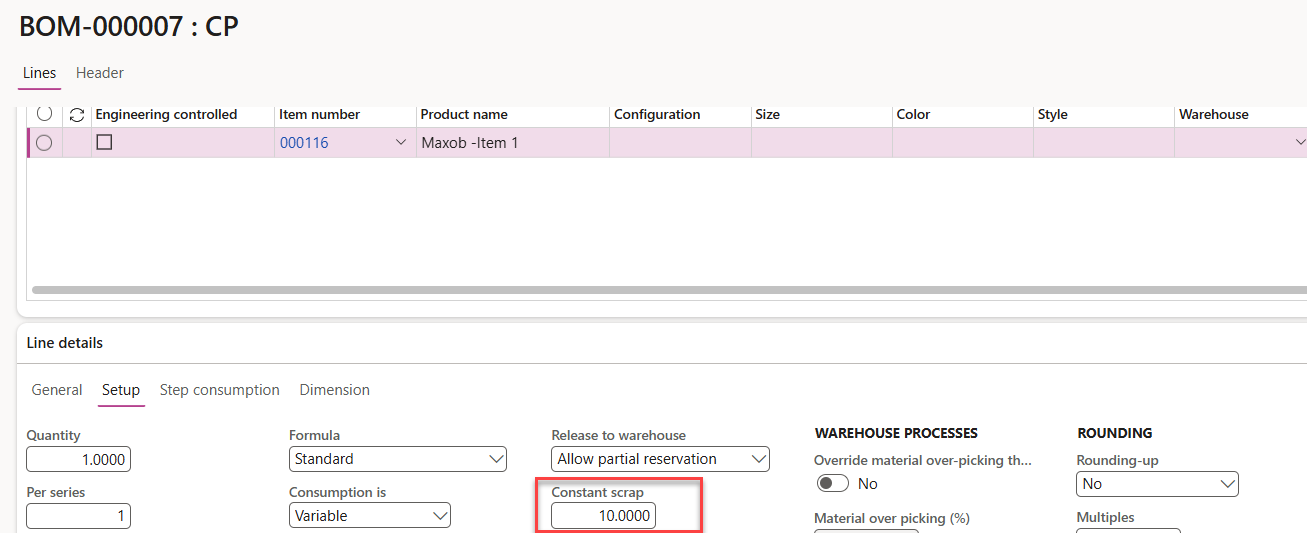
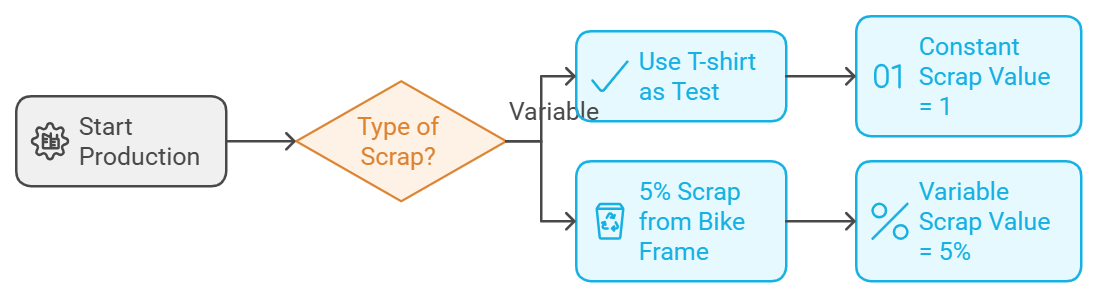
You can specify scrap when calculating the consumption of raw materials that are used in the components of a BOM. Supply Chain Management includes two types of BOM scrap:
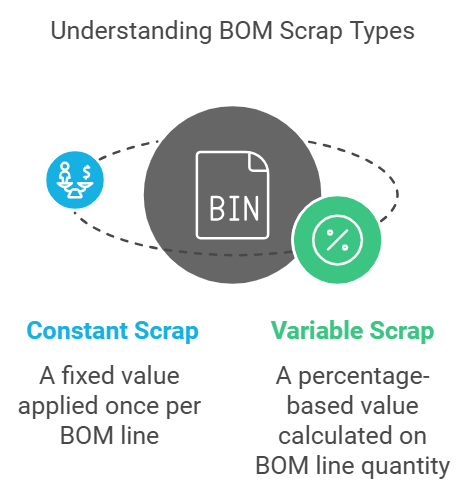
- Constant scrap - Specify the constant value if it is to be calculated only one time on the BOM line, regardless of how many items are produced. Scrap is calculated in the unit that is specified in the BOM line. Scrap is used to calculate adjusted raw material consumption in BOM lines.
- Variable scrap - Specify a variable scrap value. This percentage value is calculated as a percentage of the BOM line quantity, where 10 percent is written as 10.00. Scrap is used to calculate corrected raw material usage in the BOM lines.

For Example, I have mentioned the Constant Scrap as 10.
So, system Is taking 10 as an additional for the item.
Resource scrap
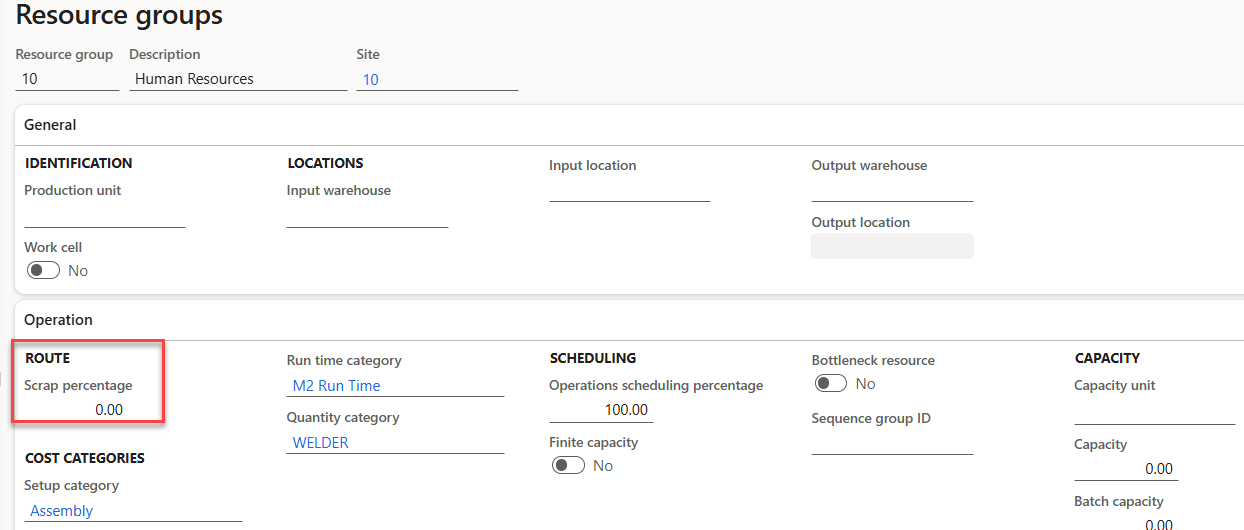
You can also specify scrap settings on the resource. To make this specification, define the expected over-consumption for an operation by entering a value in the Scrap percentage field on a resource on the Resource page.
The defined scrap percentage must be positive. Over-consumption is included in the calculation of material consumption and in the resource consumption for the current operation.
Use the error percentage to calculate the quantity to be started for each production. An error percentage means that more materials and resources must be used to produce the scheduled quantity.
After you have defined the scrap settings for the BOM and resource, these settings work together so that production personnel have the correct parts to produce the end items in demand. Without the ability to set up scrap settings in Supply Chain Management, the organization will continuously experience shortages.
Route scrap
In addition to managing scrap on the BOM and in resources, Supply Chain Management also helps manage scrap on the routes. To manage scrap on the routes, you can specify a scrap percentage for each operation(s) in the route on which scrap is expected.
When you specify a scrap percentage for a specific operation in the route, you essentially tell the system that more material and resources are needed to produce the scheduled quantity. When the route is updated, the scrap percentages for each operation are accumulated into a total scrap percentage for the entire route.
Costing of scrap/waste
Costing is used to calculate production costs when it is reported as finished. Costing calculates the actual production costs based on actual material and time consumption. When a production order has error quantities, the scrap method specifies how the item and resources error quantities must be posted.
To set up how scrap should be posted, select Production control > Setup > Production control parameters > Standard update tab. Select the method for posting item and resource consumption that is used for the error reported quantity.
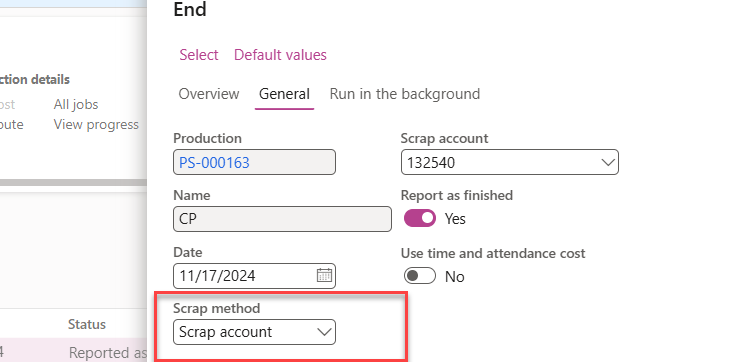
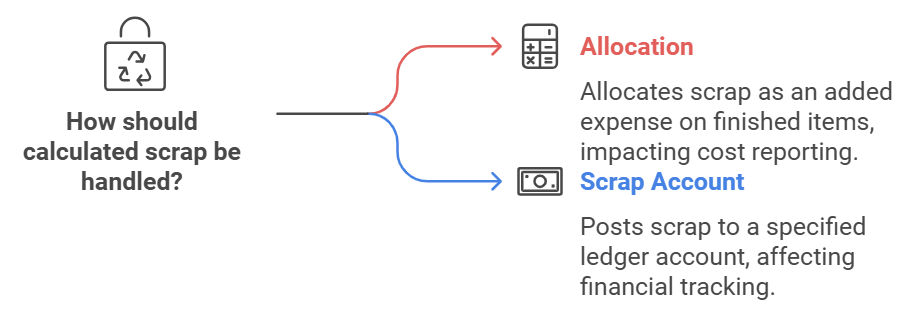
The two possible settings for the Scrap method field are:
- Allocation - The calculated scrap is allocated as an added expense on the quantity of finished items that are reported as finished.
- Scrap account - The calculated scrap is posted in the ledger to the specified account.
Start a discrete production order
Start a discrete production order
Let’s start a business case where we will produce an item and will consider the Capacity planning and finite material.
Creating Working Time Templates
The first step in setting up capacity planning is to create working time templates. These templates define the standard working hours for resources, which can be machines or employees.
- Navigate to: Organization administration > Setup > Calendars > Working time templates.
- Set up Templates: Define normal working hours, including start and end times for each work period (e.g., from the start of the workday to lunch break).
Establishing Working Time Calendars
Working time calendars are essential for managing the availability of resources. These calendars use the working time templates to specify the working hours for each day.
- Create Calendars: Organization administration > Setup > Calendars > Calendars.
- Configure Working Times: Define typical workdays, weekends, holidays, and other variations.
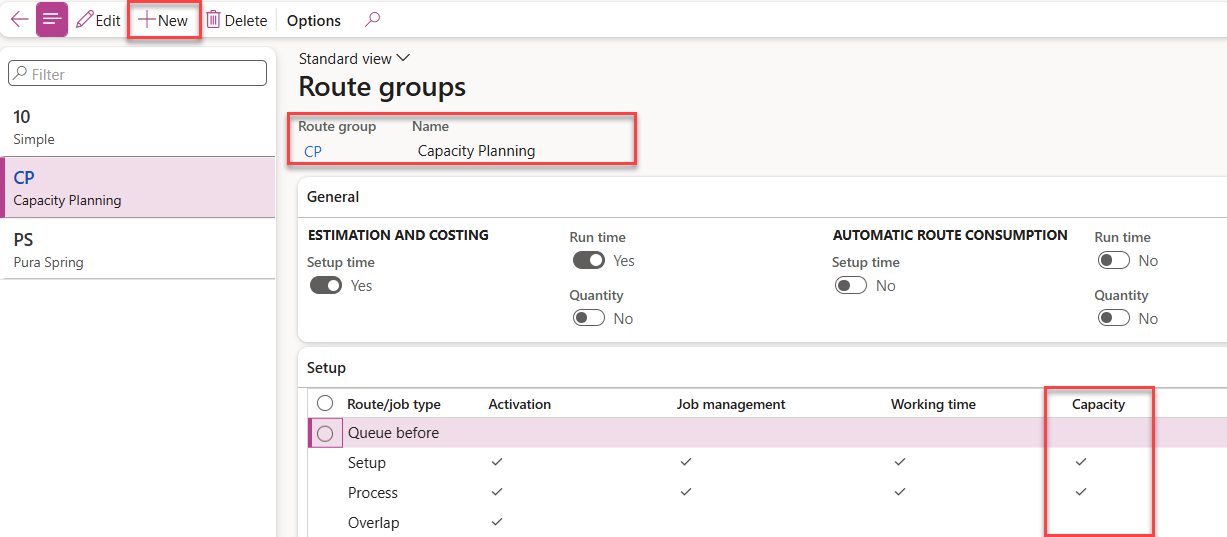
Route Group
Create a resource group where Capacity planning is enabled.
Production control> Setup>Routes>Route groups
Resource Group
In our case, we'll deal with resource groups. When several machines on the same site are able to run the same kind of tasks, that is to say one can replace another one, it's a good idea to use resource groups to gather them. You can create them under
Production control > Setup > Resources > Resource groups.
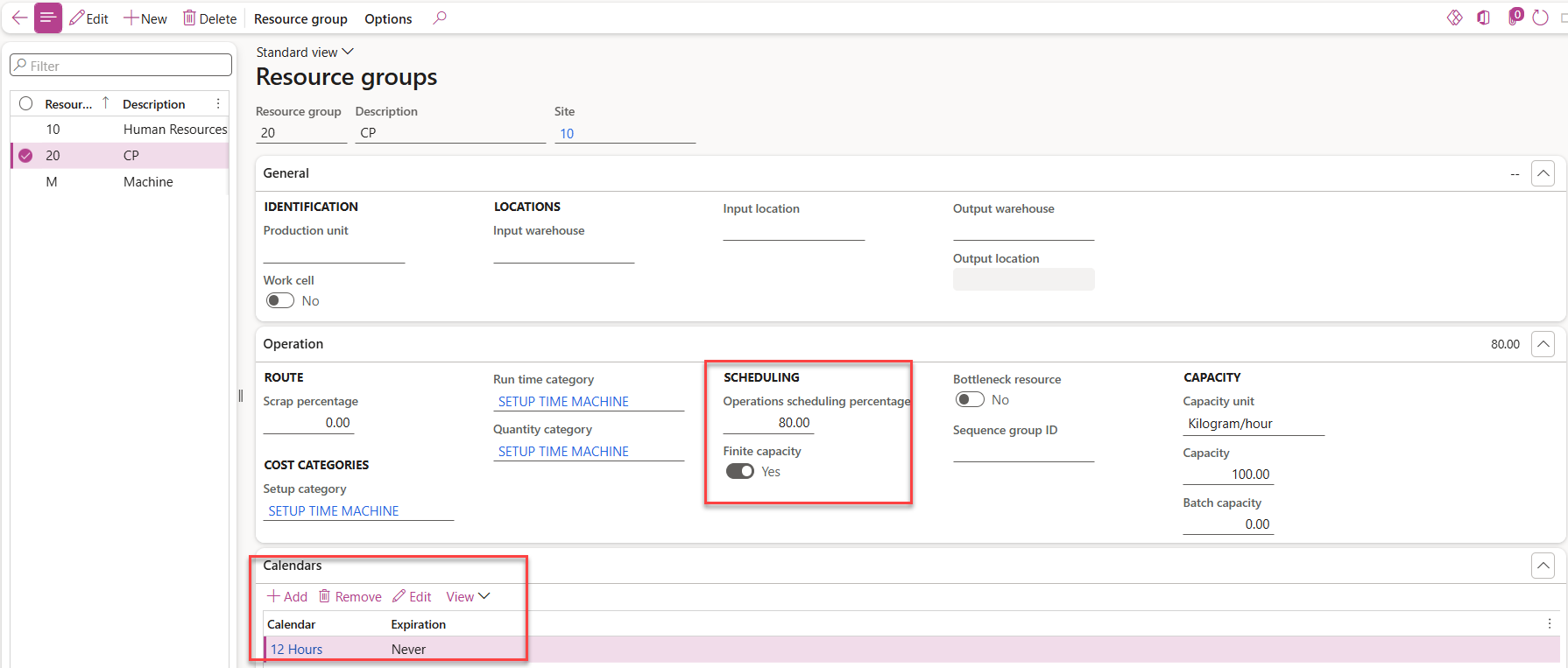
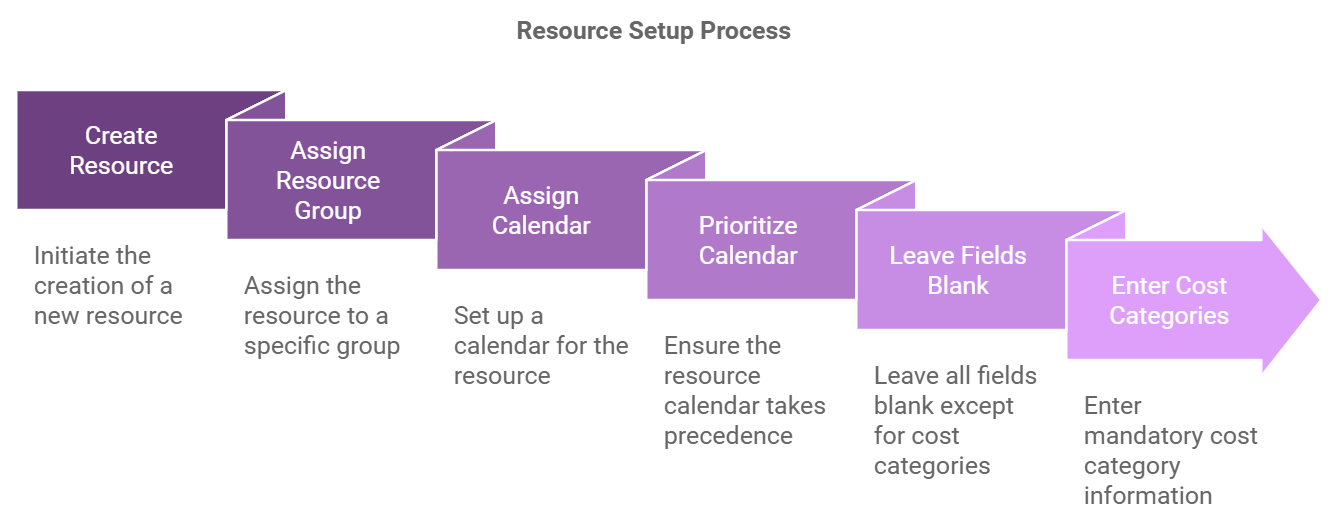
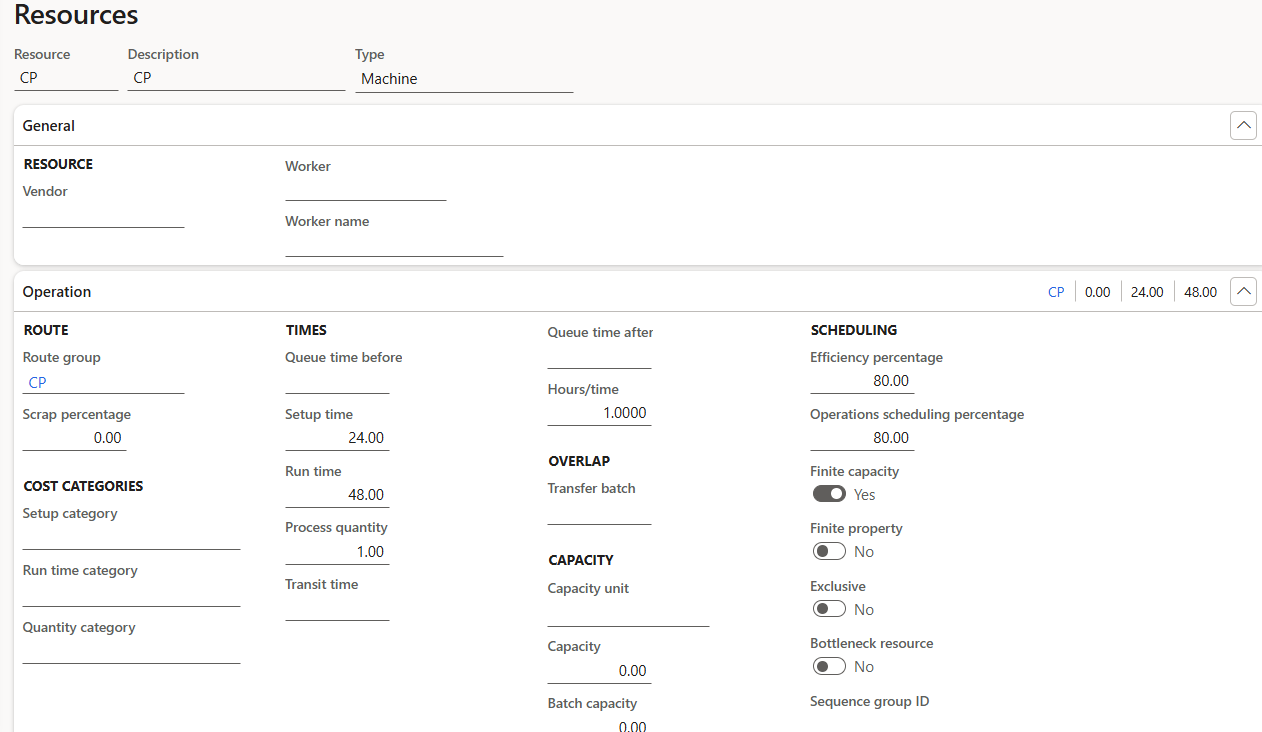
You can now create resources as machines (see the “Type” field), affect them the previous resource group created and also affect a calendar. The calendar setup on resources is prior to those setup on resource groups. Leave all the fields to blank, except the cost categories which are mandatory when running the process.
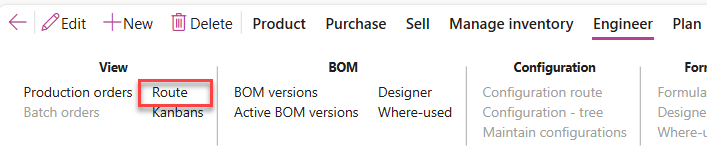
Route
When adding a new operation route, you'll need to specify which resource requirement you want to use for running the current operation. In that case, we'll choose “Resource group” and select the one we have created earlier.
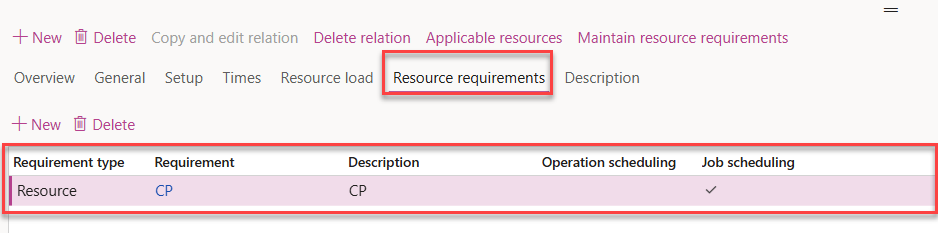
Click on Resource requirements and select the resource that you have selected earlier.
Now, let’s create a production order.
Make sure to attach resource with calendar otherwise you will get an error message.

“No capacity is available”.
Production Order
- Create a new production
- Select that item
Production order scheduling
Here we go for creating one production order
Go to Production control > Production orders > All production orders, and New
Choose the item with the route just setup, and update your production order to estimated
if this step is mandatory according to the main setup done in Production control > Setup > Production control parameters > Status tab
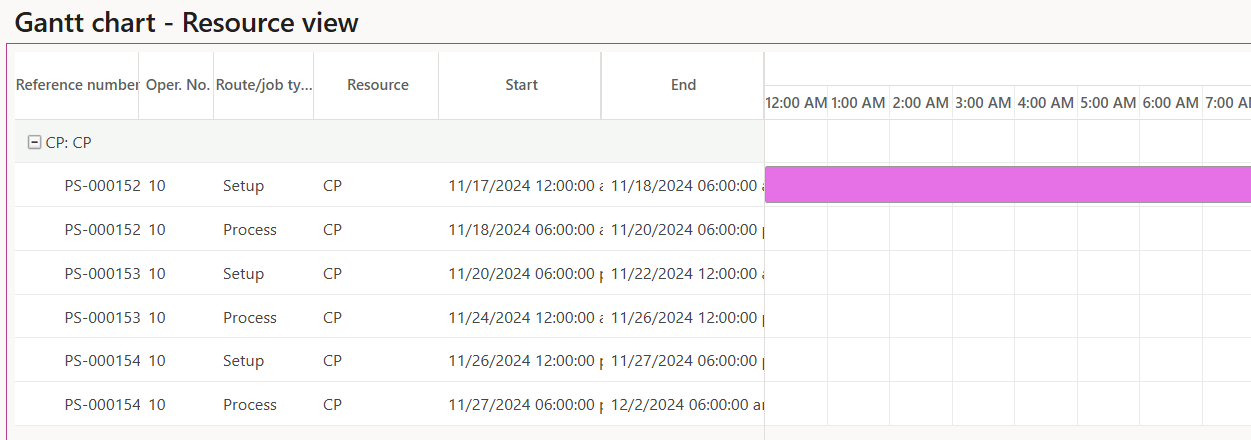
You can verify that in gant chart and see the capacity in view tab.

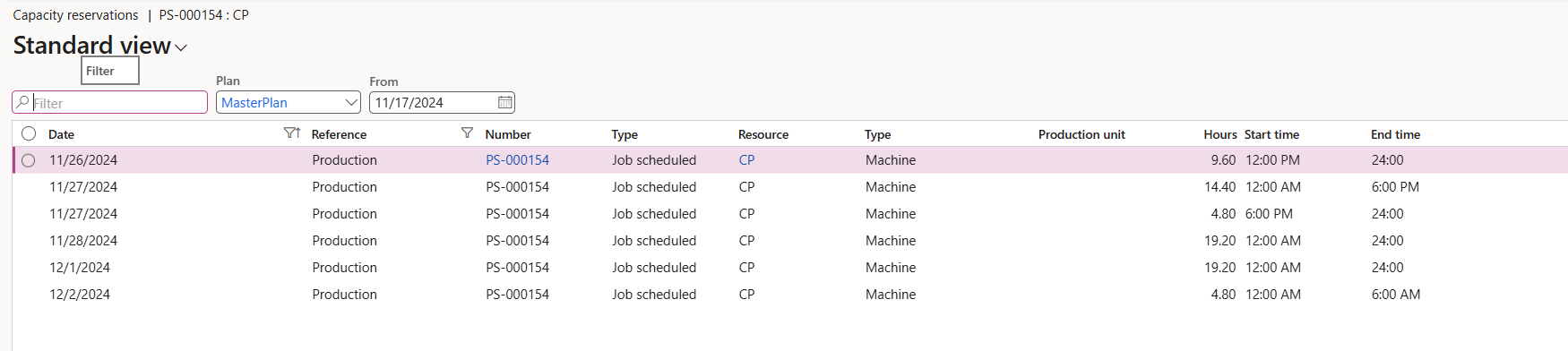
Graphical View
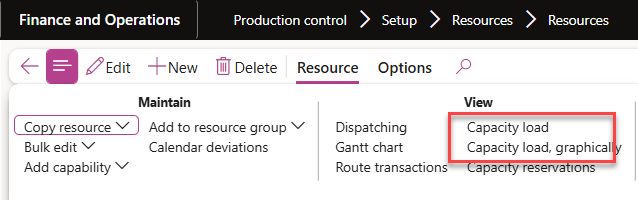
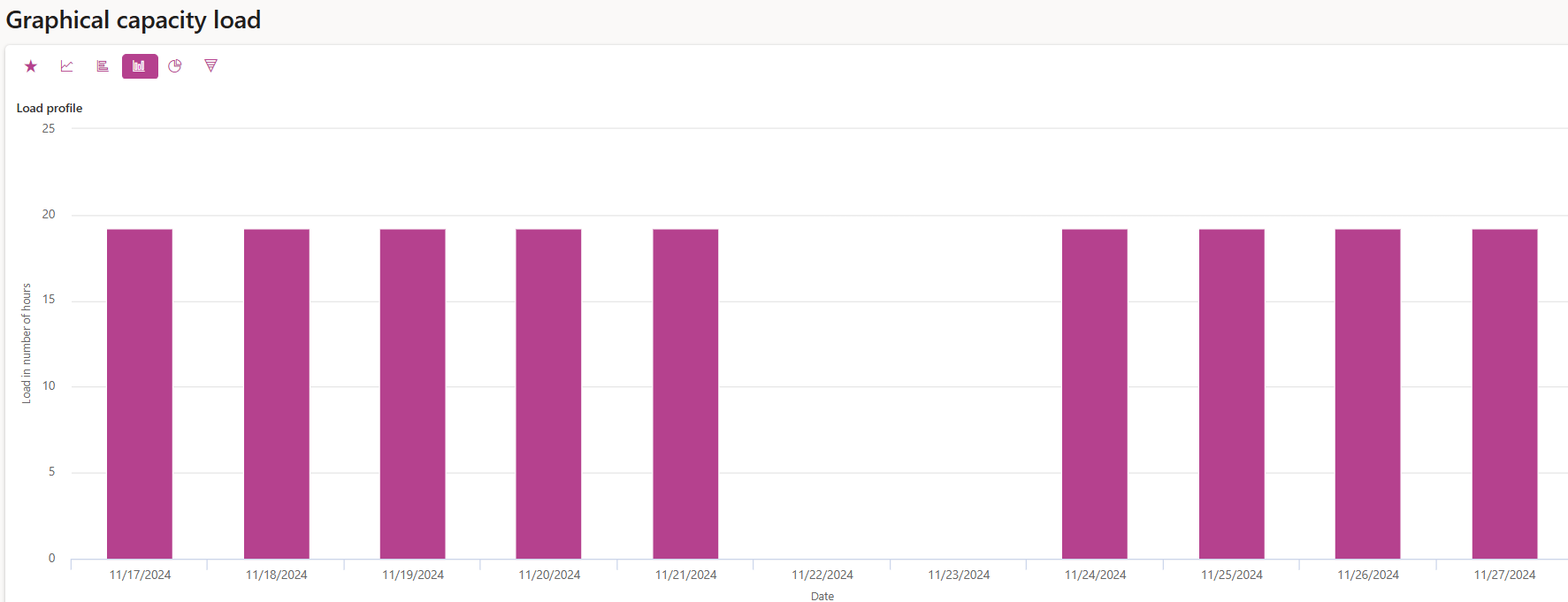
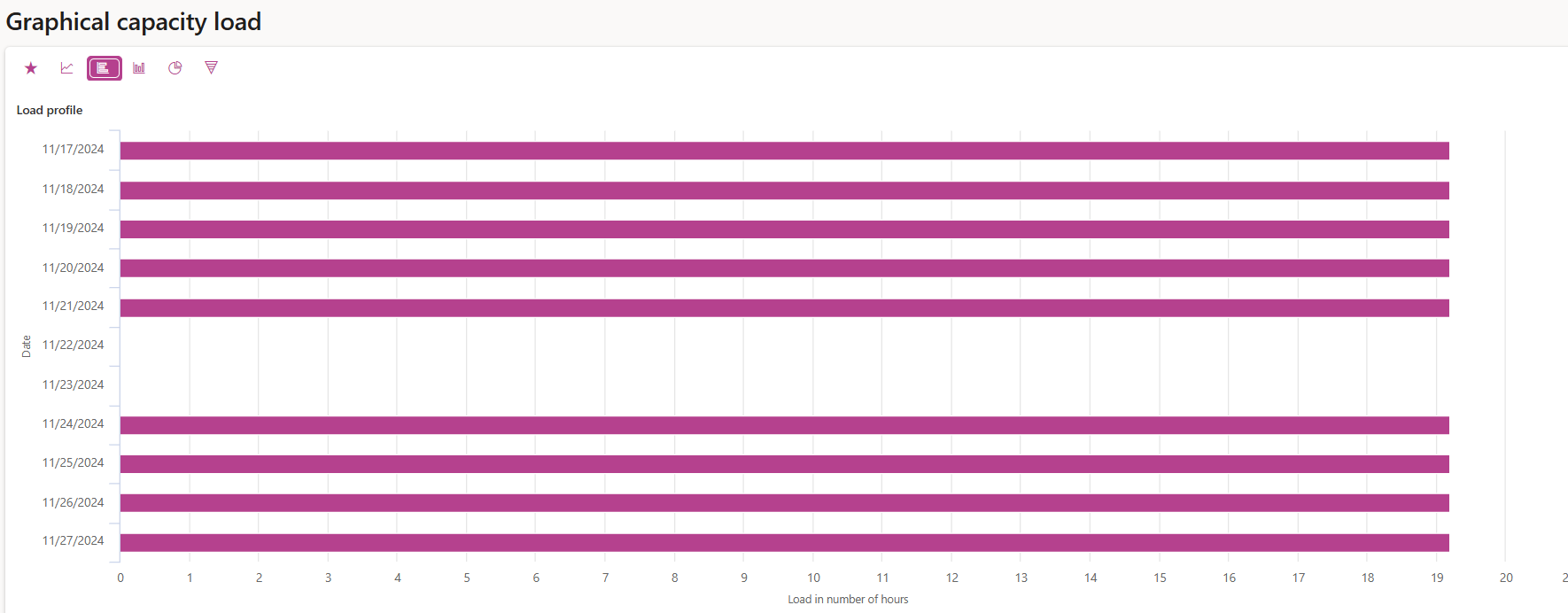
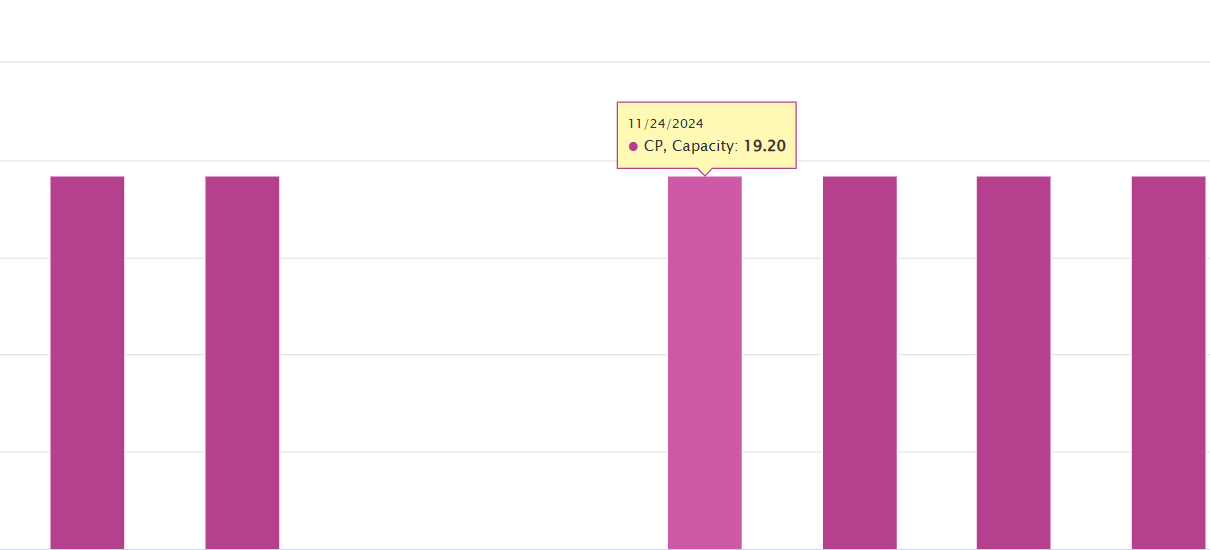
You should know about the graphical capacity load report available under Production control > Inquiries and reports > Resources > Graphical capacity load.
`
That’s all hope it will help You 😉…