
Pricing Management in Dynamics 365 SCM
Chapter 6 – Margin Price Adjustments
Hello everyone! Hope you are all doing well.
Until now every price in this series came from one place: a trade agreement line (or the item base price when no line matched). In real life a price is often built in layers: a list price, then a surcharge for one segment, a seasonal uplift, a markdown for slow movers. Changing the trade agreement for every such layer is not practical. Pricing Management solves this with margin price adjustments: rules that move the price up or down on top of the base price.
This chapter also answers the question left open in Chapter 3: does a price component code have to be in the price tree before its rules work? And it documents a trap that cost me a lot of testing time, so you do not have to go through it.
Our requirement for today
- Royal Palm Hotel (PM-C004, customer group PM-HORECA) is delivered in small drops several times a week. The business charges all HORECA customers a 5% service surcharge on all products, on top of their normal price.
- Later the business wants to compare it with a fixed surcharge of 3.00 per unit, and then plan the surcharge to start on 1 October 2026.
- Other customers (hypermarkets, minimarkets) must not be affected.
Today's agenda
- What is a margin price adjustment?
- The Margin component price adjustments page.
- Creating the HORECA surcharge rule.
- Adding the component code to the price tree.
- First test – the surcharge is not applied.
- The missing switch: Allow price adjustment on the trade agreement.
- Test: 5% on top of the trade agreement price.
- Test: a component code that is not in the price tree.
- Test: Percentage versus Amount.
- Test: the validation period.
- Summary.
1. What is a margin price adjustment?
A margin price adjustment is a pricing rule that changes the unit price by a percentage or an amount. It does not replace the price; it is added on top of it:
Unit price = base price ± margin price adjustments
The base price is the sales trade agreement price when one applies, otherwise the item base price. Every adjustment rule belongs to a price component code of the type Margin component. In Chapter 3 we created such a code, PM Segment adjustment, with the header price attribute group PMCustomerHeader (customer group, region) and the line group PMProductLine (item, brand). Today we finally use it.
Why use an adjustment instead of another trade agreement price? Because the base price stays in one place. When the list price of the oil changes, the HORECA surcharge follows automatically, and you can switch the surcharge on and off, date it, or change it from 5% to 3.00 without touching any price list.
2. The Margin component price adjustments page
Navigation: Pricing management > During-sales pricing > Price adjustments > Margin component price adjustments
USMF already contains two demo rules (Speaker sale, Variant price adjustments). They use the demo code General price adjustment, which sits at pricing sequence 3 in the price tree. Look at the Calculation FastTab: the pricing sequence and the Compound flag are not entered on the rule; they are read from the price tree for the selected price component code.
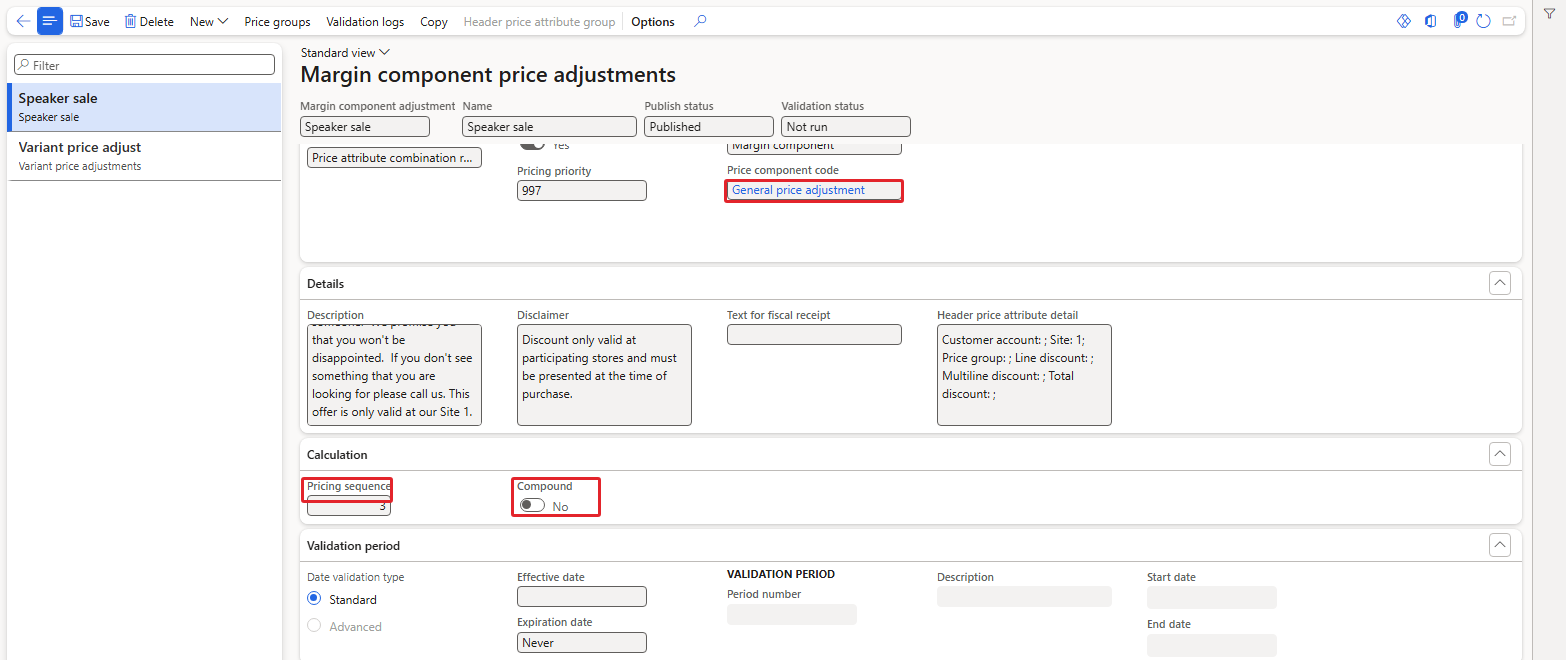
The page with the demo rule Speaker sale – price component code and the read-only Calculation FastTab
The important fields of a rule:
- Margin component adjustment: the ID. It comes from a number sequence (our rules got USMF-000002, USMF-000003, USMF-000004) and is read-only after the first save.
- Name: the description of the rule.
- Publish status: Draft or Published. After you enable a rule the system queues a batch job "Process commerce discounts for <ID>"; the status changed from Draft to Published once that job had run.
- Validation status: Not run / Validated.
- Status: Disabled or Enabled. Only enabled rules are used. An enabled rule is read-only: the line values are locked and the Add button on the Lines FastTab is greyed out (I checked both). To change a rule, set it back to Disabled first.
- Currency: the currency the rule applies to.
- Concurrency model: read-only, Price attribute combination rank. It decides between several rules of the same component code (Chapter 8).
- Quantity tiers: enables quantity-dependent adjustments. Not validated in the current environment.
- Override priority / Pricing priority: lets you give the rule a fixed pricing priority instead of the calculated one (see section 5).
- Match all associated price groups: relevant when price groups are attached to the rule. Not validated in the current environment.
- Price component / Price component code: the type (Margin component) and the code the rule belongs to. Only codes of the type Margin component are offered.
- Header price attribute group type / Price attribute group: which customers the rule applies to. They are set with the Header price attribute group button on the Action Pane.
- Calculation – Pricing sequence and Compound: read-only, taken from the price tree. An empty pricing sequence means that the code is not in the price tree.
- Validation period: Standard (Effective date / Expiration date) or Advanced (a discount period). A new rule got the expiration date one year ahead (9/25/2027) by default.
- Lines: which products the rule applies to and the value – Calculation type (Percentage, Amount or Price), Percentage, Amount, Unit price, Unit, Site, Warehouse.
3. Creating the HORECA surcharge rule
To create a margin price adjustment follow the below steps.
3.1 Header
- Click New and select Margin component price adjustment (it is the only entry of the menu).
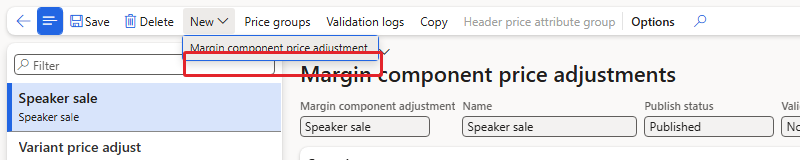
New > Margin component price adjustment
Before filling anything I clicked Save to see what is mandatory:
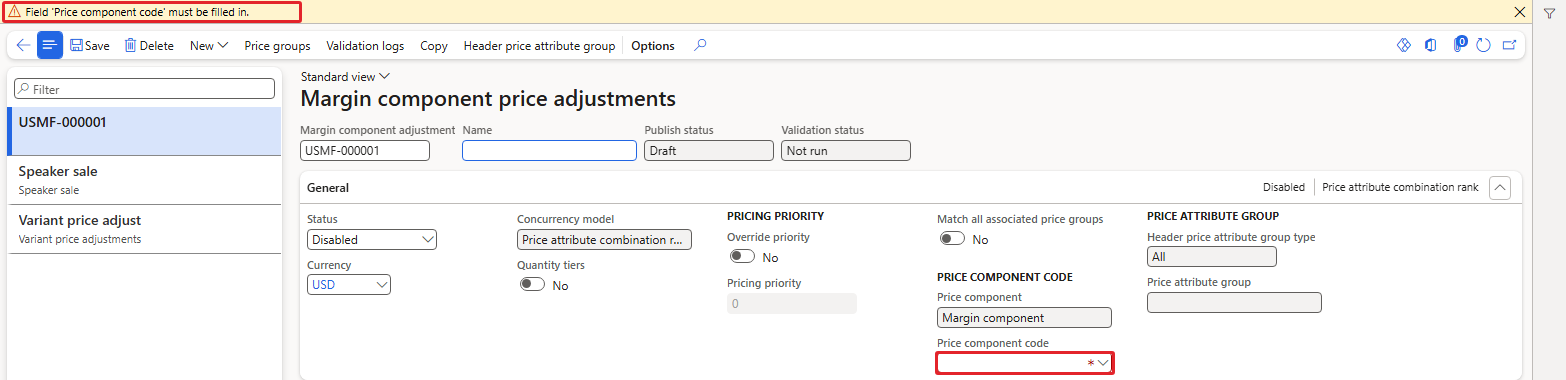
"Field 'Price component code' must be filled in."
- Enter the Name: HORECA service surcharge.
- Select the Price component code: PM Segment adjustment. The Price component shows Margin component.
- Save. The rule got the ID USMF-000002.
3.2 Which customers – the header price attribute group
- Click Header price attribute group on the Action Pane. The Edit price attributes dialog opens with Scope of price attributes = Header.
- Set Group type = Group and Price attribute group = PMCustomerHeader.
- Enter the condition Customer group = PM-HORECA and leave PM-Region empty (an empty condition means any value, as we saw in Chapter 3).
- Click OK.
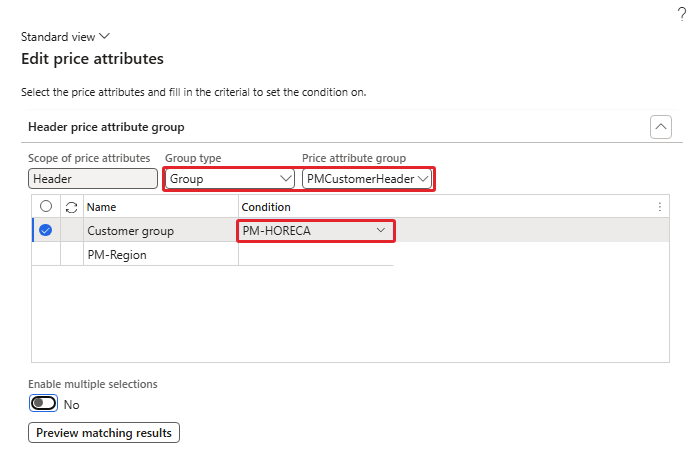
Header condition: Customer group = PM-HORECA
With Preview matching results in the same dialog I checked who is covered: the preview listed only PM-C004 Royal Palm Hotel (Include).
3.3 Which products – the lines
- On the Lines FastTab click Add. The Edit price attributes dialog opens again; the header part is read-only now.
- In Price attribute group combination select PMCustomerHeader-All. The line part shows Group type = All, so the line covers all products. This combination exists because we switched on "Use all in line group" on the code in Chapter 3.
- Click OK. The line shows Line group type = All and Combination rank = 1000.
- Set Unit = ea, Calculation type = Percentage and Percentage = 5, then save.
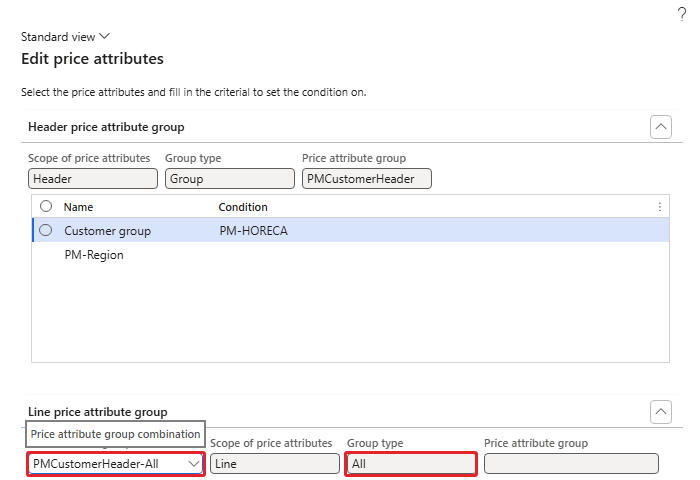
Line combination PMCustomerHeader-All – Group type All

The line: all products, rank 1000, 5.00%
3.4 Enabling the rule
Set Status = Enabled and save. The message bar said "The Process commerce discounts for USMF-000002 job is added to the batch queue." The Validation status became Validated, and after the batch job had run the Publish status showed Published. Note the Pricing sequence in the Calculation FastTab – at this point it was empty, because PM Segment adjustment was not in the price tree yet (the screenshot below was taken after section 4, when it shows 8).
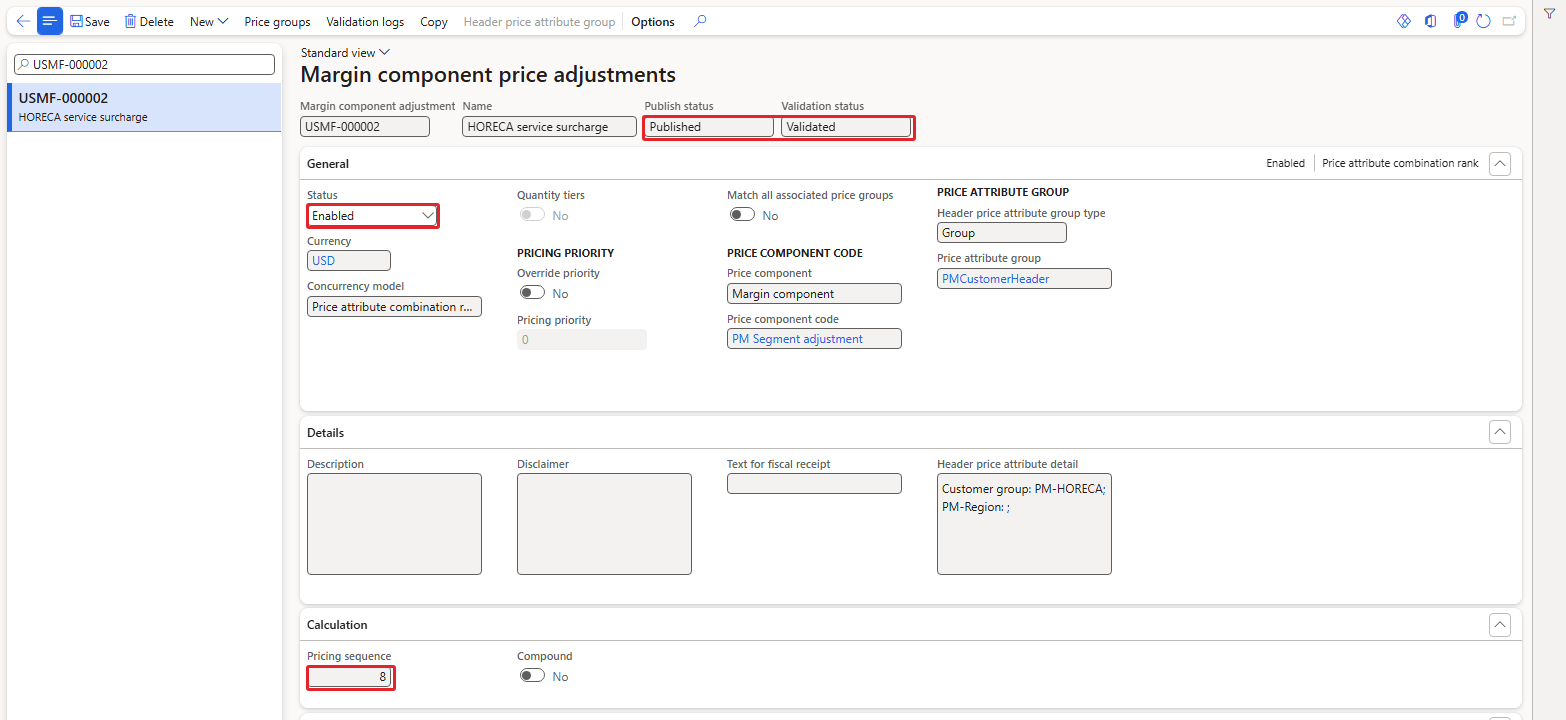
USMF-000002 enabled, validated and published – pricing sequence 8 after section 4
4. Adding the component code to the price tree
In Chapter 3 we saw that the price tree Inheritance holds the pricing sequence 1–7 and that our own codes were not in it. Before testing an order I added PM Segment adjustment to the tree.
Navigation: Pricing management > Setup > Price component codes > Price trees
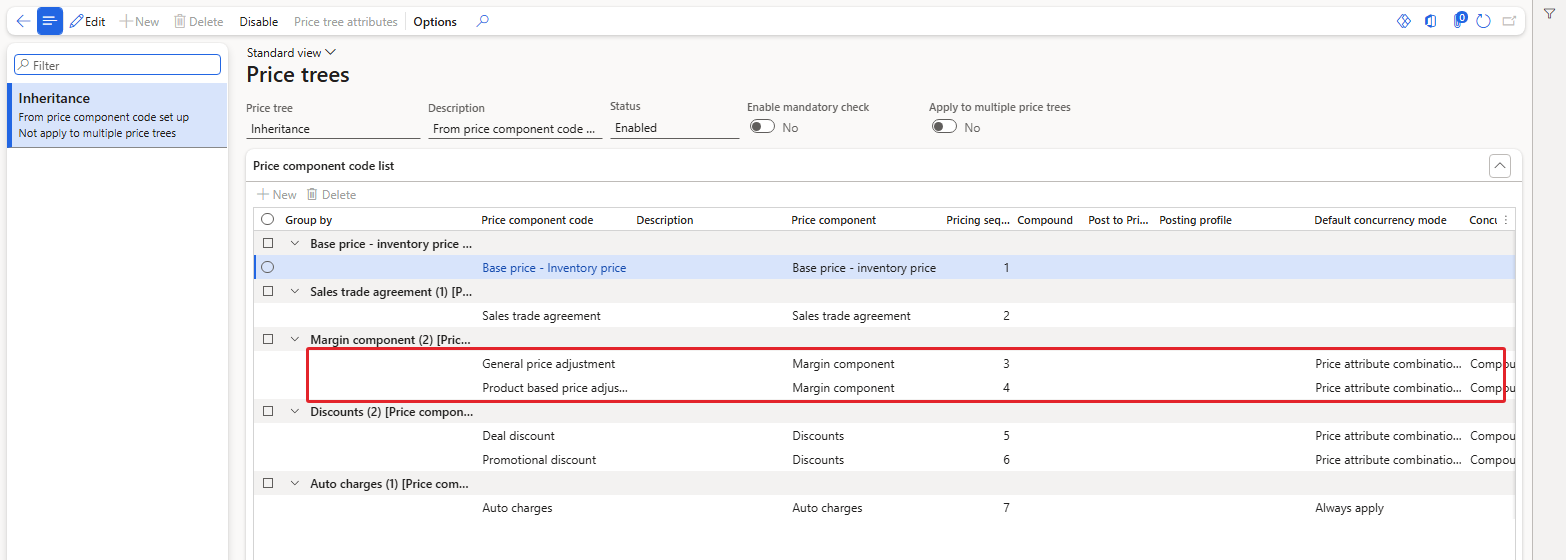
Price tree Inheritance before the change – margin components at sequence 3 and 4
First I clicked Edit: with the tree Enabled, New and Delete stayed greyed out. A price tree can only be changed while it is disabled:
- Click Disable on the Action Pane. The message "Price tree 'Inheritance' is disabled." appears and the New/Delete buttons of the Price component code list become available.
- Click New in the Price component code list and select the Price component code PM Segment adjustment. Price component = Margin component is filled from the code.
- Enter the Pricing sequence.
- Select the Concurrency mode across priority.
- Save, then click Enable. The message "Price tree 'Inheritance' is enabled." confirms it.

The tree disabled – New and Delete are now available
Two errors taught me the rules of this grid:
- Pricing sequence 4 – "The number '4' is already in use." Every pricing sequence in a tree must be unique.
- Pricing sequence 8 with an empty concurrency mode – "Concurrency mode across priority cannot be empty or "Best Price" for price adjustment component code."
The Concurrency mode across priority offers an empty value, Compounded, Best price and Never compound. For a margin component I selected Compounded:
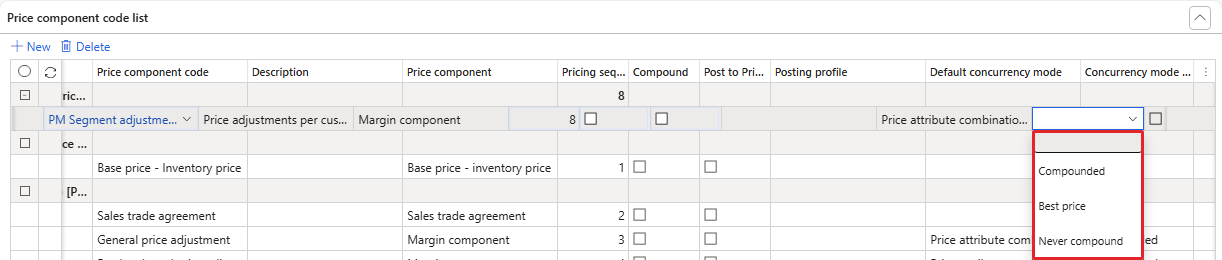
Concurrency mode across priority – the available values
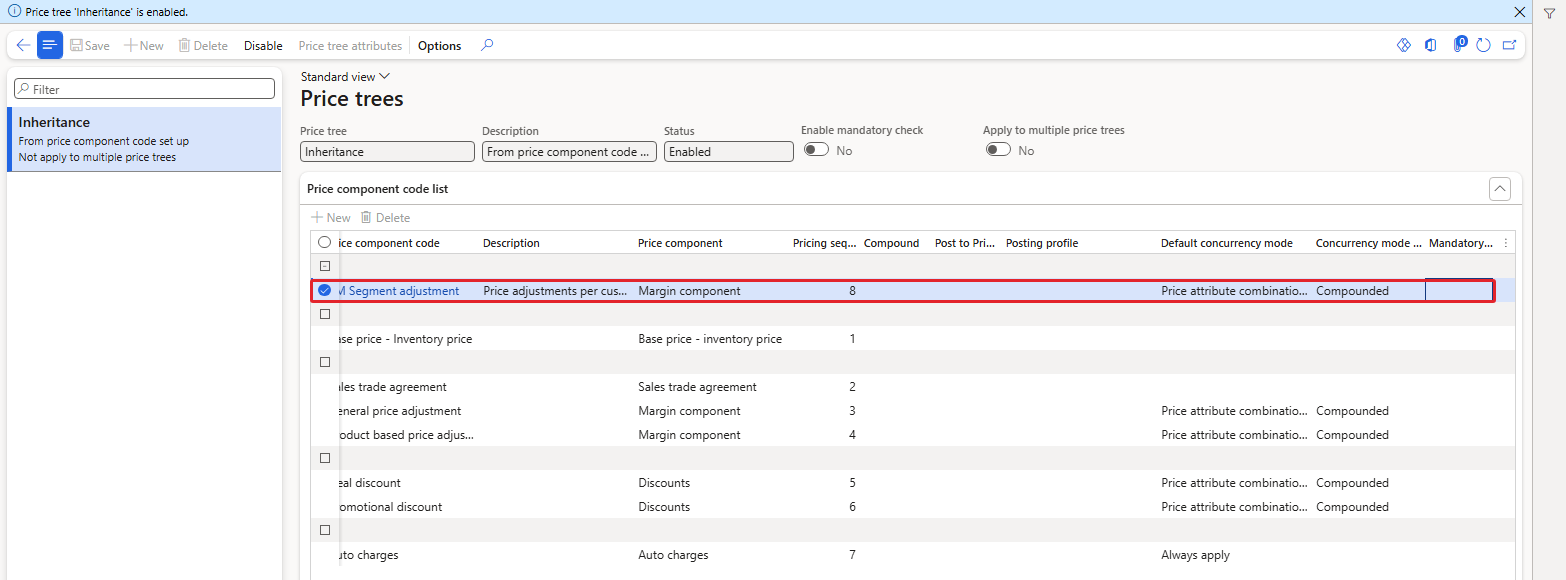
PM Segment adjustment in the tree at pricing sequence 8, Compounded – tree enabled again
| NOTE: The numbers 1–7 were already taken, so the code landed at 8, after the discount codes and the auto charges of the demo tree. In a real project leave gaps (10, 20, 30 …) so that new codes can be placed where they belong. Also keep the tree disabled only for the few minutes of the change; I did not test pricing while the tree was disabled. |
|---|
5. First test – the surcharge is not applied
Now a new sales order for Royal Palm Hotel with 10 × PM-OIL-5L and 10 × PM-RICE-10. From Chapter 4 the base prices are 98.00 (oil) and 48.00 (rice) from journal PDJ-00060. The expectation was 98 + 5% = 102.90 and 48 + 5% = 50.40.

Order 001367 – still 98.00 and 48.00
The prices stayed at 98.00 and 48.00, and the Price details showed the trade agreement PDJ-00060 in the Base price grid and an empty Margin component grid:
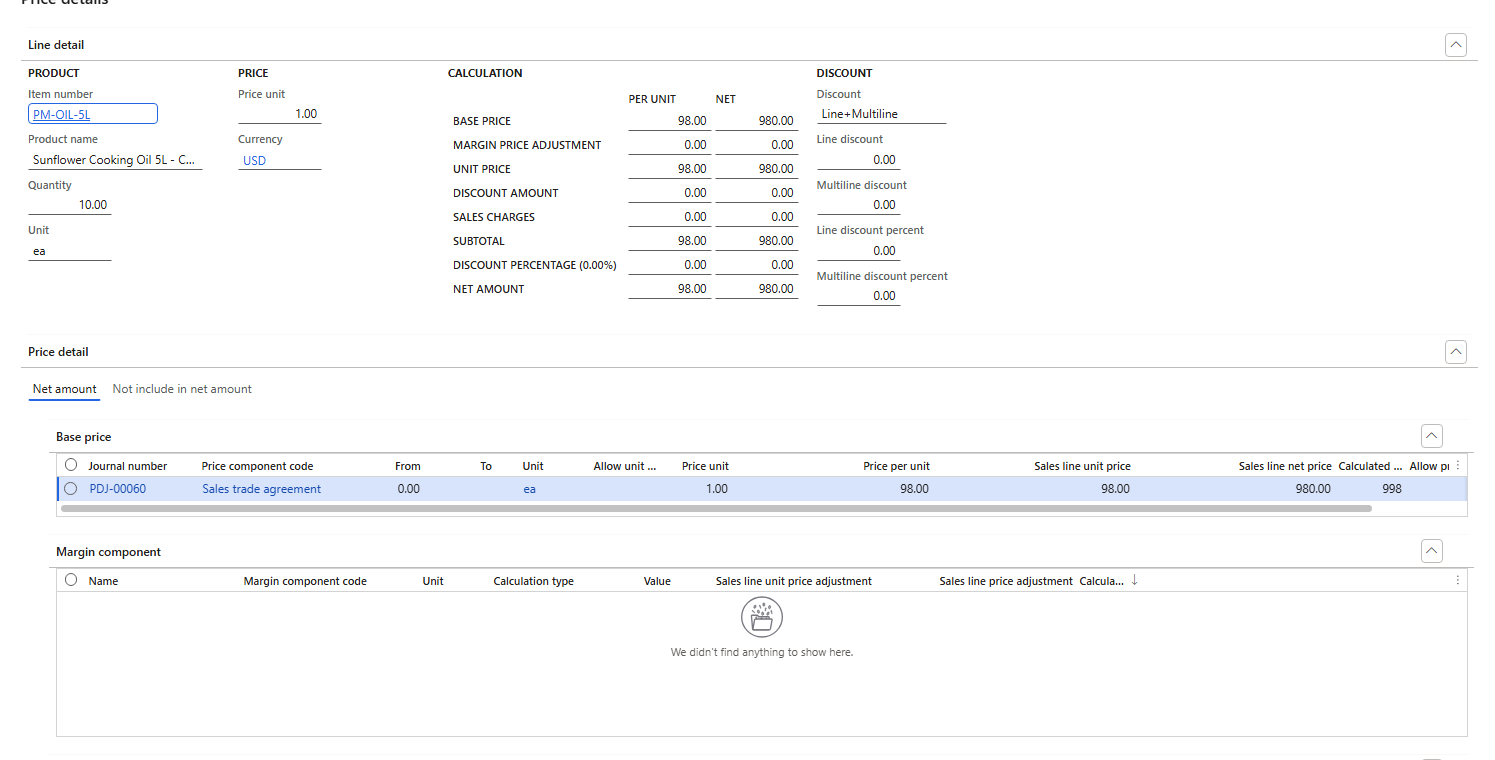
Price details – no margin component applied
Order 001367 was created before the price tree change, so the missing tree entry could explain it. But orders 001368 and 001370, created after the code was in the tree, gave exactly the same result: 98.00. So something else was blocking the adjustment. What I checked:
- The rule: Enabled, Validated, Published, Pricing sequence 8, header preview = PM-C004. All fine.
- The Price simulator. It has a FastTab Applied margin component price adjustments that lists the adjustments the engine considered. For PM-C004 and the oil it was empty, while the trade agreement PDJ-00060 was listed as applied.
- Override priority: I switched on Override priority with pricing priority 10 on the rule. No change (reverted afterwards).
- A diagnostic rule for all customers on the oil (USMF-000003) to rule out the header condition. Still no adjustment (the rule is disabled now).
Navigation: Pricing management > During-sales pricing > Price simulator > Price simulator
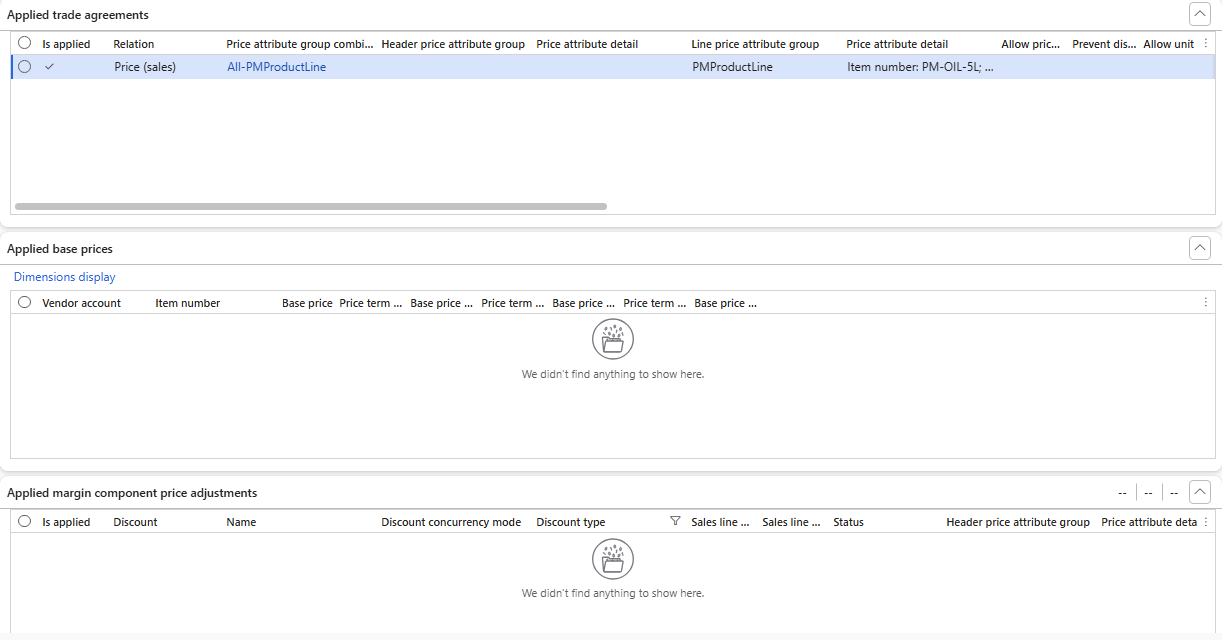
Price simulator for PM-C004 before the fix – trade agreement applied, no margin adjustment considered
So the adjustment was not rejected by its own conditions – it was never considered next to that trade agreement price. The reason was on the trade agreement side.
6. The missing switch: Allow price adjustment
Trade agreement journals created by Pricing Management have a field Allow price adjustment. Its help text in this build says: "Allow sales agreement price to apply the margin component price adjustment." It exists on the journal header (as the default for new lines), on every journal line and on the posted trade agreement.
All four journals we posted in Chapters 3–5 had it switched off – so the engine used the trade agreement price as it is and ignored every margin adjustment for those prices. Some demo trade agreements in USMF have it switched on, ours did not.
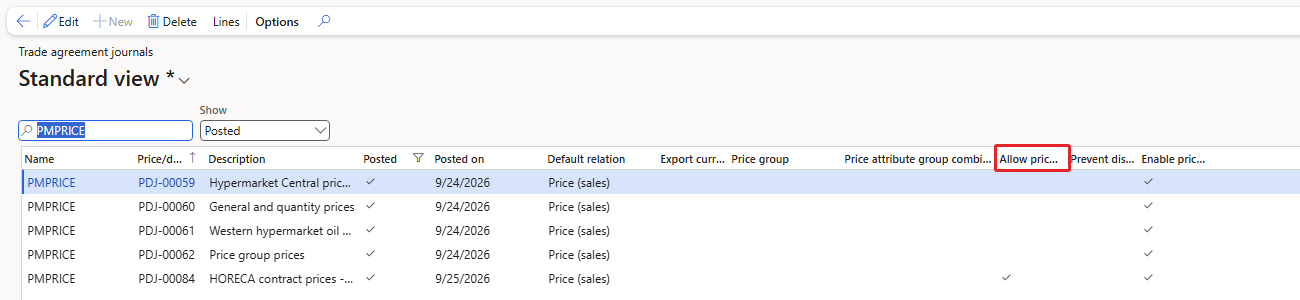
Posted PMPRICE journals – only PDJ-00084 has Allow price adjustment
A posted journal cannot be changed, so I created a new journal for the HORECA prices:
Navigation: Pricing management > During-sales pricing > Sales trade agreement price > Trade agreement journals
- New journal with name PMPRICE, description "HORECA contract prices - adjustable".
- In the journal list tick Allow price adjustment on the journal header and save.
- Open the Lines. For each line, in Edit price attributes: header Group type = Group, PMCustomerHeader, Customer group = PM-HORECA; combination PMCustomerHeader-PMProductLine; line Item number = PM-OIL-5L (second line PM-RICE-10).
- Amounts: oil 98.00, rice 48.00, unit ea – the same prices as before, only now adjustable.
- Post the journal (PDJ-00084).

Allow price adjustment ticked on the journal header
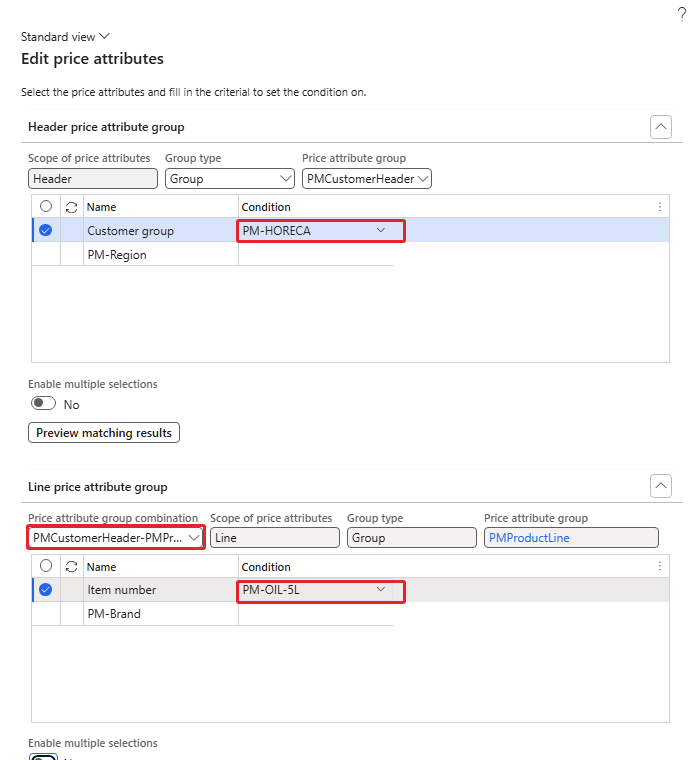
Journal line attributes – PM-HORECA and PM-OIL-5L
Both lines took Allow price adjustment = Yes from the header; I checked the journal lines in the database before posting. The new lines use the combination PMCustomerHeader-PMProductLine (rank 2002), so for Royal Palm Hotel they beat the general lines of PDJ-00060 (rank 2).
| TIP: Decide per price list whether margin adjustments may be added on top, and set Allow price adjustment on the journal header before you create the lines. A posted line cannot be corrected; you need a new journal. |
|---|
| NOTE: This build also contains a Pricing management parameter with the label "Apply price adjustment to non-attribute sales trade agreement price" (value No in USMF). As the label says it is about trade agreements without price attributes, which we do not use. It was not validated in the current environment. |
|---|
7. Test: 5% on top of the trade agreement price
New order for Royal Palm Hotel with 10 × oil and 10 × rice:

Order 001486 – oil 102.90, rice 50.40
| Item | Base price (PDJ-00084) | Adjustment 5% | Unit price | Line amount (10) |
|---|---|---|---|---|
| PM-OIL-5L | 98.00 | + 4.90 | 102.90 | 1,029.00 |
| PM-RICE-10 | 48.00 | + 2.40 | 50.40 | 504.00 |
Both prices were confirmed in the sales lines table. The Price details of the oil line show the whole story:
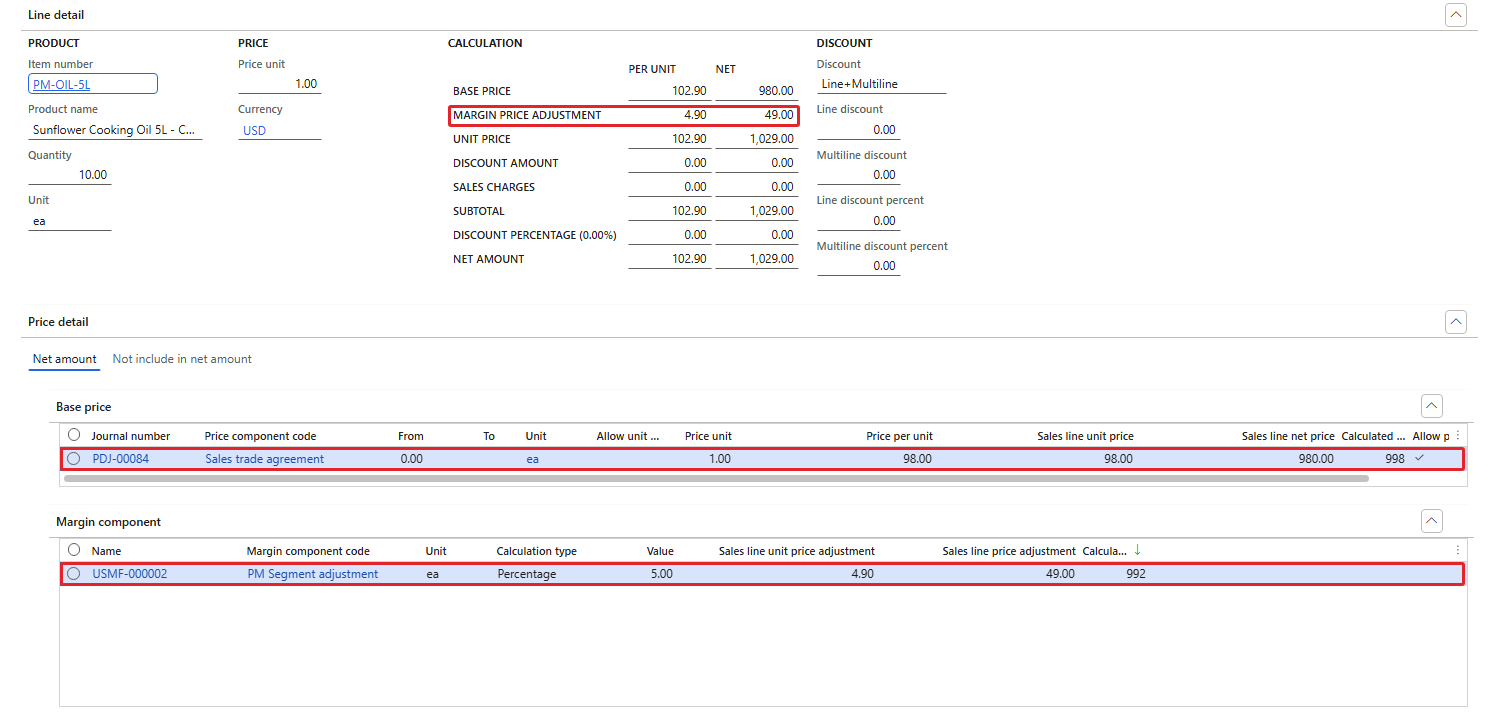
Price details of 001486 – base price 98.00 from PDJ-00084 and the margin component USMF-000002
- Base price grid: PDJ-00084, Sales trade agreement, 98.00, calculated pricing priority 998, and the Allow price adjustment column ticked.
- Margin component grid: USMF-000002, PM Segment adjustment, Percentage 5.00, 4.90 per unit, 49.00 for the line, calculated pricing priority 992.
- Calculation block: Margin price adjustment 4.90 / 49.00, Unit price 102.90 / 1,029.00.
The 992 fits the pattern from Chapter 5: a rule without a price group gets 1000 − pricing sequence, and PM Segment adjustment is at sequence 8. One display detail: in the Calculation block the per-unit Base price cell showed 102.90 while its net value showed 980.00 (= 98 × 10). The Base price grid shows the real base price of 98.00.
Cross-checks:
- Al Madina Hypermarket (PM-C001) in order 001516: oil 97.00 as in Chapter 5 – the surcharge did not touch other customer groups.
- The Price simulator for PM-C004 now lists USMF-000002 under Applied margin component price adjustments with 4.90 per unit (53.90 for the simulated 11 units), and the subtotal 1,131.90 = 11 × 102.90.
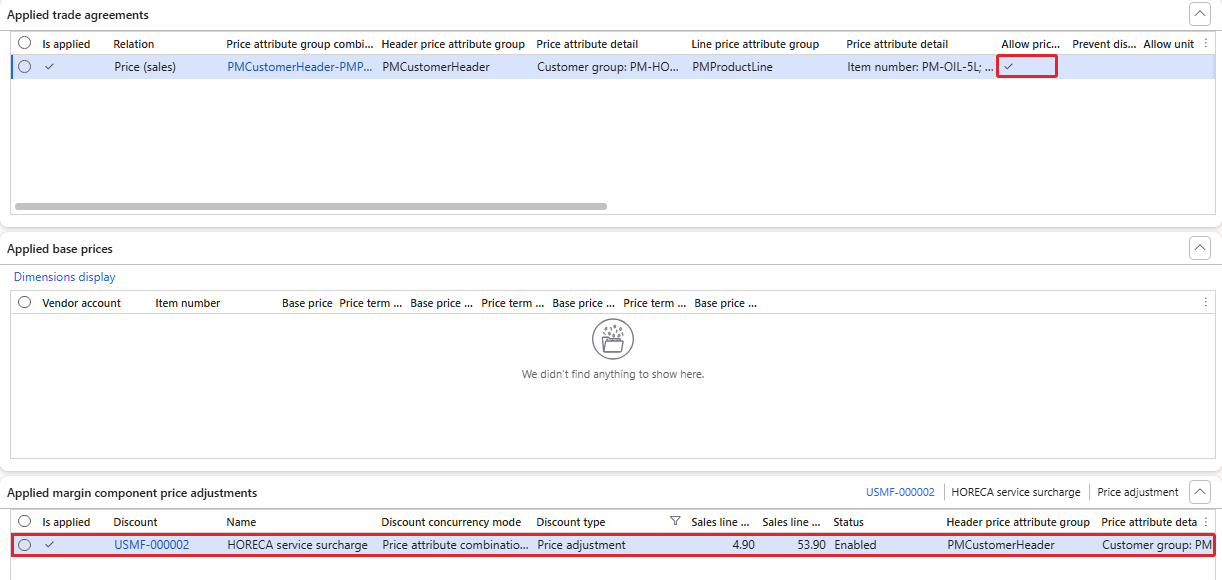
Price simulator after the fix – USMF-000002 applied, trade agreement with Allow price adjustment
| RESULT: A margin adjustment on top of a trade agreement price works only when the trade agreement line has Allow price adjustment = Yes. Then the unit price is the trade agreement price plus the adjustment: 98.00 + 5% = 102.90. |
|---|
8. Test: a component code that is not in the price tree
Section 5 mixed two causes, so the price tree question was still open. To test it cleanly I left the tree untouched and created a second margin code:
- Price component code PM Seasonal adjustment, type Margin component, header group PMCustomerHeader, line group PMProductLine (combination PMCustomerHeader-PMProductLine, rank 1001). Not added to the price tree.
- Rule USMF-000004 – HORECA peak season surcharge: header Customer group = PM-HORECA, line Item number = PM-OIL-5L, Percentage 2, enabled.
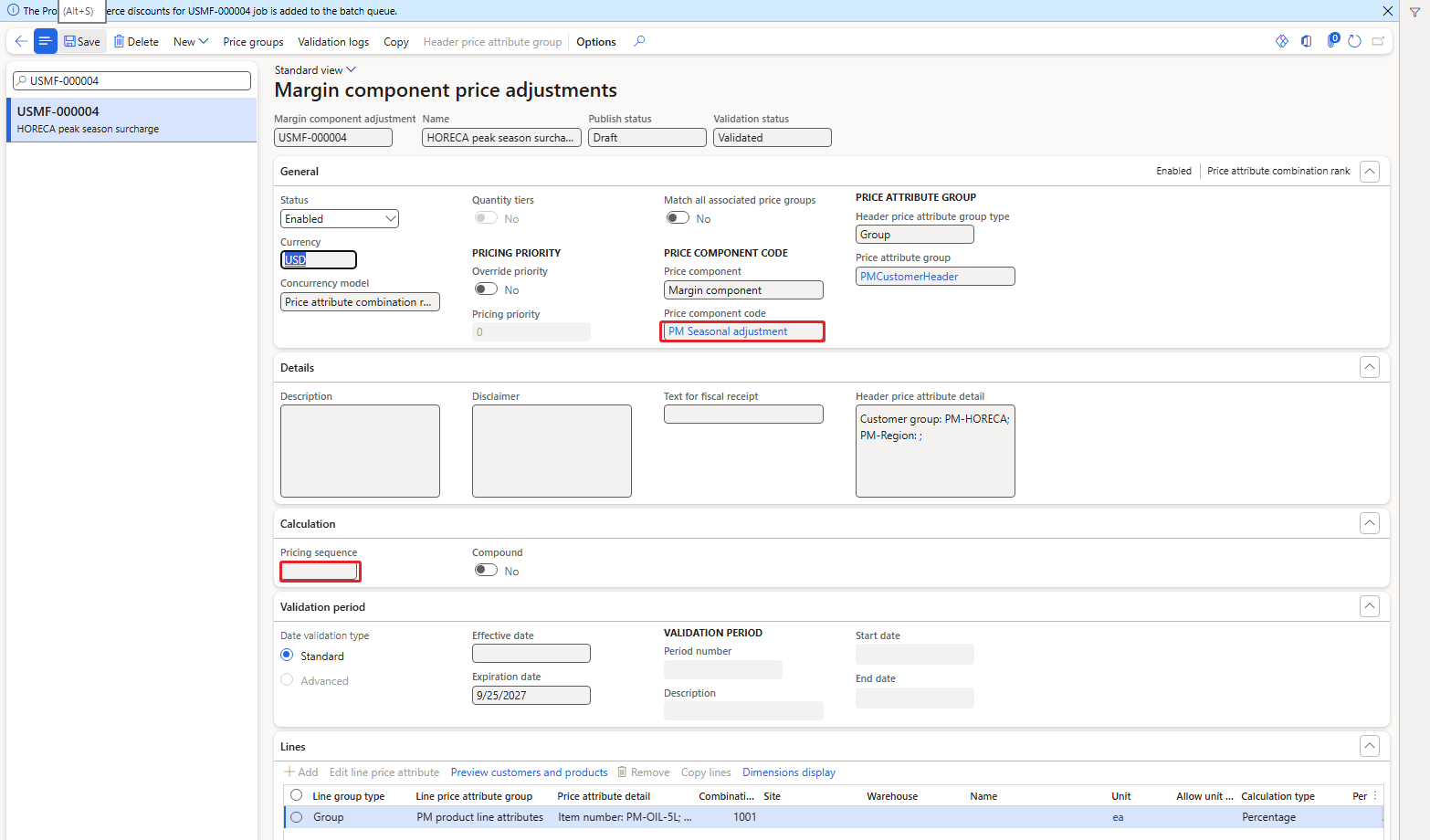
USMF-000004 enabled – the Pricing sequence is empty because the code is not in the price tree
Everything else was in place: same customer, same oil, trade agreement PDJ-00084 with Allow price adjustment. New order 001515 for Royal Palm Hotel:

Order 001515 – oil 102.90, the 2% was not added
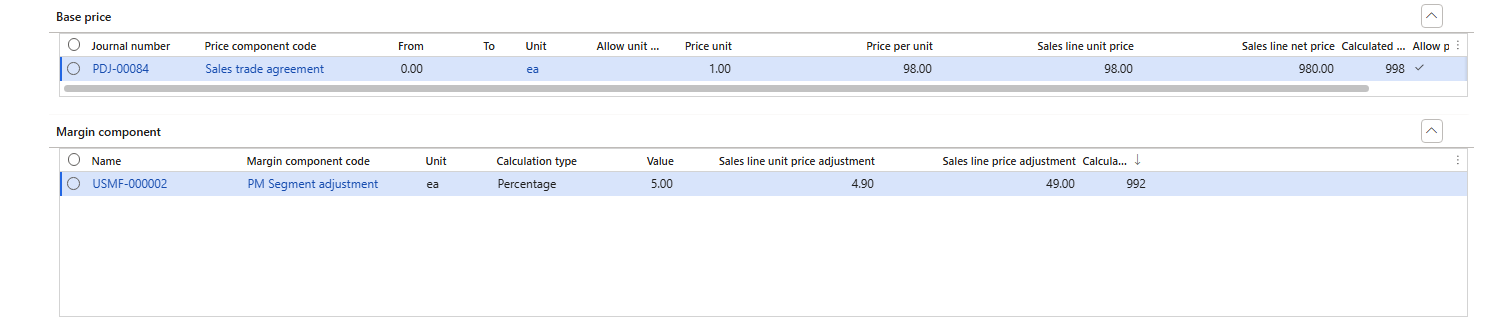
Price details of 001515 – only USMF-000002 in the Margin component grid
| RESULT: A rule whose price component code is not in the price tree is ignored, even when it is enabled, validated and its conditions match. Only USMF-000002 (in the tree at sequence 8) was applied. We will add PM Seasonal adjustment to the tree in Chapter 8, where we look at how two margin codes combine. |
|---|
9. Test: Percentage versus Amount
The business wants to compare the 5% with a fixed 3.00 per unit. To change the rule:
- Open USMF-000002 and set Status = Disabled (while enabled the fields are locked).
- On the line set Calculation type = Amount. The drop-down offers Percentage, Amount and Price. When I switched to Amount the Percentage was reset to 0.00.
- Enter Amount = 3, save and set the rule back to Enabled.
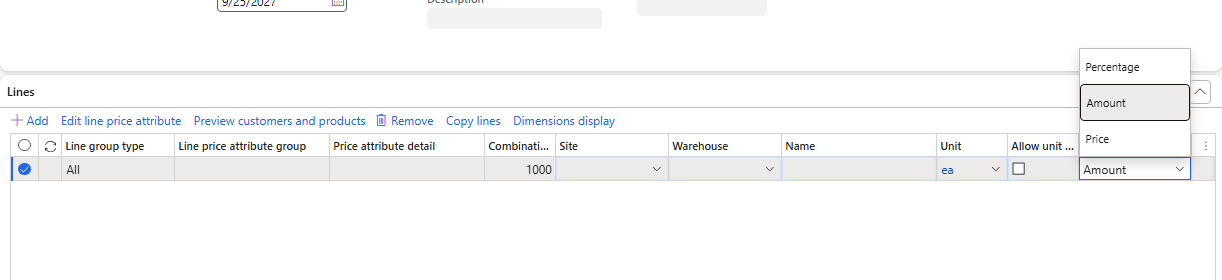
Calculation type values
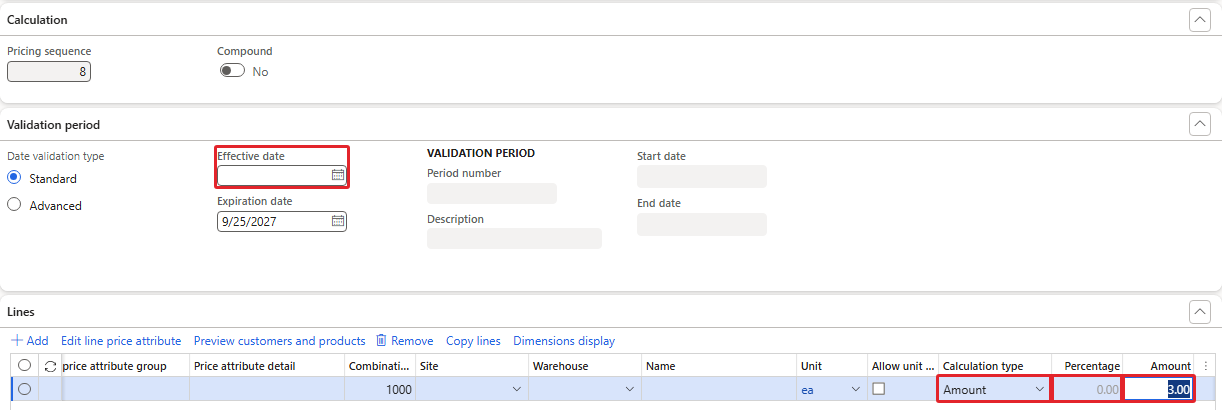
The line with Calculation type Amount and 3.00
New order 001518:

Order 001518 – oil 101.00, rice 51.00
| Item | Base price | Amount | Unit price |
|---|---|---|---|
| PM-OIL-5L | 98.00 | + 3.00 | 101.00 |
| PM-RICE-10 | 48.00 | + 3.00 | 51.00 |
The existing order 001486 kept 102.90 and 50.40 – changing a rule does not update existing sales order lines, just like posting a new trade agreement did not (Chapter 4). The calculation type Price was not validated in the current environment.
10. Test: the validation period
Finally the surcharge should start on 1 October 2026. I disabled the rule, set the line back to Percentage 5, entered Effective date = 10/1/2026 and enabled the rule again. Our Date type parameter is Today (Chapter 1), and today is 9/25/2026.
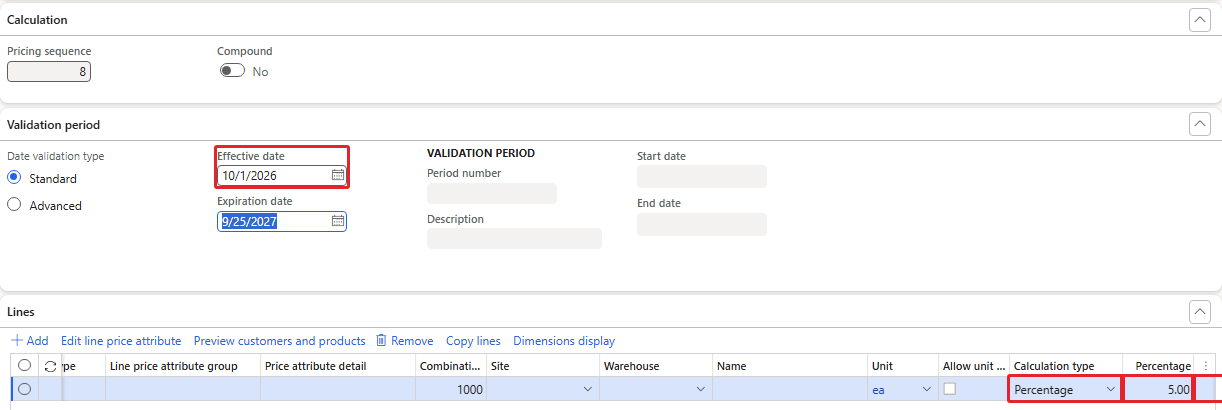
Effective date 10/1/2026, Percentage 5

Order 001519 – back to 98.00 and 48.00
Order 001519 got 98.00 and 48.00: the rule was ignored because it is not effective yet. Then I cleared the effective date again (disable, clear, enable) and order 001520 got 102.90 for the oil again. The rule is now back to 5% with no start date.
| RESULT: The validation period is checked against the date selected by the Date type parameter. A future effective date switches the adjustment off until that date. |
|---|
11. Summary
| Order | Situation | Oil | Rice |
|---|---|---|---|
| 001367 / 001368 / 001370 | Rule enabled, trade agreement without Allow price adjustment | 98.00 | 48.00 |
| 001486 | PDJ-00084 with Allow price adjustment, 5% | 102.90 | 50.40 |
| 001515 | + 2% rule on a code outside the price tree | 102.90 | – |
| 001516 | PM-C001 (hypermarket) – control | 97.00 | – |
| 001518 | Amount 3.00 instead of 5% | 101.00 | 51.00 |
| 001519 | Effective date 10/1/2026 | 98.00 | 48.00 |
| 001520 | Effective date cleared again | 102.90 | – |
- A margin price adjustment adds a percentage or an amount on top of the base price: 98.00 + 5% = 102.90.
- The rule needs a price component code of the type Margin component, a header condition (customers) and lines (products, value). Enabled rules are read-only; disable them to change them.
- The price component code must be in the price tree. A rule on a code outside the tree was ignored. The tree must be disabled to change it; pricing sequences are unique and a margin code needs Concurrency mode across priority = Compounded.
- On top of a trade agreement price the adjustment works only when the trade agreement line has Allow price adjustment = Yes. This is the trap of the chapter: all our earlier journals had it switched off.
- The Price details show the adjustment in the Margin component grid, and the Price simulator lists the adjustments the engine considered – a good first stop when a rule does not apply.
- Changing a rule does not change existing order lines. A future effective date switches the rule off until that date.
Data left in USMF after this chapter: USMF-000002 (5%, enabled), USMF-000003 (diagnostic rule, disabled), USMF-000004 (2% on the code outside the tree, enabled but ignored), journal PDJ-00084, and PM Segment adjustment in the price tree at sequence 8.
In the next chapter we move on to discounts: our code PM Brand promotion, the different discount types and how a discount is shown next to the price and the margin adjustment.
That's all for today, folks. See you in the next chapter!
Cheers!
Salman Ahmad
D365 F&O Consultant (Finance, SCM, Project Accounting)
← Previous: Pricing Management in Dynamics 365 SCM — Chapter 5 – Price Groups and Pricing Priorities | Next: Pricing Management Chapter 7 →