
Pricing Management in Dynamics 365 SCM
Chapter 4 – Sales Trade Agreement Prices: General Prices, Quantity Breaks and Dates
Hello everyone! Hope you are all doing well.
In the previous chapter we connected our price attribute groups to the price component codes and created our first price list: hypermarkets in the Central region pay 95 USD for sunflower oil. The sales order immediately picked up 95 for Al Madina Hypermarket and kept 100 for everybody else.
Today we go deeper into sales trade agreement prices, because in real projects this is where most of the pricing lives. We will answer four very practical questions with real sales orders:
- How do I create a price that is valid for all customers?
- How do I give a lower price for bigger quantities?
- How do I make a price valid only for a period, and which date does the system look at?
- What happens when a customer matches more than one price list?
Our requirement for today
| Requirement | Price |
|---|---|
| Basmati rice for every customer | 48 USD (instead of the base 50) |
| Orange juice for every customer – quantity breaks | 1–9 cartons: 30 · 10–49 cartons: 28 · 50+ cartons: 26 |
| Sunflower oil for every customer | 98 USD (instead of the base 100) |
| Sunflower oil for Western hypermarkets – September promotion | 92 USD from 01-Sep-2026 to 30-Sep-2026 |
| Sunflower oil for Western hypermarkets – from October | 94 USD from 01-Oct-2026 |
| (From Chapter 3) Sunflower oil for Central hypermarkets | 95 USD |
Notice that the oil now has three layers of prices: a general price (98), a segment price (95 for Central hypermarkets) and a date-dependent segment price (92/94 for Western hypermarkets). This is exactly the kind of situation where people ask "which price will the system take?", so it is a good test.
Today's agenda
- Quick recap – the trade agreement journal.
- A price for all customers (header = All).
- Quantity breaks – and where exactly the break happens.
- Posting and testing the general and quantity prices.
- Several price lists for one customer – which one wins?
- Date-effective prices and the Date type parameter.
- What happens to sales orders that already exist?
- Summary.
1. Quick recap – the trade agreement journal
In Pricing Management you do not type prices directly into a price list. You enter them in a trade agreement journal and post the journal. Only posted lines are used by the sales order – we proved that in Chapter 3, where an unposted journal left the price at 100.
Navigation: Pricing management > During-sales pricing > Sales trade agreement price > Trade agreement journals
Every line of a Pricing Management journal has two sets of conditions, entered with Edit price attributes:
- Header price attribute group: who is buying. Group type = Group means you select a group (for example PMCustomerHeader) and enter values. Group type = All means the price is for every customer.
- Line price attribute group: what is bought – selected through the Price attribute group combination (for example All-PMProductLine or PMCustomerHeader-PMProductLine) plus the values (for example Item number = PM-OIL-5L).
Then on the line itself you enter From / To quantity, Unit, Amount in currency and, in the Details FastTab, From date / To date.
2. A price for all customers
Let's start with the easiest one: basmati rice at 48 USD for everybody. I created a new journal with the journal name PMPRICE and the description "General and quantity prices". The system gave it the number PDJ-00060.
To create the line follow the below steps:
- Click Lines, then New. On this empty journal the Edit price attributes dialog opened automatically.
- Keep the header Group type = All (no customer conditions).
- Open Price attribute group combination. It offers only combinations whose customer side is All: All-PMProductLine (rank 2), All-Product (rank 1) and All-All (rank 0). Select All-PMProductLine.
- Enter Item number = PM-RICE-10 and click OK.
- On the line enter Unit = ea and Amount in currency = 48. Save.
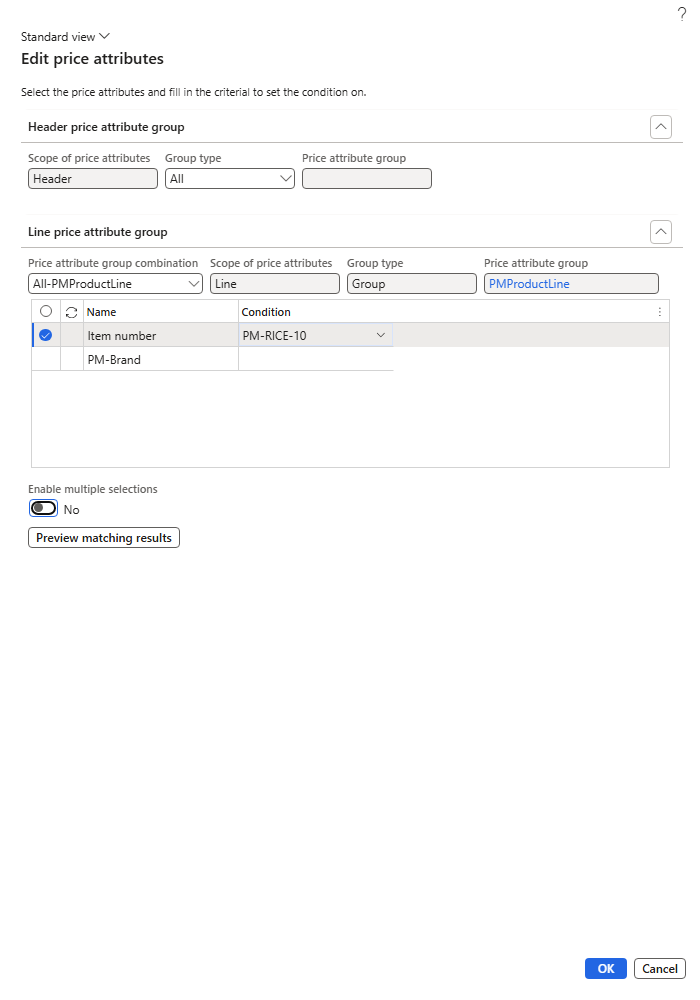
Edit price attributes – header All, combination All-PMProductLine
| NOTE: The first time I opened the combination lookup with Group type = All, the lookup came up empty. After switching Group type to Group and back to All, the three "All-…" combinations were listed. If the lookup is empty, re-select the group type. |
|---|
This works only because we switched on Use all in header group for the Sales trade agreement code – the All-PMProductLine combination exists only because of that toggle (Chapter 3).
3. Quantity breaks
Now the question is, how do we give a better price to customers who buy more? With the From and To quantity on the line. For the orange juice (base price 30) I added three lines to the same journal, each with header All, combination All-PMProductLine and Item number = PM-JUICE-1L:
| Line | From | To | Amount |
|---|---|---|---|
| 1 | 1 | 10 | 30.00 |
| 2 | 10 | 50 | 28.00 |
| 3 | 50 | (empty) | 26.00 |
And one more line: header All, Item number = PM-OIL-5L, amount 98 – the general oil price. The journal now has five lines:
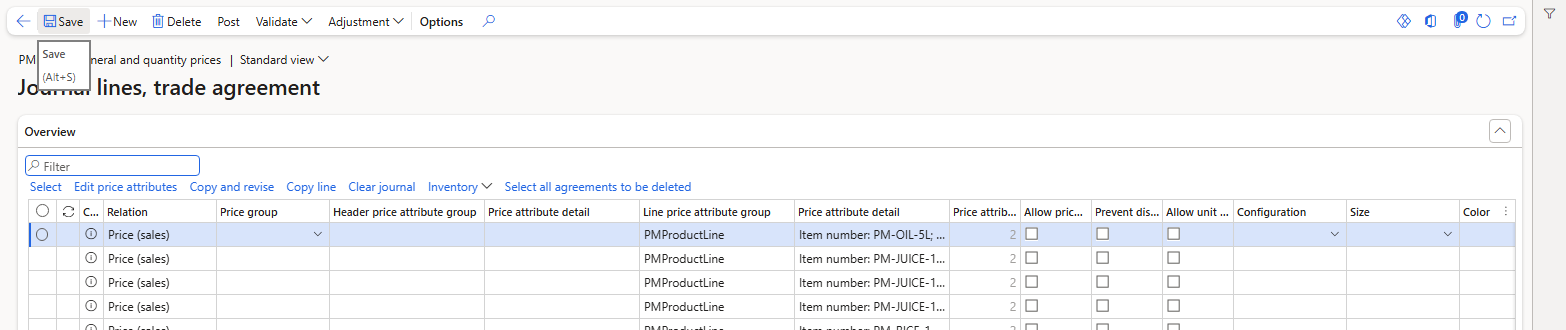
Journal PDJ-00060 – header All / PMProductLine lines
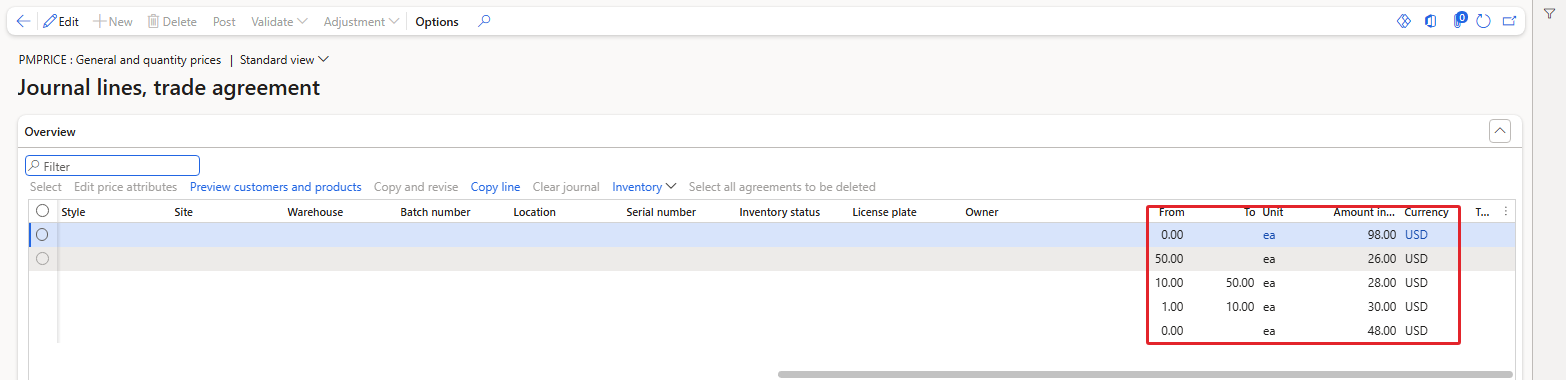
The same lines scrolled to the right – From, To, Unit and Amount
Why did I enter 1–10 and 10–50, and not 1–9 and 10–49? Because I wanted to see exactly where the break happens. The sales order test below tells us.
4. Posting and testing the general and quantity prices
I posted PDJ-00060 (Post > OK, message "Journal has been posted."). By default the journal list only shows journals that are Not posted; set Show = All to see the posted ones as well.

Trade agreement journals with Show = All
Then I created sales order 001347 for PM-C004 Royal Palm Hotel. This customer is in the PM-HORECA group and the Eastern region, so none of our segment prices apply – only the general prices can match.
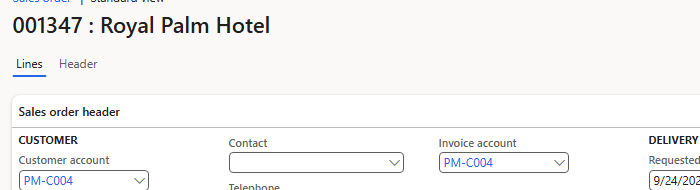
Sales order 001347 – PM-C004 Royal Palm Hotel

Six lines with different items and quantities
| Item | Qty | Expected price | Actual price | Line amount |
|---|---|---|---|---|
| PM-RICE-10 | 5 | 48 (general) | 48.00 | 5 × 48 = 240.00 |
| PM-JUICE-1L | 9 | 30 (1–10) | 30.00 | 9 × 30 = 270.00 |
| PM-JUICE-1L | 10 | 28 (10–50) | 28.00 | 10 × 28 = 280.00 |
| PM-JUICE-1L | 49 | 28 (10–50) | 28.00 | 49 × 28 = 1,372.00 |
| PM-JUICE-1L | 50 | 26 (50+) | 26.00 | 50 × 26 = 1,300.00 |
| PM-OIL-5L | 10 | 98 (general) | 98.00 | 10 × 98 = 980.00 |
Every price is as expected, and I checked all six lines in the database as well. The two boundary lines are the interesting ones:
- Quantity 10 got 28, not 30. So the line "From 1 To 10" does not include 10.
- Quantity 50 got 26, not 28. So the line "From 10 To 50" does not include 50.
| TIP: The To quantity is exclusive: a line From 10 To 50 covers 10 up to (but not including) 50. So the business rule "10–49 cartons" is entered as From 10 To 50, and "50 and more" as From 50 with To left empty. |
|---|
The Price details of the rice line confirm where the 48 comes from – journal PDJ-00060, price component code Sales trade agreement:
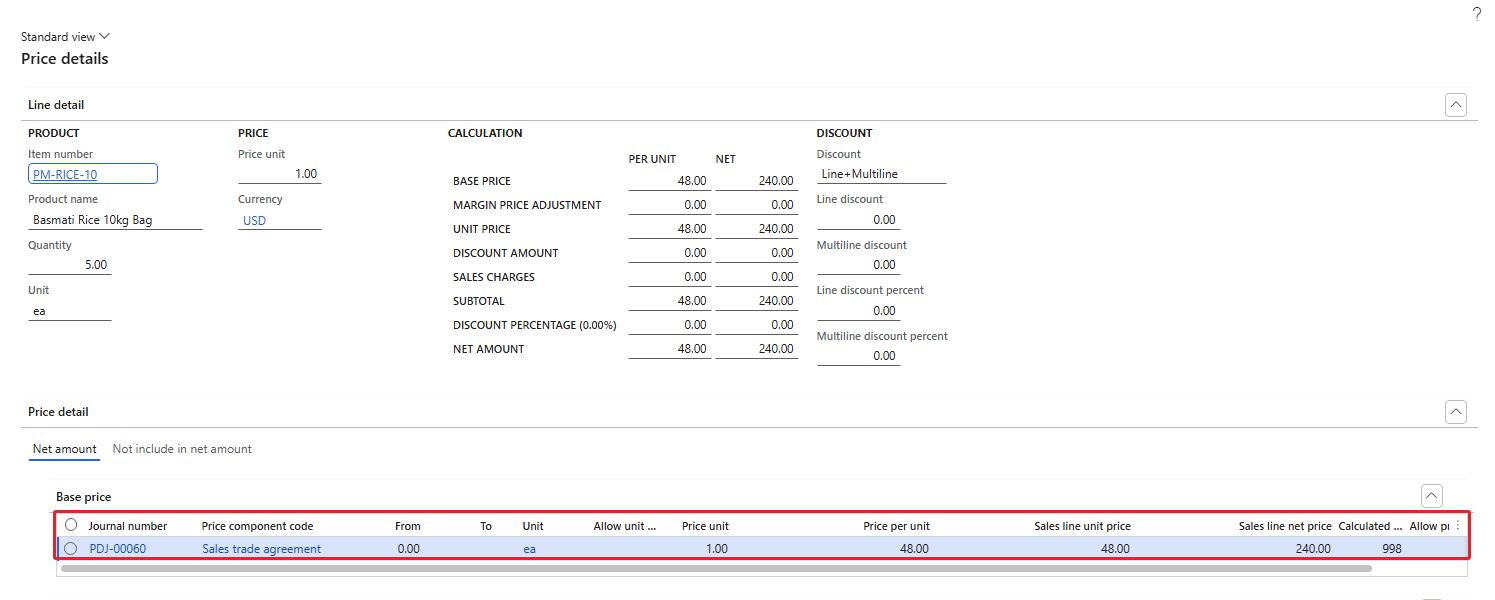
Price details – rice line, base price 48 from PDJ-00060
5. Several price lists for one customer – which one wins?
Now the sunflower oil has two posted prices that can apply to Al Madina Hypermarket (PM-C001, Central hypermarket):
- PDJ-00059 (Chapter 3): PM-HYPER + Central + PM-OIL-5L = 95, combination PMCustomerHeader-PMProductLine, rank 2002.
- PDJ-00060 (today): All customers + PM-OIL-5L = 98, combination All-PMProductLine, rank 2.
I created three orders with the oil:
| Order | Customer | Matching prices | Result |
|---|---|---|---|
| 001348 | PM-C001 (PM-HYPER, Central) | 95 (rank 2002) and 98 (rank 2) | 95.00 |
| 001349 | PM-C003 (PM-MINI, Central) | only 98 | 98.00 |
| 001347 | PM-C004 (PM-HORECA, Eastern) | only 98 | 98.00 |
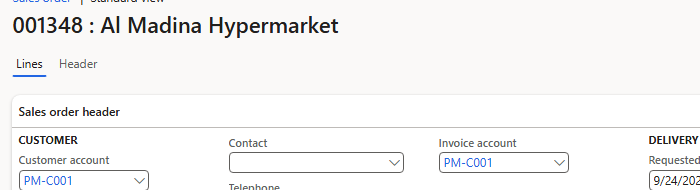
Sales order 001348 – PM-C001

The oil at 95.00 for PM-C001
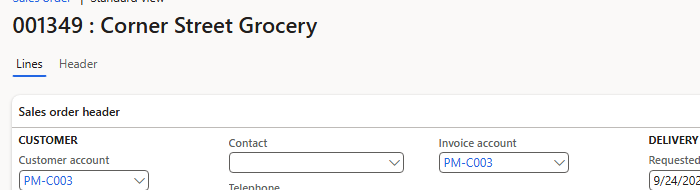
Sales order 001349 – PM-C003

The oil at 98.00 for PM-C003
For PM-C001 the system selected 95, the price of the more specific rule – the one whose combination has the higher rank (2002 against 2). PM-C003 and PM-C004 do not match the segment rule, so they get the general 98. The Price details of order 001348 list only the rule that was applied (journal PDJ-00059, 95.00); the 98 rule that lost is not shown there.
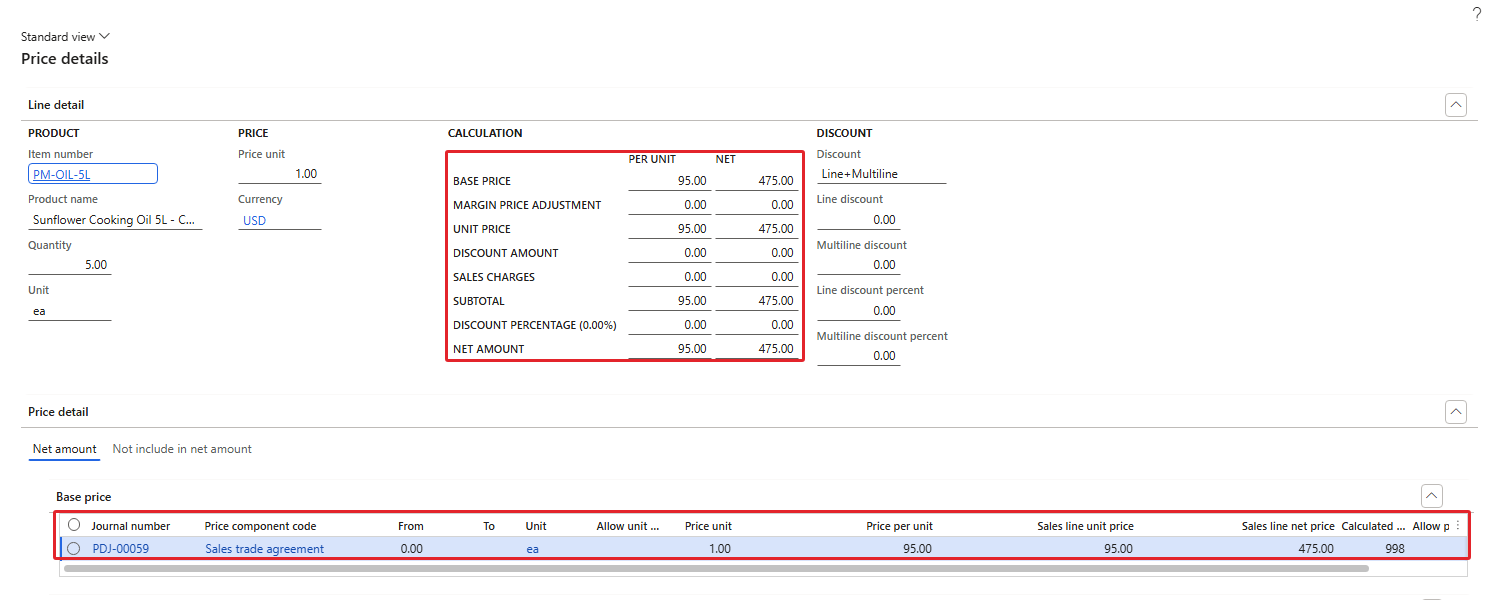
Price details of 001348 – only the winning rule PDJ-00059 is listed
| NOTE: On order 001348 the line ended up with quantity 5 instead of 10 because my test script typed into the wrong line; the price per unit (95) is what we are testing here, and it does not depend on the quantity for this rule. Competing rules, priorities and concurrency are tested systematically in Chapter 8. |
|---|
6. Date-effective prices and the Date type parameter
6.1 The date-effective price list
For Western hypermarkets the business runs a September promotion. I created journal PDJ-00061 "Western hypermarket oil prices by date" with two lines. Both have header group PMCustomerHeader (Customer group = PM-HYPER, PM-Region = Western), combination PMCustomerHeader-PMProductLine and Item number = PM-OIL-5L:
| Line | From date | To date | Amount |
|---|---|---|---|
| 1 | 9/1/2026 | 9/30/2026 | 92.00 |
| 2 | 10/1/2026 | (empty) | 94.00 |
From date and To date are on the Details FastTab of the selected line.
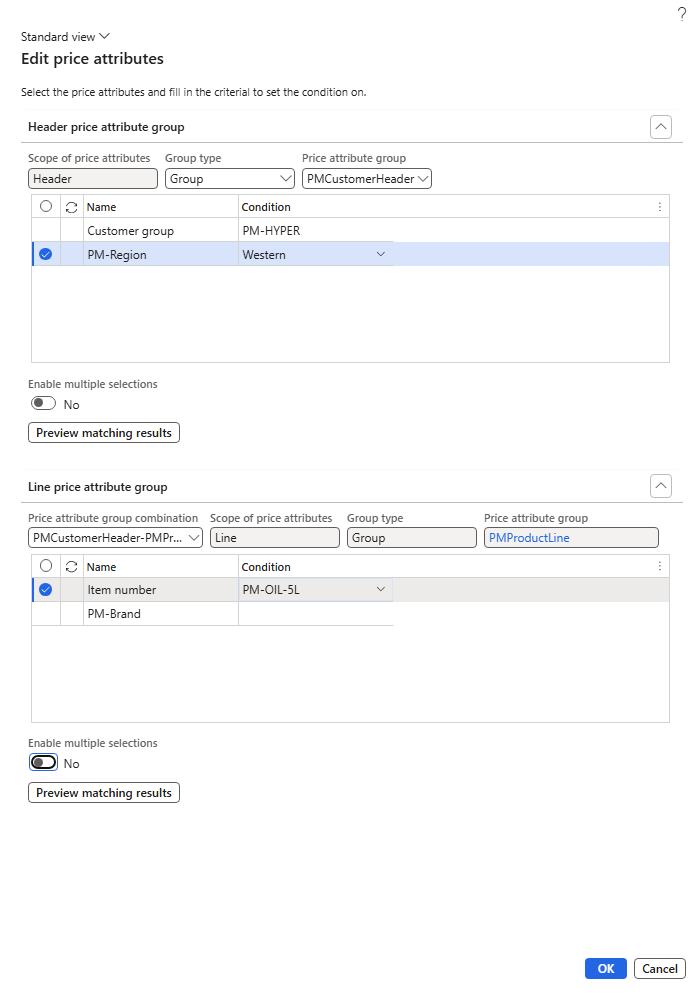
Edit price attributes – PM-HYPER + Western, item PM-OIL-5L
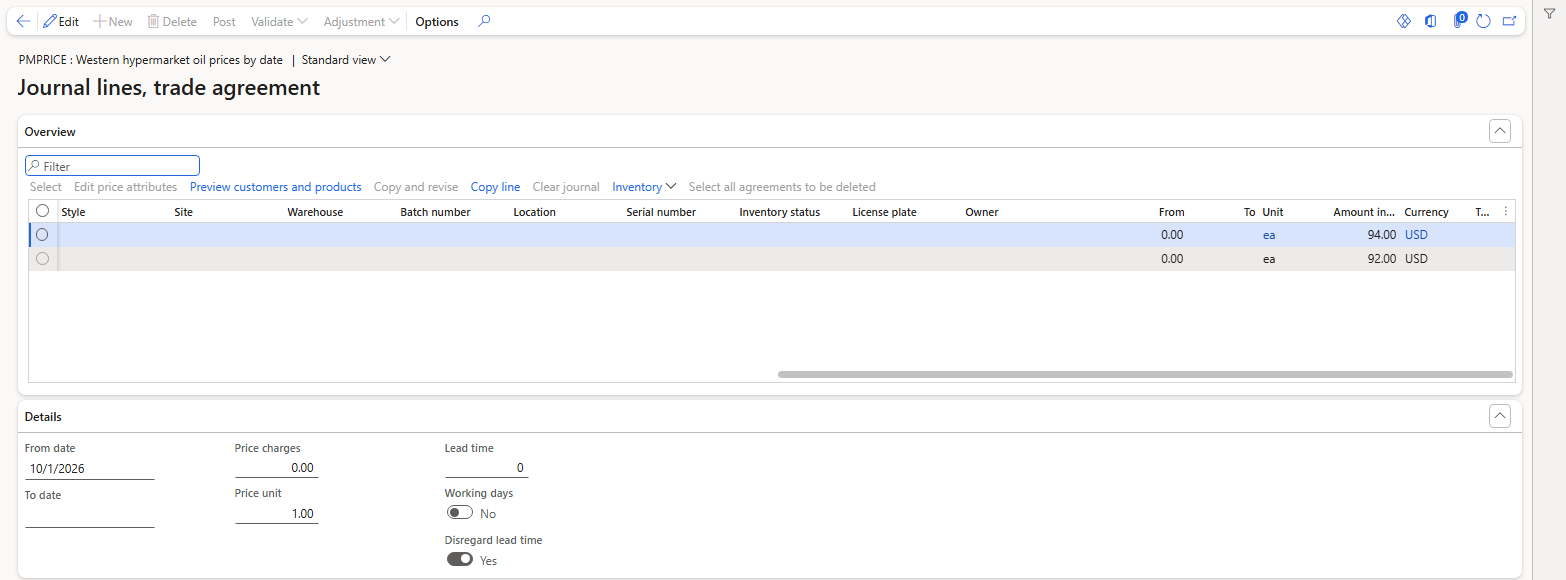
Journal PDJ-00061 – the second line selected, From date 10/1/2026
After posting, I created order 001350 for PM-C002 Green Valley Hypermarket (PM-HYPER, Western) with 10 × oil. The order was created on 24-Sep-2026, so the September line should apply:
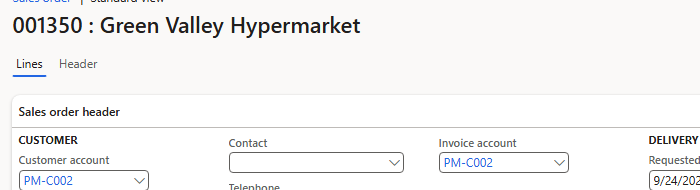
Sales order 001350 – PM-C002

The oil at 92.00 – the September price
| RESULT: 92.00 – the September promotion. The general 98 also matches PM-C002, but again the segment rule (rank 2002) was selected. |
|---|
6.2 Which date does the system look at?
Now the interesting question: the customer orders today, but wants the delivery on 5-Oct-2026. Should the customer get the September price (92) or the October price (94)? This is controlled by the Date type parameter from Chapter 1.
Navigation: Pricing management > Setup > Pricing management parameters > General > Date type
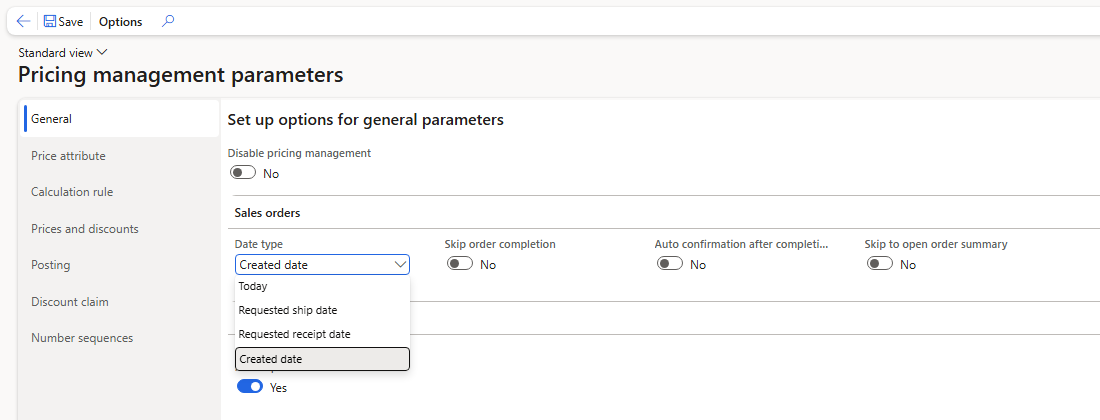
Date type options: Today, Requested ship date, Requested receipt date, Created date
The list offers four options: Today, Requested ship date, Requested receipt date and Created date.
Configuration A – Date type = Today (default)
I created order 001351 for PM-C002, set the Requested ship date on the header to 10/5/2026, and added 10 × oil:
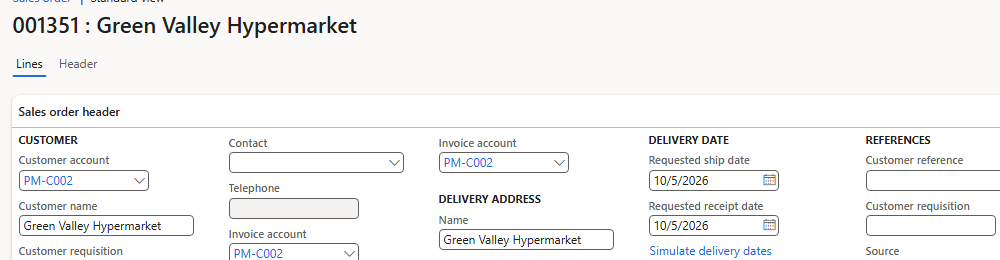
Order 001351 – requested ship date 10/5/2026

Price 92.00
| RESULT: 92.00 – the price valid today (September), even though the delivery is requested in October. |
|---|
Configuration B – Date type = Requested ship date
I changed the parameter to Requested ship date and saved:
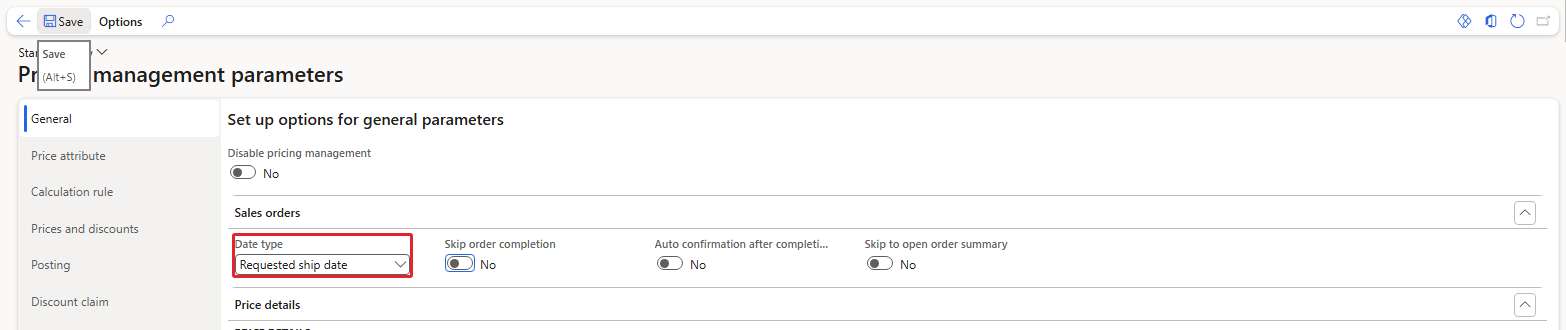
Date type = Requested ship date
Then I created order 001352 exactly like the previous one – PM-C002, requested ship date 10/5/2026, 10 × oil:
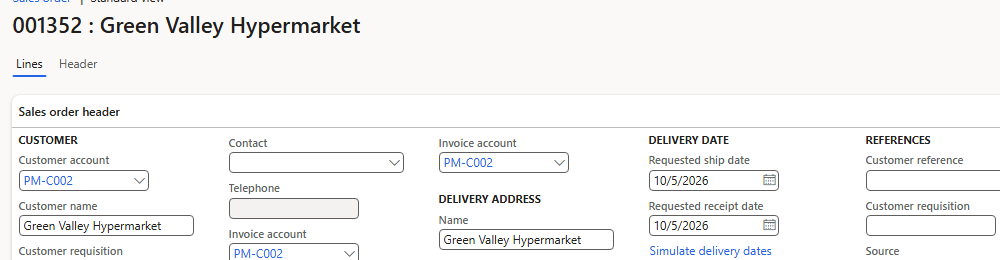
Order 001352 – requested ship date 10/5/2026

Price 94.00
| RESULT: 94.00 – the October price, because the system now looks at the requested ship date (5-Oct) instead of today. |
|---|
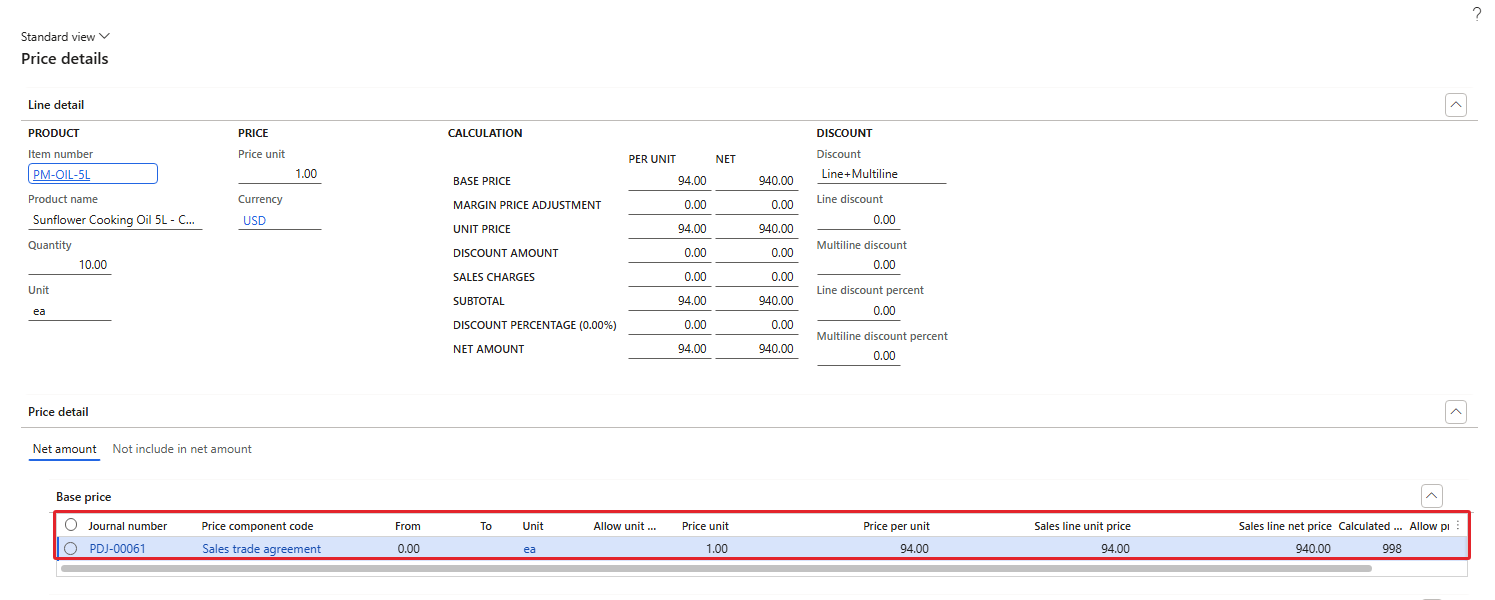
Price details of 001352 – journal PDJ-00061, 94.00
So the Date type parameter decides which date is compared with the From date / To date of the price lines. Same customer, same item, same day – 92 or 94 only because of this one parameter. After the test I set Date type back to Today and checked it in the database.
| NOTE: While restoring the parameter my first attempt accidentally selected Created date (the fourth option). Always re-check the value after changing this field. |
|---|
7. What happens to sales orders that already exist?
Orders 001345 (PM-C002) and 001346 (PM-C003) were created in Chapter 3, before today's journals were posted, with the oil at 100. After posting PDJ-00060 (general 98) and PDJ-00061 (Western 92), I checked these two orders in the database: both lines were still 100.00.
| NOTE: Posting a new price does not change the prices on sales order lines that already exist. The existing lines keep their price until the price is recalculated. We will test the recalculation options (the recalculate column, Complete and the Recalculate price periodic job) in Chapter 9. |
|---|
8. Summary
- Header Group type = All + a combination "All-…" gives a price for every customer. This combination exists only when Use all in header group is on for the component code.
- Quantity breaks use From / To on the line. The To quantity is exclusive: From 10 To 50 covers 10–49; 10 got 28 and 50 got 26 in our test.
- When a customer matches a segment price and a general price, the more specific rule (higher combination rank) was selected: 95 (rank 2002) over 98 (rank 2). Price details shows only the applied rule.
- From date / To date make a price valid for a period.
- The Date type parameter decides which date is used: with Today the October order got 92, with Requested ship date it got 94.
- Posting new prices does not update existing sales order lines.
In the next chapter we look at price groups and pricing priorities – the tools that decide which customers a rule reaches and which rule wins when rules have different priorities.
That's all for today, folks. See you in the next chapter!
Cheers!
Salman Ahmad
D365 Applications Solution Architect
← Previous: Pricing Management in Dynamics 365 SCM — Chapter 3 – Price Component Codes, Combinations and the Price Tree | Next: Pricing Management Chapter 5 →