Pricing Management in Dynamics 365 SCM
Chapter 11 – Pre-sales Pricing, Funds and Discount Claims
Hello everyone! Hope you are all doing well.
Chapters 1 to 10 covered what happens during the sale. This bonus chapter looks at the two ends around it: the pre-sales side, where the base price of an item is built from the supplier's list price, and the money side of promotions – a fund that limits how much discount we give, and a claim that asks the supplier to pay back its share of a discount.
Today's agenda
- Pre-sales pricing: vendor list price, vendor price term codes and agreements, base price version.
- Funds: a promotion budget that caps a discount.
- Discount claims: a supplier-funded discount from setup to the vendor claim.
- Data left in USMF.
1. Pre-sales pricing – a base price built from the supplier price
What: instead of typing a sales price on the item, Pricing management can calculate the item base price as Vendor list price + Vendor price term agreement adjustments, per site.
Why: a distributor that resells products wants its base price to follow the supplier's price list and its own landed-cost surcharges (freight, handling) automatically. Margin adjustments and discounts from the previous chapters are then applied on top of that base price.
Navigation: Pricing management > Pre-sales pricing
1.1 A new item and the starting point
I created a new released product PM-TEA-100 "Green Tea 100 Bags - Carton of 24" (item model group FIFO, item group Consume, storage dimension group SiteWH) with purchase price 12.00, sales price 20.00 and inventory price 12.00.
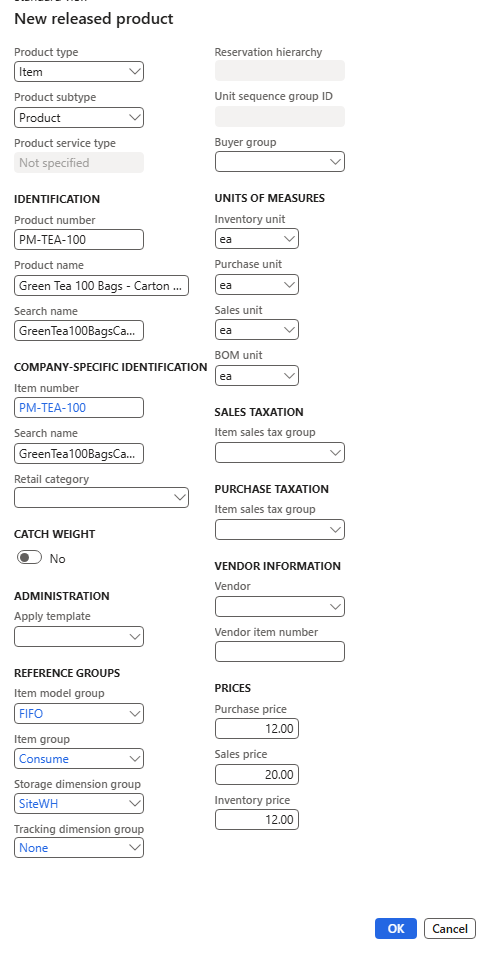
New released product PM-TEA-100
Baseline: sales order 001688 for PM-C001 Al Madina Hypermarket, 10 ea from site 1 / warehouse 11. The unit price is 20.00 – the sales price of the item, because no base price exists yet (the Base price grid in Price details was empty).
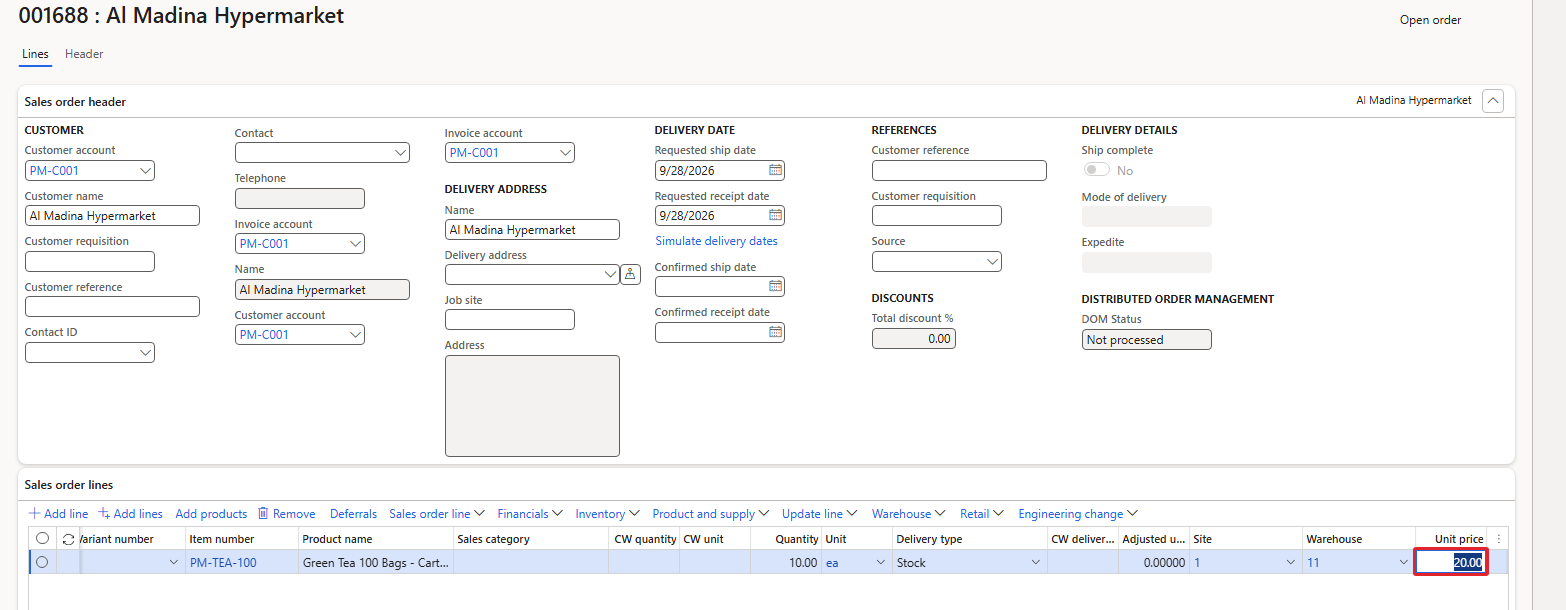
Sales order 001688 – 20.00 before the pre-sales setup
1.2 Vendor list price
Navigation: Pricing management > Pre-sales pricing > Vendor list price
- Vendor list price ID: from the number sequence (USMF-000002).
- Description: List prices of our tea supplier.
- Account code / Account selection: All – the list price is valid for all vendors. Table or Group would restrict it to one vendor or a vendor price list group.
- Site, From date: site 1, from 9/1/2026.
- Lines: item PM-TEA-100, site 1, warehouse 11, unit ea, Amount in currency 10.00.
- Enable: the Status changes from Disabled to Enabled ("Vendor list price USMF-000002 is enabled"). Only enabled list prices are used by the calculation.
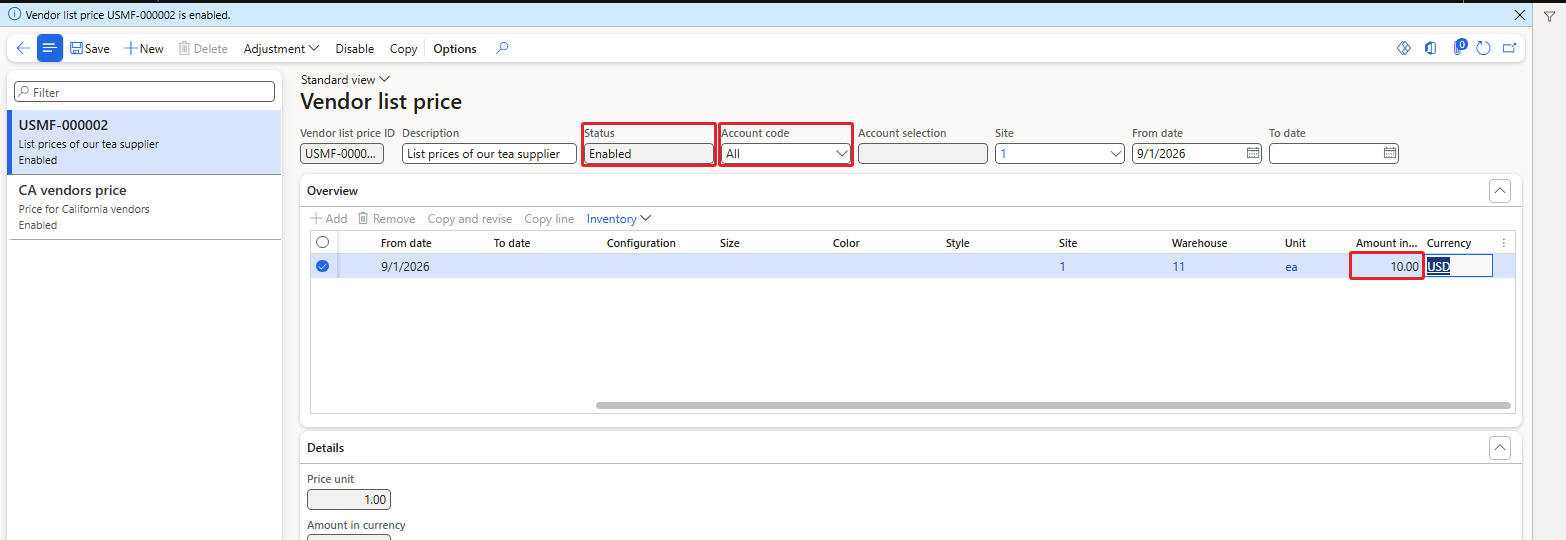
Vendor list price USMF-000002 – enabled, tea 10.00
1.3 Vendor price term code
Navigation: Pricing management > Pre-sales pricing > Vendor price term codes
A term code is the name of one kind of adjustment. I created PM Freight "Freight surcharge on supplier list price":
- Calculation type: Percentage.
- Calculation basis: Vendor list price.
- Pricing sequence: 3 – the order in which several term codes are applied (the demo codes All vendors and CA vendors use 1 and 2).
- Base price-purchase price / Base price-inventory price / Base price-sales price: Yes – the adjustment is included in all three base price types.
1.4 Vendor price term agreement
Navigation: Pricing management > Pre-sales pricing > Vendor price term agreements
The agreement holds the value of the term code for a site and a period. I created agreement USMF-000002: site 1, from date 9/1/2026, Account code All. On the line: Code PM Freight, Percentage 5.00, unit ea, pricing sequence 3.
Which items does the line cover? That is set with Edit price attribute on the line toolbar. The dialog works like the attribute dialogs of Chapter 3, with the scope fixed to Line:
- Price attribute group name: PMProductLine (the product group from Chapter 2).
- Select price attribute values: Item number = PM-TEA-100.
- Preview matching results (Products): shows only PM-TEA-100 – a quick check that the condition is right before you click OK.
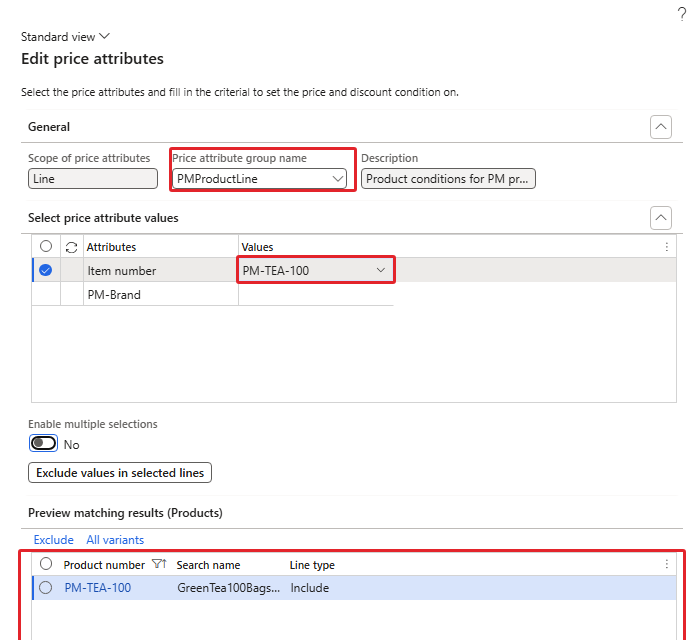
Edit price attributes – PMProductLine, Item number PM-TEA-100
After OK the line shows Price attribute group "PM product line attributes" and the details "Item number: PM-TEA-100". The Vendor price term codes FastTab below shows the settings of the selected code.
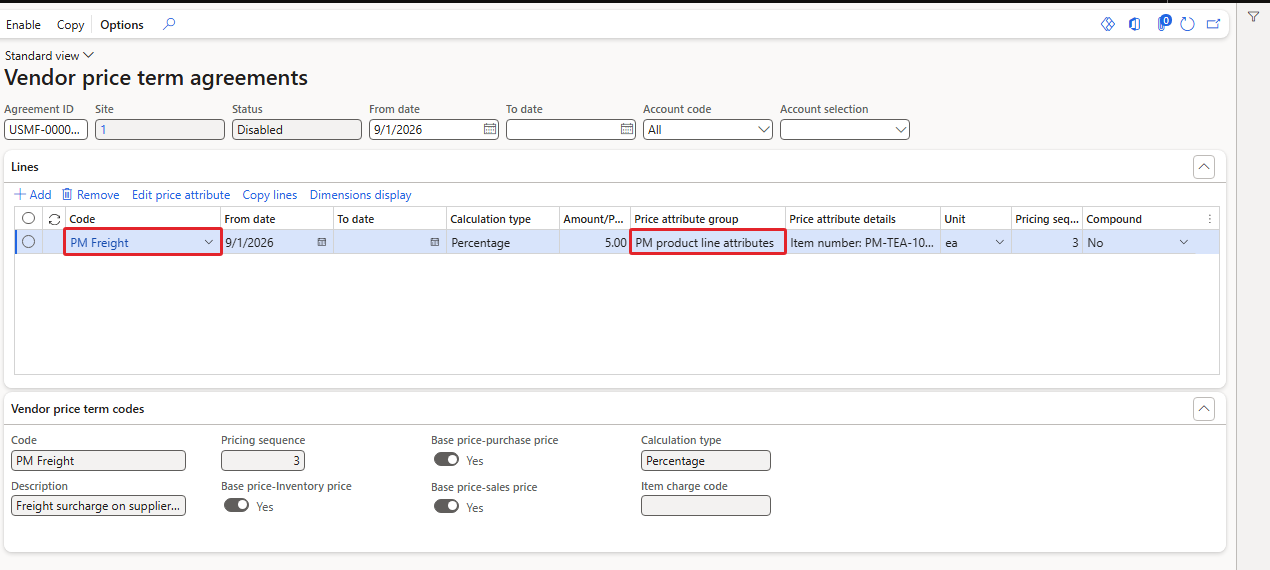
Term agreement line with the price attribute condition
Then Validate ("Vendor price term agreement USMF-000002 is eligible to enable.") and Enable ("Vendor price term agreement USMF-000002 is enabled."). The agreement status is now Enabled.
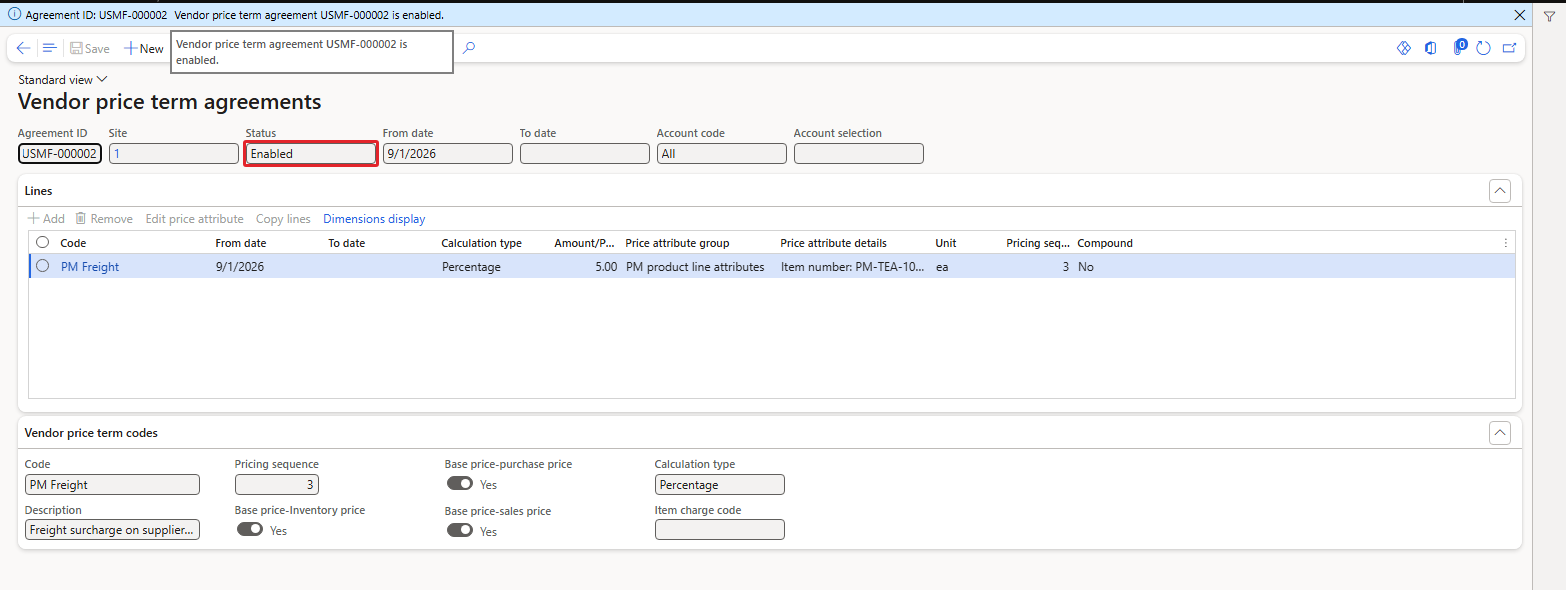
Term agreement USMF-000002 enabled
| TIP: On an enabled agreement the line buttons (Add, Remove, Edit price attribute) are greyed out. Build and check the lines while the agreement is Disabled, then Validate and Enable. |
|---|
1.5 Base price version – calculate and activate
Navigation: Pricing management > Pre-sales pricing > Base price version
Nothing changes on orders until the base price is calculated. USMF already has base price version 1 for site 1 (last activation 5/19/2023). I used it and clicked Calculation:

Base price version 1 for site 1
- Version / Site: 1 / 1.
- Calculation date: 9/28/2026 – list prices and agreements valid on this date are used.
- Activate base prices: Yes – the result becomes the active base price at once. With No it is only calculated.
- Delta calculation: Yes – only items whose vendor price data changed are recalculated.
- Price recording in version: Base price - purchase / sales / inventory price, taken from the version.
- Records to include: an item filter. I tried to type PM-TEA-100 there but the value was not taken, so the filter stayed empty.
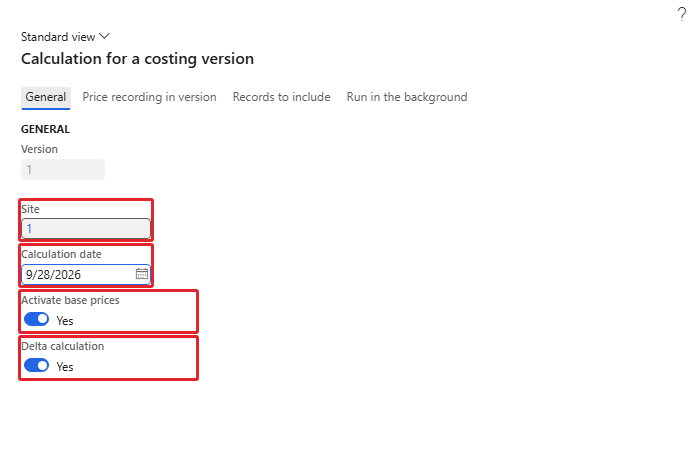
Calculation for a costing version
What happened (checked in the database): because of Delta calculation only PM-TEA-100 was calculated (calculation 001743); the demo item A0001 kept its calculation from 2022. The calculation line shows base price 10.00 + PM Freight 5% = 0.50 → 10.50, recorded once for each of the three price types, and the active base price of PM-TEA-100 at site 1 is now 10.50.
1.6 Test on sales orders
New order 001689 (same customer, 10 ea, site 1 / warehouse 11): unit price 10.50, line amount 105.00. Price details shows the base price 10.50 in the Base price grid:
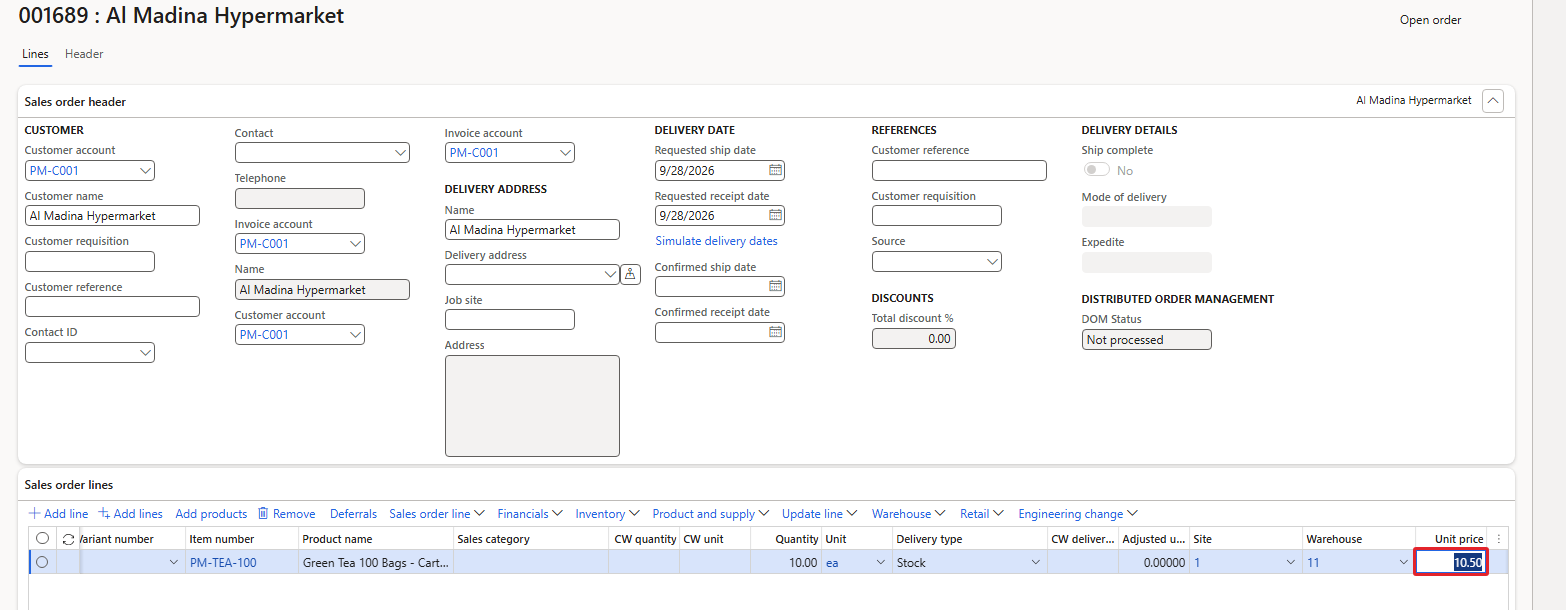
Sales order 001689 – 10.50 from the calculated base price
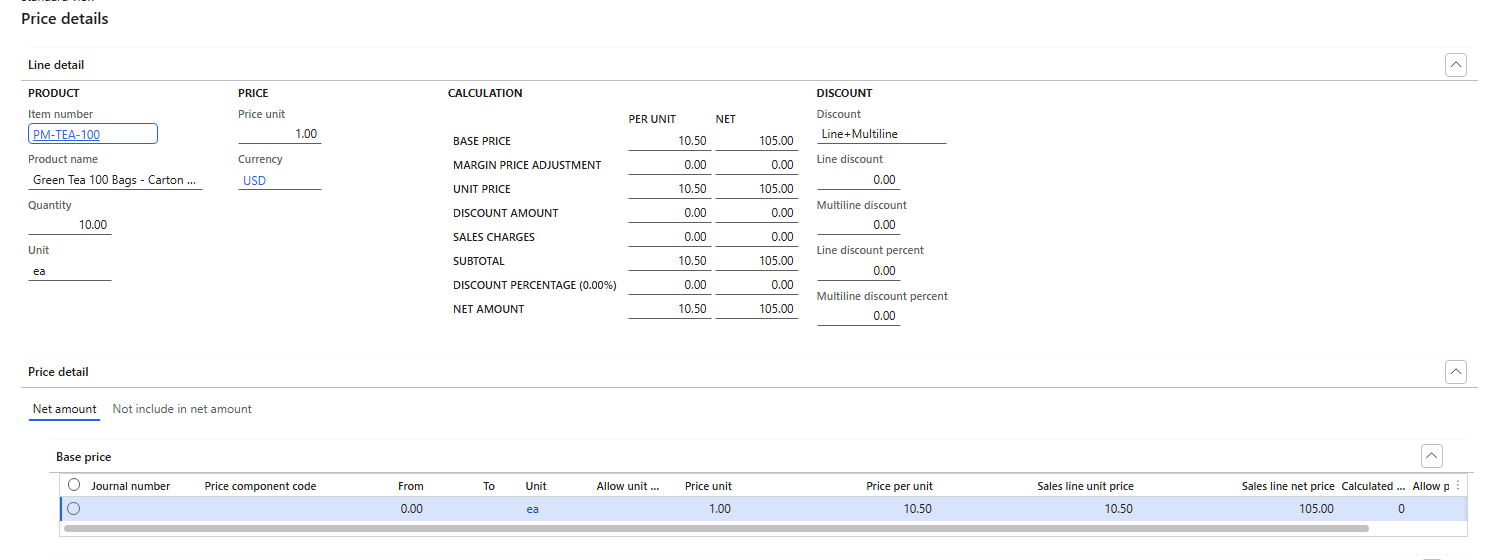
Price details of 001689
Negative test – order 001690 with the same item from site 2 / warehouse 21: unit price 20.00. The base price was calculated for site 1 only, so on site 2 the engine falls back to the item sales price.
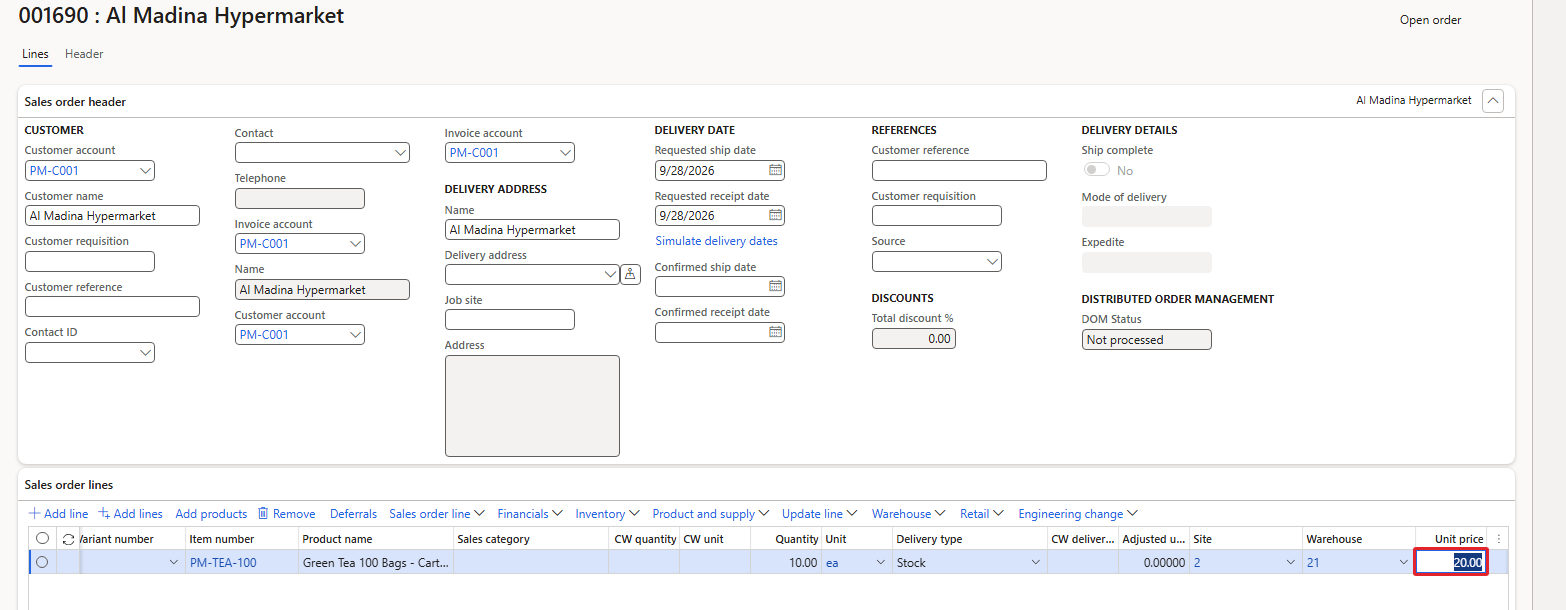
Sales order 001690 – site 2 still 20.00
| RESULT: Base price = vendor list price 10.00 + term agreement 5% = 10.50, per site, active only after the base price calculation. Order 001688 (created before) keeps 20.00 until it is recalculated. |
|---|
| NOTE: Our tea now sells at 10.50 while the purchase price on the item is 12.00 – the demo figures are only there to show the mechanics. In real life a margin adjustment (Chapter 6) would sit on top of the base price. |
|---|
2. Funds – a budget for a discount
What: a fund is an amount (or quantity) of money reserved for a promotion. Discounts linked to the fund can only be given until the fund is used up.
Why: marketing gets 15,000 for a campaign – not a cent more. Without a fund, a successful promotion simply keeps giving discount.
Navigation: Pricing management > Fund control > Funds (setup: Fund control setup > Fund usage)
2.1 Setup
- Fund usage: a simple list of purposes. I created PM Promo "Pricing management promotions".
- Discount: a new simple discount ST100075 "PM Tea fund promo 10%" (price component code PM Brand promotion, combination All-PMProductLine, Item number = PM-TEA-100, Percentage off 10), enabled.
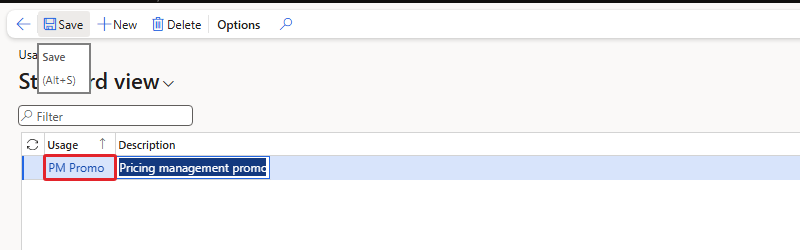
Fund usage PM Promo
The fund itself (fund ID from the number sequence):
- Fund type: Discount. Only this type shows the Budget and balance and Discounts FastTabs; Trade allowance is the older trade allowance fund.
- Status: Planning while you build it, Approved to use it.
- From date / To date: 9/1/2026 – 12/31/2026. A fund is used only on orders inside this period.
- Fund value type / Currency: Amount, USD (Quantity would count units, e.g. for free items).
- Fund budgeted: 15.00 – deliberately small, so that we can use it up with two orders.
- Usage: PM Promo.
- Customers – Hierarchy: cleared. With a customer category hierarchy the fund applies only to the customers moved to Fund customers; with an empty hierarchy it applies to all customers.
- Discounts FastTab: Add line – ST100075.
Negative test first: saving the fund without a Currency gives "The fund amount currency is not specified." – the record is not saved.
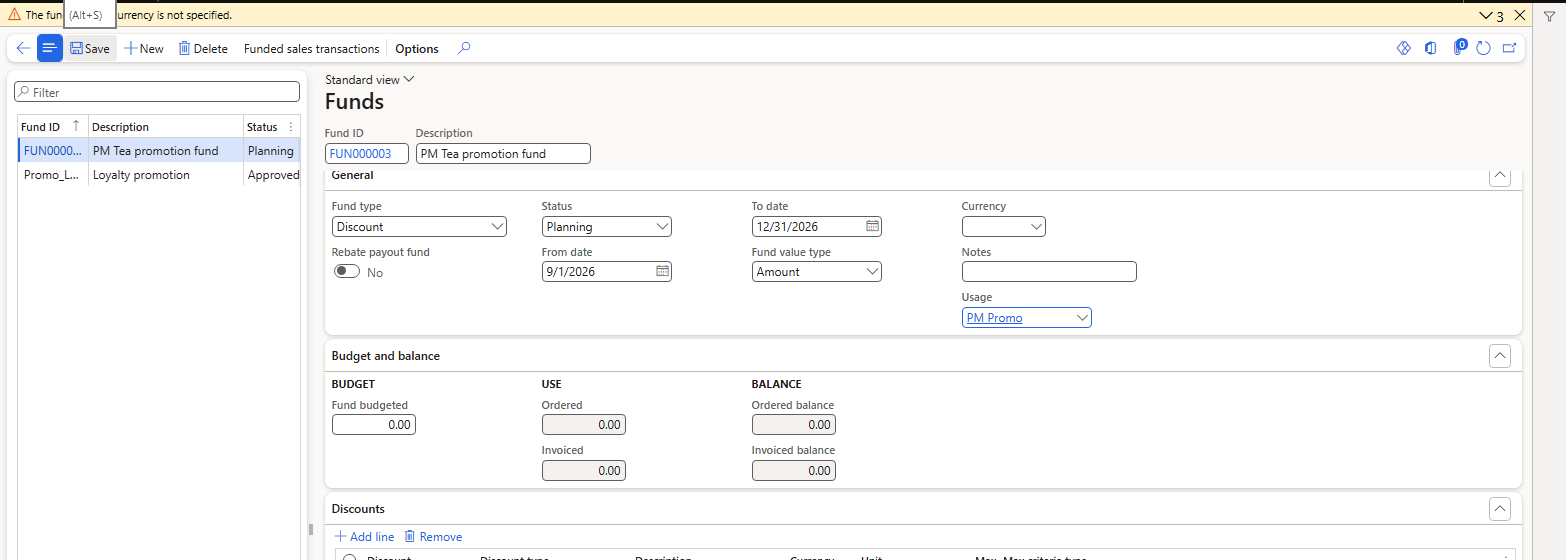
Fund without currency – not saved
With currency USD the fund FUN000004 "PM Tea promotion fund" saved; on approval the system warns "The fund is being approved, but not all funds have been distributed." (distribution to customers is optional) and the status is Approved.
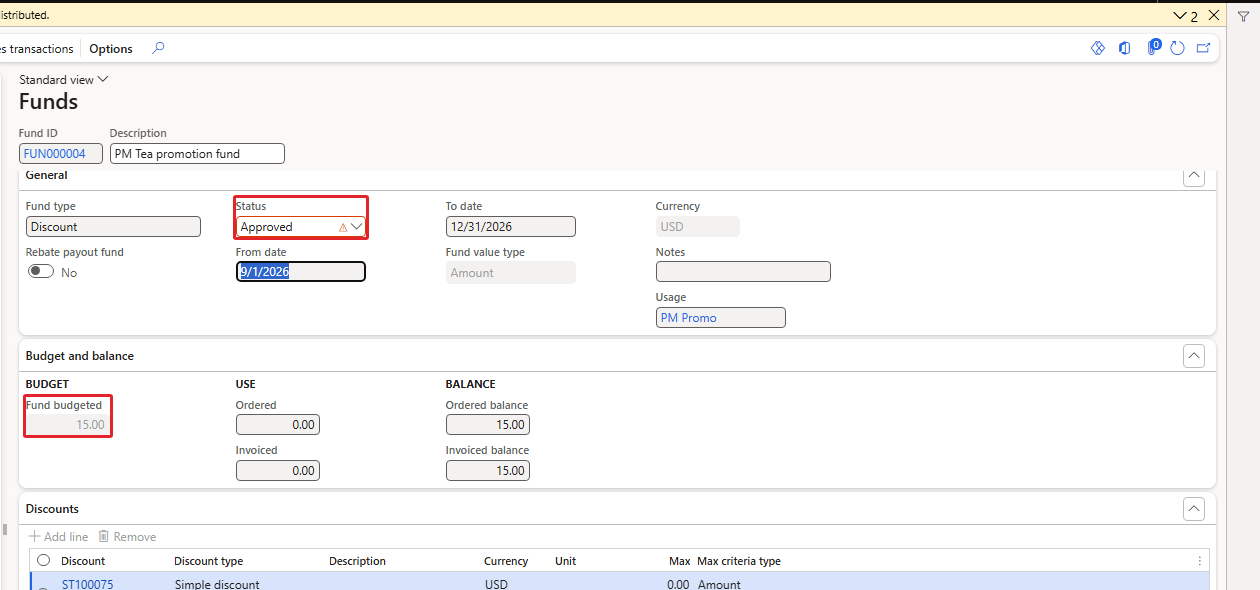
Fund FUN000004 – approved, budget 15.00, discount ST100075
2.2 When is the fund used? At Complete
Order 001691 (PM-C001, 10 tea): the discount 1.05 per unit (10% of 10.50) = 10.50 is on the line straight away – but the fund still shows Ordered 0.00. The fund is only checked when the order is completed: Complete opens the Sales order summary, and the fund is booked when you click Submit there. In my first run the summary was closed without Submit, and the fund stayed at 0.00.
| Order | Discount before Complete | After Complete + Submit | Fund ordered / balance |
|---|---|---|---|
| 001691 | 1.05 × 10 = 10.50 | 10.50 kept (line 94.50) | 10.50 / 4.50 |
| 001692 | 1.05 × 10 = 10.50 | capped to 0.45 × 10 = 4.50 (line 100.50) | 15.00 / 0.00 |
| 001693 | 1.05 × 10 = 10.50 | discount removed (line 105.00) | 15.00 / 0.00 |
The math of 001692: the discount wanted 10.50, the fund had only 15.00 − 10.50 = 4.50 left, so the discount was reduced to 4.50 (0.45 per unit). Price details of 001692 still shows the rule ST100075 with Value 10.00 (%), but a line discount of 0.45:
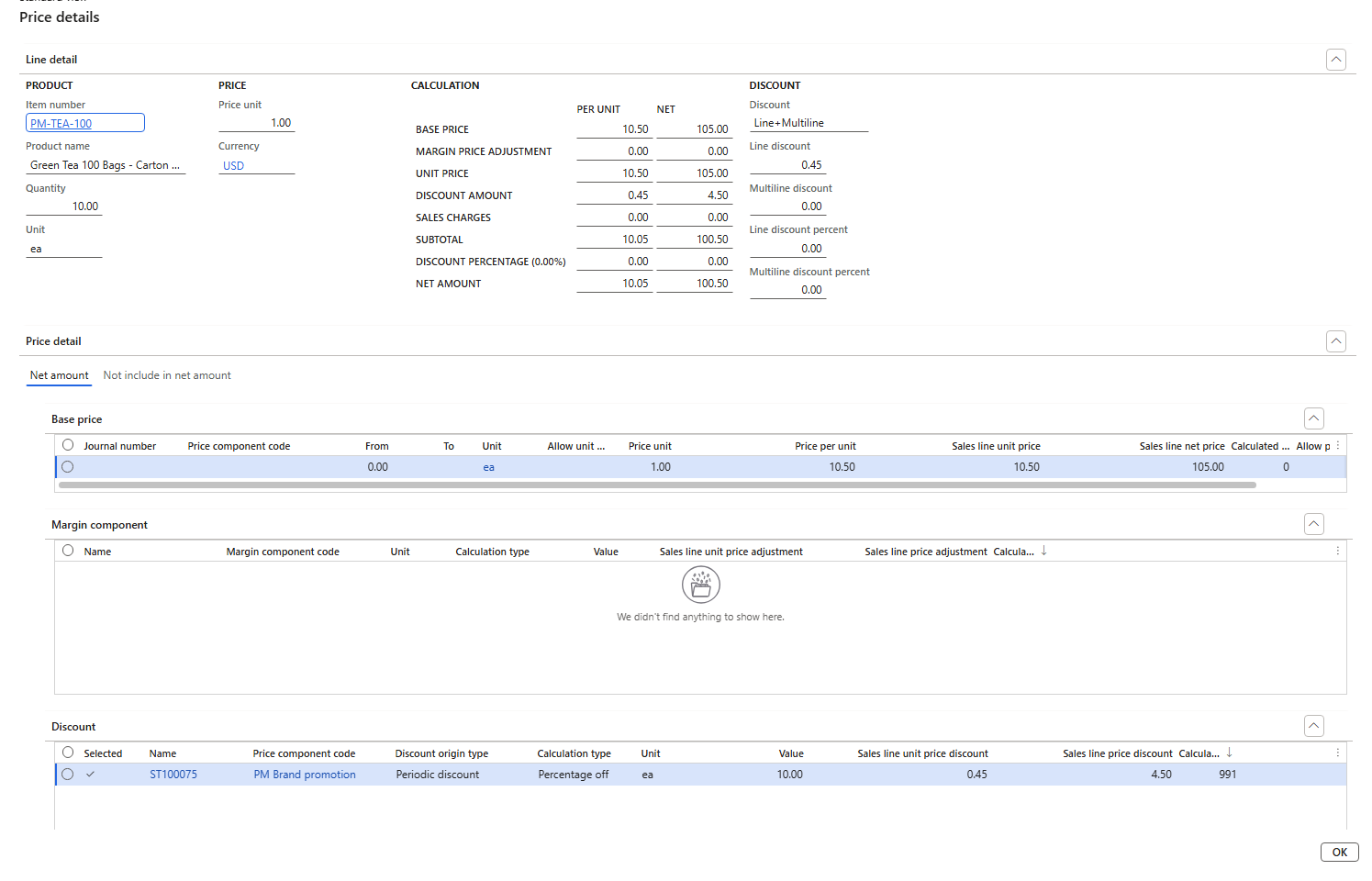
Price details of 001692 – discount capped by the fund
The fund now shows Ordered 15.00 and Ordered balance 0.00; Invoiced stays 0.00 until the orders are invoiced. Funded sales transactions lists the two orders that used it:
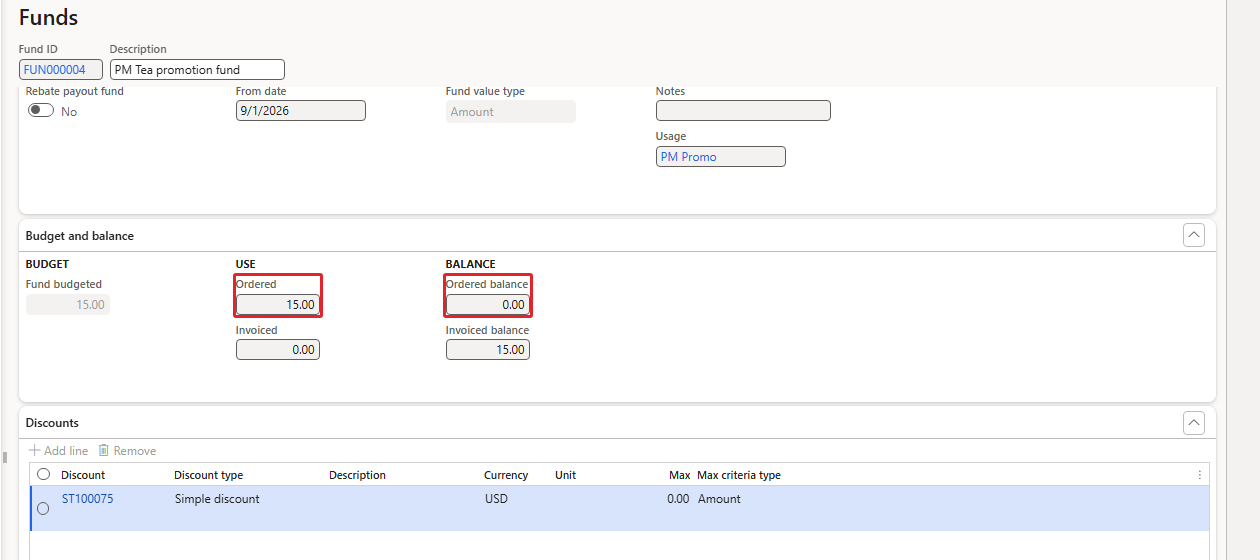
Fund FUN000004 after the orders

Funded sales transactions – 001691 (10.50) and 001692 (4.50)
Negative test – set the fund back to Planning: "It's not allowed to change back to Planning, since there are transactions linked with Fund." The change is refused.
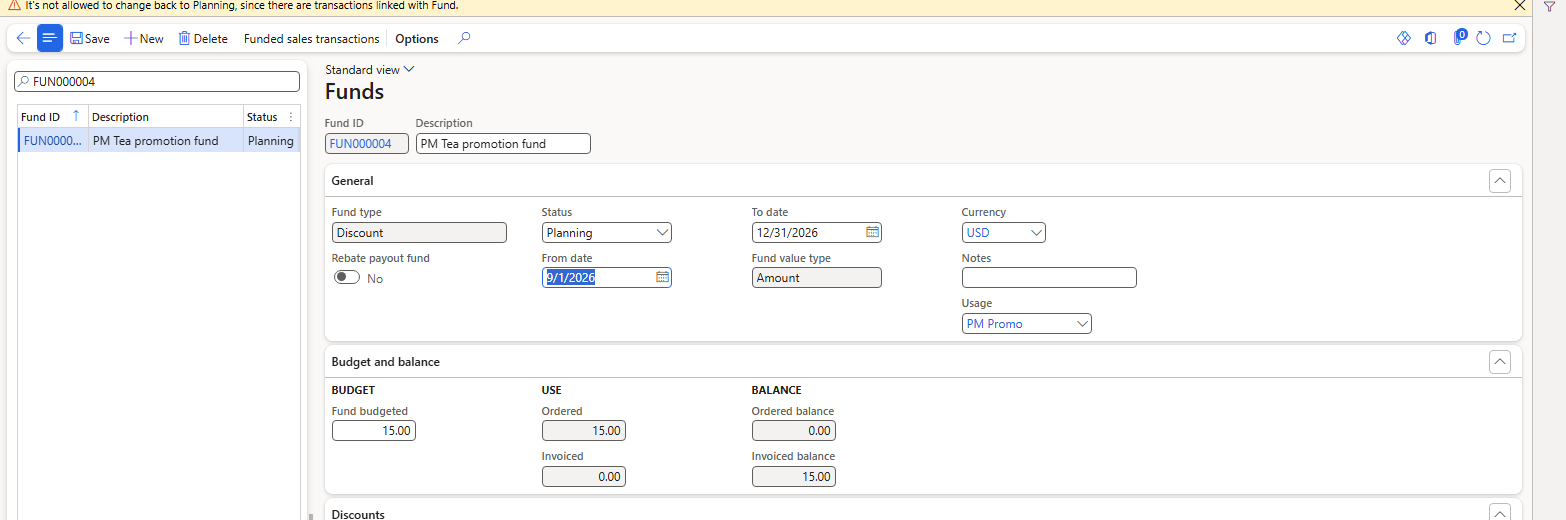
Approved → Planning refused
| RESULT: The fund caps the discount across orders: full discount while budget remains, a partial discount for the remainder, no discount when the fund is used up – and all of it only when the order is completed. Orders that are never completed do not use the fund. |
|---|
| NOTE: During the test my automation once moved the status combo to Closed by mistake. I set it back to Approved; Closed → Approved is allowed while the To date is in the future. After the tests I disabled ST100075. |
|---|
| TIP: Because the fund is booked at Complete, a user who only saves orders sees the full discount. If you use funds, make Complete part of the order process. |
|---|
3. Discount claims – supplier-funded discounts
What: a supplier often pays part of a promotion ("we fund 50% of your 10% discount on our tea"). A claimable discount records, at sales invoice posting, how much of the discount the supplier owes; the periodic job Discount claim process then creates the claim against the vendor.
Why: without it the supplier share has to be calculated by hand from sales reports every month.
Navigation: Pricing management > Discount claim, and Setup > Posting > Discount claim posting
3.1 Posting profiles
Discount claim posting has four tabs. I created:
- Claim – PM-CLAIM "Vendor share of PM discounts", accrual account 130701 Accrued Vendor Rebates Receivable (what the vendor owes us).
- Non-claim – PM-OWN "Company share of PM discounts", (the part we pay ourselves). Normally the discount account 403200; in this environment 200210 Rebates Accrual – see 3.5.
- Claim offset – PM-OFFSET "Claimed discount offset" (reverses the discount booked on the invoice). Normally 403200; here 200210 – see 3.5.
- Additional claim – not used here.

Claim profile PM-CLAIM

Non-claim profile PM-OWN

Claim offset profile PM-OFFSET
3.2 Vendor, claim group, item and parameters
- Discount claim group: PM-TEA "Tea suppliers that fund PM discounts" (Pricing management > Discount claim > Discount claim groups). It groups vendors, e.g. for claim fees.
- Vendor: new vendor PM-V001 "Green Leaf Tea Traders", group 40, Discount claim group PM-TEA.
- Item: Released product PM-TEA-100 > Plan > Default order settings > Sales order > Discount claim vendor account = PM-V001. This decides which vendor the claim is raised against; according to the application code, invoice posting stops with a warning when it is missing.
- Pricing management parameters > Discount claim: Discount claim accrual journal = GenJrn (journal for the accrual at invoice posting) and Discount claim journal = APInvoice (the lookup only offers vendor invoice journal names).

Discount claim group PM-TEA
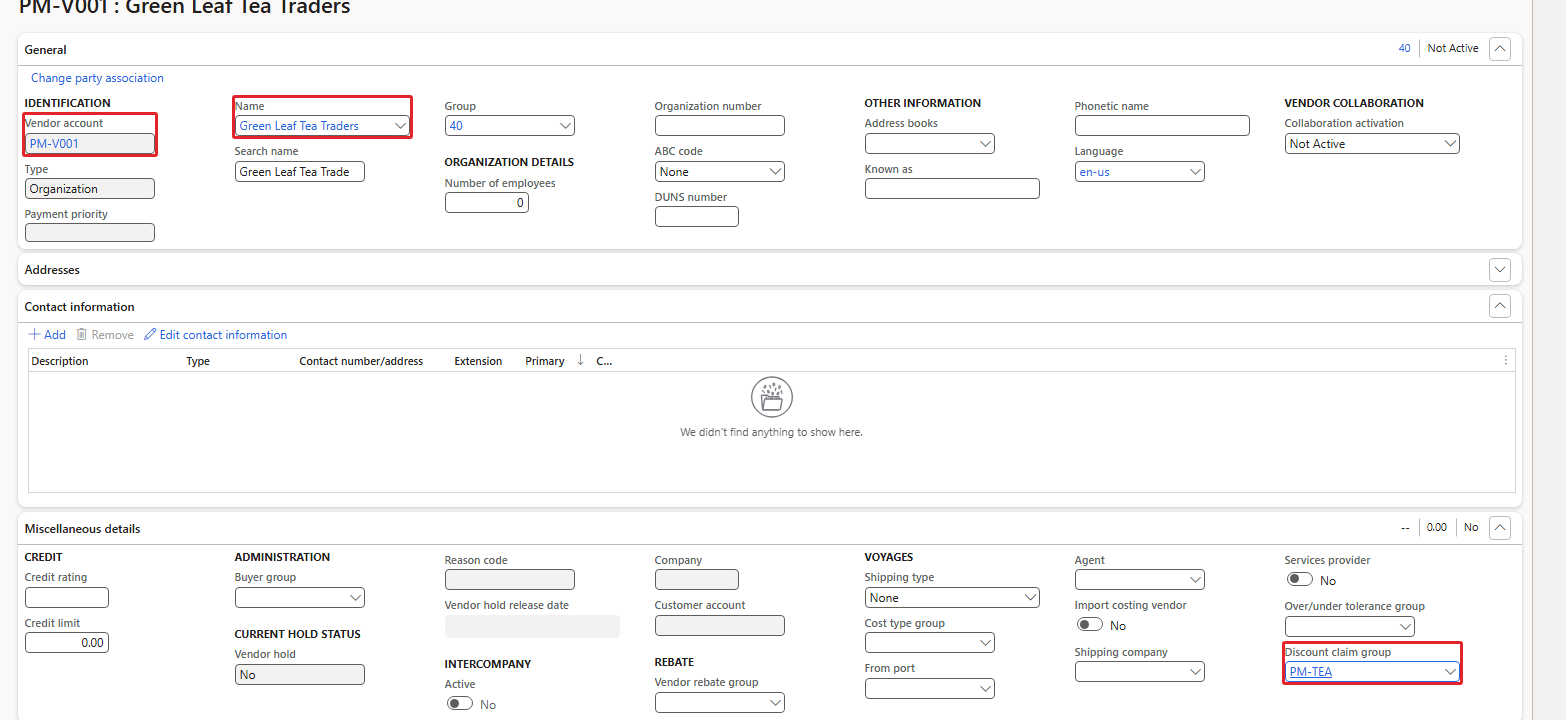
Vendor PM-V001 with discount claim group
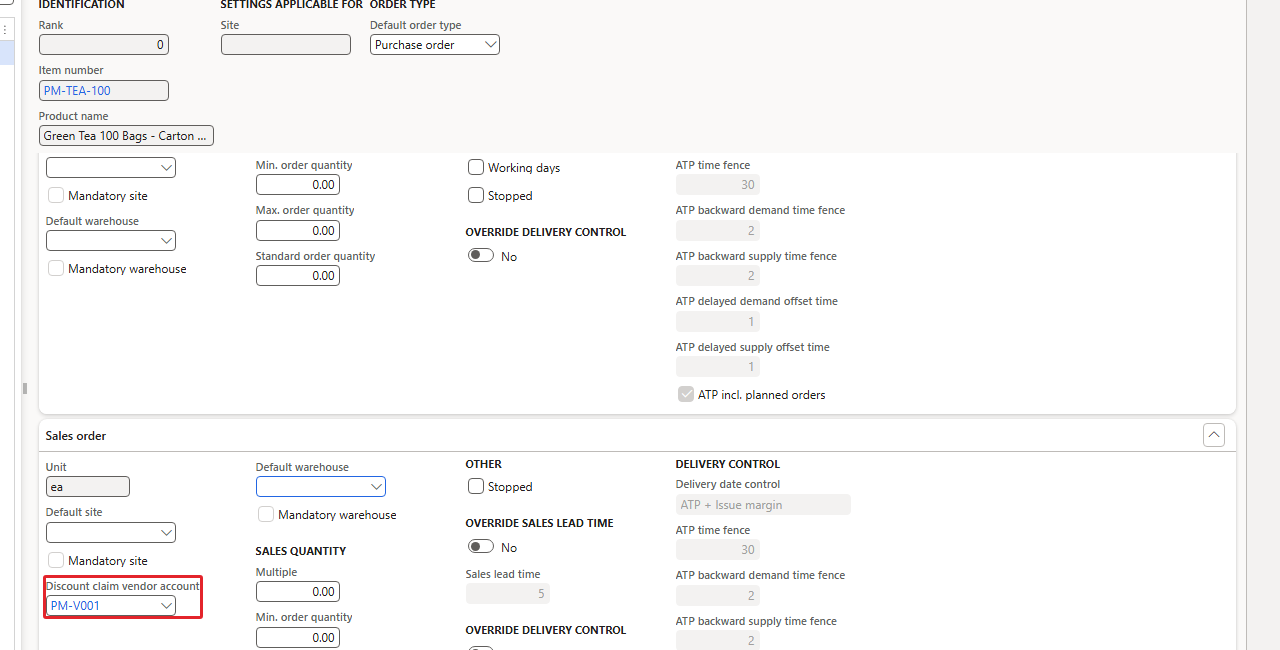
Default order settings – Discount claim vendor account
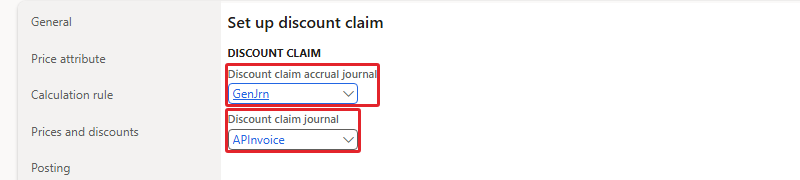
Parameters – Discount claim
3.3 The claimable discount
New simple discount ST100076 "PM Tea supplier-funded 10%" (PM Brand promotion, All-PMProductLine, Item number PM-TEA-100, 10% off). On the General FastTab:
- Discount claim – Claimable: Yes.
- Discount claim group: PM-TEA.
- Claim offset posting: PM-OFFSET.
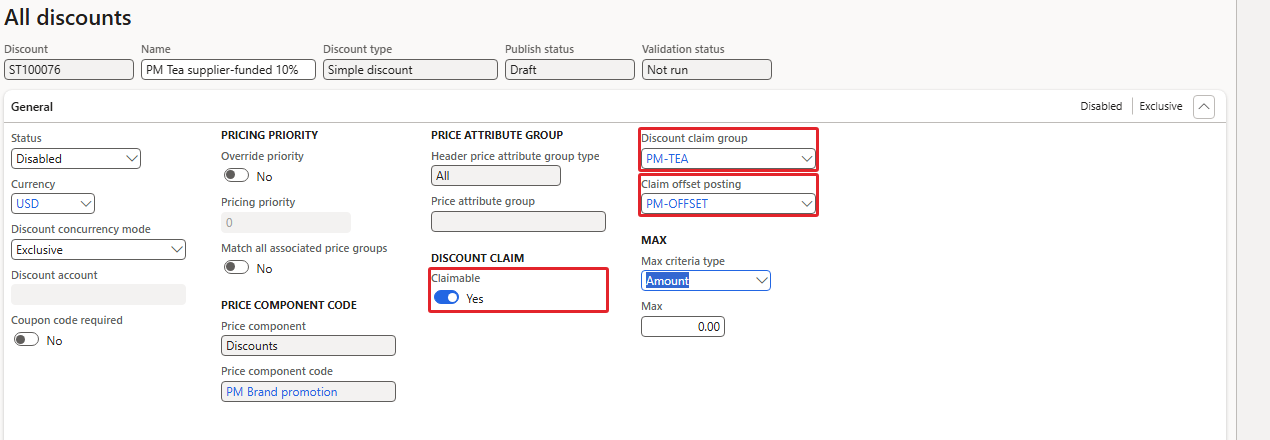
Claimable discount ST100076
On the line, the Claim posting line details FastTab splits the discount: Claim tab – posting profile PM-CLAIM, Percent, 50.

Claim 50% – PM-CLAIM
Negative test – enabling with only the claim line: "Claimable and non-claimable should sum up to 100% of the Discount percentage or percentage amount", and the discount stays Disabled.
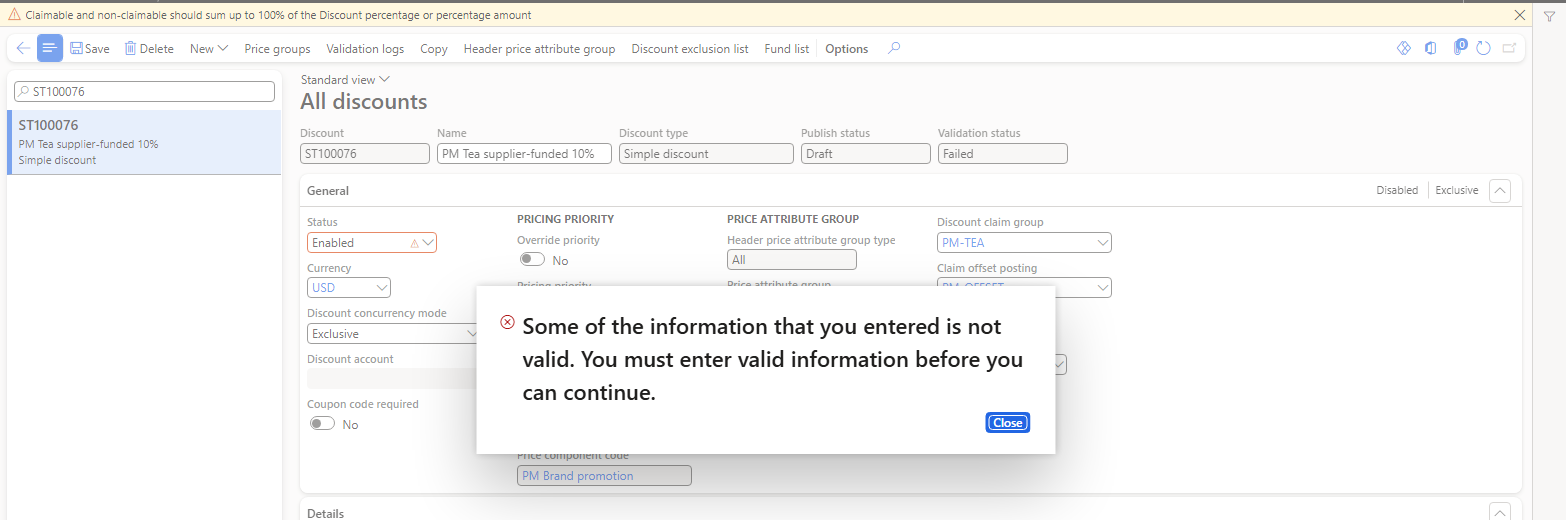
Claim + non-claim must make 100%
I added the Non-claim line PM-OWN, Percent, 50, and the discount could be enabled.

Non-claim 50% – PM-OWN
Order 001694 (PM-C001, 10 tea): discount 1.05 per unit = 10.50 from ST100076, visible in Price details. On the sales order the claim is not visible – nothing is claimed before the invoice.
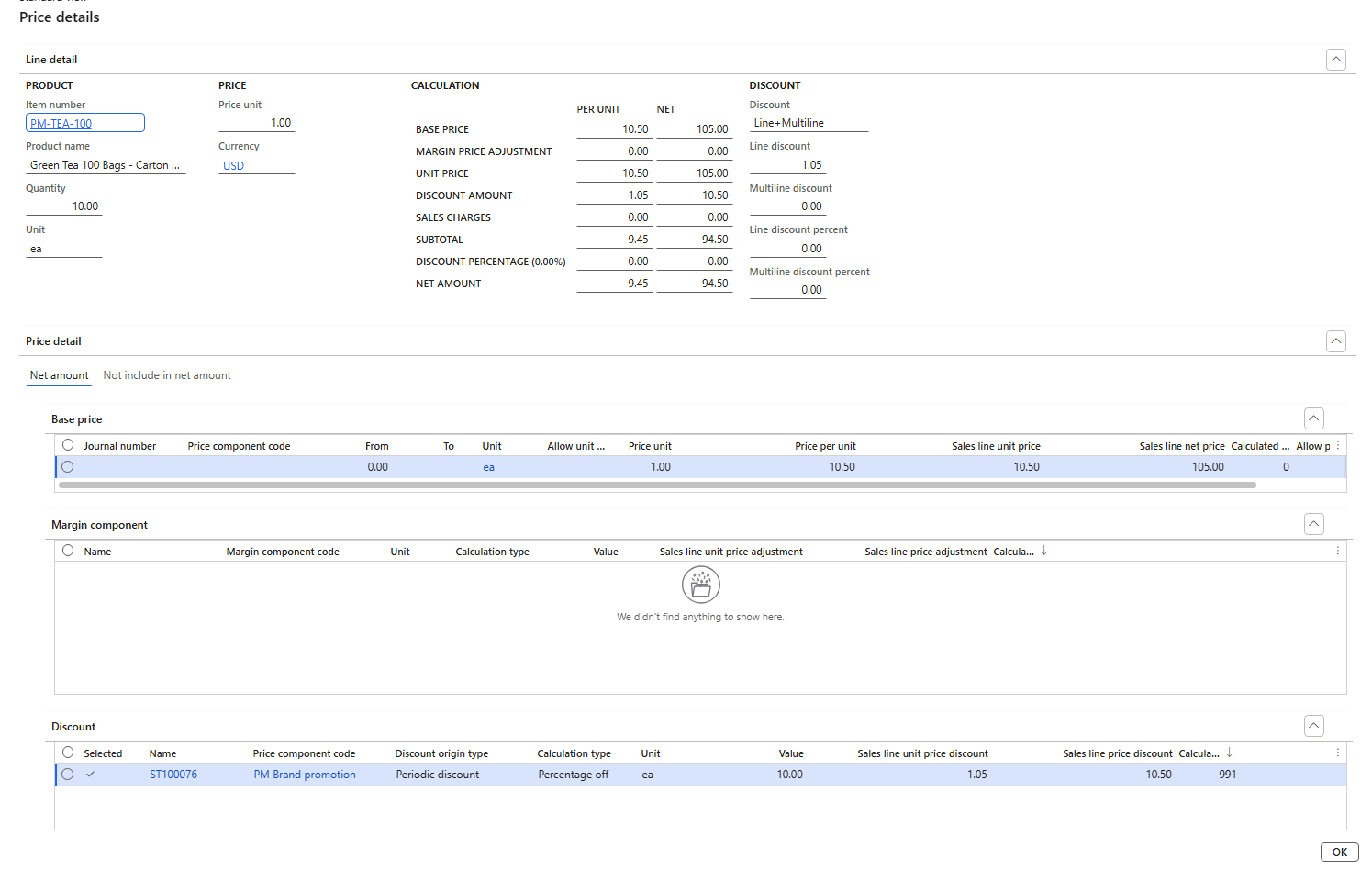
Price details of 001694 – claimable discount ST100076
3.4 Stock for the test – and an environment trap
To invoice, the tea needs stock (the FIFO model group does not allow negative physical inventory). I created inventory adjustment journal 01327 (IAdj) with 100 ea at site 1 / warehouse 11, cost price 10.50. The first posting failed:
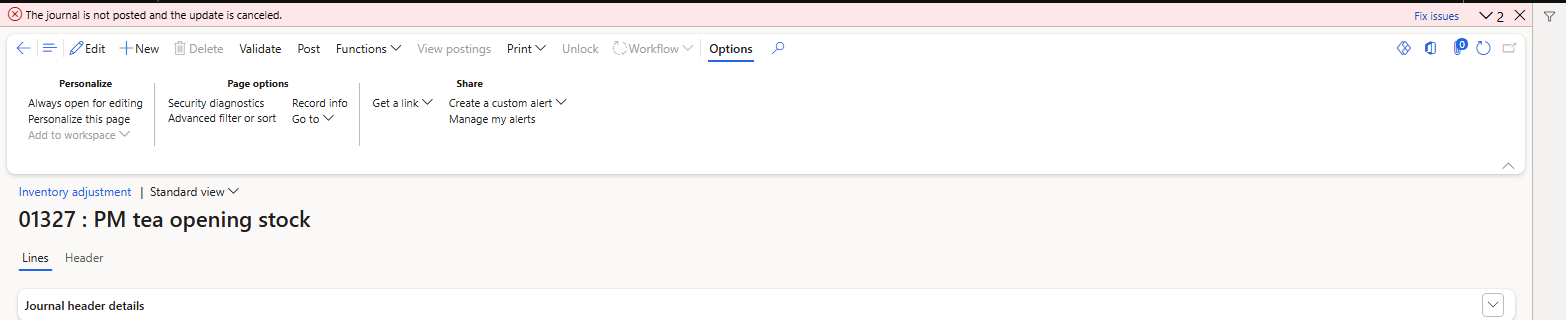
Journal 01327 – first posting refused
"Journal: 01327 Voucher: IJV-8670 … You must select a value in the PropertyContract field in combination with the following dimensions values that are valid". In this environment the account structure Manufacturing P&L (main accounts 400000–999999) of USMF has an extra segment PropertyContract that must not be blank; it was added for another solution on this machine. Every posting to a USMF profit and loss account needs a property contract. For this test I entered the property contract USMF-000013 as financial dimension on the journal line (Line details > Financial dimension); the journal then posted and 100 ea are on hand.
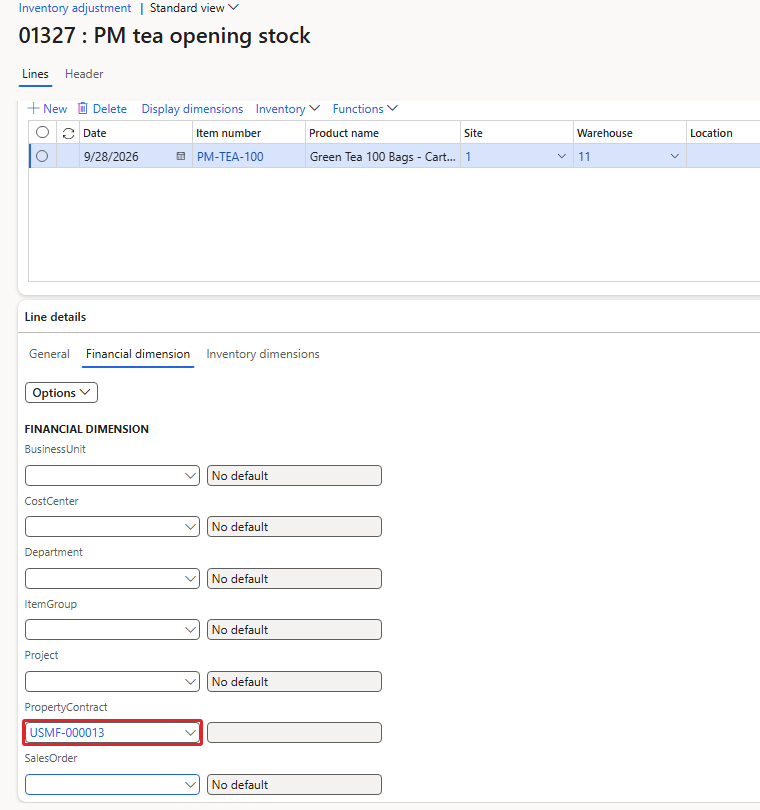
Financial dimension PropertyContract on the journal line
| NOTE: This is specific to this environment, not to Pricing management. In a normal USMF the dimension steps of 3.4 and 3.5 are not needed. |
|---|
3.5 Invoice the order
Order 001694 got the same property contract in Header > Financial dimensions (the dialog Update order lines with Update Dimension = Yes copies it to the line). Then Complete > Submit, and Invoice > Generate > Invoice.
- Negative test: with Quantity = Packing slip (the default) posting stops with "No lines for posting or quantity = 0" – the order has no packing slip. Quantity = All posts the invoice directly.
- Second failure: "Posting results for journal batch number 25318 Voucher GNJL001100 … You must select a value in the PropertyContract field". This time the invoice itself was fine, but the claim accrual journal created during the invoice failed, and the whole invoice was rolled back. In the application code the accrual lines use only the main accounts of the posting profiles, without financial dimensions – so with the profit and loss account 403200 in PM-OFFSET and PM-OWN they can never carry a property contract here.
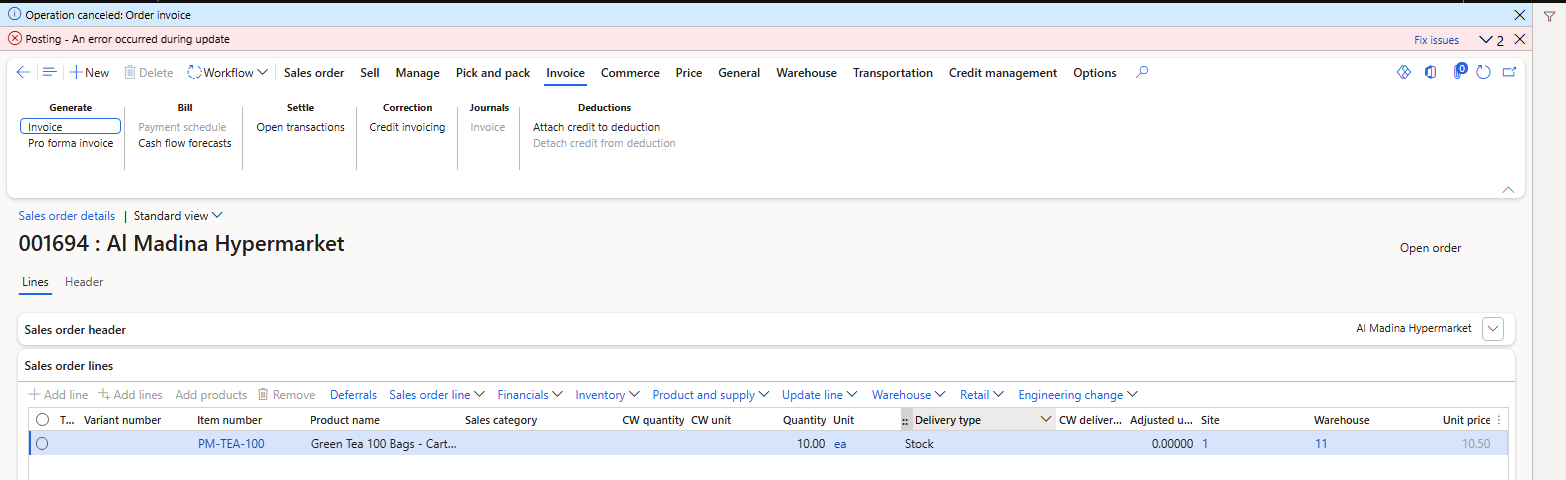
Invoice rolled back – the claim accrual journal failed
Workaround for this environment: I changed the accounts of PM-OFFSET and PM-OWN to the balance sheet account 200210 Rebates Accrual (see 3.1). The third posting succeeded: invoice CIV-00000738, 94.50, order status Invoiced.
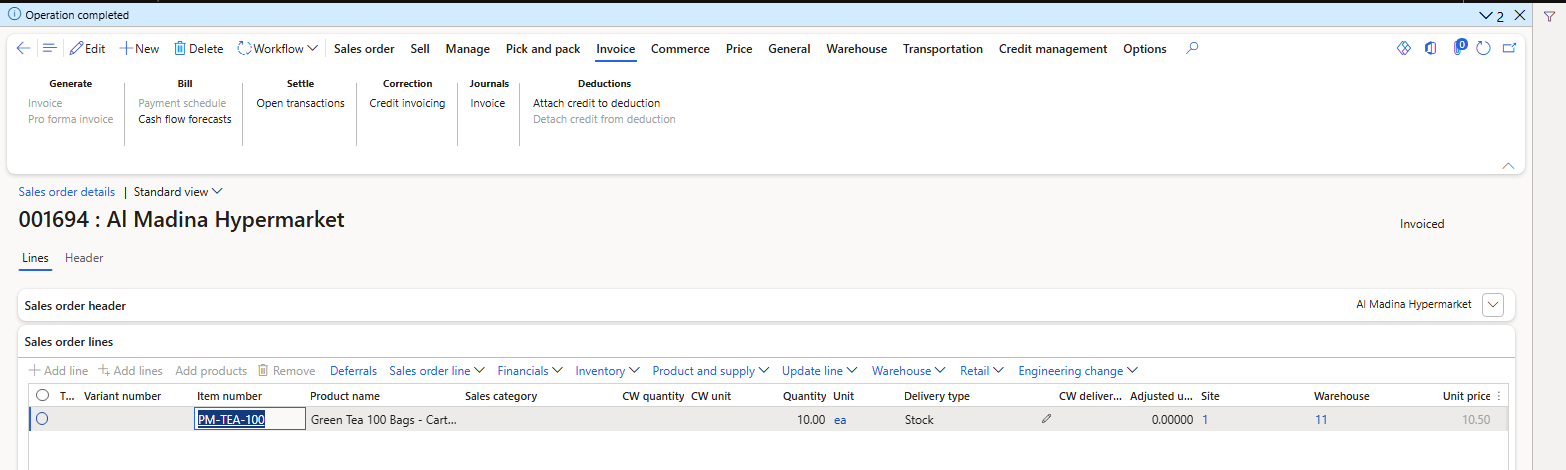
Order 001694 invoiced
3.6 The claim is created at invoice posting
Navigation: Pricing management > Discount claim > Discount claims
Claim USMF-000003: claim posting profile type Claim, status Calculated, discount ST100076, sales invoice CIV-00000738, vendor PM-V001, claimable amount 5.25 = 50% of the discount 10.50. Discount claim transactions shows the line PM-TEA-100 5.25.

Claim USMF-000003 – Calculated, 5.25
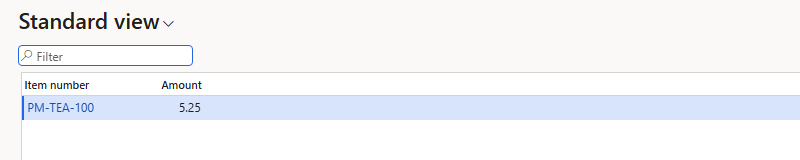
Discount claim transactions
The accrual journal 25318 (GenJrn) was posted together with the invoice, voucher GNJL001101 "Discount claim accrual":
| Line | Debit | Credit | Amount |
|---|---|---|---|
| Claim (PM-CLAIM) | 130701 Accrued Vendor Rebates Receivable | 200210 (PM-OFFSET) | 5.25 |
| Non-claim (PM-OWN) | 200210 | 200210 (PM-OFFSET) | 5.25 |
The non-claim line nets to zero here because both accounts are 200210. With 403200 on both (the normal setup) it would also net out on the discount account, while the claim line moves the vendor share from the discount to the receivable.
3.7 Process discount claims
Navigation: Pricing management > Periodic tasks > Discount claim process (or Process discount claims on the Discount claims page)
The dialog filters by Discount ID, Vendor account and Discount claim group. Typing into these filter fields did not take in my session – the same problem as the base price filter in 1.5. Because USMF-000003 was the only discount claim in the whole database (checked before running), I ran it without a filter. Result: "Number of vouchers posted to the journal: 1".
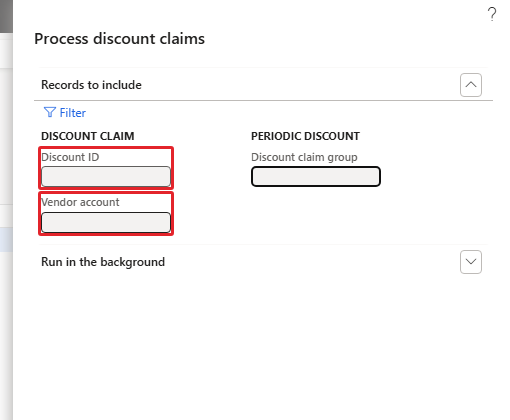
Process discount claims
- Journal 25319 (APInvoice), voucher APIN000070, invoice USMF-000001: vendor PM-V001 debit 5.25 "Discount claim", 130701 credit 5.25 "Discount claim accrual - Reversal".
- Vendor transaction on PM-V001: invoice USMF-000001, +5.25 – the vendor now owes us 5.25; it can be settled against the next purchase invoice.
- Claim USMF-000003: status Claimed, vendor claim invoice USMF-000001.

Claim USMF-000003 – Claimed, vendor claim invoice USMF-000001
| RESULT: Discount 10% = 10.50 on the invoice; vendor share 50% = 5.25 recorded as a claim at invoice posting and turned into a vendor debit of 5.25 by Process discount claims. |
|---|
4. Data left in USMF
- Item PM-TEA-100 (100 ea received by journal 01327, 10 ea invoiced; Discount claim vendor account PM-V001); vendor PM-V001 with vendor transaction USMF-000001 (5.25).
- Vendor list price USMF-000002 and term agreement USMF-000002 (enabled); term code PM Freight; base price 10.50 active for site 1 (base price version 1).
- Fund usage PM Promo; fund FUN000004 (approved, fully used); discount ST100075 (disabled).
- Posting profiles PM-CLAIM (130701), PM-OWN and PM-OFFSET (200210); discount claim group PM-TEA; discount ST100076 (claimable, enabled); claim USMF-000003 (Claimed).
- Parameters changed: Discount claim accrual journal = GenJrn, Discount claim journal = APInvoice.
- Sales orders 001688–001693 (open) and 001694 (invoiced, CIV-00000738). Journal 01327 and order 001694 carry the property contract USMF-000013 of the other solution.
That's all, folks!
Cheers!
Salman Ahmad
D365 F&O Consultant (Finance, SCM, Project Accounting)
← Previous: Pricing Management in Dynamics 365 SCM — Chapter 10 – Troubleshooting and Periodic Jobs