
Fixed Assets
FIXED ASSETS
Fixed assets are tangible or physical assets that a company owns and uses for its business operations, with the expectation of deriving benefits from them over an extended period, typically exceeding one year. These assets are crucial in generating revenue and achieving its business objectives. Fixed assets are also referred to as non-current assets or long-term assets.
Set up fixed assets Prerequisites
Before using Fixed assets module, several prerequisites must be setup:
- number sequences
- journal names
- default descriptions.
Number sequences:
Organization administration > Common > Number sequences > Number sequences
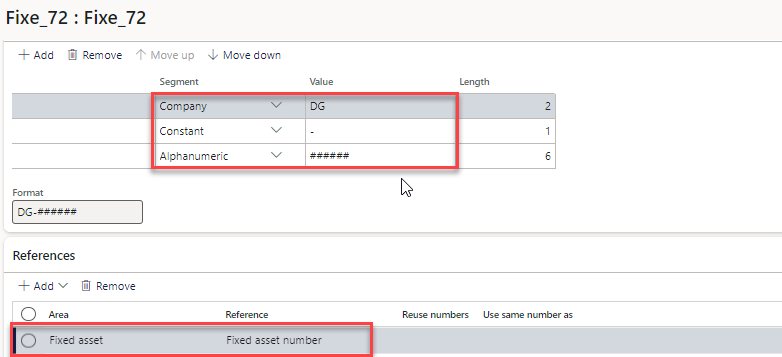
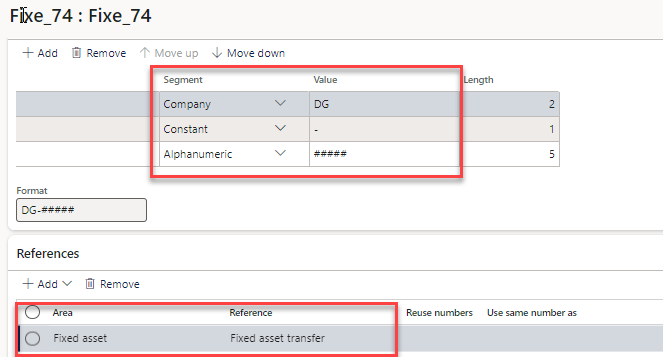
Two number sequences must be created for the FA parameters:
- Automatic number for « Fixed asset number »
- Automatic number for « Fixed asset transfer »
- One sequence per journal names: acquiring, depreciating, adjustment, …
- Several number sequences per asset groups (optional).
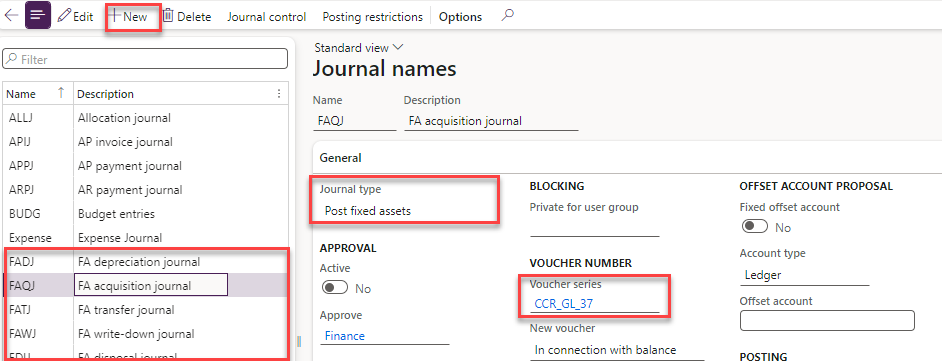
Journal names
Access: General Ledger >Setup > Journals > Journal names
Create journal with the type « Post fixed Assets ».
Default descriptions
- Organization administration > Setup > Default descriptions
- Two default descriptions to setup :
- Fixed asset – posting, ledger
- Fixed asset – reversal of reserve
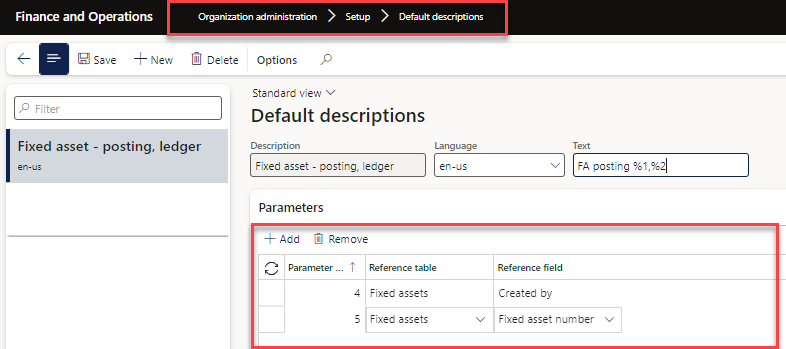
Create the default description like this and %1, %2, %3 will be fixed it includes date, from & Voucher
Configuration
Parameters
Fixed Asset parameters must be maintained to take full advantage of D365 functionality. Once the configuration is set up, the same method will be used for all fixed assets.
Of specific concern regarding Acquisition of Fixed assets, the following parameters must be reviewed:
General:
Allow multiple acquisitions – Indicate whether or not an asset can have multiple acquisition journals associated with it. If a new asset ID must be generated for each acquisition transaction, then the indicator must be unchecked.
Consider capitalization threshold-
Select this option to require that the acquisition price of a fixed asset on a vendor invoice is automatically verified to make sure that it meets or exceeds the amount that is required to depreciate the fixed asset. For example, a fixed asset group has a capitalization threshold of 2,500. When you post a vendor invoice that has a fixed asset in that group, the acquisition transaction that is created can be verified to make sure that the acquisition price is at least 2,500. If the acquisition price meets the threshold, the Depreciation option will be selected automatically in the Books page for the book that is selected for the fixed asset.
Automatically create depreciation adjustment
On disposal of asset automatic deprecation adjustment will pass.
Calculate prorated depreciation-
Select this option to calculate prorated depreciation for a partial year based on the number of days left in the period Prorated depreciation applies only when None is selected in the Depreciation convention fiel. For example, an asset is acquired on October 10. The depreciation frequency is yearly. The expected depreciation for the first year is 1,200.00. If this option is selected, depreciation is calculated as 272.88 for the first year's depreciation: 22 days for October + 30 days for November + 31 days for December = 83 days. (83 days / 365 days) x 1200.00=272.88. If this option is not selected, depreciation is calculated as 270.97 for the first year's depreciation: 100.00 x 2 (there are 2 full months remaining of the 12 month year) + ((22 days from October / 31 days in October) x Monthly depreciation of 100.00) = 270.97. 100.00 x 2 months + (22 days / 31 days) x 100.00 = 270.97 for the first year's depreciation.
Lock asset books in a depreciation journal-
Select this option to lock asset books that are in depreciation journals. This prevents posting depreciation to an asset book that’s included in an unposted journal.
Allow multiple depreciations for same period-
When this option is set to No (which is the default and recommended entry), the system will prevent transactions with the depreciation transaction type from being posted to a period in which depreciation has already been posted. This will enable you to use various transaction types, such as depreciation adjustment, write up or down, to book depreciation for the same period. When this option is set to Yes, the system will permit multiple transactions with depreciation
Purchase Order
- Allow asset acquisition from Purchasing – Set to Yes if acquisition is allowed to be initiated from a Purchase order.
- Restrict asset acquisition posting to user group – Create and select a User group if only certain users in the group can post fixed asset acquisitions.
- Create asset during product receipt or invoice posting – If the asset should be created at receipt or invoice, set to Yes.
- Check for Fixed asset creation during line entry – Check if the item qualifies as a Fixed asset, against fixed asset rules, as the Purchase order line is being created, if set to Yes.
Fixed assets module:
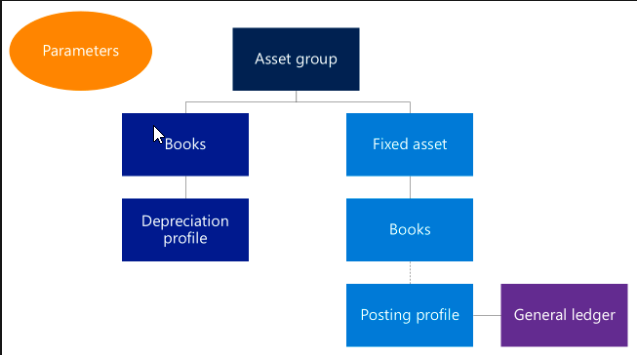
Parameters control the general behavior in Fixed assets. Fixed asset groups let you group your assets and specify default attributes for every asset that is assigned to a group. Books are assigned to fixed asset groups. Books track the financial value of a fixed asset over time by using the depreciation configuration that is defined in the depreciation profile.
Fixed assets are assigned to a group when they are created. By default, the books that are assigned to the fixed asset group are then assigned to the fixed asset. Books that are configured to post to the general ledger are associated with a posting profile. Ledger accounts are defined for each book in the posting profile and are used when fixed asset transactions are posted.
Depreciation profiles
Depreciation profiles determine the type and the frequency of depreciation for an asset.
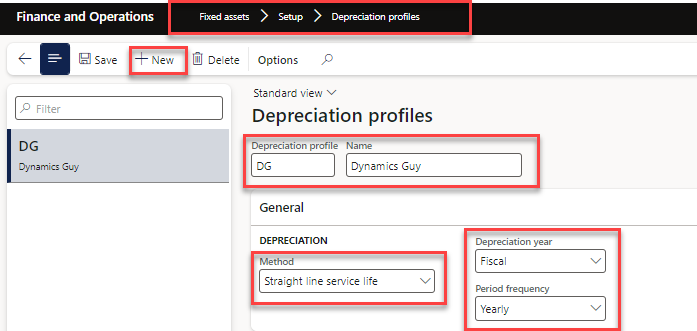
Create a depreciation profile
Go to Fixed assets > Setup > Depreciation profiles.
Click New.
- In the Depreciation profile field, type a value.
- In the Name field, type a value.
- In the Method field, select an option. If selecting reducing balance, you will need to enter a percentage in the Percentage field.
- In the Depreciation year field, select an option.
- In the Period frequency field, select an option.
- Close the page.
To be Con… Happy Learning .