Pricing Management in Dynamics 365 SCM
Chapter 7 – Discounts
Hello everyone! Hope you are all doing well.
In the last chapter we built the unit price in layers: trade agreement price plus a margin price adjustment. Today we add the next layer – discounts. A discount does not change the unit price; it is shown as a discount on the sales order line and reduces the net amount.
Pricing Management brings the discount types of Dynamics 365 Commerce to sales orders in Supply Chain Management: simple discounts, quantity discounts, threshold discounts, mix and match and free items. In this chapter we build and test all five with our own component code PM Brand promotion from Chapter 3, plus the Max per order setting, Prevent discount on trade agreements and coupons.
Our requirement for today
- SunGold brand promotion: 10% off all SunGold products (sunflower oil and orange juice) for all customers.
- Rice volume discount: 3% off from 20 bags of basmati rice per order, 6% off from 50 bags.
- Order value discount: 2% off when the order reaches 500.00.
- Bundle: 5% off oil and rice bought together; free item: one juice free for every order with 10 oils.
- Minimarkets get a fixed juice price that must not be discounted.
Today's agenda
- Discounts in Pricing Management.
- The All discounts page.
- Creating the SunGold simple discount.
- Test: the discount code is not in the price tree.
- Adding PM Brand promotion to the price tree.
- Test: 10% SunGold discount – also on top of a margin adjustment.
- Quantity discount: the rice volume discount.
- Threshold discount: the order value discount.
- Mix and match discount.
- Free item discount (and a number sequence trap).
- Max per order.
- Prevent discount on the trade agreement.
- Coupons.
- Summary.
1. Discounts in Pricing Management
Every discount rule belongs to a price component code of the type Discounts. In Chapter 3 we created PM Brand promotion with the header group PMCustomerHeader, the line group PMProductLine, "Use all" switched on for header and line, the default discount concurrency mode Exclusive and the price component code group PMPROMO.
The order of calculation follows the price tree: base price (trade agreement), then margin adjustments, then discounts. So a discount is calculated on the price after the margin adjustments – we will prove this with Royal Palm Hotel in section 6.
Why use Pricing Management discounts instead of classic line/multiline discount trade agreements? Because the same attribute-based conditions (brand, customer group, region …) are available, several discount types exist that classic discounts do not have (quantity tiers per order, order value thresholds, mix and match, free items), and all layers are visible together in the Price details.
2. The All discounts page
Navigation: Pricing management > During-sales pricing > Discounts > All discounts
The list shows all discount types together; the menu also has a separate page per type. USMF contains demo discounts (free item, quantity, simple, mix and match, threshold) on the demo codes Promotional discount and Deal discount.
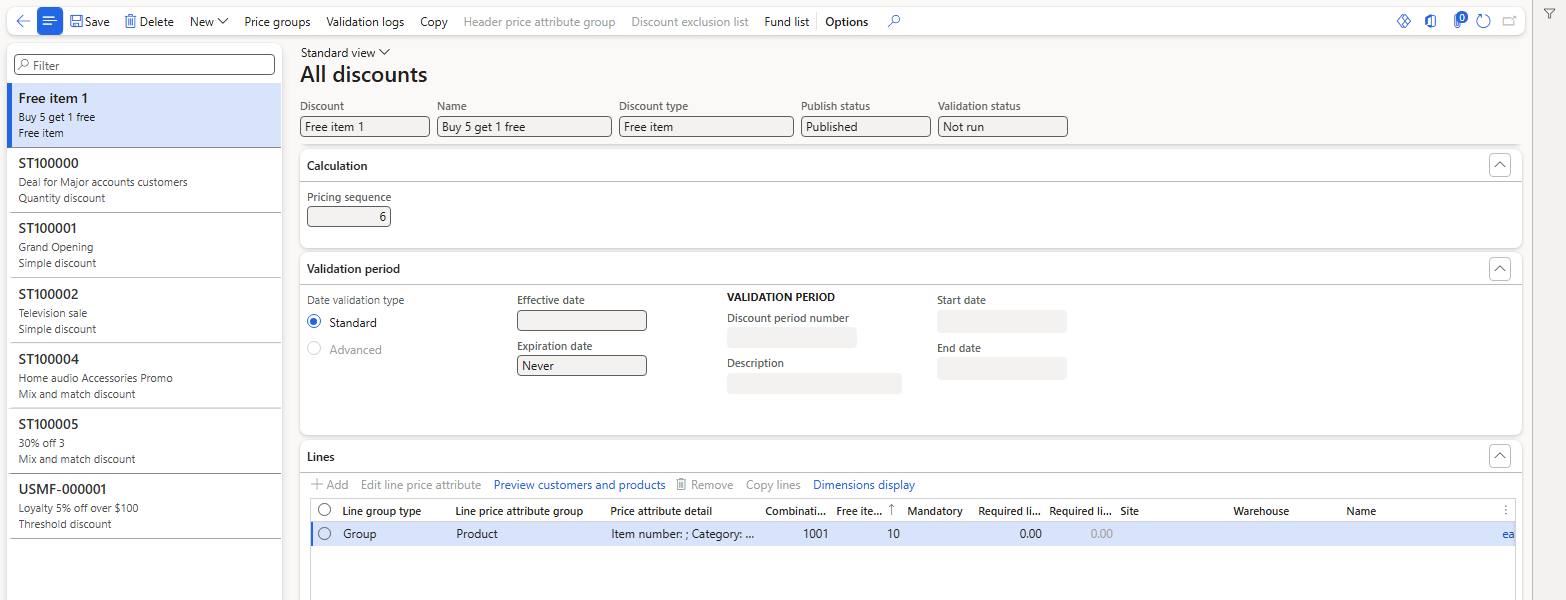
All discounts – the demo discounts of USMF
New offers five discount types:
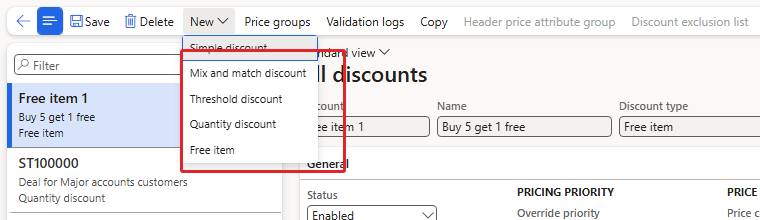
New – Simple discount, Mix and match discount, Threshold discount, Quantity discount, Free item
Most fields are the same as on the margin adjustment page of Chapter 6 (Status, Currency, Pricing priority, Price component code, header price attribute group, Validation period, Lines). Fields that are specific to discounts:
- Discount: the ID from a number sequence. Our simple and quantity discounts got ST100026 and ST100027, the threshold discount got USMF-000026 – different discount types use different number sequences.
- Discount type: read-only, the type chosen with New.
- Discount concurrency mode: how the discount competes with other discounts. According to the Microsoft documentation the values are Exclusive, Best price, Compounded, Always apply and Price attribute combination rank. The default comes from the price component code (Exclusive for PM Brand promotion). We test concurrency in Chapter 8.
- Discount account: an optional ledger account for this discount. Not validated in the current environment.
- Max criteria type / Max: a maximum discount per order (tested in section 11). Coupon code required (section 13). Claimable / Discount claim group / Claim offset posting: vendor claims, not validated in the current environment.
- Line type (on the lines): Include or Exclude.
- Calculation type, Percentage off, Amount off, Unit price (on the lines of a simple discount).
3. Creating the SunGold simple discount
To create a simple discount follow the below steps:
- Click New > Simple discount. The page switches to Simple discounts.
- Enter the Name "SunGold brand promotion 10%" and select the Price component code PM Brand promotion. The Discount concurrency mode shows Exclusive (default of the code). Save – the discount got ST100026.
- Click Header price attribute group and keep Group type = All (all customers).
- On the Lines FastTab click Add, select the combination All-PMProductLine and enter PM-Brand = SunGold, leaving Item number empty. Click OK.
- On the new line set Unit = ea, Calculation type = Percentage off, Percentage off = 10, save.
- Set Status = Enabled and save. The message "The Process commerce discounts for ST100026 job is added to the batch queue." appears, like for margin adjustments.
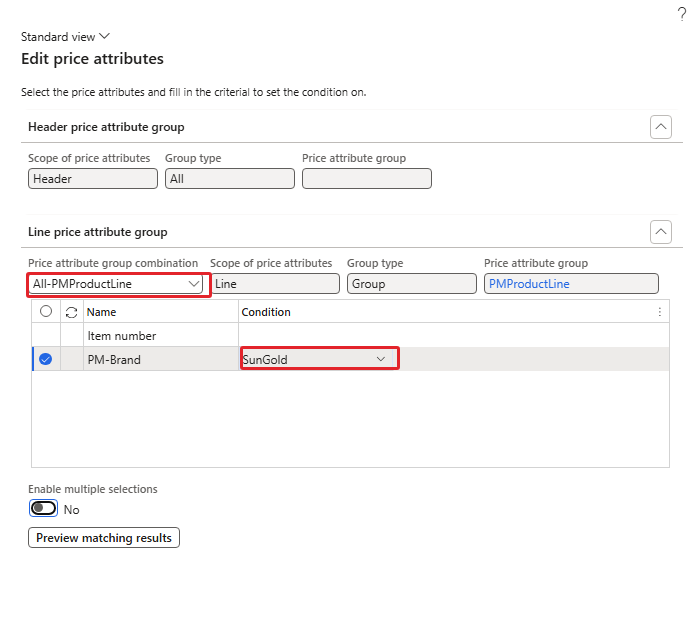
Line condition PM-Brand = SunGold (combination All-PMProductLine)
When the line is added, the message bar shows "Discount percentage must be greater than zero and less than or equal to 100." – the new line starts with 0%. It is only a warning; it disappears when you enter the percentage.
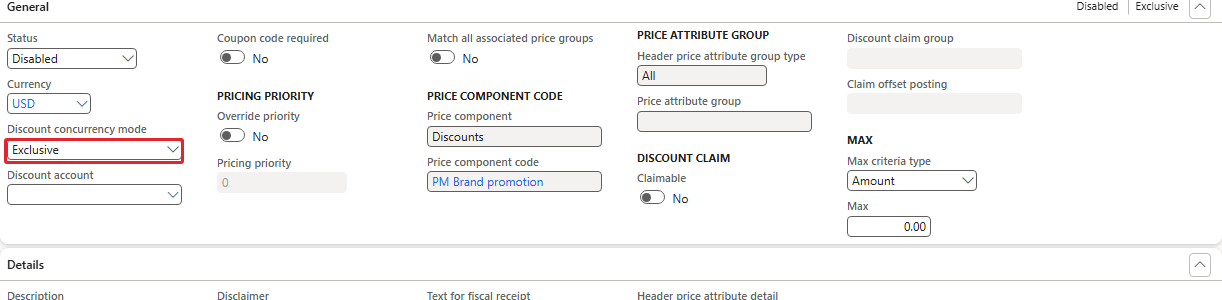
General FastTab – Discount concurrency mode Exclusive, price component code PM Brand promotion

The line – brand SunGold, unit ea, Percentage off 10.00
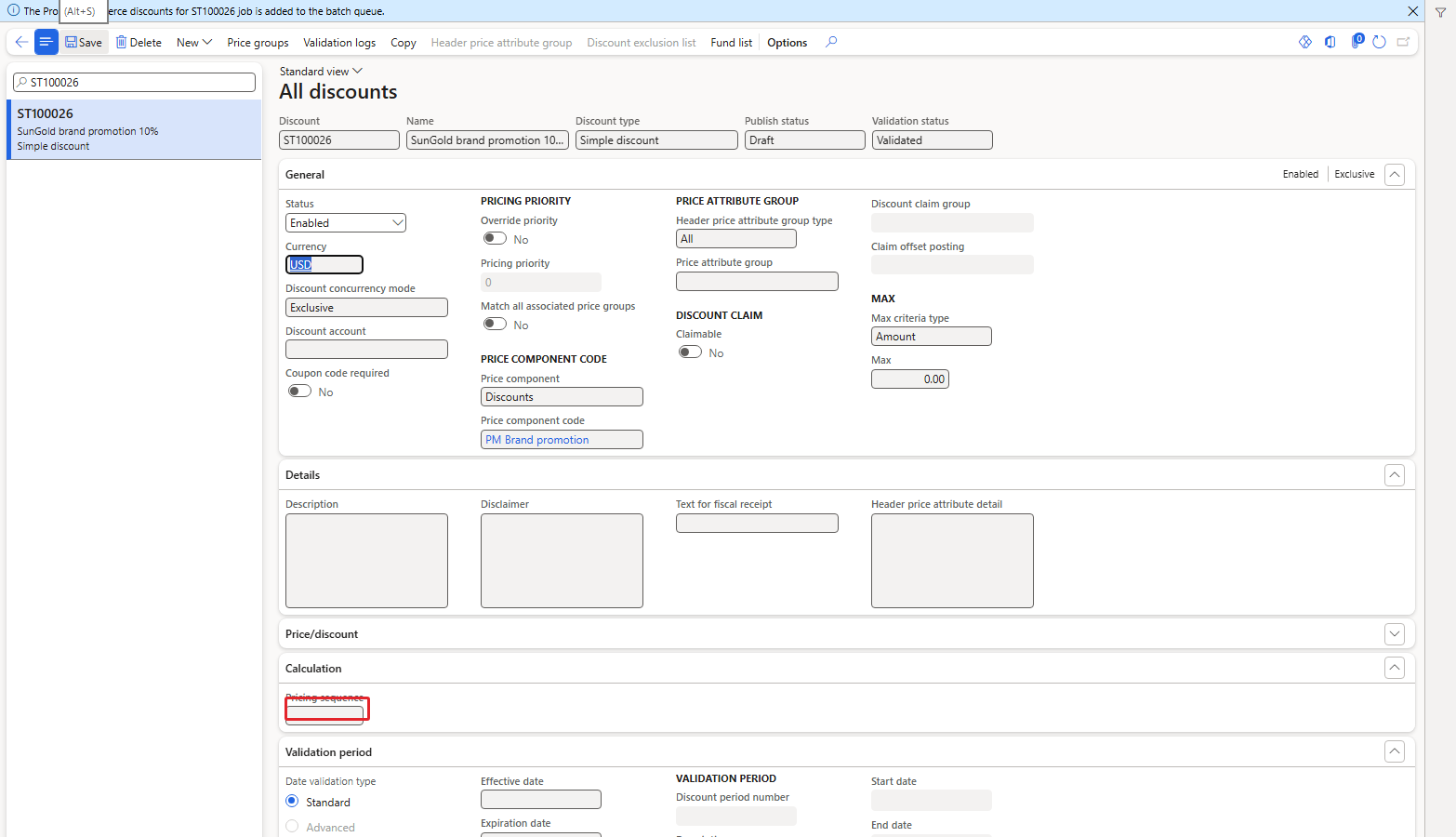
ST100026 enabled – the Pricing sequence is empty: PM Brand promotion is not in the price tree yet
| NOTE: When I automated the unit field the first time, the value went into a hidden grid of the form and the line remained without a unit. I removed that discount and created it again. If a discount does not behave as expected, first check the line on the screen (unit, percentage) before looking elsewhere. |
|---|
4. Test: the discount code is not in the price tree
After Chapter 6 we already expect the answer, but it has to be tested for discounts as well. Order 001565 for Al Madina Hypermarket (PM-C001) with 10 × oil, 10 × juice and 10 × rice:
| Item | Unit price | Discount | Net amount |
|---|---|---|---|
| PM-OIL-5L (SunGold) | 97.00 | 0.00 | 970.00 |
| PM-JUICE-1L (SunGold) | 28.00 | 0.00 | 280.00 |
| PM-RICE-10 (Royal Grain) | 48.00 | 0.00 | 480.00 |
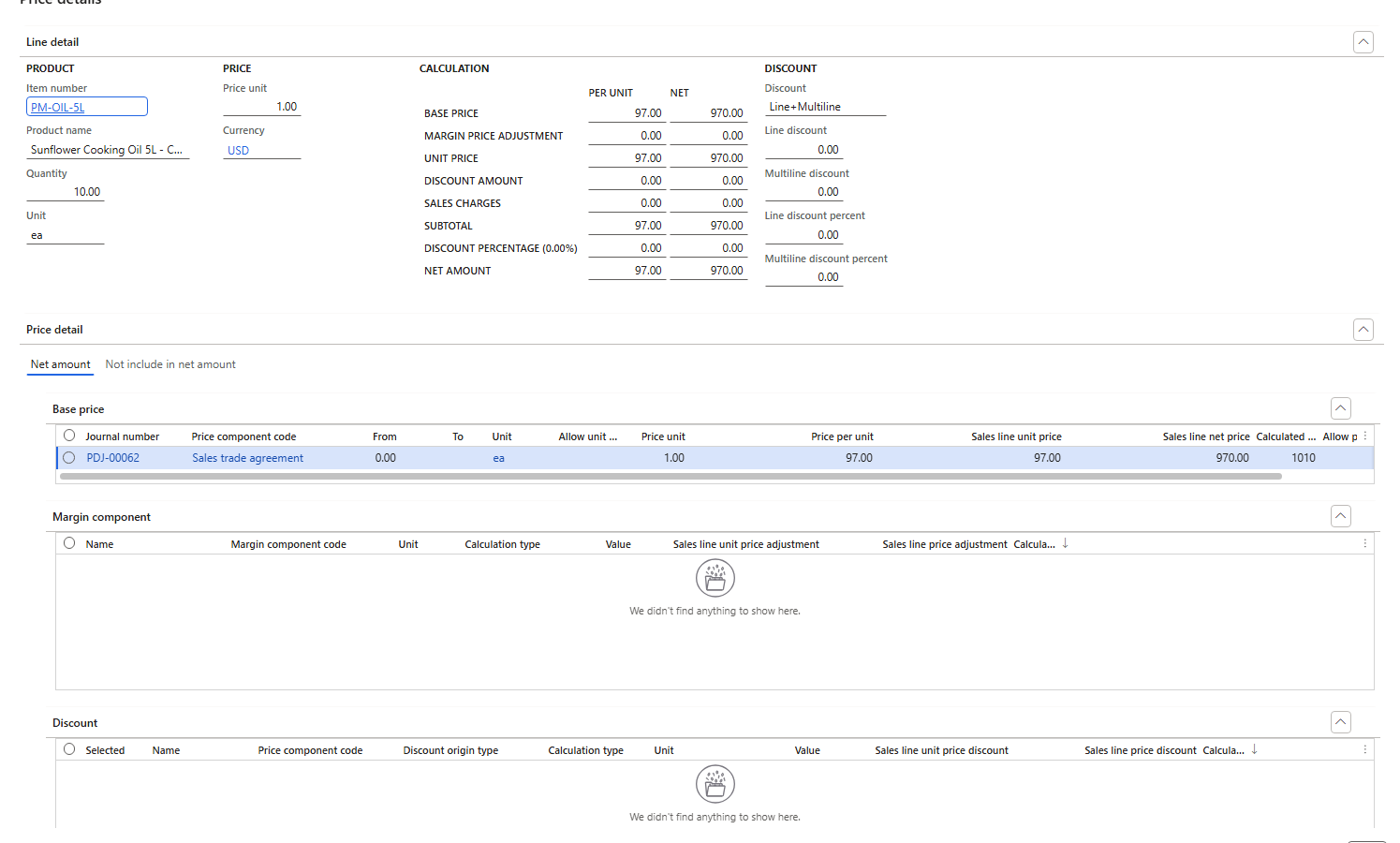
Price details of 001565 – the Discount grid is empty
| RESULT: No discount, although ST100026 was enabled and validated. A discount code that is not in the price tree is ignored – the same as for margin adjustments. |
|---|
5. Adding PM Brand promotion to the price tree
Navigation: Pricing management > Setup > Price component codes > Price trees
Same steps as in Chapter 6: Disable the tree, New line, Price component code PM Brand promotion, Pricing sequence 9, Concurrency mode across priority Compounded (like the demo discount codes), save and Enable. For a discount code the values Best price and Never compound are also possible; their effect is part of Chapter 8.
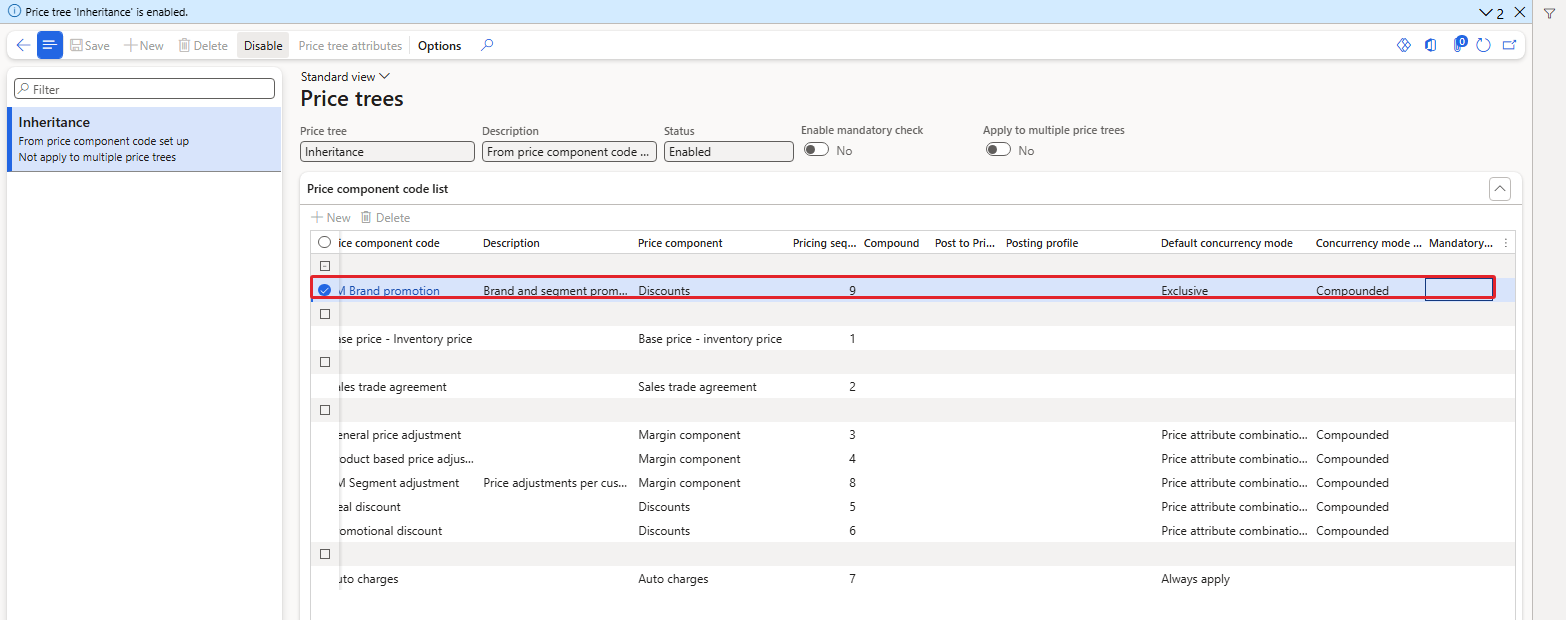
PM Brand promotion at pricing sequence 9 – after PM Segment adjustment (8)
6. Test: 10% SunGold discount
Order 001566 for Al Madina Hypermarket, the same three items:
| Item | Unit price | Discount per unit | Net amount |
|---|---|---|---|
| PM-OIL-5L | 97.00 | 9.70 | 873.00 |
| PM-JUICE-1L | 28.00 | 2.80 | 252.00 |
| PM-RICE-10 | 48.00 | 0.00 | 480.00 |
10% of 97.00 = 9.70 and 10% of 28.00 = 2.80; the rice is Royal Grain and gets nothing. The discount is stored as the line Discount amount per unit (9.70); the Discount percentage field of the line stays 0. The Price details show where it comes from:
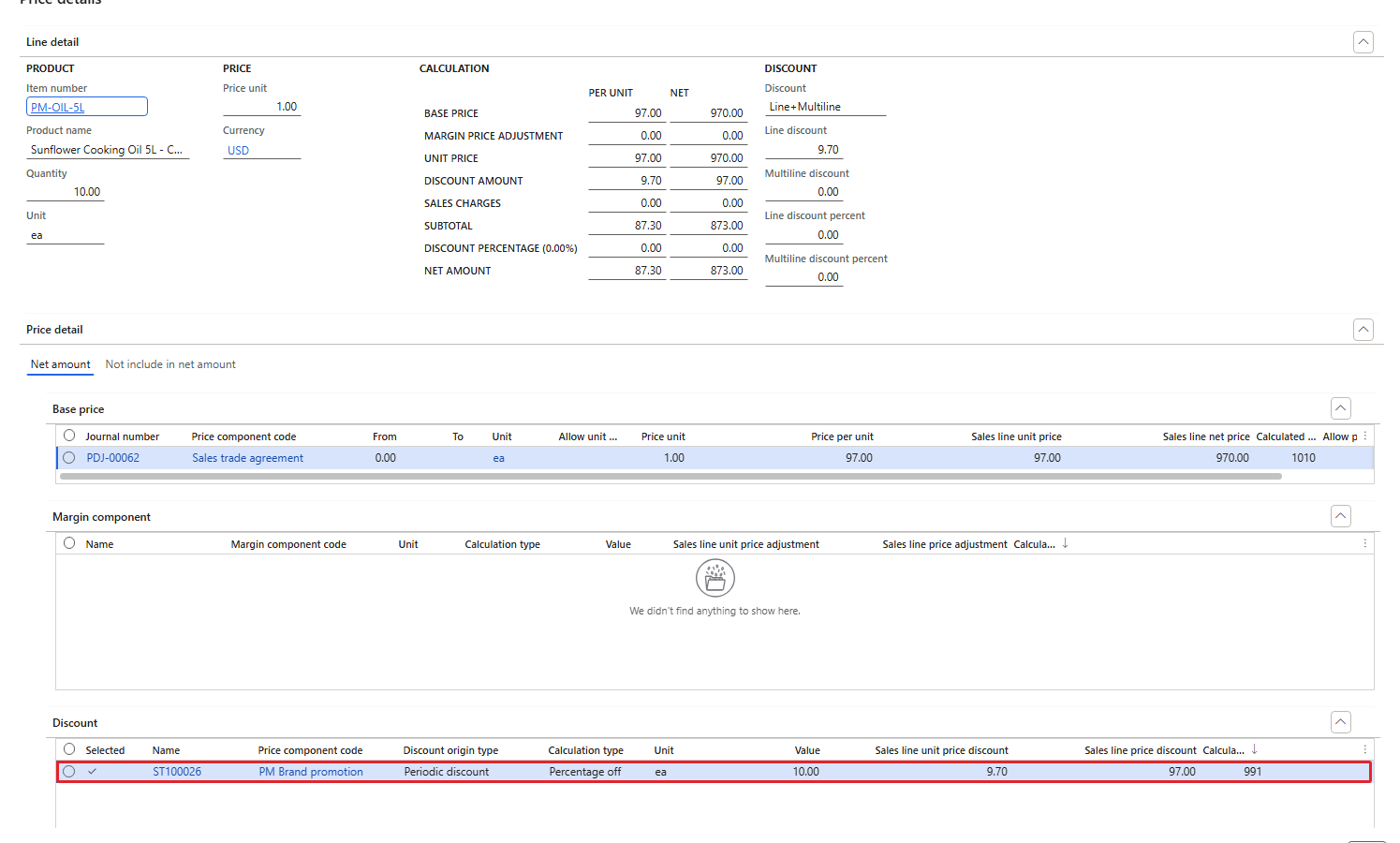
Price details of 001566 (oil) – ST100026, PM Brand promotion, Percentage off 10.00, calculated pricing priority 991
The calculated pricing priority 991 again fits the pattern 1000 − pricing sequence (9).
Discount on top of a margin adjustment
Now Royal Palm Hotel (PM-C004), whose oil price includes the 5% HORECA surcharge from Chapter 6. Order 001567, 10 × oil:
| Step | Per unit | For 10 units |
|---|---|---|
| Base price (PDJ-00084) | 98.00 | 980.00 |
| + Margin adjustment 5% (USMF-000002) | 4.90 | 49.00 |
| = Unit price | 102.90 | 1,029.00 |
| − Discount 10% (ST100026) | 10.29 | 102.90 |
| = Net price | 92.61 | 926.10 |
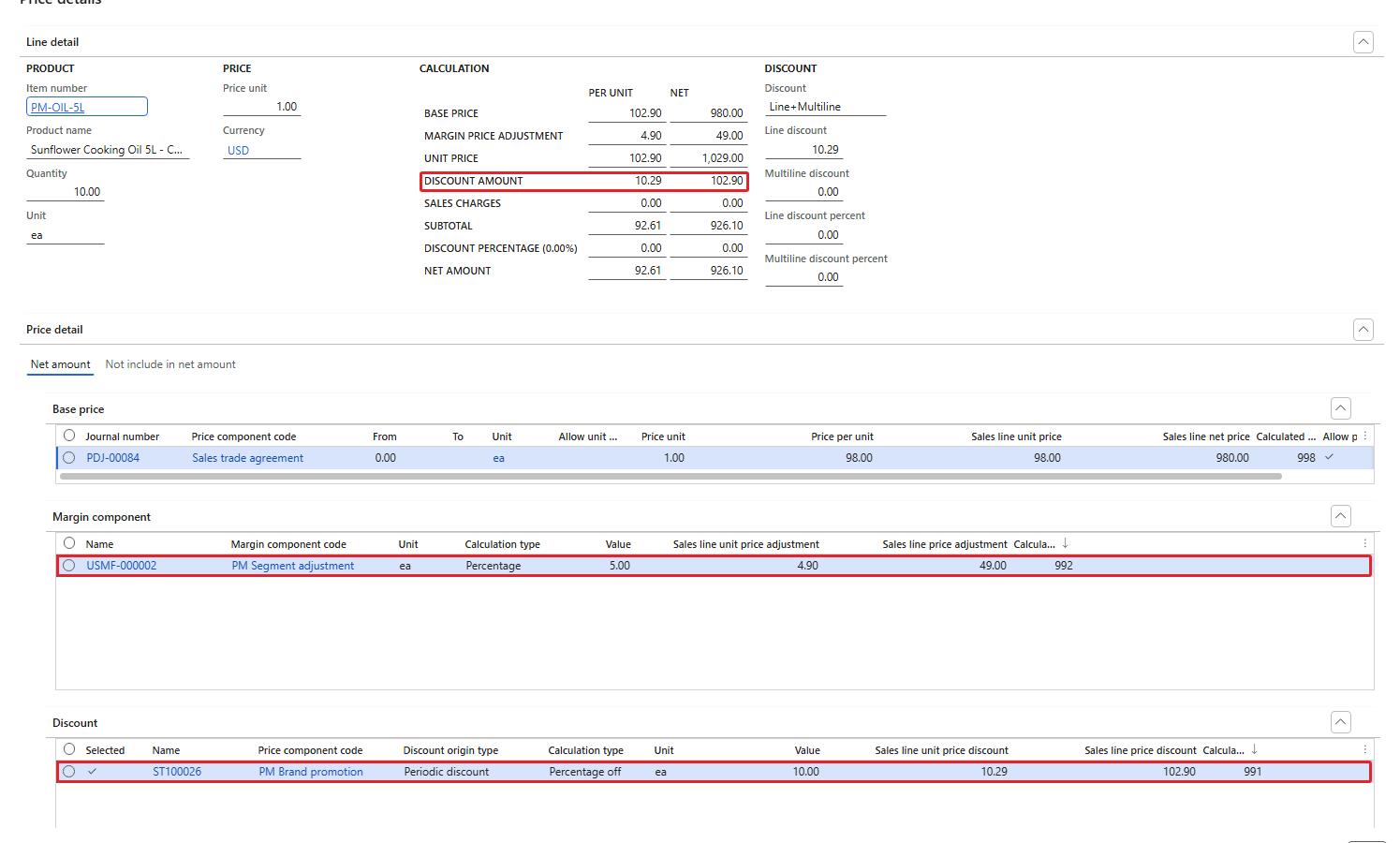
Price details of 001567 – base price, margin component and discount in one view
| RESULT: The discount is calculated on the unit price after the margin adjustment: 10% of 102.90 = 10.29, not 10% of 98.00. This matches the order of the price tree (sequence 8 before 9). |
|---|
One more observation: our trade agreement lines have Allow price adjustment switched on only in PDJ-00084, but the discount applied to the oil of PM-C001 as well (97.00 from PDJ-00062). Discounts do not depend on Allow price adjustment. The trade agreement field Prevent discount is No on all our lines; the effect of Prevent discount = Yes was not validated in the current environment.
7. Quantity discount: the rice volume discount
A quantity discount gives a discount that depends on the quantity. To create it:
- New > Quantity discount, Name "Rice volume discount", Price component code PM Brand promotion. The discount got ST100027.
- Header: Group type All. Line: combination All-PMProductLine, Item number = PM-RICE-10, unit ea.
- On the Quantity discount configuration FastTab select the Calculation type and add the tiers with Add: Minimum quantity and Value.
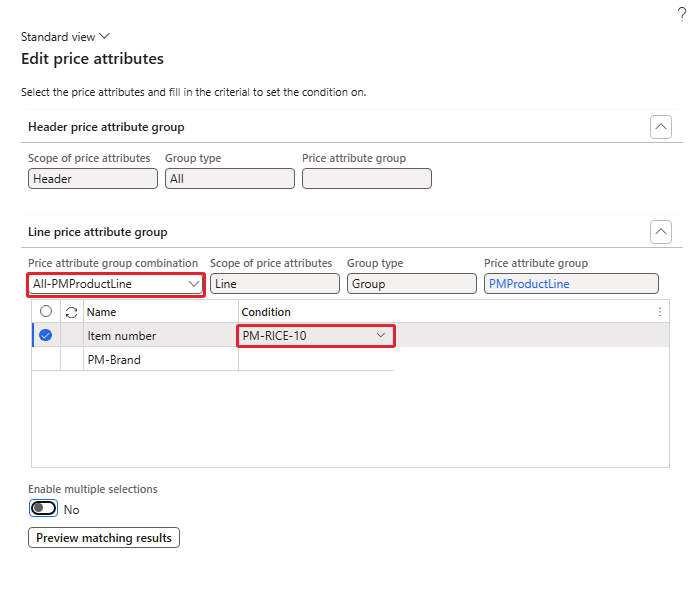
Quantity discount line – Item number PM-RICE-10
The Calculation type offers Unit price (the default), Percentage off and Amount off. The Interval option stays greyed out; according to Microsoft it only applies to Amount off (not validated here).
My first attempt kept the default Unit price with the tiers 20 → 3.00 and 50 → 6.00. When I enabled the discount the system refused: "For quantity discounts each discount tier must have a larger discount than the lower tiers." With Unit price, a value of 6.00 at 50 bags is a higher price than 3.00, so it is a smaller discount. After switching to Percentage off the same tiers were accepted:
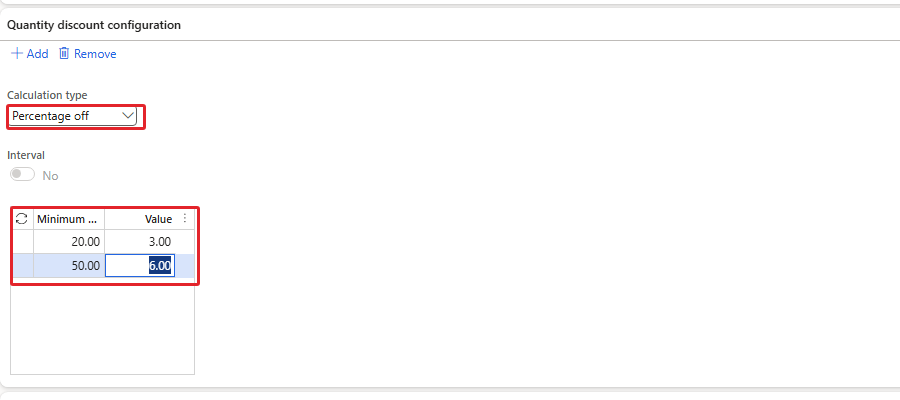
Percentage off – 20 bags 3%, 50 bags 6%
Tests for Corner Street Grocery (PM-C003), rice price 48.00:
| Order | Lines | Discount per unit | Net amount |
|---|---|---|---|
| 001568 | 1 line × 19 bags | 0.00 | 912.00 |
| 001569 | 1 line × 20 bags | 1.44 (3%) | 931.20 |
| 001570 | 1 line × 50 bags | 2.88 (6%) | 2,256.00 |
| 001571 | 2 lines × 10 bags | 1.44 on each line | 465.60 + 465.60 |
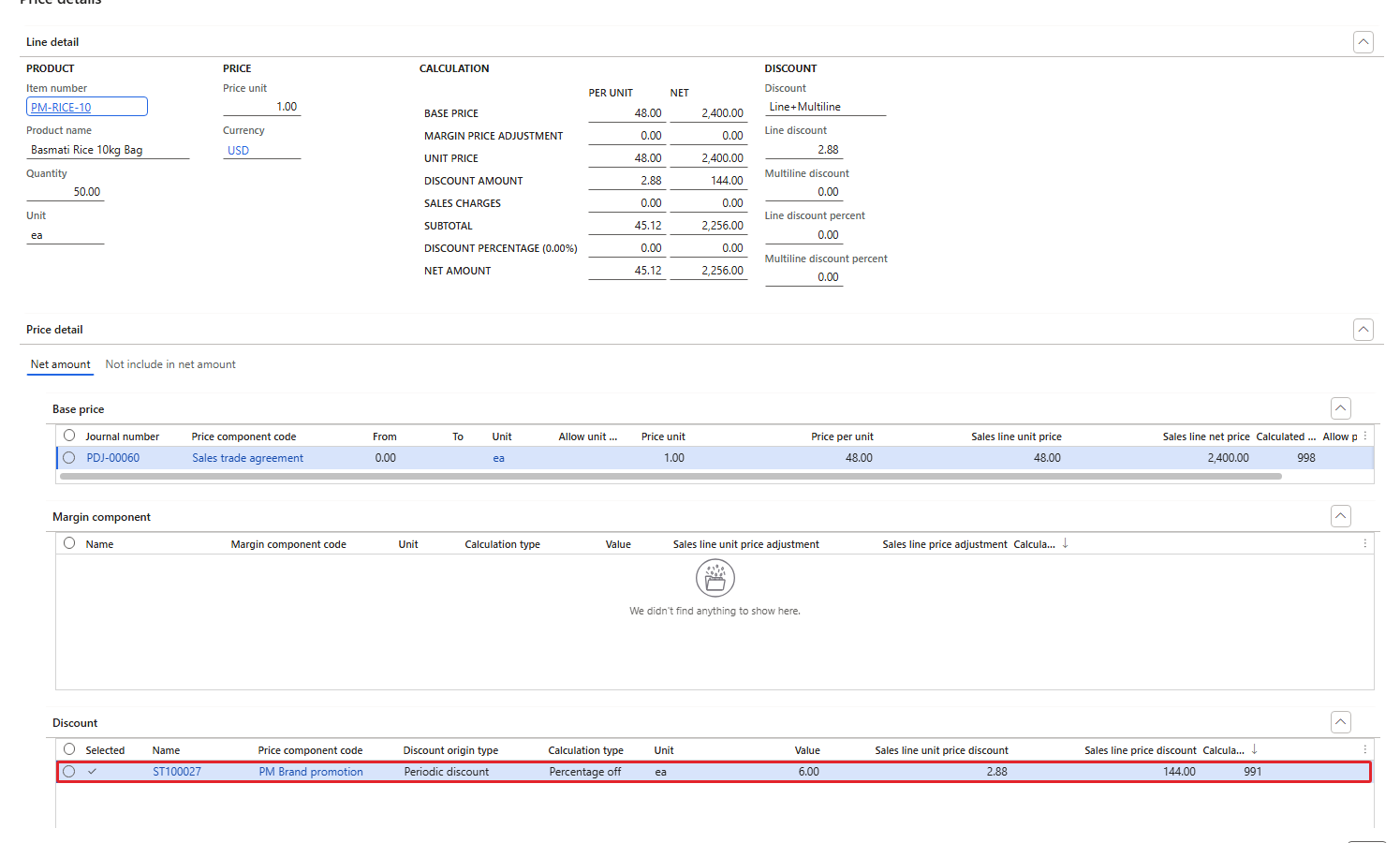
Price details of 001570 – ST100027, Percentage off 6.00 = 2.88 per bag
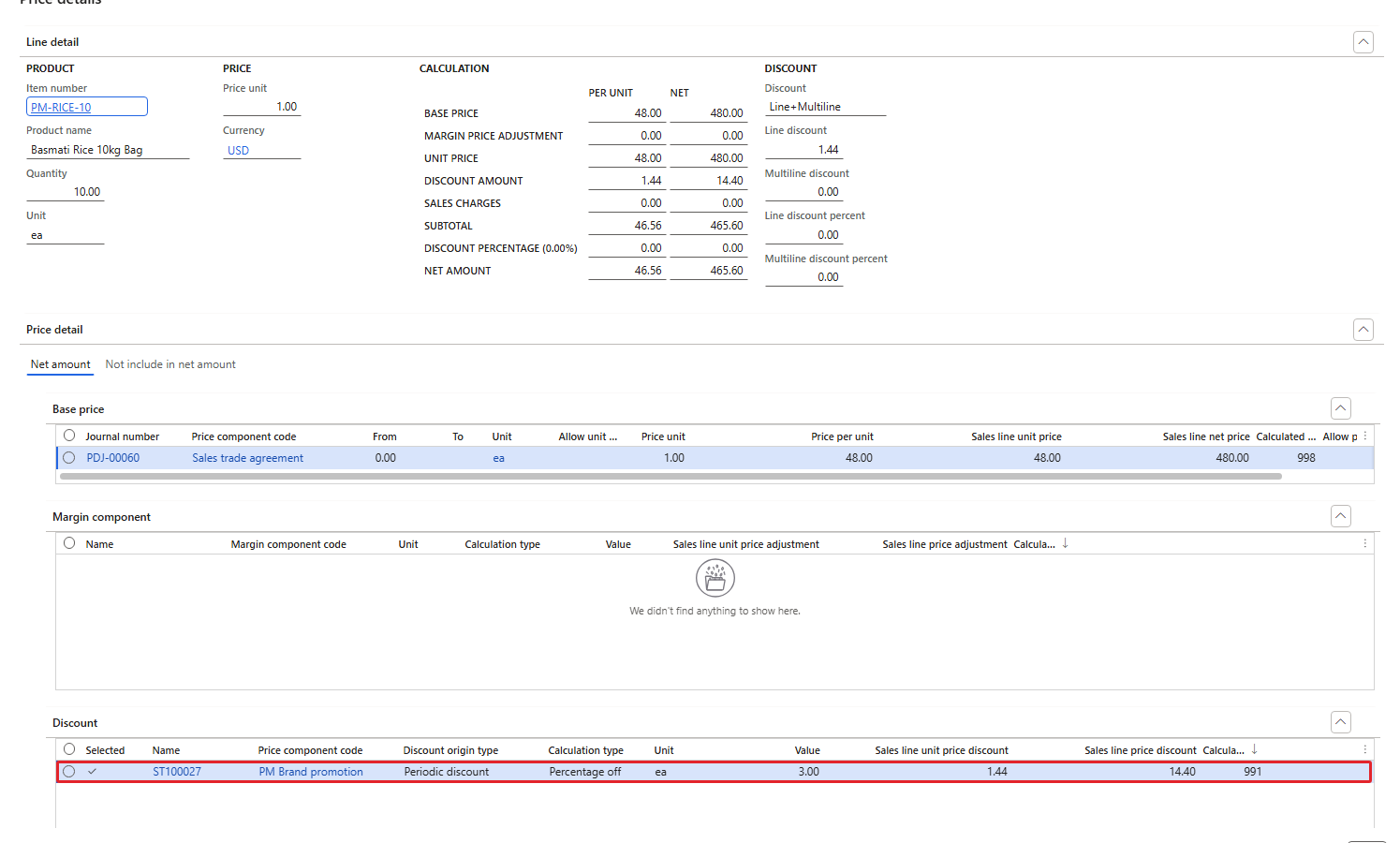
Price details of 001571 (first line of 10 bags) – 3% because the order has 20 bags in total
| RESULT: The tiers work at the boundaries (19 = no discount, 20 = 3%, 50 = 6%), and the quantity is counted per order: two lines of 10 bags together reached the 20-bag tier. Compare this with the quantity tiers of the trade agreement in Chapter 4, which looked at one line only. |
|---|
8. Threshold discount: the order value discount
- New > Threshold discount, Name "Order value 500+ gets 2%", Price component code PM Brand promotion. The discount got USMF-000026.
- Header: Group type All. Line: combination All-All (all products), unit ea.
- On the Threshold discount tiers FastTab click Add and enter Amount = 500, Calculation type = Percentage off, Discount value = 2.
- Enable the discount.
The Calculation type of a tier offers Amount off, Percentage off and Discount lines:
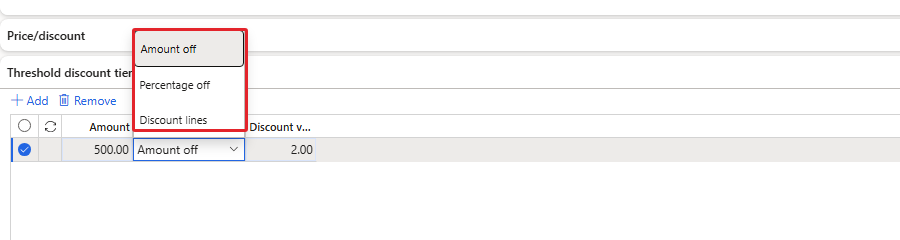
Threshold tier calculation types

Tier: from 500.00, Percentage off 2.00
Tests for Green Valley Hypermarket (PM-C002) with rice only (48.00 per bag, below the 20-bag tier of the quantity discount):
| Order | Rice | Order value | Discount per unit | Net amount |
|---|---|---|---|---|
| 001574 | 10 bags | 480.00 | 0.00 | 480.00 |
| 001575 | 11 bags | 528.00 | 0.96 (2%) | 517.44 |
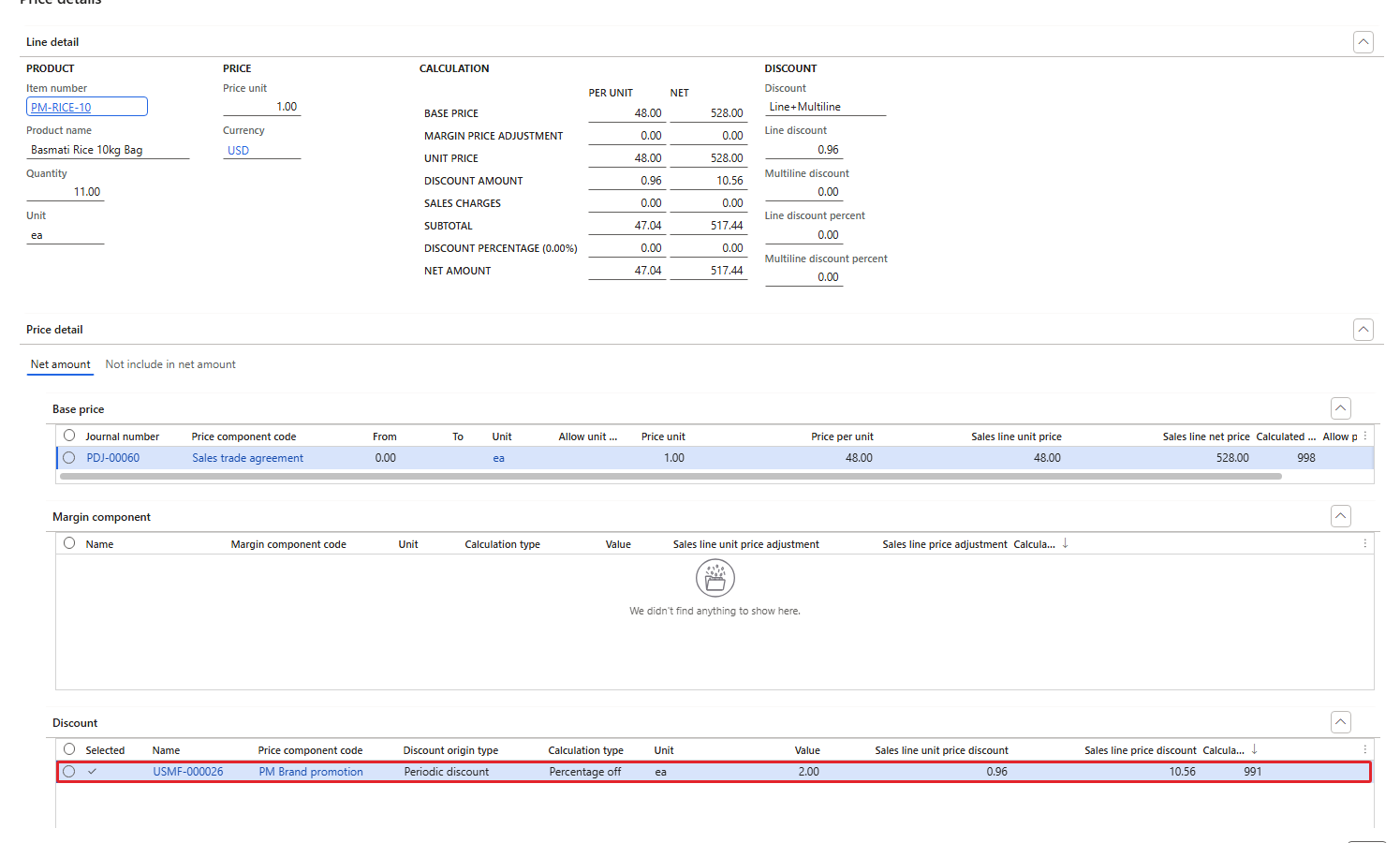
Price details of 001575 – USMF-000026, Percentage off 2.00 = 0.96 per bag, 10.56 for the line
| RESULT: Below 500.00 there was no discount; at 528.00 the 2% was applied: 2% of 48.00 = 0.96 per bag, 10.56 in total. |
|---|
| NOTE: All three discounts share the component code PM Brand promotion with the concurrency mode Exclusive. I kept the test orders apart on purpose (SunGold products for the simple discount, rice for the quantity and threshold discounts). What happens when several of them apply to the same line is the topic of Chapter 8. |
|---|
For the tests in sections 9–12 I temporarily disabled ST100026, ST100027 and USMF-000026, so that each new discount could be seen on its own (except where a section says otherwise). They were enabled again afterwards.
9. Mix and match discount: oil and rice bundle
A mix and match discount gives a discount when the customer buys a combination of products. Requirement: buy one oil and one rice together and get 5% off both.
- New > Mix and match discount, Name "Oil and rice bundle 5%", Price component code PM Brand promotion. The discount got ST100028.
- Click Mix and match line groups on the Action Pane. The line groups themselves (A, B, C) already exist in USMF. Add A and C, each with Number of products needed = 1.
- Lines: Add a line for PM-OIL-5L (combination All-PMProductLine) with Line group = A, and a line for PM-RICE-10 with Line group = C, unit ea.
- On the Price/discount FastTab the Calculation type offers Deal price, Percentage off, Amount off, Least expensive and Line spec. Select Percentage off = 5, then enable the discount.
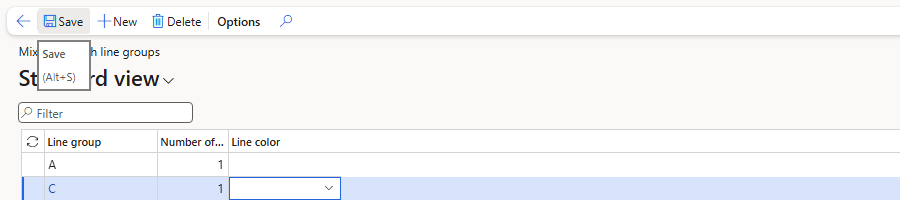
Line groups A and C, one product each

Oil in line group A, rice in line group C
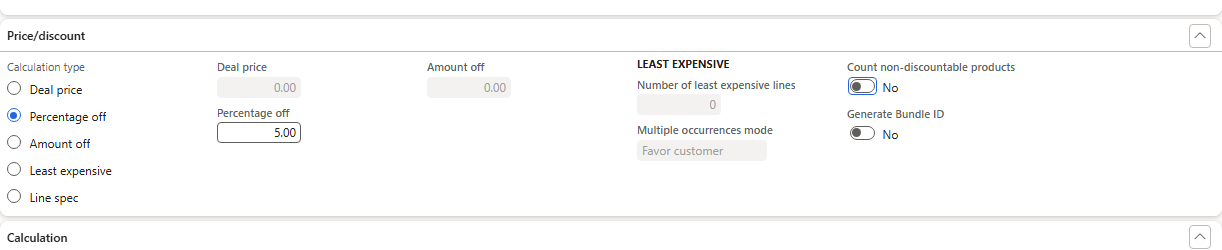
Price/discount – Percentage off 5.00
Tests for Corner Street Grocery (oil 96.00, rice 48.00):
| Order | Lines entered | Result |
|---|---|---|
| 001576 | 1 × oil | no discount (the bundle is not complete) |
| 001577 | 1 × oil + 1 × rice | oil −4.80, rice −2.40 (5% each) |
| 001578 | 2 × oil + 1 × rice | the oil line was split into two lines of 1: one with −4.80, one without discount; rice −2.40 |
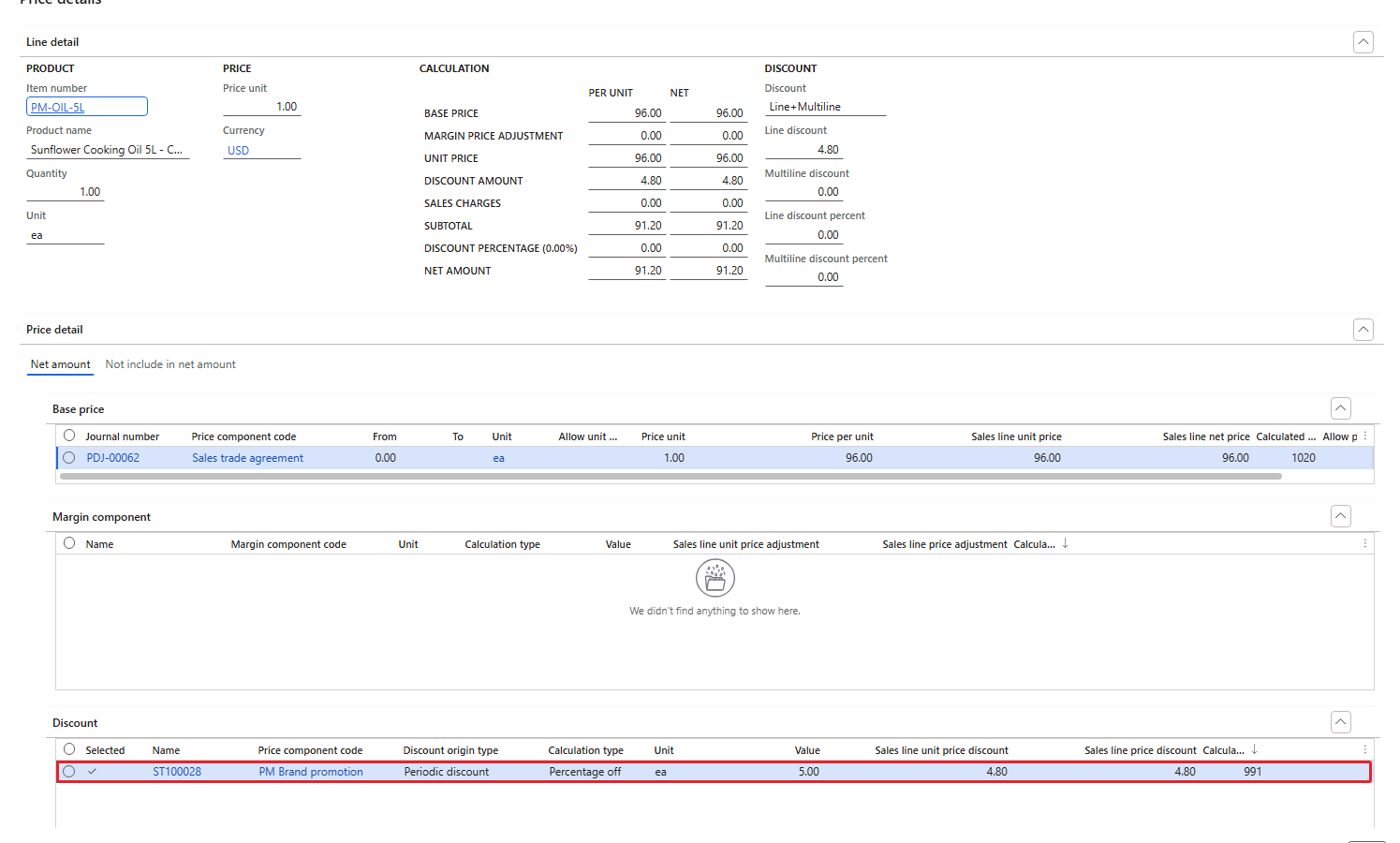
Price details of 001577 (oil) – ST100028 Percentage off 5.00
| RESULT: The mix and match discount only applies to complete sets. With two oils and one rice there is one set, and the system split the oil line so that exactly one oil carries the discount. |
|---|
10. Free item discount: buy 10 oil, get 1 juice free
Creating this discount led to a number sequence trap. The first save failed with "Cannot create a record in Periodic discount (RetailPeriodicDiscount). The record already exists." The free item discounts of USMF use their own number sequence (Pric_72, format USMF-######) and it proposed USMF-000001 – an ID that the demo threshold discount already uses. Typing my own ID gave "Number PM-FREE-01 does not match format USMF-######." and typing USMF-000027 gave "Number sequence Pric_72 does not allow change to a higher number." Every failed save used up a number; after one more collision (USMF-000004, our margin rule) the discount was saved as USMF-000005.
| TIP: Different discount types and margin adjustments can have different number sequences with the same format (USMF-######). Before go-live, set the next number of each sequence above the IDs already in use (Organization administration > Number sequences). I did not change the number sequence in this environment. |
|---|
- Name "Buy 10 oil get 1 juice free", Price component code PM Brand promotion, header All.
- Lines: PM-OIL-5L (combination All-PMProductLine), unit ea.
- Free item setup: Criteria type Quantity, Calculation type Stepped, Repeatable No (other options: Repeatable by header, Repeatable by line). Tier: Required header quantity/amount = 10, Supplementary quantity = 1.
- Free item lines: Product PM-JUICE-1L, unit ea, factor 1, site 1, warehouse 11. Enable the discount.
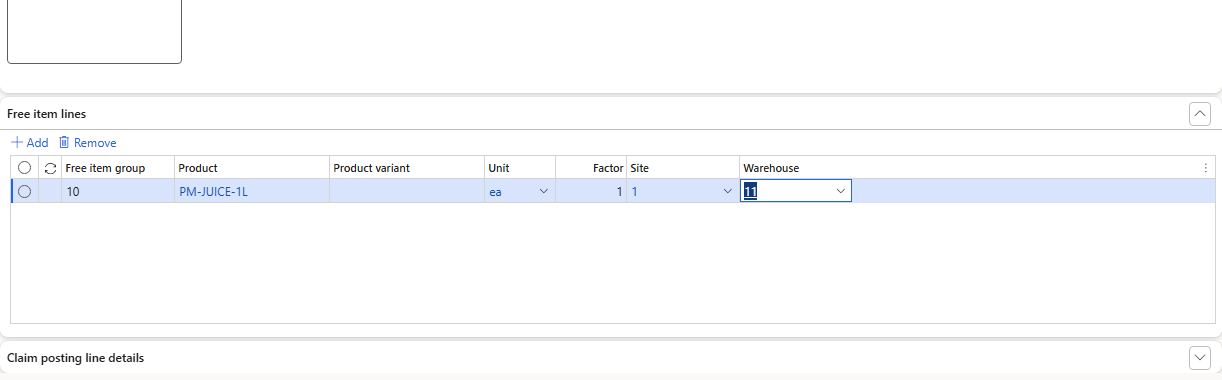
Free item lines – PM-JUICE-1L, factor 1, site 1, warehouse 11
| Order | Customer | Entered | Result |
|---|---|---|---|
| 001580 | PM-C003 | 9 × oil | nothing added |
| 001581 | PM-C003 | 10 × oil | the system added a line 1 × PM-JUICE-1L, price 30.00, discount 30.00, net 0.00 |
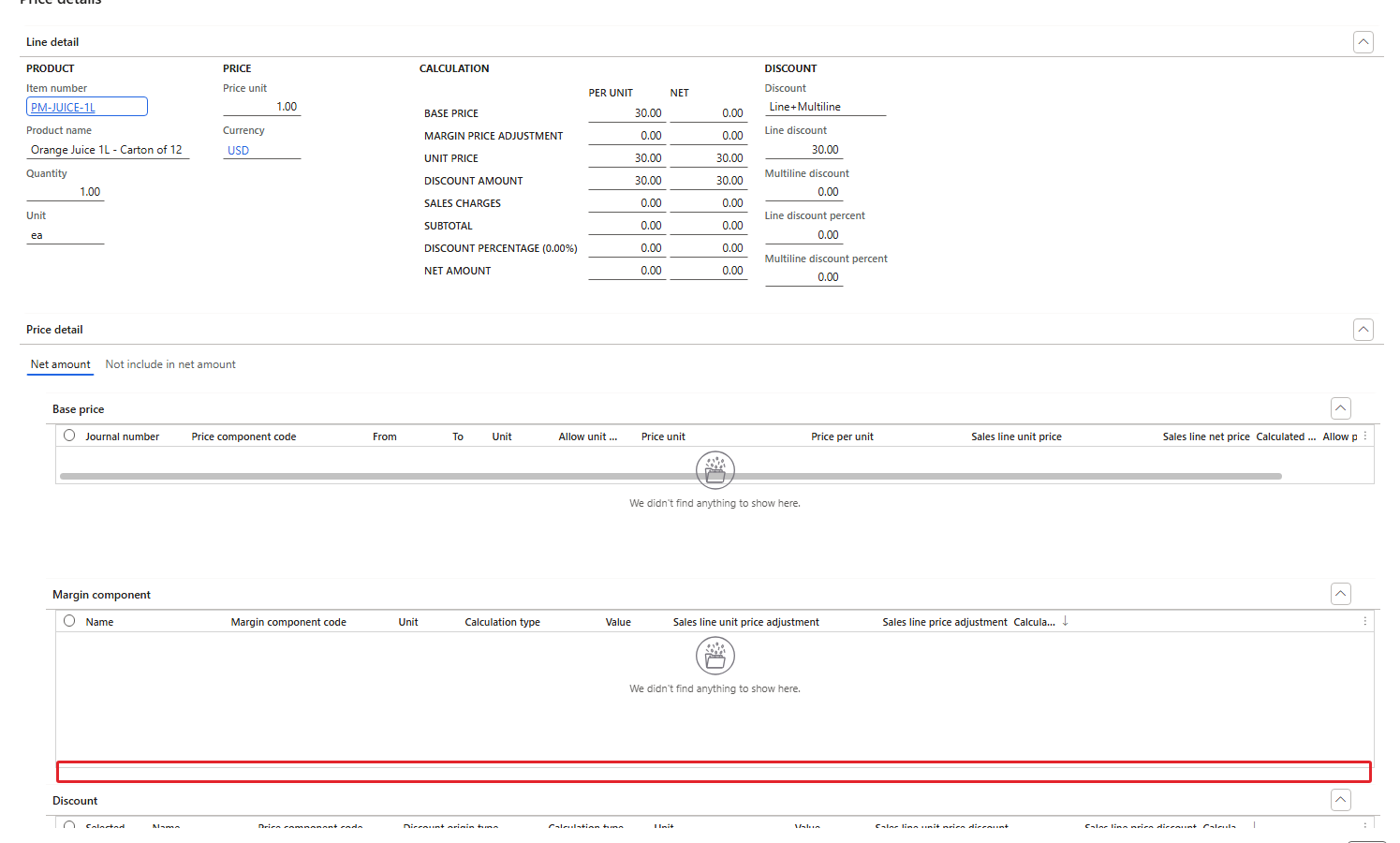
Price details of 001581 (juice line) – USMF-000005, Percentage off 100.00
| RESULT: At 10 oils the free juice line was added automatically with a 100% discount; at 9 oils nothing happened. |
|---|
11. Max per order
The discount header has Max criteria type (Amount or Quantity) and Max. I set Max = 20.00 (Amount) on the SunGold discount ST100026 and enabled it again. Order for Al Madina Hypermarket, 10 × oil (97.00):
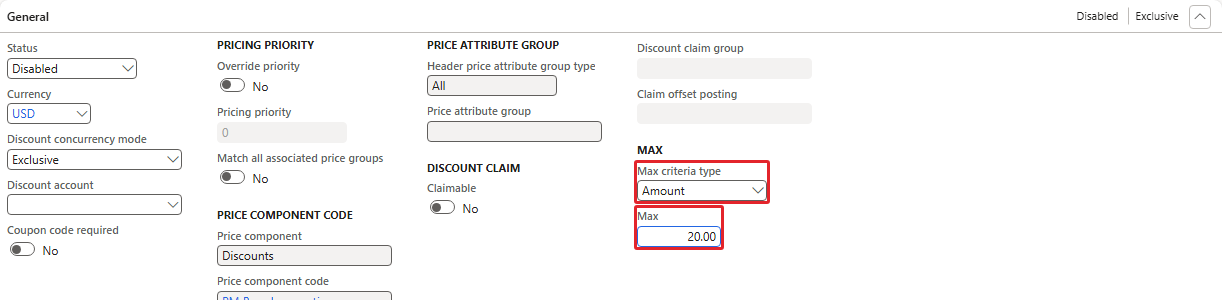
Max criteria type Amount, Max 20.00
- When the line was entered (orders 001582 and 001583) the discount was still 9.70 per unit = 97.00 for the line – above the maximum. (The free item discount of section 10 was still enabled at that time, so these orders also got a free juice.)
- Then I clicked Complete on order 001583. After the order completion the oil line showed a discount of 2.00 per unit = 20.00, net amount 950.00 – exactly the maximum.
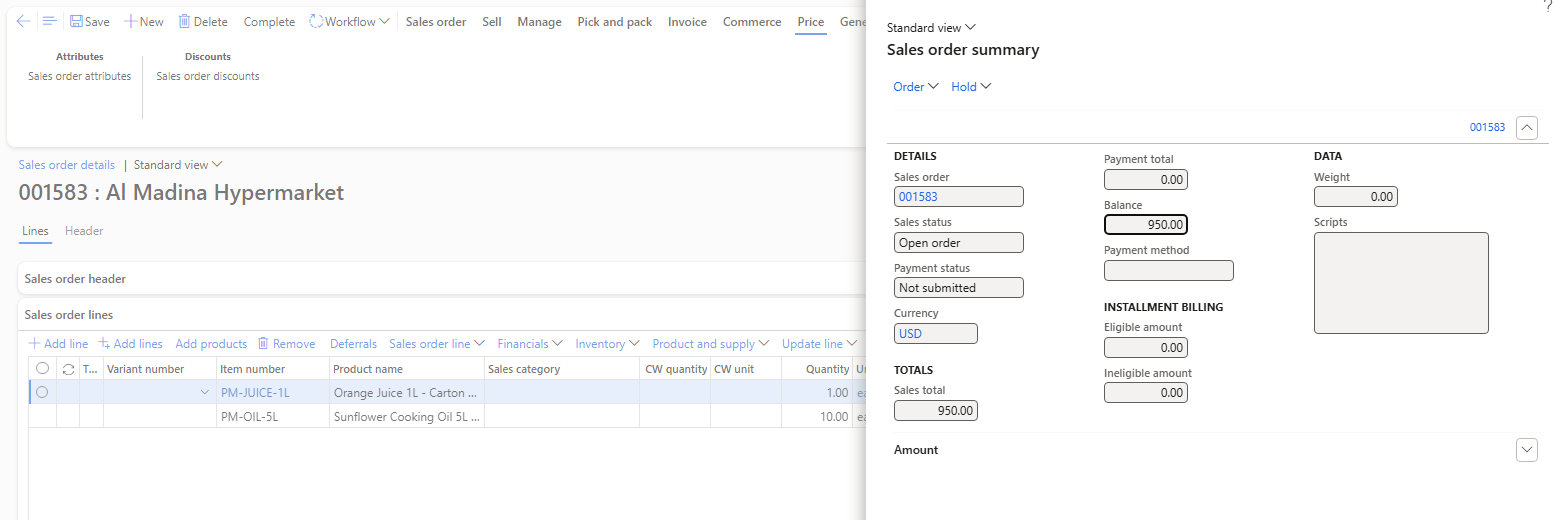
Order 001583 after Complete – sales total 950.00 (oil 970.00 − 20.00; the free juice is 0.00)
| RESULT: The Max per order was enforced when the order was completed (Complete), not while the lines were entered. Keep this in mind: the line discount you see while typing is not final until the order is completed. Max was set back to 0 afterwards. |
|---|
12. Prevent discount on the trade agreement
The opposite of Allow price adjustment from Chapter 6: a trade agreement line can forbid discounts. I created journal PDJ-00109 "Minimarket juice - no discounts" with Prevent discount ticked on the header, one line for Customer group PM-MINI and PM-JUICE-1L at 30.00 (combination PMCustomerHeader-PMProductLine), and posted it. ST100026 (SunGold 10%) was enabled.

Prevent discount on the journal header
| Order | Customer | Juice price from | Discount |
|---|---|---|---|
| 001584 | PM-C003 (minimarket) | PDJ-00109 (Prevent discount) | 0.00 |
| 001585 | PM-C004 (control) | PDJ-00060 | 3.00 (10% of 30.00) |
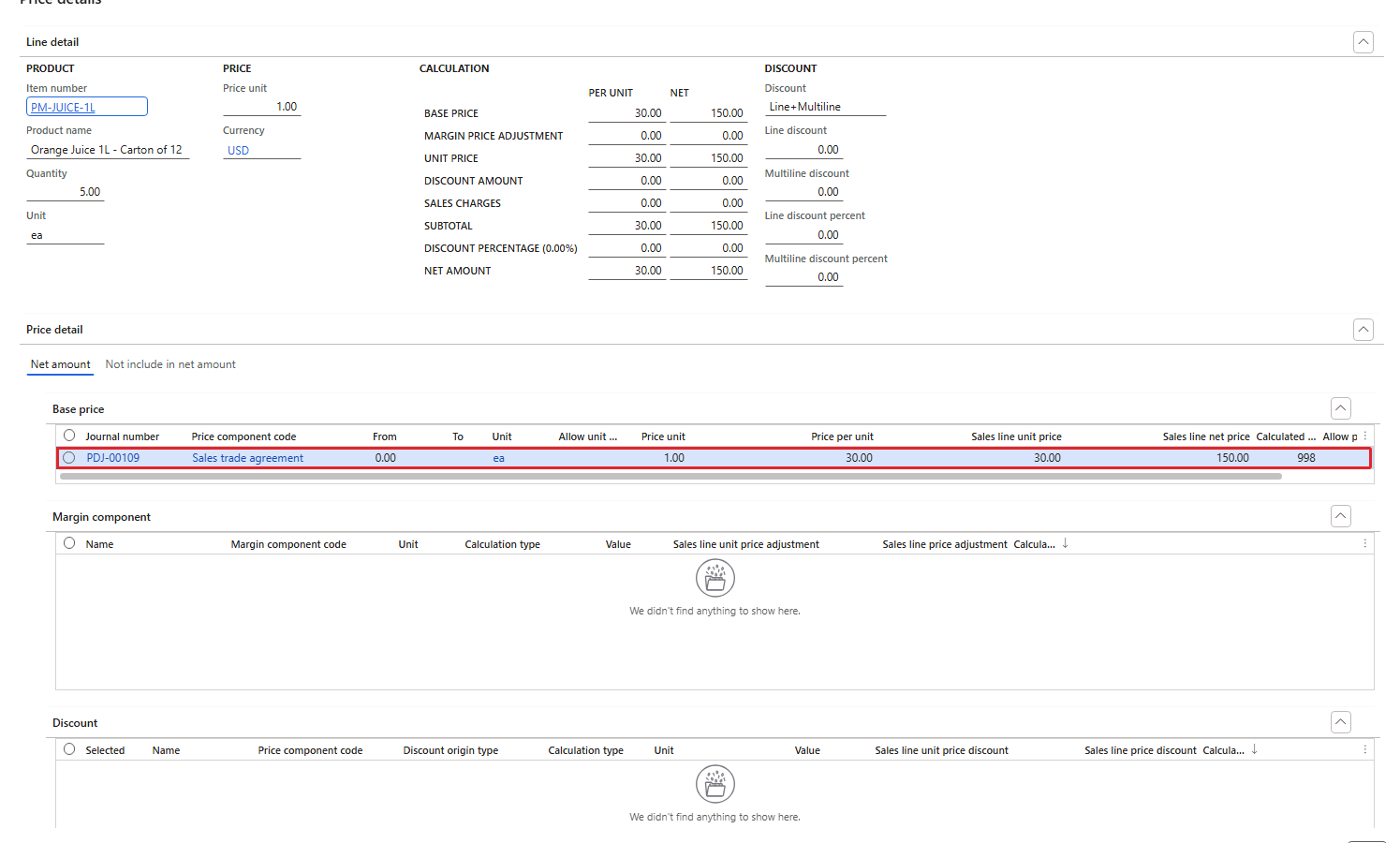
Price details of 001584 – price from PDJ-00109, no discount
| RESULT: With Prevent discount on the trade agreement line, the SunGold discount was not applied to the minimarket; the same discount still applied to the hotel. |
|---|
13. Coupons
What: a coupon is a discount that applies only when the customer brings a code. Why: targeted campaigns ("5% off rice with code RICE5") without giving the discount to everybody. The discount is a normal discount with Coupon code required = Yes; the coupon holds the codes and switches the discount on and off.
Discount ST100029 "Rice coupon SAVE5" (simple, rice 5%) with Coupon code required = Yes. The first message was "A bar code is not configured for coupons. Please select a bar code in Commerce parameters." With Coupon code required, the Status and Effective date fields become unavailable – the coupon controls them.
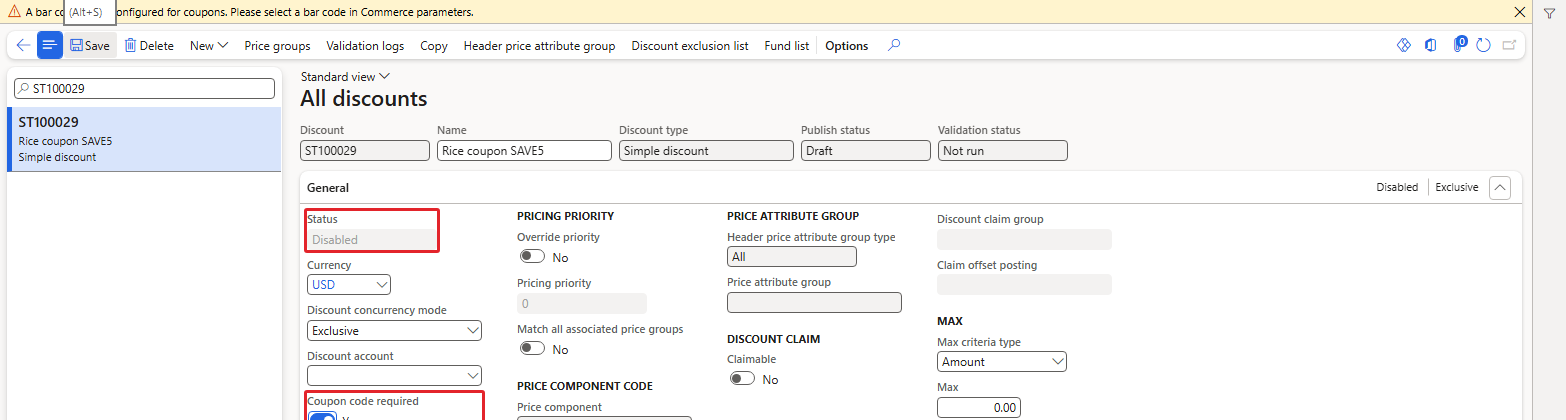
Coupon code required – the bar code message; Status and Effective date become unavailable
13.1 Bar code prerequisites
Every coupon code gets a bar code. These records are needed, in this order:
- Bar code mask character (Retail and Commerce > Inventory management > Bar codes and labels > Mask characters): character U with Type Coupon code. The Type cannot be changed after saving – my first U had been saved as Product, so I deleted it and created it again.
- Bar code mask (same menu > Bar code mask setup): PMCPN, type Coupon, prefix 45, with one segment Type Coupon code, length 15 → mask 45UUUUUUUUUUUUUUU. A shorter segment (10) gave "The bar code is longer than the mask specified." because the coupon code ID (USMF-0000xx, 11 characters) did not fit.
- Bar code setup (Organization administration > Setup > Bar code setup): new setup PMCoupon with Mask ID PMCPN, maximum length 20. The coupon bar code is built from the mask of this setup – the demo setup Internal has no mask, which caused the same "longer than the mask" error.
- Pricing management parameters > Prices and discounts > Coupons: Coupon bar code = PMCoupon.

Mask character U – type Coupon code
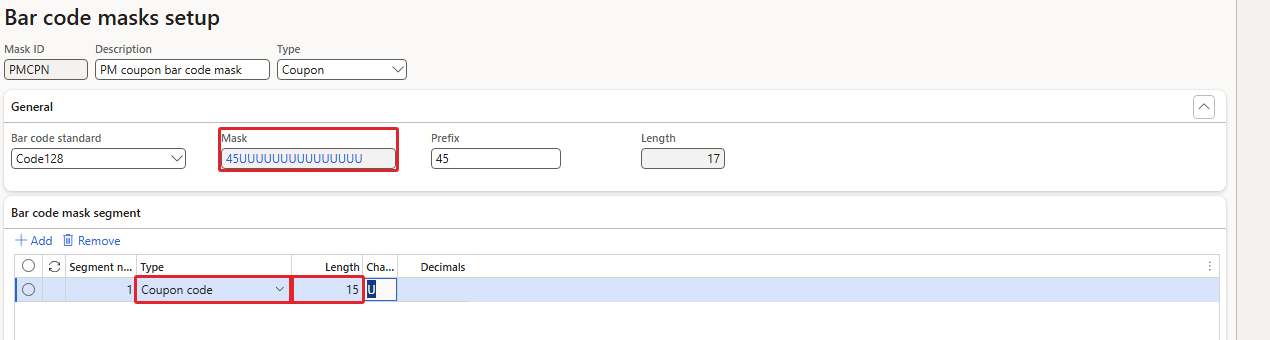
Bar code mask PMCPN – 45 + 15 × U
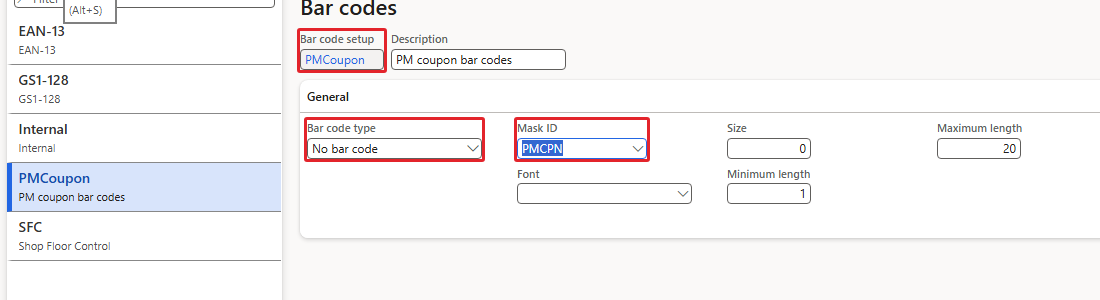
Bar code setup PMCoupon with mask PMCPN

Parameters – Coupon bar code = PMCoupon
13.2 The coupon
Navigation: Pricing management > During-sales pricing > Coupons
- Coupon USMF-000002 "SAVE5 rice coupon", Discount = ST100029.
- Lines: coupon code RICE5 (the code SAVE5 was already taken by an earlier attempt: "Another coupon line with code SAVE5 exists"). The bar code 450000000000RICE5 was generated on save.
- Coupon status = Active on the header – this also enabled the discount ST100029 ("The Process commerce discounts for ST100029 job is added to the batch queue").
- Coupon status of the code line = Active as well (see the negative test below).
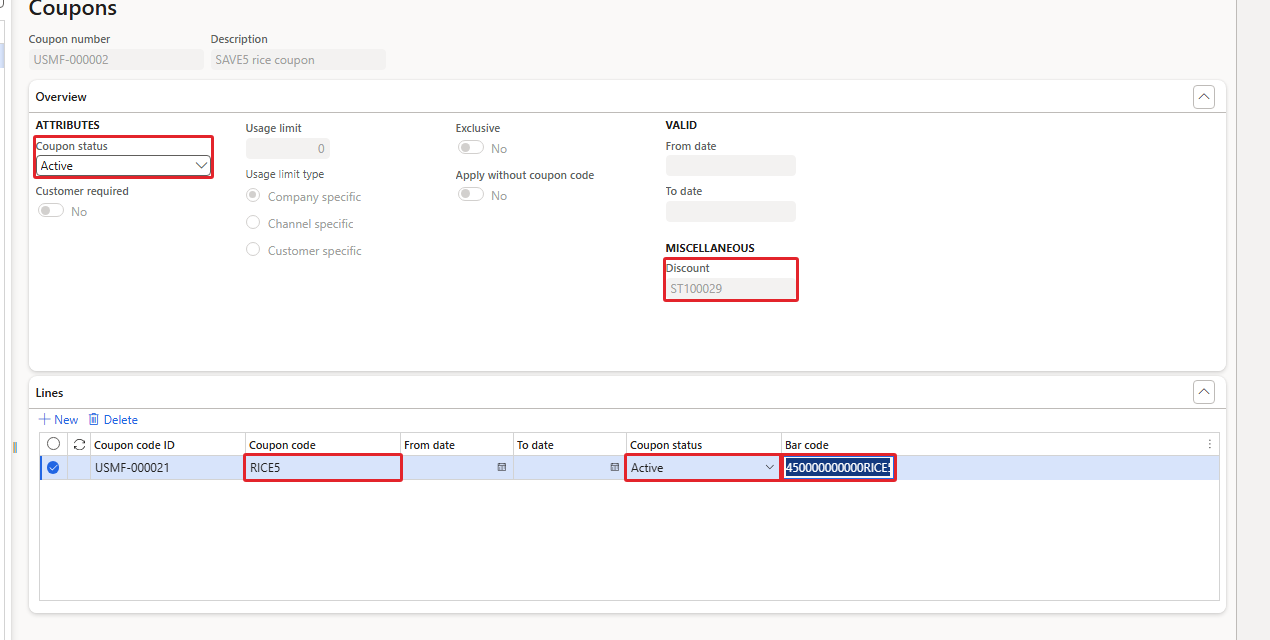
Coupon USMF-000002 – active, code RICE5 with bar code, discount ST100029
13.3 Test on a sales order
Order 001710 for PM-C001, 10 × rice: 48.00, no discount – the coupon discount is not given without the code (the rice volume discount needs 20+).
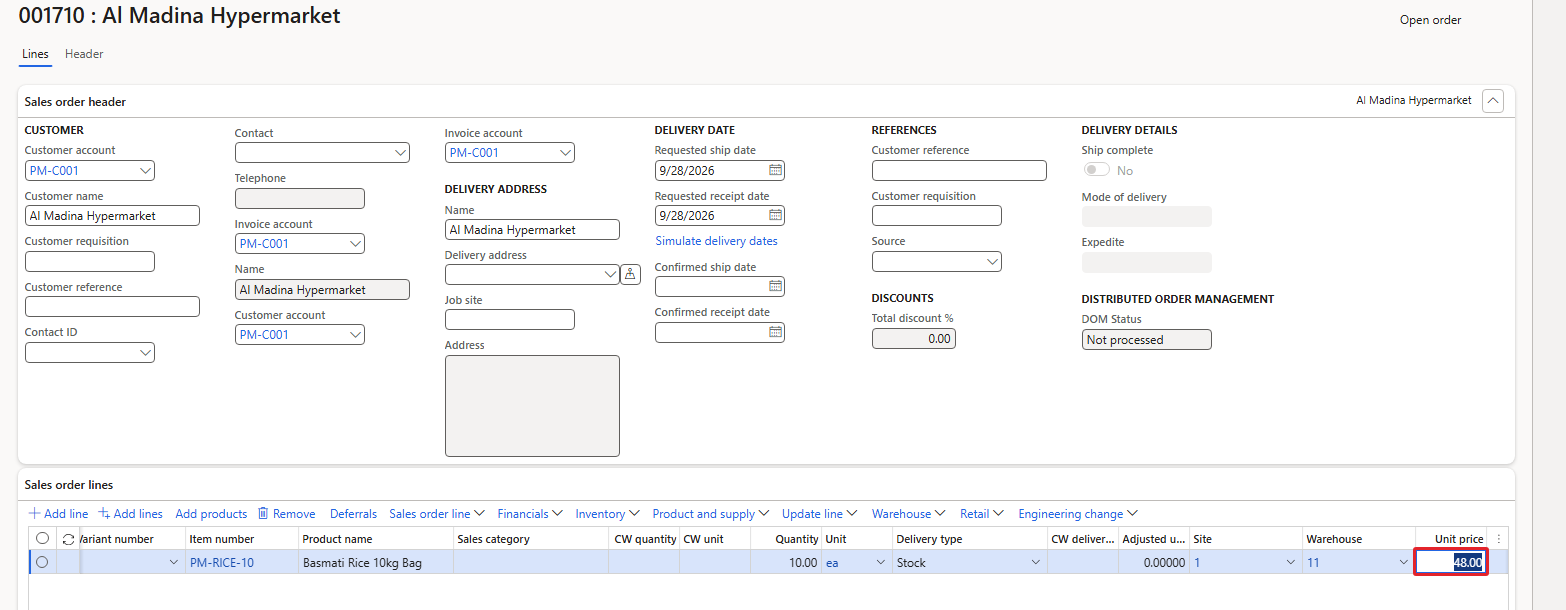
Order 001710 without coupon – no discount
The code is added on the order under Manage > Coupons > Coupons (grid Coupon code ID, Coupon code, Description).
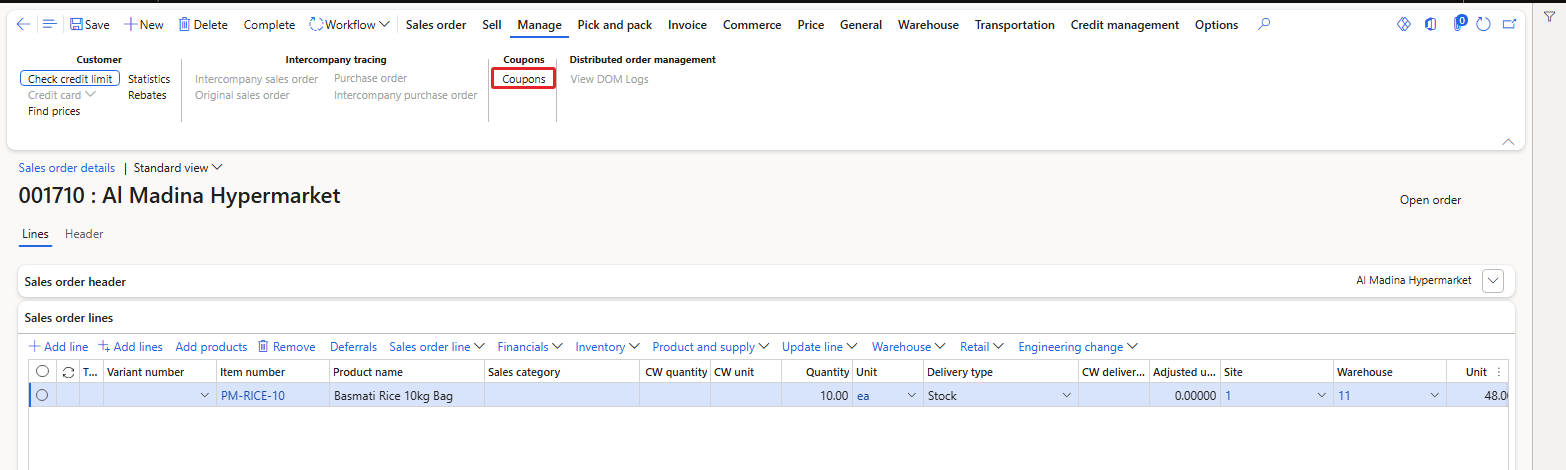
Manage > Coupons
- Negative test: while the code line was still Inactive, adding it gave "Coupon USMF-000021 is not active" and the code was not saved.
- With the line Active the code USMF-000021 / RICE5 was added (stored in Retail coupon usage for order 001710).
- Sell > Recalculate: rice 48.00 − 2.40 (5%) = 45.60 × 10 = 456.00. Price details shows ST100029, Percentage off 5, discount 24.00.

Inactive code – "Coupon USMF-000021 is not active"

Coupon code added to the order
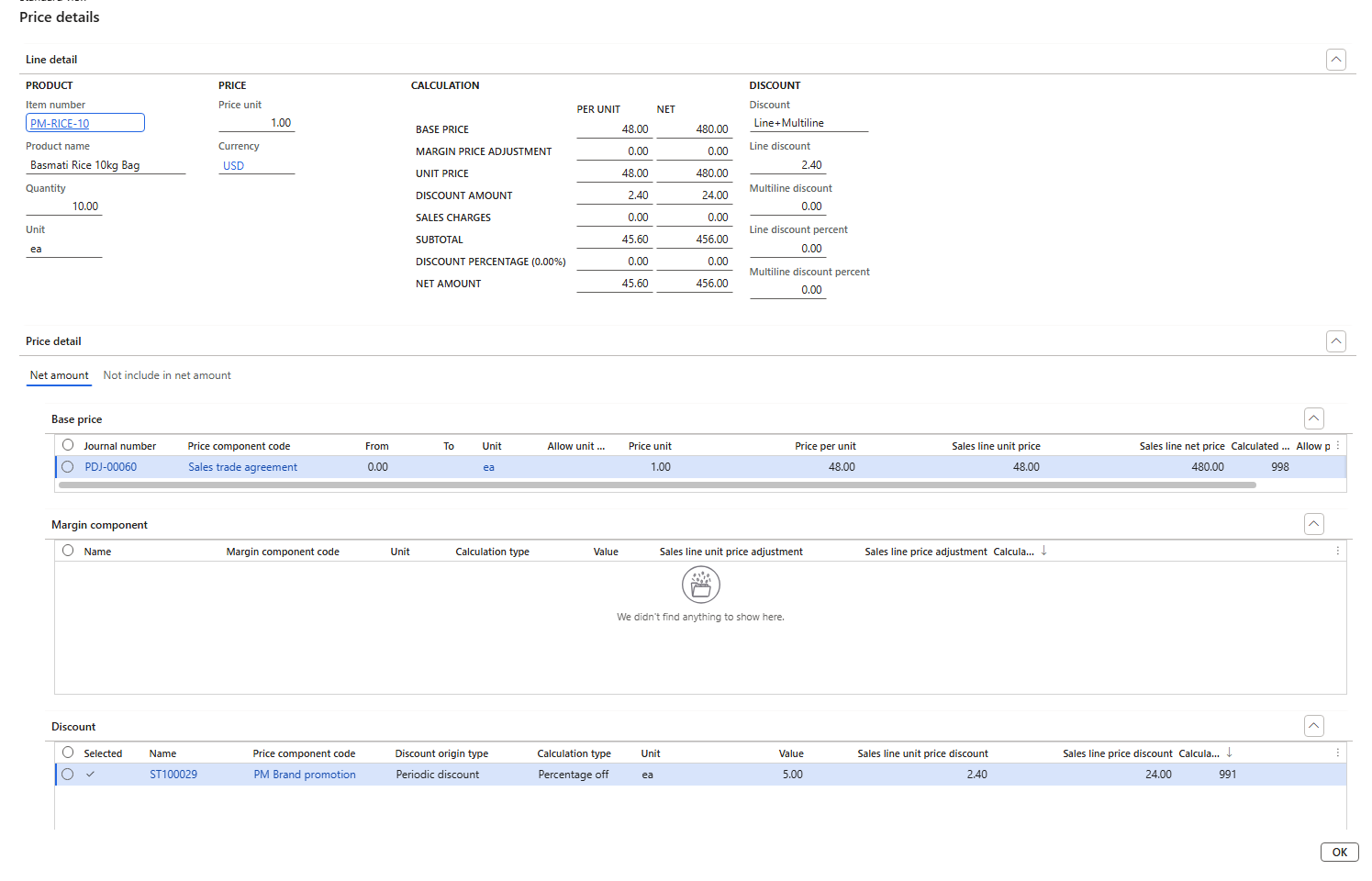
Price details of 001710 – coupon discount ST100029 5%
| RESULT: Without the code: 480.00. With coupon RICE5 on the order and Recalculate: 456.00. The coupon discount is applied only to orders that carry the code. |
|---|
Discount account and vendor claims (Claimable) are covered in Chapter 11.
14. Summary
| Order | Customer | Situation | Result |
|---|---|---|---|
| 001565 | PM-C001 | Simple discount enabled, code not in price tree | no discount |
| 001566 | PM-C001 | SunGold 10% – oil 97, juice 28, rice 48 | oil −9.70, juice −2.80, rice 0 |
| 001567 | PM-C004 | Oil 102.90 after 5% adjustment | −10.29 → net 92.61 |
| 001568–001570 | PM-C003 | Rice 19 / 20 / 50 bags | 0 / −1.44 / −2.88 |
| 001571 | PM-C003 | Rice 2 lines × 10 bags | −1.44 on both lines |
| 001574 / 001575 | PM-C002 | Order value 480 / 528 | 0 / −0.96 |
| 001576–001578 | PM-C003 | Mix and match oil + rice | 0 / 5% both / line split |
| 001580 / 001581 | PM-C003 | Free item at 9 / 10 oils | none / free juice added |
| 001583 | PM-C001 | Max 20.00, then Complete | 97.00 → 20.00 after Complete |
| 001584 / 001585 | C003 / C004 | Prevent discount / control | 0.00 / −3.00 |
- Discount rules belong to a price component code of the type Discounts, and that code must be in the price tree; otherwise the discount is ignored.
- A discount is shown as the line Discount amount per unit and is calculated after the margin adjustments (10% of 102.90).
- Simple discount: percentage off for the products that match the line conditions (here a brand).
- Quantity discount: tiers per order quantity; the tiers must give a larger discount step by step, otherwise the discount cannot be enabled.
- Threshold discount: tiers by order value.
- Mix and match: discount only for complete sets; the system splits lines if needed. Free item: the free line is added automatically with 100% discount.
- Max per order is enforced at order completion (Complete), not while typing the lines.
- Prevent discount on a trade agreement line blocks the discounts for that price.
- The Price details list every applied discount with its code, calculation type, value and calculated pricing priority (991 = 1000 − sequence 9).
Data in USMF after this chapter: ST100026 (SunGold 10%, Max 0), ST100027 (rice volume) and USMF-000026 (order value) enabled; ST100028 (mix and match) and USMF-000005 (free item) disabled; journal PDJ-00109 (prevent discount, minimarket juice); coupon: ST100029 enabled by the active coupon USMF-000002 (code RICE5), bar code mask PMCPN, mask character U (Coupon code), bar code setup PMCoupon, coupon bar code parameter = PMCoupon, order 001710 with the coupon; PM Brand promotion in the price tree at sequence 9.
In the next chapter we let the rules compete: several discounts on one line, the concurrency modes Exclusive, Best price and Compounded, two margin codes together, and how the price tree settings change the result.
That's all for today, folks. See you in the next chapter!
Cheers!
Salman Ahmad
D365 F&O Consultant (Finance, SCM, Project Accounting)
← Previous: Pricing Management in Dynamics 365 SCM — Chapter 6 – Margin Price Adjustments | Next: Pricing Management Chapter 8 →