Pricing Management in Dynamics 365 SCM
Chapter 3 – Price Component Codes, Combinations and the Price Tree
Hello everyone! Hope you are all doing well.
In the last chapter we created our price attributes (Region for customers, Brand for products) and grouped them into two price attribute groups: PMCustomerHeader (who is buying) and PMProductLine (what is being bought). But we also saw that the price on the sales order was still 100 USD, because nothing was using those groups yet.
Today we connect the groups to the pricing engine. The object that does this is the price component code. Once that link exists, we will create one small price list and – for the first time in this series – see the price on a sales order change because of a Pricing Management rule.
Our requirement for today
The sales manager wants three kinds of pricing rules for the coming months:
- A customer price list: hypermarkets in the Central region pay 95 USD for sunflower oil instead of 100.
- A segment price adjustment: later, a percentage up or down per customer segment (Chapter 6).
- A brand promotion: later, a discount on SunGold products (Chapter 7).
Each of these is a different step in the price calculation, so each needs its own price component code. Today we prepare all three and fully test the first one.
Today's agenda
- What is a price component code?
- The price component types and the one-code-per-type rule (a failed test).
- Creating a margin component code and linking the price attribute groups.
- Use all in header group / Use all in line group – what they really change (tested).
- Combination rank – how the system ranks the combinations (tested).
- Creating a discount code and configuring the Sales trade agreement code.
- Price component code groups.
- The price tree and the price attribute group hierarchy view.
- Proof: a price list that changes the sales order price.
- Summary.
1. What is a price component code?
In Chapter 1 we saw that the Price details of a sales order line shows the price in steps: base price, margin price adjustment, unit price, discount amount, sales charges and net amount. A price component code represents one such step.
The price component code answers three questions:
- Which type of step is it? (base price, sales trade agreement, margin component, discount, charges…)
- Which conditions can its rules use? This is done by linking price attribute groups to it – header groups and line groups.
- In which order is it calculated compared with the other steps? This is done in the price tree (section 8).
Every trade agreement line, price adjustment and discount that we create later belongs to exactly one price component code. So, the component code is the bridge between our attributes (Chapter 2) and the actual pricing rules (Chapter 4 onwards).
Navigation: Pricing management > Setup > Price component codes > Price component codes
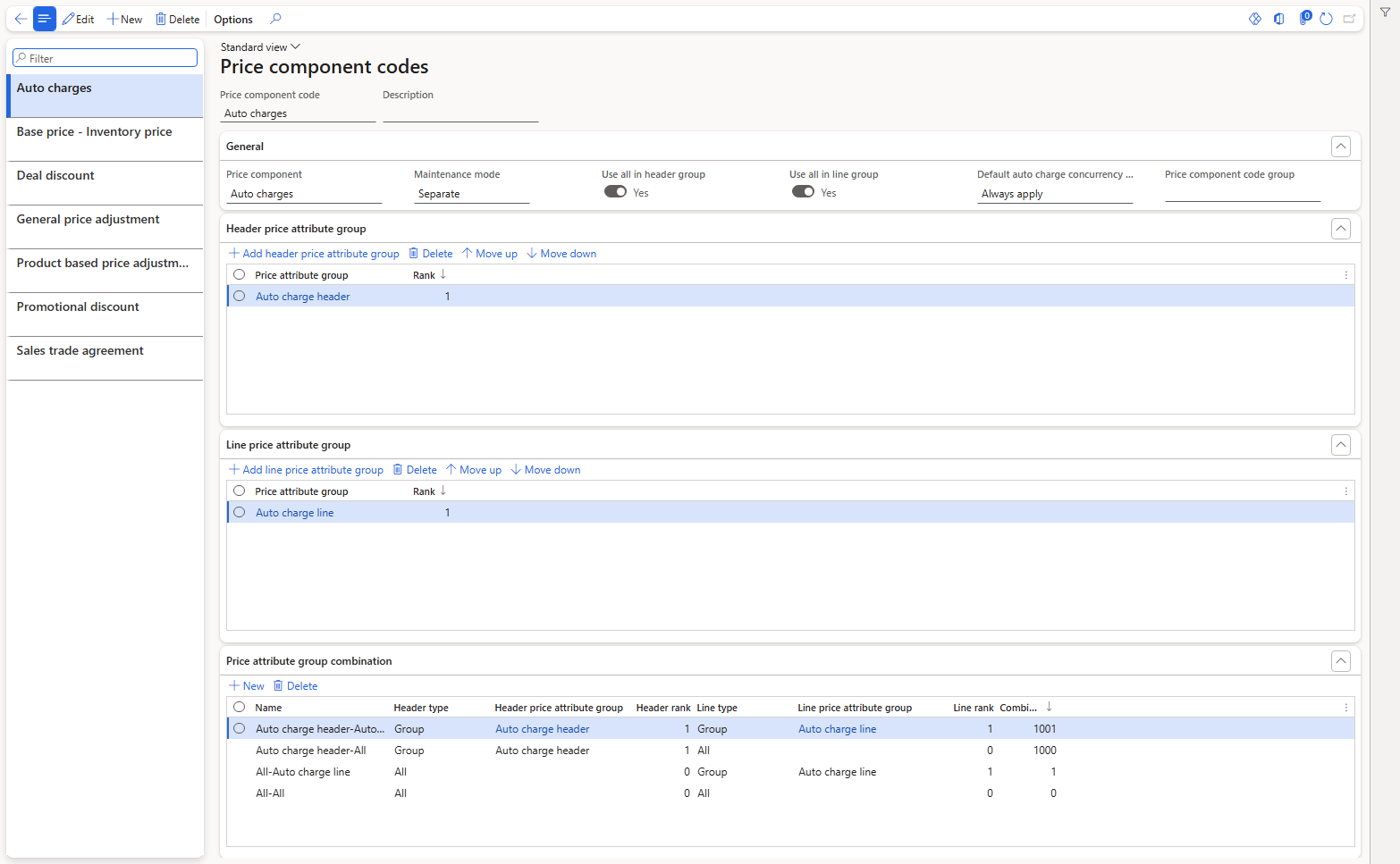
The default price component codes in USMF
USMF already has seven codes. For example, Sales trade agreement has the header group Customer and the line group Product, and at the bottom you can see the Price attribute group combination grid that the system builds from them. We will understand that in a moment.
2. Price component types and the one-code-per-type rule
When you create a new code, the Price component field decides its type.
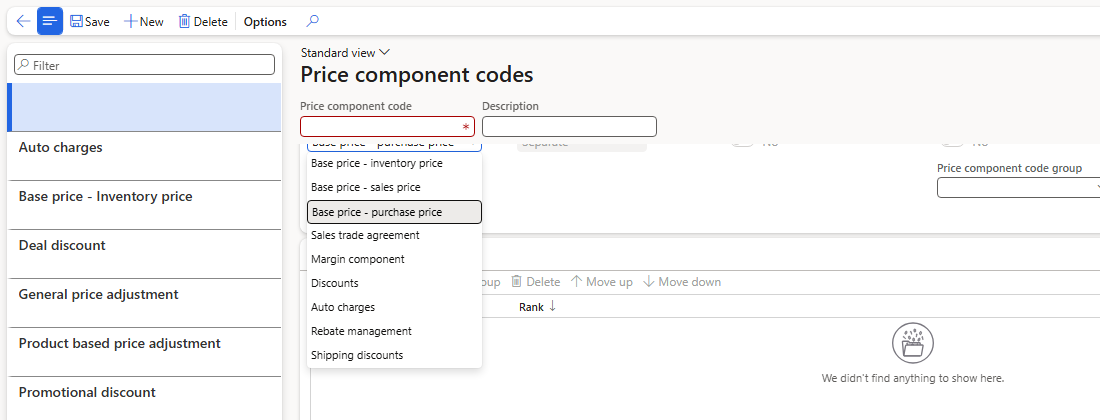
The Price component options
- Base price – inventory price / sales price / purchase price: the starting price of the item.
- Sales trade agreement: price lists (trade agreement prices). This is what we will use for our customer price list.
- Margin component: price adjustments on top of the price (Chapter 6).
- Discounts: discounts (Chapter 7).
- Auto charges, Rebate management, Shipping discounts: charges, rebates and shipping discounts.
Let's say we want our own code "PM Price list" of type Sales trade agreement, so that our price lists are separate from everything else. I clicked New, entered the name and description, selected Sales trade agreement and saved:

"A price component code with the same price component type already exists."
The system refused, because the code of the Sales trade agreement already exists with that type.

For the Sales trade agreement type there can be only one code per company, so our price lists will use the existing Sales trade agreement code and we will simply add our attribute groups to it (section 6).
For margin components and discounts it is different: USMF already has two codes of each type (General price adjustment / Product based price adjustment, Deal discount / Promotional discount), so several codes of those types are allowed.
3. Creating a margin component code
Our first new code is PM Segment adjustment, of type Margin component, for the segment price adjustments of Chapter 6.
To create a new price component code follow the below steps:
- Click New.
- Enter the Price component code PM Segment adjustment and the Description "Price adjustments per customer segment".
- Select Price component = Margin component. Keep Maintenance mode = Separate.
- Save.
- On the Header price attribute group FastTab click Add header price attribute group and select PMCustomerHeader.
- On the Line price attribute group FastTab click Add line price attribute group and select PMProductLine.
- Save.
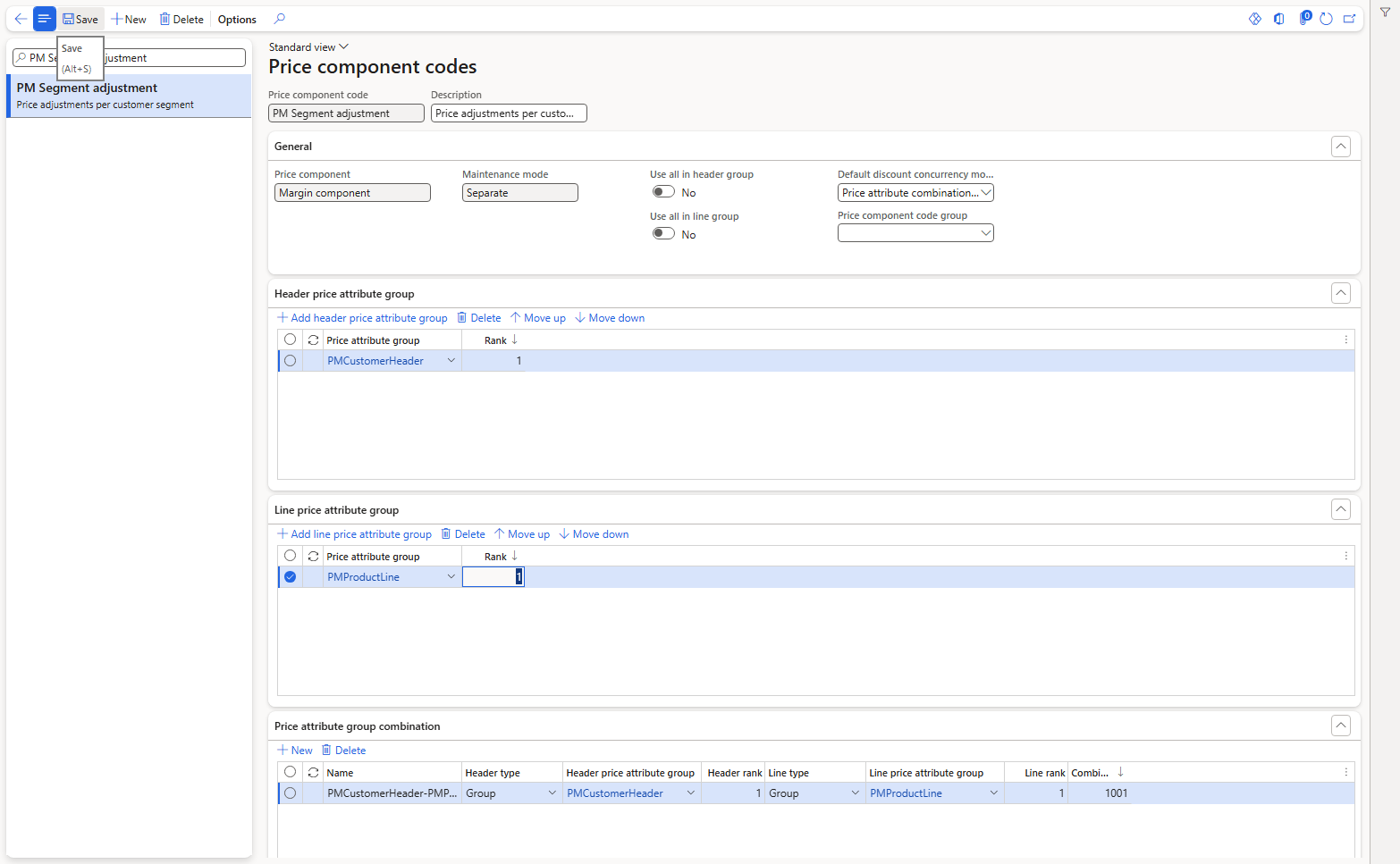
PM Segment adjustment with one header group and one line group
There are some important fields on this form:
- Price component code / Description: the name you will select on every price adjustment of this kind.
- Price component: the type (see section 2).
- Maintenance mode: Separate – you rank header groups and line groups separately and the system builds and ranks the combinations for you. Combined – you create and rank each header/line combination yourself. The default comes from the Pricing management parameters (Chapter 1).
- Use all in header group / Use all in line group: explained and tested in the next section.
- Default discount concurrency mode: appears for margin components and discounts. For PM Segment adjustment the system proposed Price attribute combination rank; for our discount code it proposed Exclusive. This decides what happens when several rules of this code match the same line – we test it in Chapter 8.
- Price component code group: optional grouping, see section 7.
4. Use all in header group / Use all in line group
Look at the bottom of the form, the Price attribute group combination grid. With the two toggles set to No, there is exactly one combination: PMCustomerHeader-PMProductLine, with combination rank 1001. That means every rule of this code must specify customer conditions and product conditions.
Now the question is: what if the business wants a rule for all customers (for example +2% on rice for everybody)? That is what the Use all toggles are for. I tested them one by one and read the combinations after each step:
| Use all in header group | Use all in line group | Combinations created (rank) |
|---|---|---|
| No | No | PMCustomerHeader-PMProductLine (1001) |
| Yes | No | PMCustomerHeader-PMProductLine (1001), All-PMProductLine (1) |
| No | Yes | PMCustomerHeader-PMProductLine (1001), PMCustomerHeader-All (1000) |
| Yes | Yes | PMCustomerHeader-PMProductLine (1001), PMCustomerHeader-All (1000), All-PMProductLine (1), All-All (0) |
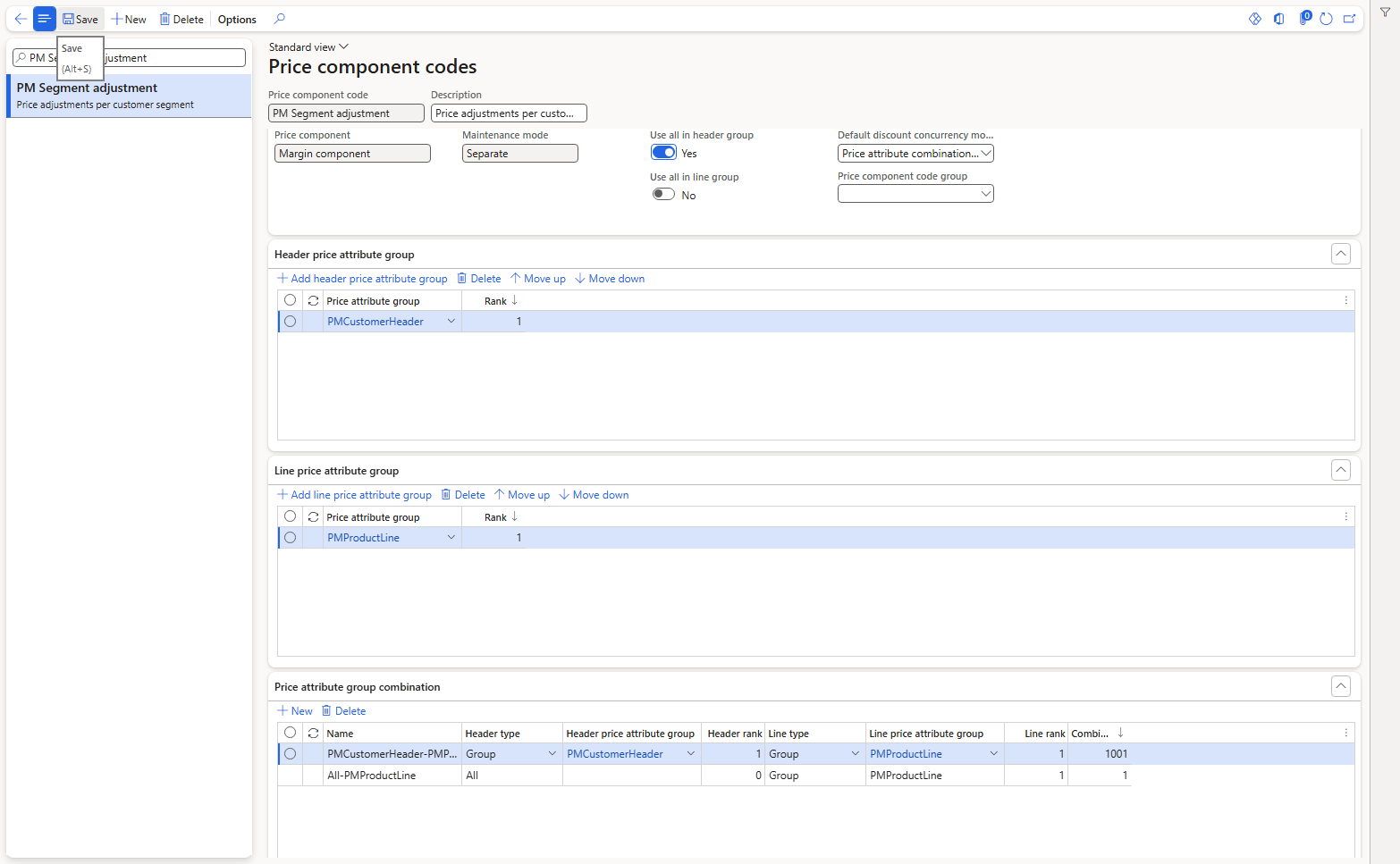
Use all in header group = Yes – the All-PMProductLine combination appears
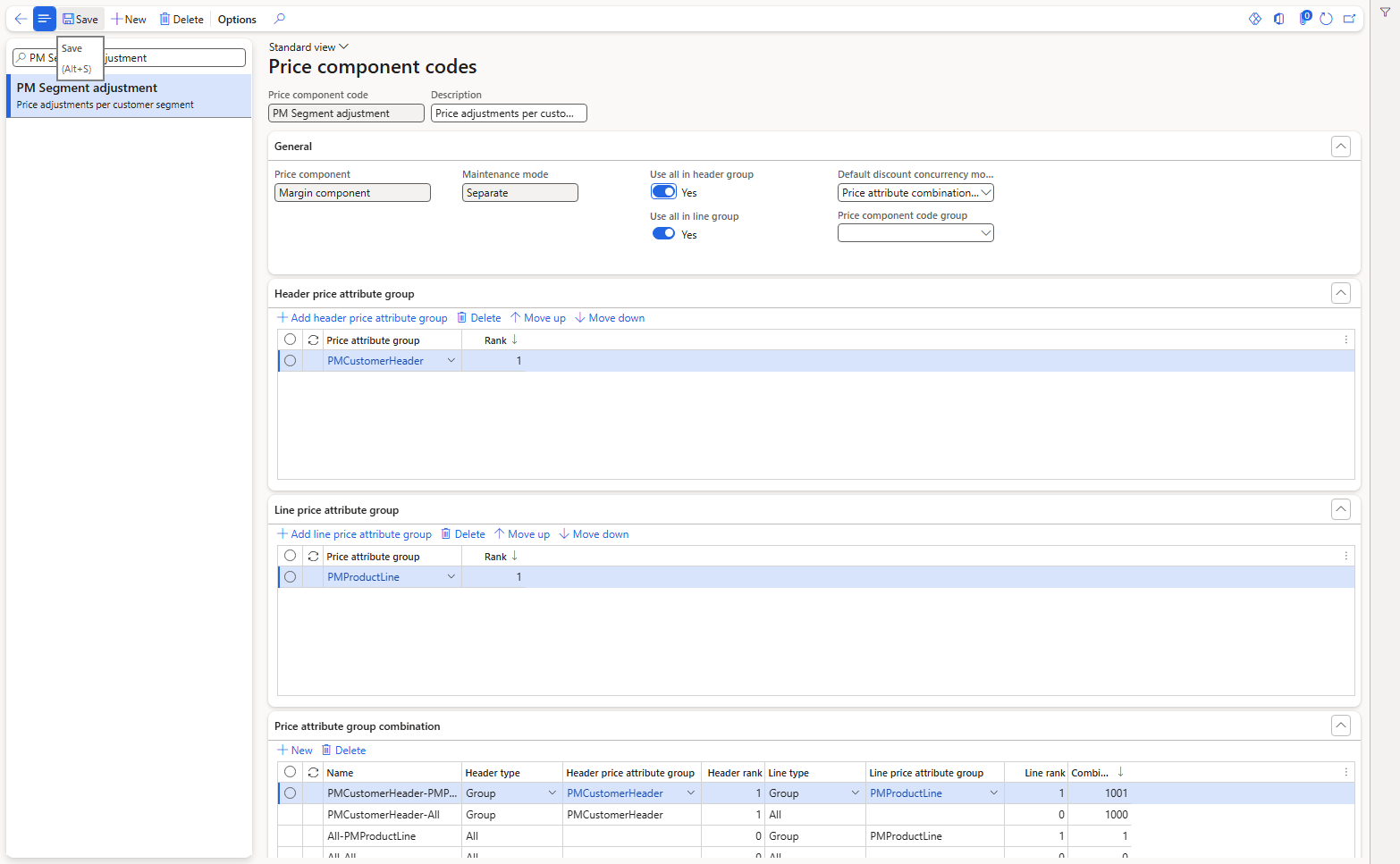
Both toggles = Yes – four combinations
So Use all in header group adds combinations where the customer side is "All" (the rule applies to every customer), and Use all in line group adds combinations where the product side is "All" (the rule applies to every product). Without these toggles you simply cannot create a rule for all customers or all products under that code. I left both toggles on for PM Segment adjustment.
| NOTE: While testing I also saw the reverse: when the header toggle was accidentally switched back to No, the All-PMProductLine combination disappeared again. The combinations are rebuilt every time the toggles or the groups change. |
|---|
5. Combination rank
Every combination gets a combination rank. When more than one rule could apply to a line, the rank tells the system which combination is more specific.
The numbers above follow a clear pattern: header rank × 1000 + line rank, where "All" counts as 0. PMCustomerHeader has rank 1 and PMProductLine has rank 1, so PMCustomerHeader-PMProductLine = 1 × 1000 + 1 = 1001, and All-All = 0.
I verified this pattern with a bigger example on the Sales trade agreement code in the next section, where we have two header groups and two line groups.
6. The discount code and the Sales trade agreement code
6.1 PM Brand promotion
In exactly the same way I created PM Brand promotion with Price component = Discounts, header group PMCustomerHeader, line group PMProductLine and both Use all toggles = Yes. It got the same four combinations (1001, 1000, 1, 0) and the default concurrency mode Exclusive.
6.2 Adding our groups to Sales trade agreement
Because we cannot create a second Sales trade agreement code, we add our groups to the existing one. Before the change it had header group Customer and line group Product, both with rank 1, and four combinations:
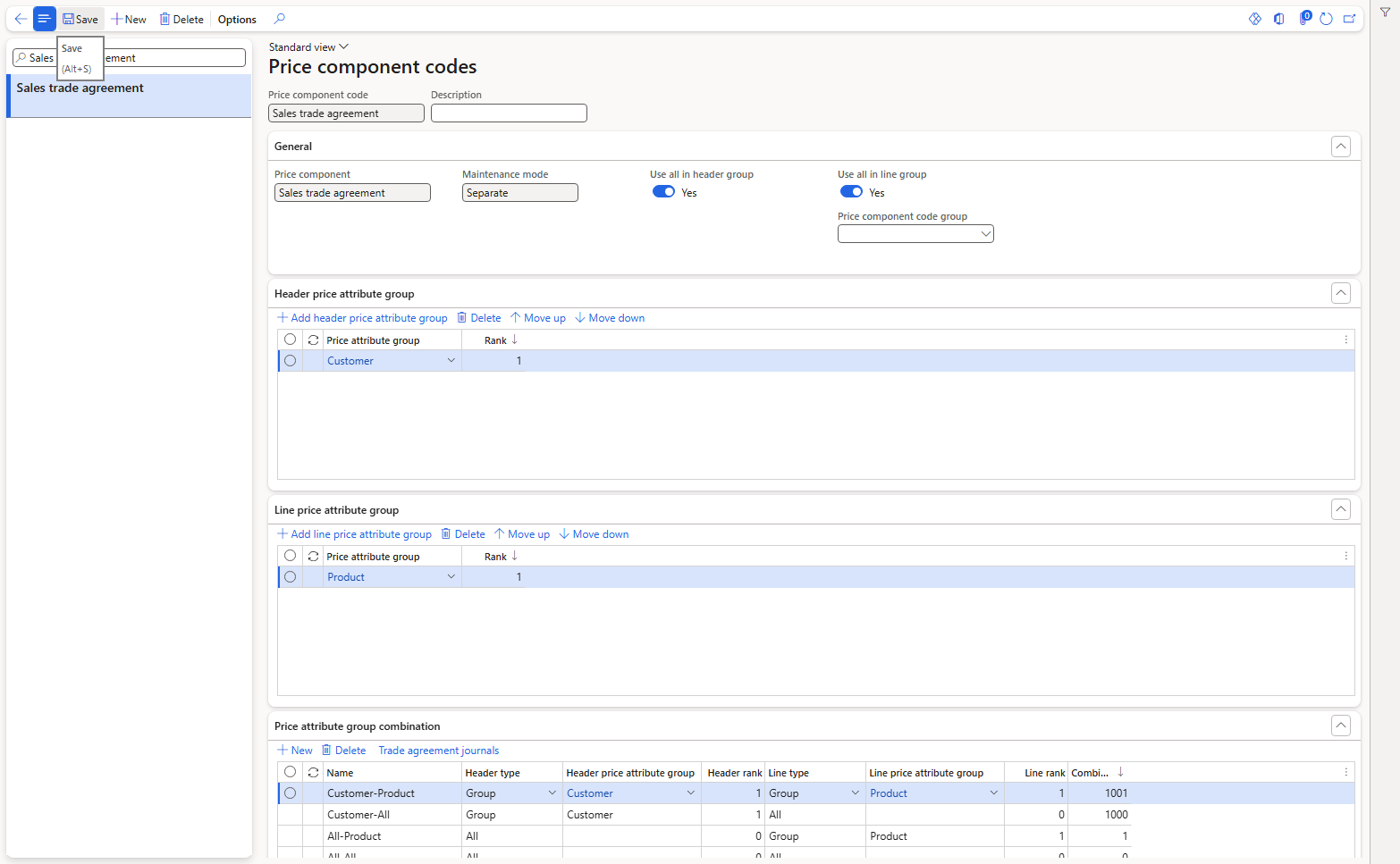
Sales trade agreement before our change
I clicked Add header price attribute group and selected PMCustomerHeader, then Add line price attribute group and selected PMProductLine, and saved. The new groups were added with rank 2:
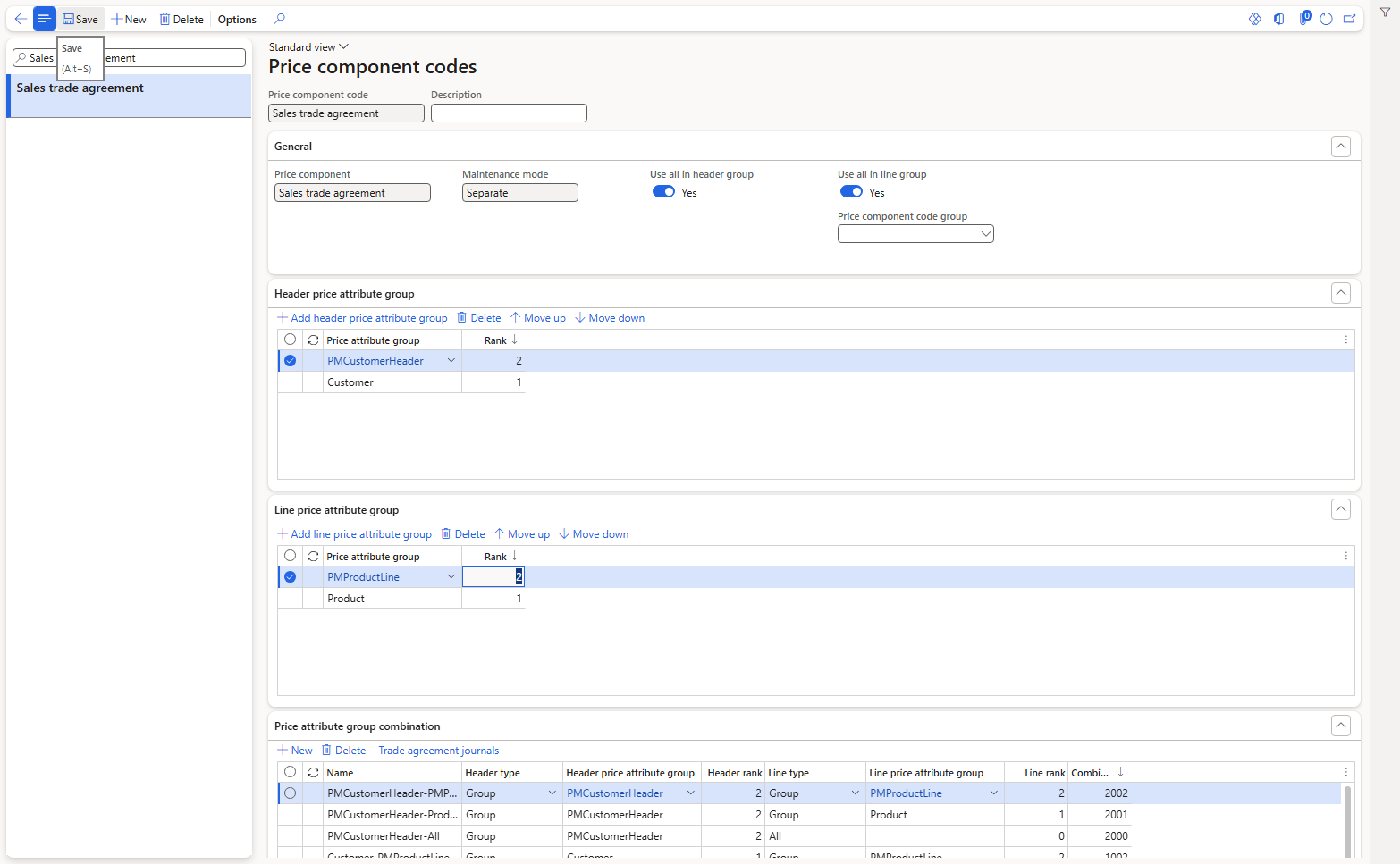
Sales trade agreement after adding PMCustomerHeader and PMProductLine
The combination grid now has nine rows. Here the "header rank × 1000 + line rank" pattern is easy to verify:
| Combination | Header rank | Line rank | Combination rank |
|---|---|---|---|
| PMCustomerHeader-PMProductLine | 2 | 2 | 2002 |
| PMCustomerHeader-Product | 2 | 1 | 2001 |
| PMCustomerHeader-All | 2 | All (0) | 2000 |
| Customer-PMProductLine | 1 | 2 | 1002 |
| Customer-Product | 1 | 1 | 1001 |
| Customer-All | 1 | All (0) | 1000 |
| All-PMProductLine | All (0) | 2 | 2 |
| All-Product | All (0) | 1 | 1 |
| All-All | All (0) | All (0) | 0 |
So the header group is always the "bigger" part of the rank: a combination that names a customer group always gets a higher combination rank than a combination for all customers, whatever the product side is. How the ranks decide between competing rules is tested in Chapter 8. Use Move up / Move down on the header and line groups to change their ranks, and the combinations are recalculated.
7. Price component code groups
A price component code group simply groups several price component codes under one name. The module also contains a form called Discount price component group exclusion list, which works with these groups; excluding discounts by group is the typical reason to group codes. We will use it when we test competing discounts in Chapters 7 and 8.
Navigation: Pricing management > Setup > Price component codes > Price component code groups
I clicked New and created PMPROMO – "PM promotional discounts" with Price component = Discounts, and then assigned it to PM Brand promotion in the Price component code group field.

Price component code group PMPROMO
Negative test: can I assign a Discounts group to a Margin component code? I entered PMPROMO on PM Segment adjustment and saved:
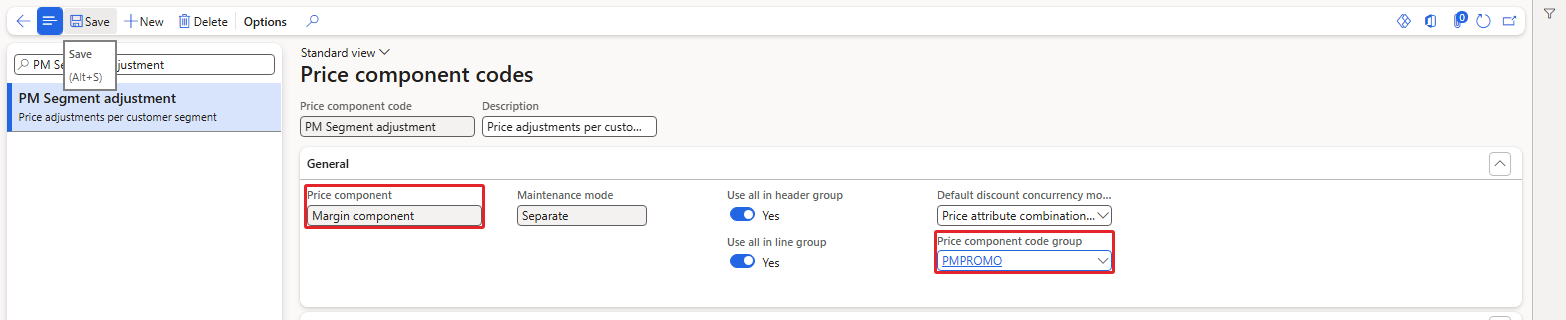
PMPROMO accepted on a Margin component code
| RESULT: The system accepted it without any warning. So nothing stops you from mixing types; it is your own responsibility to keep the groups consistent. I removed the group from PM Segment adjustment again and verified in the database that only PM Brand promotion belongs to PMPROMO. |
|---|
8. The price tree and the hierarchy view
8.1 Price trees
Remember the message we got in Chapter 1 when we enabled the feature: "Price component code setting data has been migrated to pricing tree." In this version the order of the components is maintained in a price tree.
Navigation: Pricing management > Setup > Price component codes > Price trees
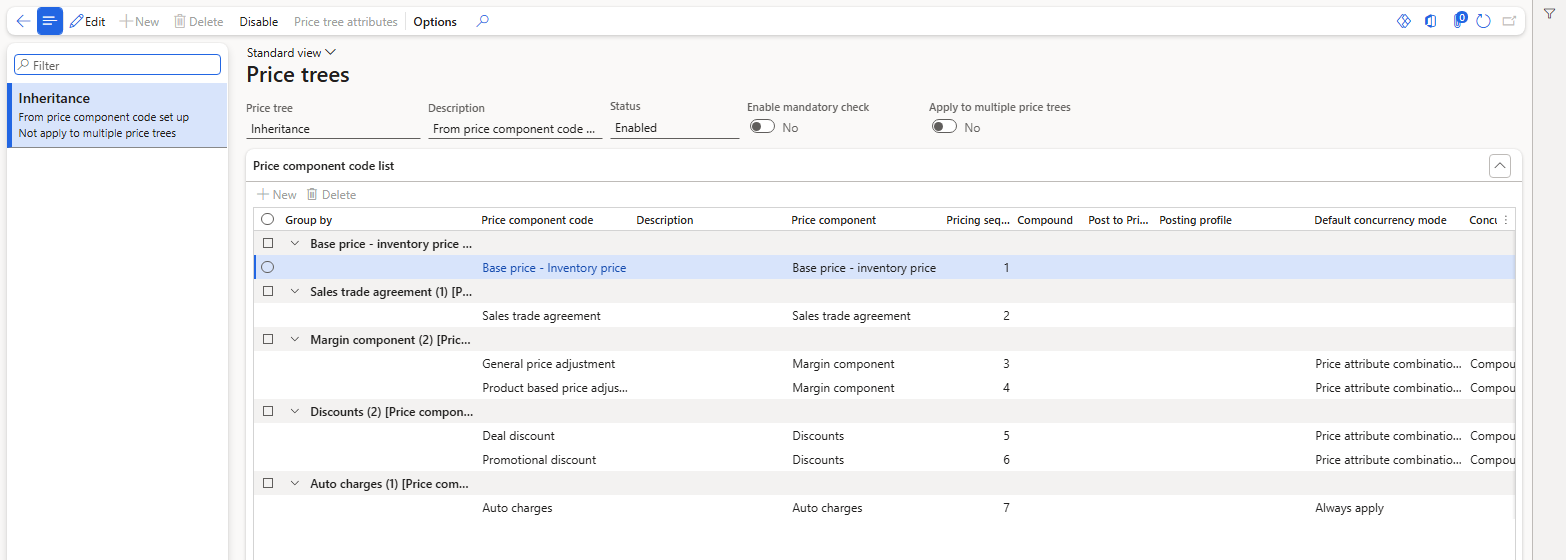
Price tree Inheritance – created automatically when the feature was enabled
The tree Inheritance ("From price component code set up") is Enabled and lists the component codes grouped by type, with their Pricing sequence: 1 Base price – Inventory price, 2 Sales trade agreement, 3 General price adjustment, 4 Product based price adjustment, 5 Deal discount, 6 Promotional discount, 7 Auto charges. This matches the order we see in Price details: base price, then adjustments, then discounts, then charges. Other columns are Compound, Post to price component code, Posting profile, Default concurrency mode and Concurrency mode across priority.
Opening the old menu item Price component code setup directly gave "Access Denied … guppricecomponentcodesetup", even for the administrator – the setup now lives in the price tree.
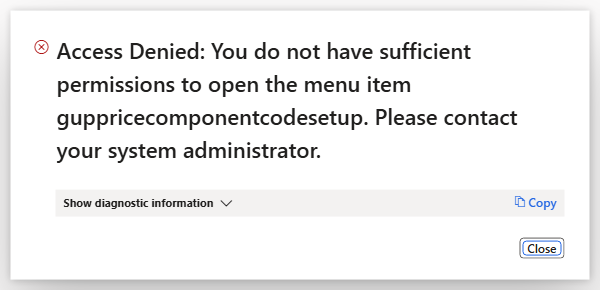
Price component code setup is no longer available
| NOTE: Our two new codes (PM Segment adjustment and PM Brand promotion) are not in the price tree yet – they are not in its list and not in the table behind it. Whether a code must be added to the tree before its rules are applied will be tested in Chapter 6 with the first price adjustment, so that we can see the result with and without it. |
|---|
8.2 Price attribute group hierarchy view
Navigation: Pricing management > Inquiries and reports > Price attribute group hierarchy view
This inquiry asks for a price component code and shows its groups as a tree. For Sales trade agreement it shows each header group (PMCustomerHeader, Customer, All) with the line groups under it (PMProductLine, Product, All), and when you select a node it shows the group's scope and rank. It is a quick way to see all combinations of a code in the order of their ranks.
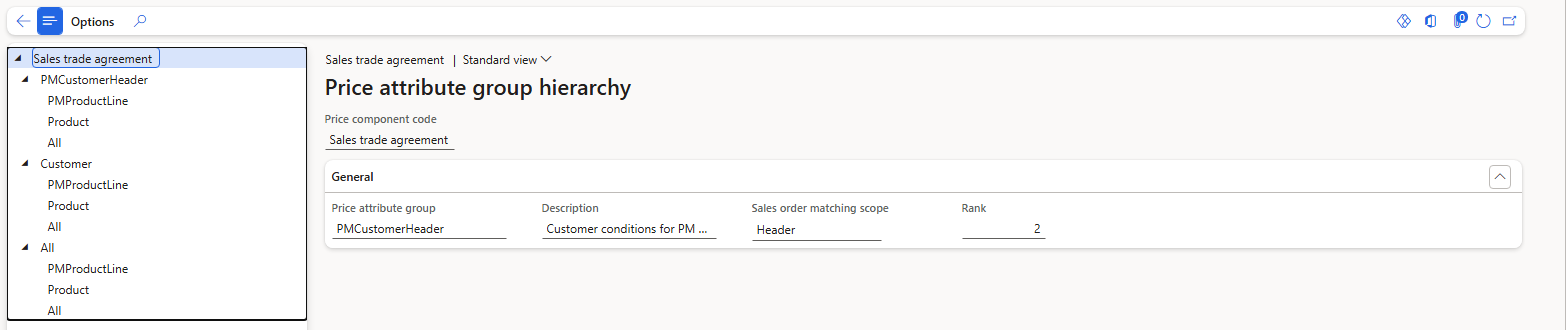
Price attribute group hierarchy for Sales trade agreement
9. Proof – a price list that changes the sales order price
All this setup is useless if we do not see it on a sales order. So let's build the smallest possible price list: hypermarkets in the Central region pay 95 USD for sunflower oil. Chapter 4 goes into trade agreements in depth (quantities, dates, units); here we only want to prove the link.
9.1 Trade agreement journal name
Navigation: Pricing management > Setup > Trade agreement prices > Trade agreement journal names
I created the journal name PMPRICE – "PM customer price lists". The Relation is Price (sales) and Enable price attributes was already Yes. This option is what allows the journal lines to carry price attributes.
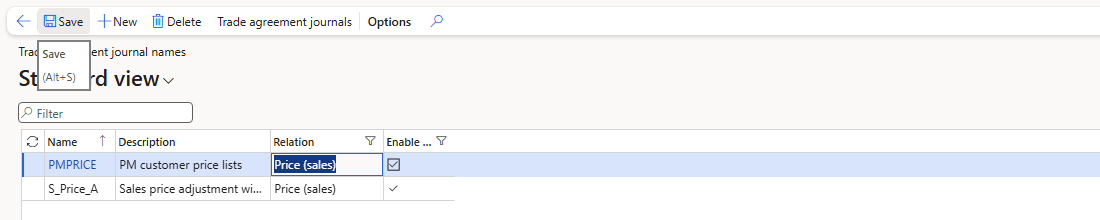
Journal name PMPRICE
9.2 Journal header
Navigation: Pricing management > During-sales pricing > Sales trade agreement price > Trade agreement journals
Click New, select the name PMPRICE, change the description to "Hypermarket Central price list" and save. The system assigned the number PDJ-00059.

Trade agreement journal PDJ-00059
| NOTE: I first tried to type PMCustomerHeader-PMProductLine into the header field Price attribute group combination. The system answered "Unable to find a unique Price attribute group combination record corresponding to the entered values." The same combination name exists under three component codes, so typing the name is ambiguous. I left the header field empty and selected the combination on the line instead (next step), which worked. |
|---|
9.3 Journal line with price attributes
Click Lines, then New. Instead of Account code / Item code columns, a Pricing Management line is defined through price attributes. Select the line and click Edit price attributes:
- Header price attribute group: set Group type = Group and Price attribute group = PMCustomerHeader. Enter the conditions Customer group = PM-HYPER and PM-Region = Central.
- Line price attribute group: open Price attribute group combination. The lookup only lists combinations of PMCustomerHeader, sorted by rank (2002, 2001, 2000). Select PMCustomerHeader-PMProductLine.
- Enter the line condition Item number = PM-OIL-5L and leave PM-Brand empty.
- Click OK.
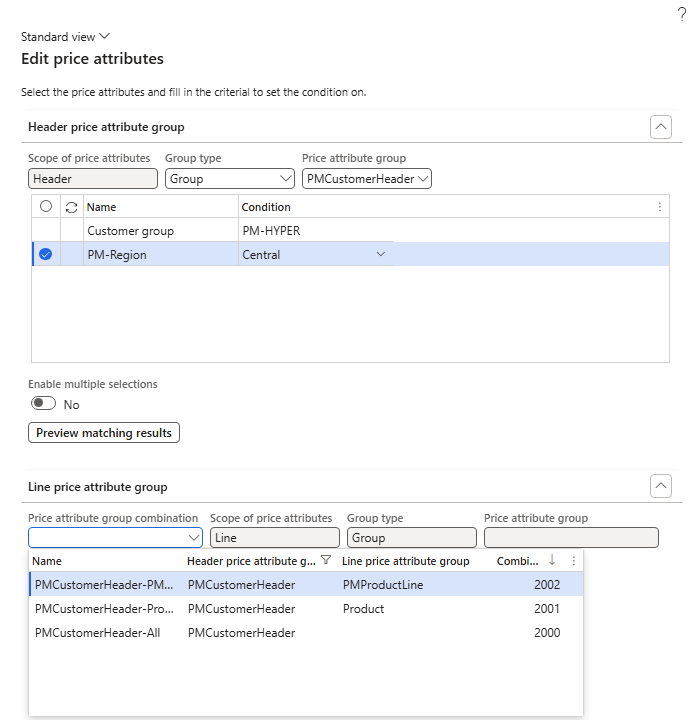
Combination lookup – filtered by the header group, sorted by rank
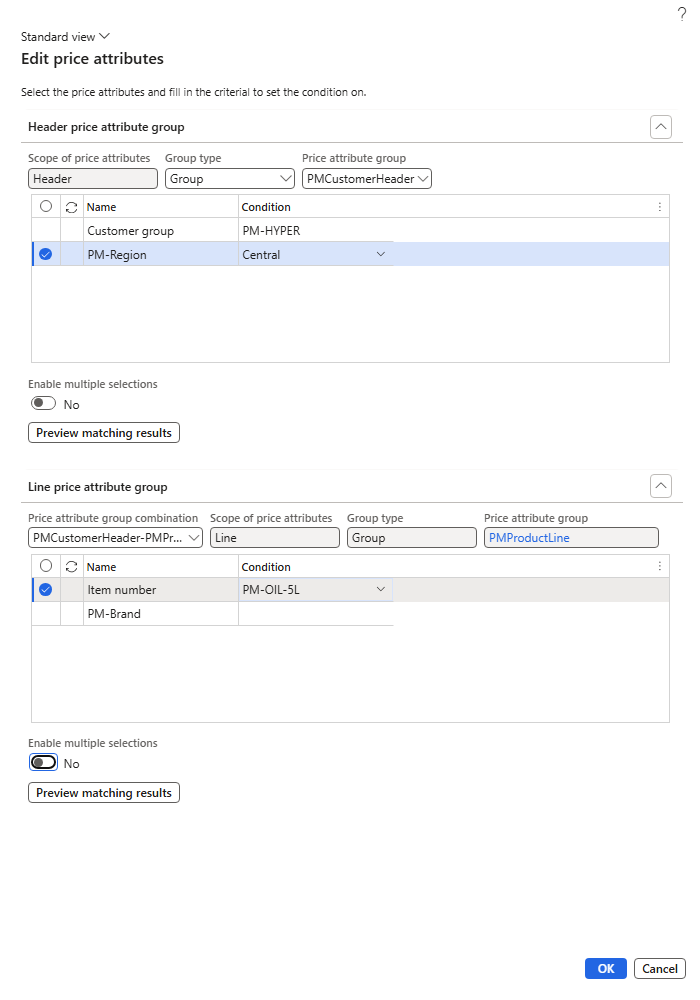
Edit price attributes – header and line conditions
Back on the line, enter Unit = ea and Amount in currency = 95.00 (currency USD) and save. The grid shows the header group, the line group, the price attribute details and the price attribute combination rank 2002.
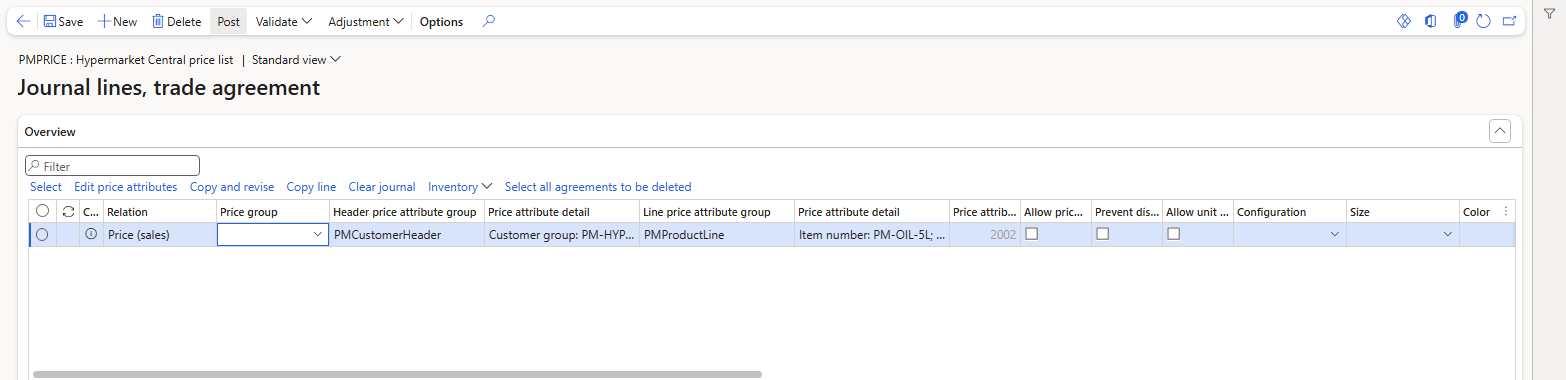
Journal line – PMCustomerHeader / PMProductLine, rank 2002, amount 95
9.4 Negative test – journal not posted
Before posting, I created sales order 001343 for PM-C001 with 10 × PM-OIL-5L:
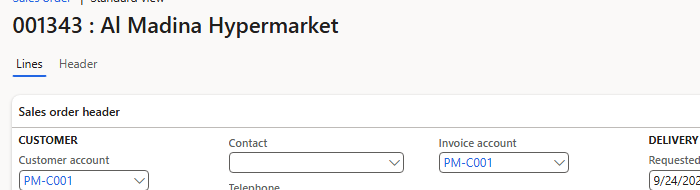
Sales order 001343 – PM-C001

Line price before posting
| RESULT: The price was still 100.00. An unposted trade agreement journal has no effect on sales orders. |
|---|
9.5 Post the journal
On the journal lines click Post, keep the dialog as it is and click OK. The message bar shows "Journal has been posted." and the journal disappears from the Not posted view.
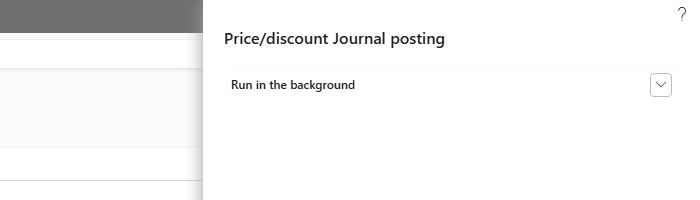
Price/discount journal posting dialog

Journal has been posted
9.6 The sales order test
Then I created three new sales orders, each with PM-OIL-5L, quantity 10. For PM-C001 I also added a second line with PM-JUICE-1L. Expected result: only a hypermarket in the Central region gets 95, and only for the oil.
| Order | Customer | Group / Region | Item | Expected | Actual |
|---|---|---|---|---|---|
| 001344 | PM-C001 Al Madina Hypermarket | PM-HYPER / Central | PM-OIL-5L | 95.00 | 95.00 |
| 001344 | PM-C001 Al Madina Hypermarket | PM-HYPER / Central | PM-JUICE-1L | 30.00 | 30.00 |
| 001345 | PM-C002 Green Valley Hypermarket | PM-HYPER / Western | PM-OIL-5L | 100.00 | 100.00 |
| 001346 | PM-C003 Corner Street Grocery | PM-MINI / Central | PM-OIL-5L | 100.00 | 100.00 |
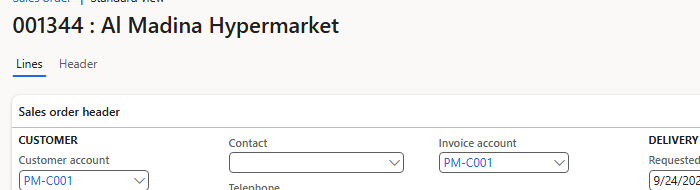
Sales order 001344 – PM-C001

PM-OIL-5L at 95.00, PM-JUICE-1L at 30.00
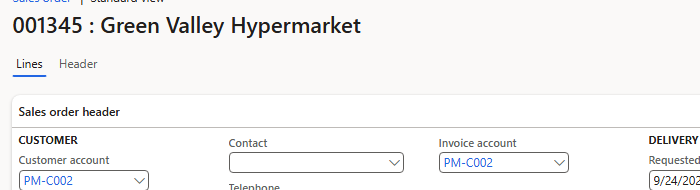
Sales order 001345 – PM-C002 (Western region)

PM-OIL-5L stays at 100.00
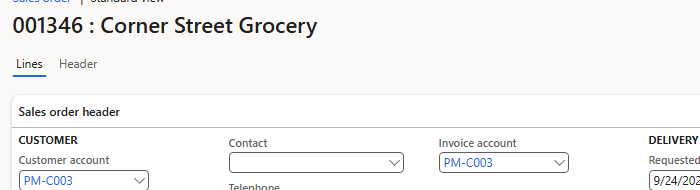
Sales order 001346 – PM-C003 (minimarket)

PM-OIL-5L stays at 100.00
Now you can see that the system has calculated 95 instead of the normal 100 only for PM-C001, because only this customer matches both header conditions (PM-HYPER and Central) and only the oil matches the line condition. The juice (30) and the other customers (100) fall back to the item's base sales price. I verified all four prices in the database as well.
| TIP: The PM-Brand condition was left empty on the journal line, and the rule still matched the oil. An empty attribute condition means "any value". Fill it only when you really want to restrict the rule. |
|---|
9.7 Price details
Finally, the Price details of the oil line on order 001344:
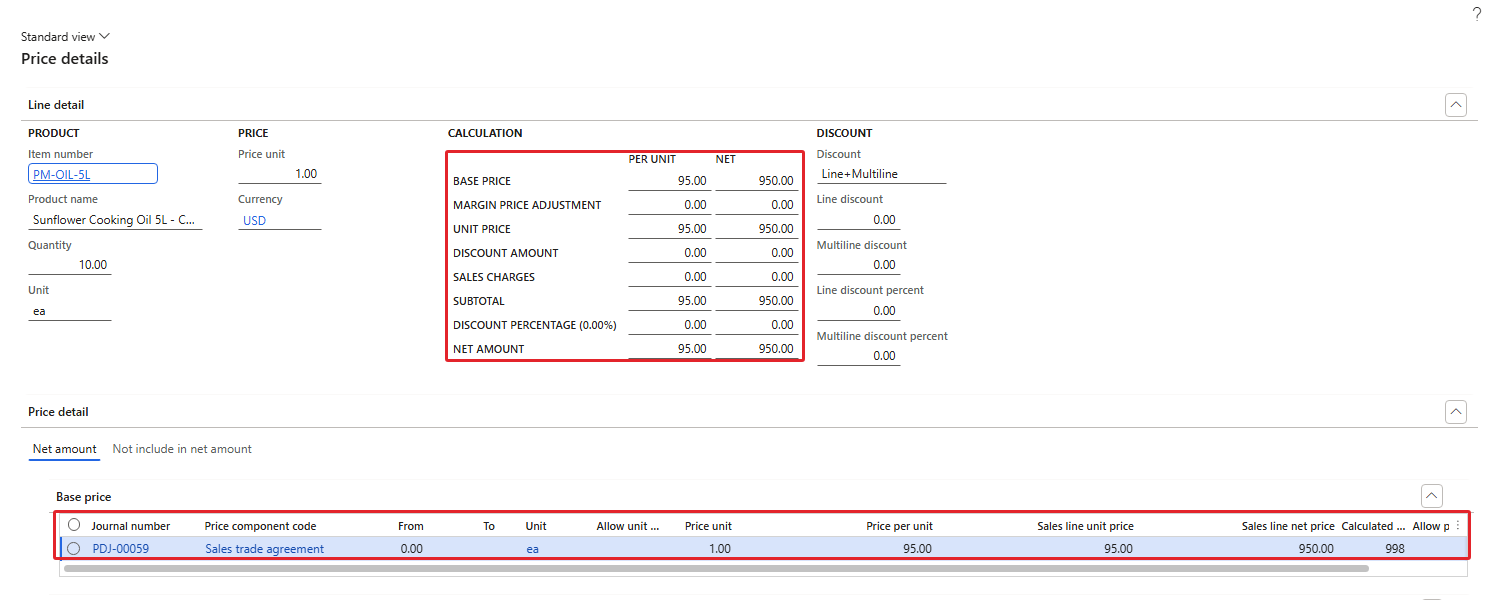
Price details – base price 95 from journal PDJ-00059, code Sales trade agreement
Base price = 95.00, Margin price adjustment = 0.00, Unit price = 95.00, Discount = 0.00, Net amount = 10 × 95.00 = 950.00. In Chapter 1 the Base price grid was empty; now it shows exactly where the price came from: journal PDJ-00059, price component code Sales trade agreement, price per unit 95.00, sales line net price 950.00. The grid also shows a Calculated pricing priority of 998 for this rule; we will look at how this value is used when several rules compete, in Chapter 8.
10. Summary
- A price component code is one step of the price calculation; it links price attribute groups to that step.
- For the Sales trade agreement type only one code is allowed ("A price component code with the same price component type already exists"); margin components and discounts can have several codes.
- Use all in header / line group add the combinations with "All" on the customer / product side. Without them you cannot create a rule for all customers or all products.
- Combination rank = header rank × 1000 + line rank ("All" = 0). The customer side always weighs more in the rank than the product side.
- Price component code groups group codes (for example for discount exclusions); the system does not check that the types match.
- The price tree Inheritance holds the pricing sequence of the codes; the old Price component code setup is no longer available here. New codes are not added to the tree automatically.
- A trade agreement line with price attributes changed the sales order price from 100 to 95 for the matching customer and item only, after the journal was posted.
In the next chapter we go deep into sales trade agreement prices: general prices for all customers, quantity breaks, date-effective prices, and what happens when more than one price list matches.
That's all for today, folks. See you in the next chapter!
Cheers!
Salman Ahmad
D365 Applications Solution Architect
← Previous: Pricing Management in Dynamics 365 SCM — Chapter 2 – Price Attributes and Price Attribute Groups | Next: Pricing Management Chapter 4 →