Pricing Management in Dynamics 365 SCM
Chapter 2 – Price Attributes and Price Attribute Groups
Hello everyone! Hope you are all doing well.
In the previous chapter we switched on Pricing Management, went through the parameters and saw that our sales order now shows a Price tab, a Complete button and a Price details screen. But the price was still the same 100 USD, because we had not told the system anything about when a different price should apply.
Today we will build that "when". In Pricing Management every pricing rule – a trade agreement price, a price adjustment, a discount – is written against conditions such as "customer region is Central" or "product brand is SunGold". These conditions are called price attributes, and they are grouped into price attribute groups. Every setup that we do in the next chapters depends on what we build today, so this chapter is the foundation of the whole series.
Our requirement for today
Remember our food distributor from Chapter 1. The sales manager comes to us with two classic pricing drivers:
- Customers are managed by region – Central, Western and Eastern. Very often a promotion is "only for the Central region".
- Products are sold under different brands – SunGold (our premium oil and juice) and Royal Grain (our rice). The supplier of SunGold funds brand promotions, so some prices will be "only for SunGold products".
D365 does not have a "Region" field on the customer or a "Brand" field on the product out of the box. So we will create them as attributes, give every customer and product a value, and then make these attributes available to Pricing Management. At the end of the chapter we will define a segment "Hypermarkets in the Central region" and a product range "SunGold products" and let the system show us exactly which customers and items belong to them.
| Record | Attribute | Value |
|---|---|---|
| PM-C001 Al Madina Hypermarket (PM-HYPER) | PM-Region | Central |
| PM-C002 Green Valley Hypermarket (PM-HYPER) | PM-Region | Western |
| PM-C003 Corner Street Grocery (PM-MINI) | PM-Region | Central |
| PM-C004 Royal Palm Hotel (PM-HORECA) | PM-Region | Eastern |
| PM-OIL-5L Sunflower Cooking Oil | PM-Brand | SunGold |
| PM-JUICE-1L Orange Juice | PM-Brand | SunGold |
| PM-RICE-10 Basmati Rice | PM-Brand | Royal Grain |
Today's agenda
- What is a price attribute and where can it come from?
- Attribute types – the list of allowed values.
- Attributes and the "Can be used as price attribute" option.
- Customer price attributes – attribute group, parameter and customer values.
- Product price attributes – procurement category and product values.
- Price attribute groups – header and line groups (with a failed test and a negative test).
- Customer and product price attribute groups – defining a segment and previewing its members.
- Where do the order attributes fit in?
- Summary.
1. What is a price attribute?
A price attribute is simply a piece of information about the customer, the product or the order that a pricing rule can look at. If the rule says "5% off for Central region", then "region" is the price attribute and "Central" is the value the rule is waiting for.
When the sales order line is priced, the system reads the values of these attributes from the order (for example, the customer on the header is PM-C001, so region = Central; the item on the line is PM-OIL-5L, so brand = SunGold) and then looks for pricing rules whose conditions match those values.
In this environment the attributes come from three places. I checked this directly in the Add price attribute dialog that we will open later:
- Customer: fields of the customer record such as Customer account, Customer group, Price group, Country/region, State, Segment, Site, Terms of payment, Mode of delivery, and also our own custom customer attributes (for example PM-Region).
- SalesTable (order header): fields of the sales order header such as Order type, Campaign ID, Site, Header mode of delivery, Sales order price group and loyalty information.
- Product: fields of the item such as Item number, Product number, Category, Commission group, Sales order – Line discount group and so on, plus our own custom product attributes (for example PM-Brand).
The first two are used at the header level (they are the same for the whole order) and the product attributes are used at the line level (they can differ per line). You will see this "Header / Line" split again in the price attribute groups.
Out-of-the-box fields like Customer group or Item number need no setup at all. Custom attributes like our Region and Brand need four small setups, and that is what sections 2 to 5 are about.
2. Attribute types
Before we can create an attribute, we need an attribute type. The attribute type decides what kind of value the attribute can hold – free text, a number, a date, or a fixed list of values. For pricing, a fixed list is almost always the right choice, because a pricing rule must match the value exactly. If one user types "Central" and another types "central region", the rule will not match.
Navigation: Product information management > Setup > Categories and attributes > Attribute types
To create a new attribute type follow the below steps:
- Click New.
- Enter the Attribute type name – PM Region.
- Keep Type = Text and set Fixed list = Yes.
- Save. The Values FastTab now appears.
- On the Values FastTab click Add and enter Central, then Western, then Eastern.
- Save.
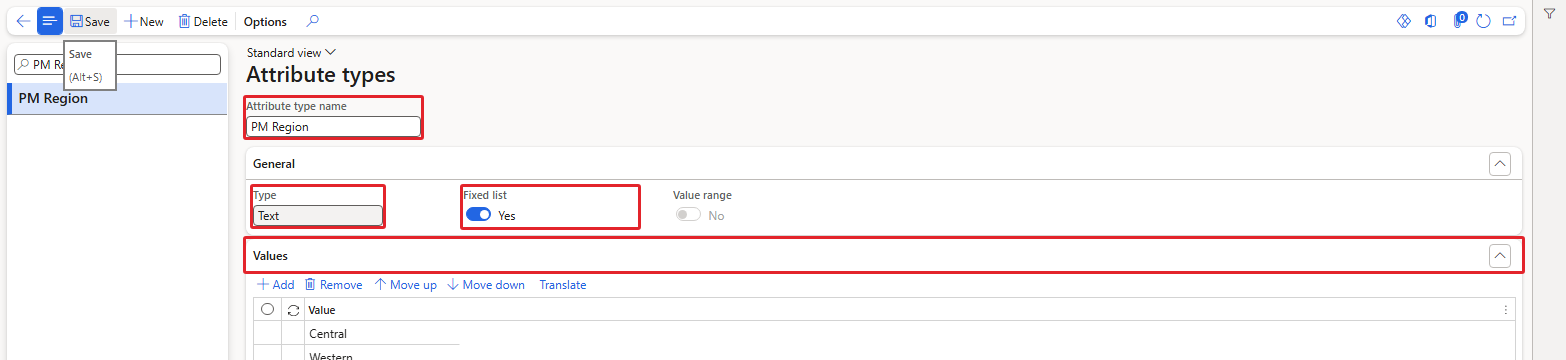
Attribute type PM Region with a fixed list of three values
There are some important fields on this form:
- Attribute type name: The name of the type. It is not the attribute itself; many attributes can share one type.
- Type: The data type – Text, Integer, Decimal, Date/time, Currency, Boolean and so on.
- Fixed list: When Yes, users can only choose from the values on the Values FastTab. This is exactly what we want for pricing.
- Value range: Only for numeric types, to restrict the value to a range.
In the same way I created the attribute type PM Brand with the values SunGold, Royal Grain and Fresh Valley.
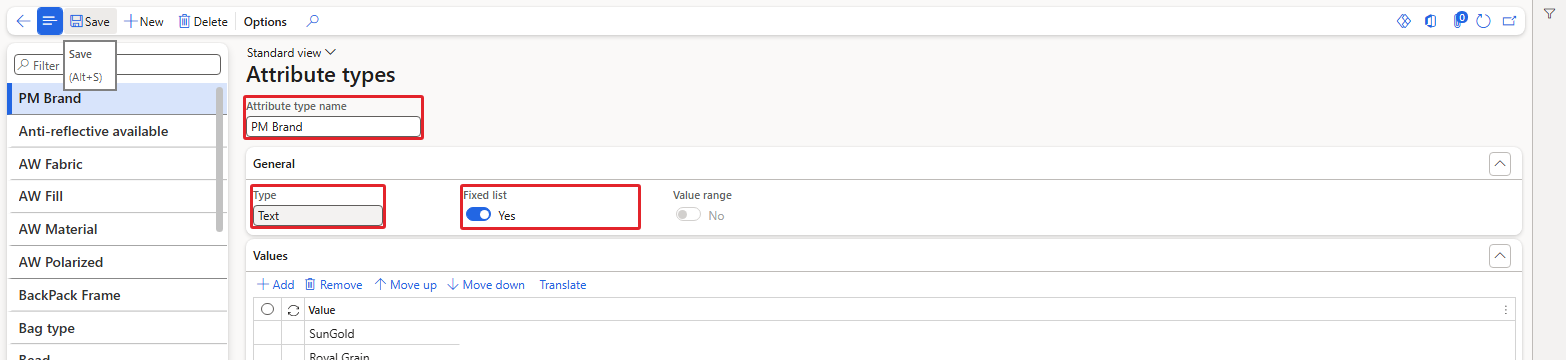
Attribute type PM Brand
3. Attributes and the "Can be used as price attribute" option
Now we create the actual attribute, which uses the type. Think of it this way: the type says "these are the allowed regions", the attribute says "this is the Region field".
Navigation: Product information management > Setup > Categories and attributes > Attributes
To create a new attribute follow the below steps:
- Click New.
- Enter the Name – PM-Region.
- Select the Attribute type name – PM Region.
- Enter the Friendly name – Customer region.
- In the Attribute metadata for pricing management section set Can be used as price attribute = Yes.
- Save.
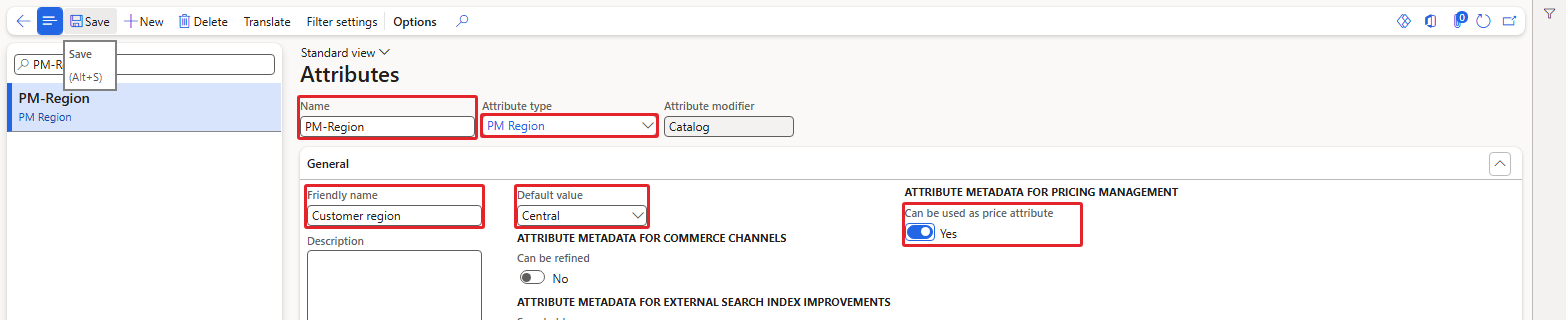
Attribute PM-Region – Can be used as price attribute = Yes
There are some important fields on this form:
- Name: The technical name of the attribute. This is the name you will see in the pricing setups.
- Attribute type name: The type created in section 2. It decides the allowed values.
- Default value: After selecting a fixed-list type the system filled Default value with the first value of the list (Central for PM-Region, SunGold for PM-Brand). Every customer or product that gets this attribute starts with the default value until you change it.
- Can be used as price attribute: This is the option added by Pricing Management. Only attributes with this option set to Yes are offered in the pricing setups. We will prove this with a negative test in section 6.
- The other options (Can be refined, Searchable, Retrievable and so on) belong to Commerce channels and search, not to pricing.
I created a second attribute PM-Brand (type PM Brand, friendly name Product brand). On purpose, I left Can be used as price attribute = No for now, so that we can see what happens later.
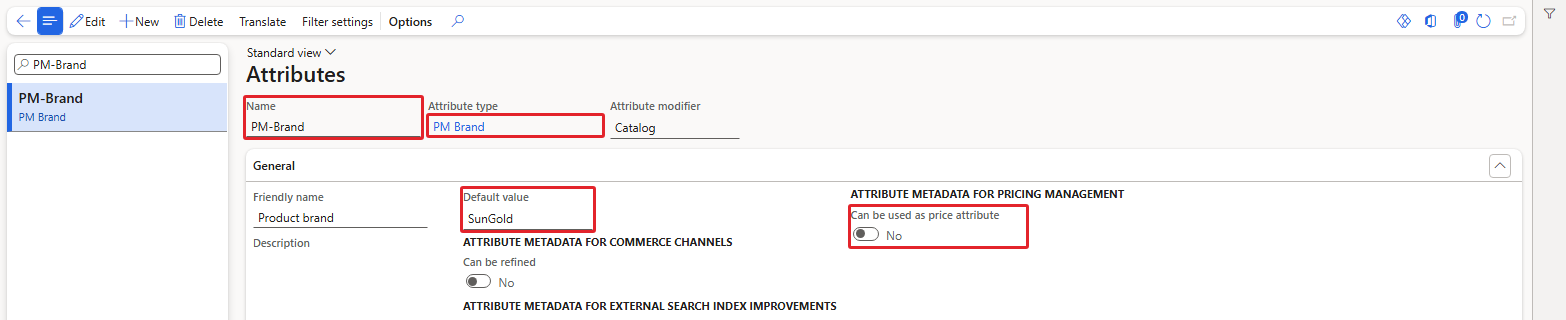
Attribute PM-Brand – created with Can be used as price attribute = No (on purpose)
| TIP: Pay attention to the Default value. If you leave Central as the default for Region, every new customer is automatically "Central" and could receive Central region prices. Decide with the business whether a default makes sense, and always check the value on the customer. |
|---|
4. Customer price attributes
Now the question is, how does the system know that PM-Region is an attribute of the customer? The attribute itself does not know where it belongs. For customers, the link is made through an attribute group that we then register in the Pricing management parameters.
4.1 Attribute group for customers
Navigation: Product information management > Setup > Categories and attributes > Attribute groups
- Click New, enter the Name PM Customer price attributes and the same friendly name, and save.
- On the Attributes FastTab click Add.
- In the Attribute group attributes dialog filter for PM-Region, select it in the Available list and click the right arrow to move it to Selected.
- Click OK and save.
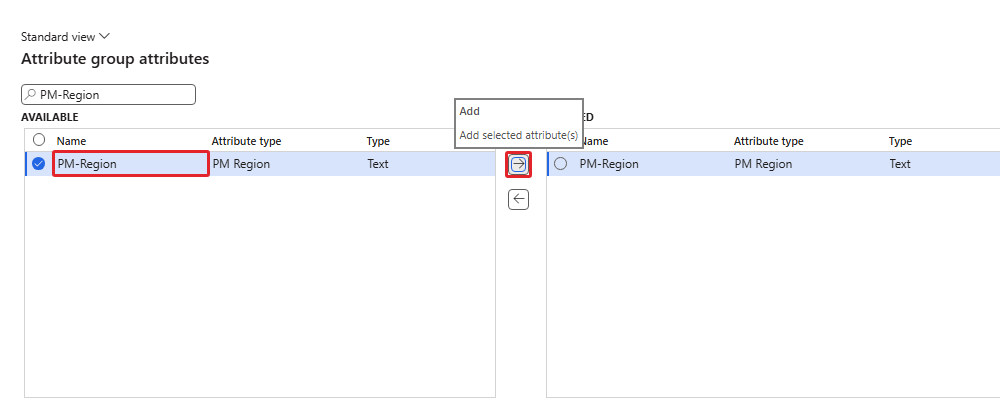
Moving PM-Region from Available to Selected
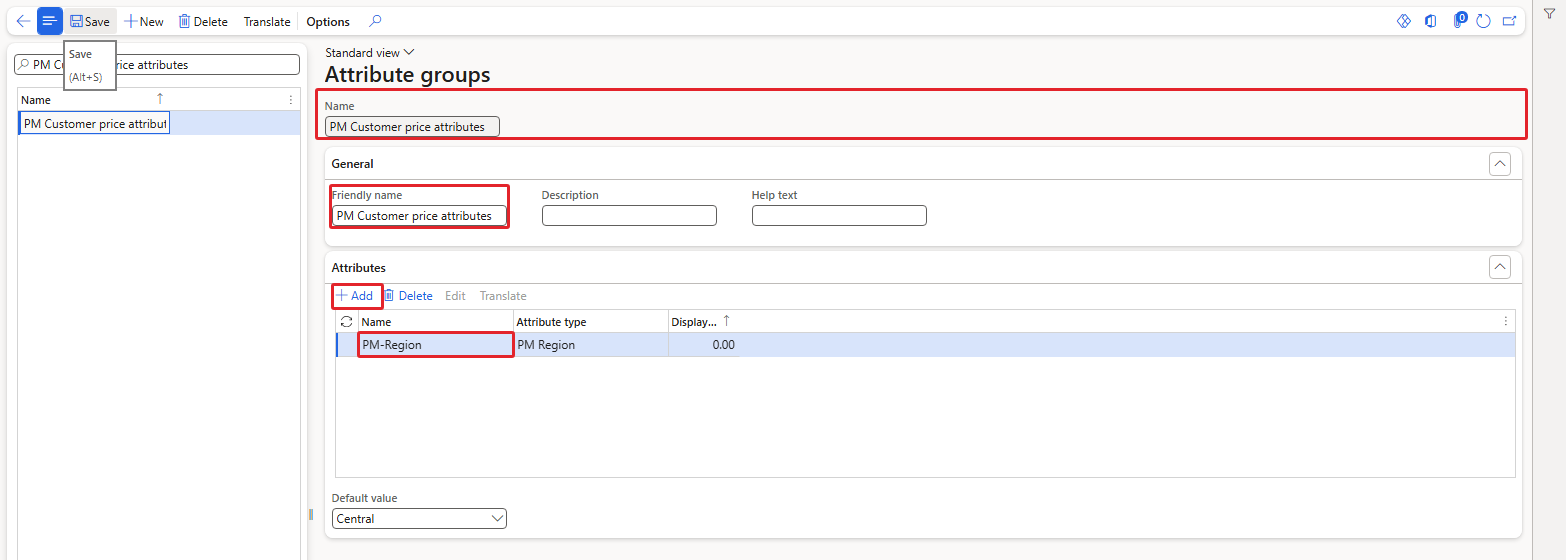
Attribute group PM Customer price attributes containing PM-Region
4.2 Register the group in the parameters
Navigation: Pricing management > Setup > Pricing management parameters > Price attribute
Set Customer attribute group = PM Customer price attributes and save. This field was empty when we looked at it in Chapter 1.
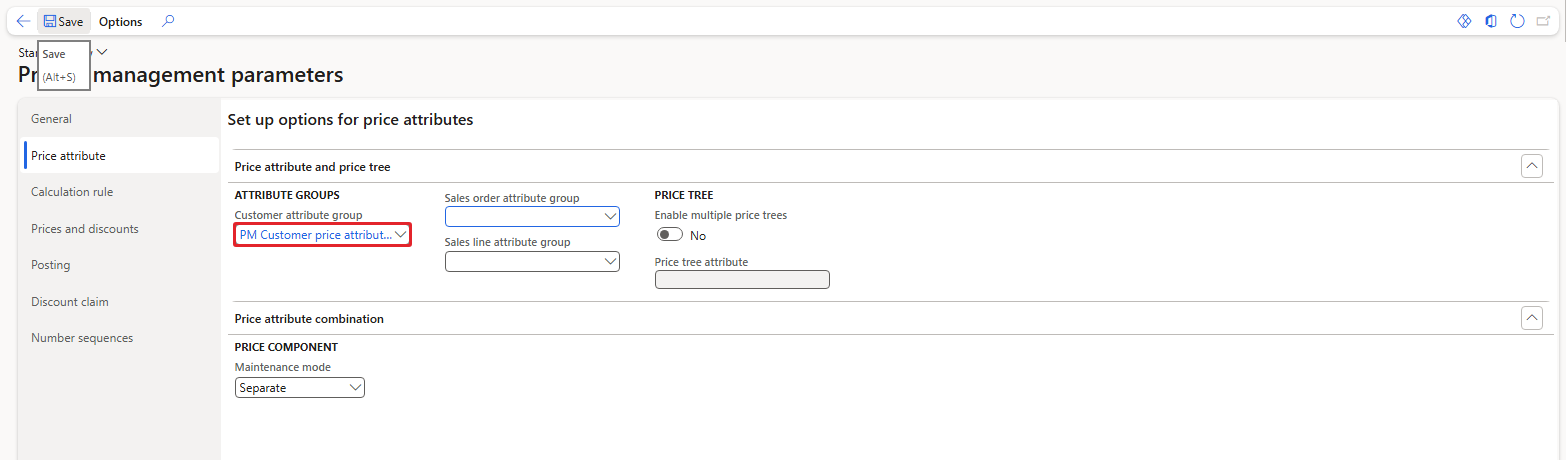
Customer attribute group set in the parameters
There can be only one customer attribute group per company, so all customer price attributes (region, segment, loyalty level and so on) must be in this one group.
4.3 Give every customer a value
Navigation: Accounts receivable > Customers > All customers > Price > Customer attributes
Select the customer in the list, open the Price tab on the Action Pane and click Customer attributes. This Price tab on the customer was also added by Pricing Management.
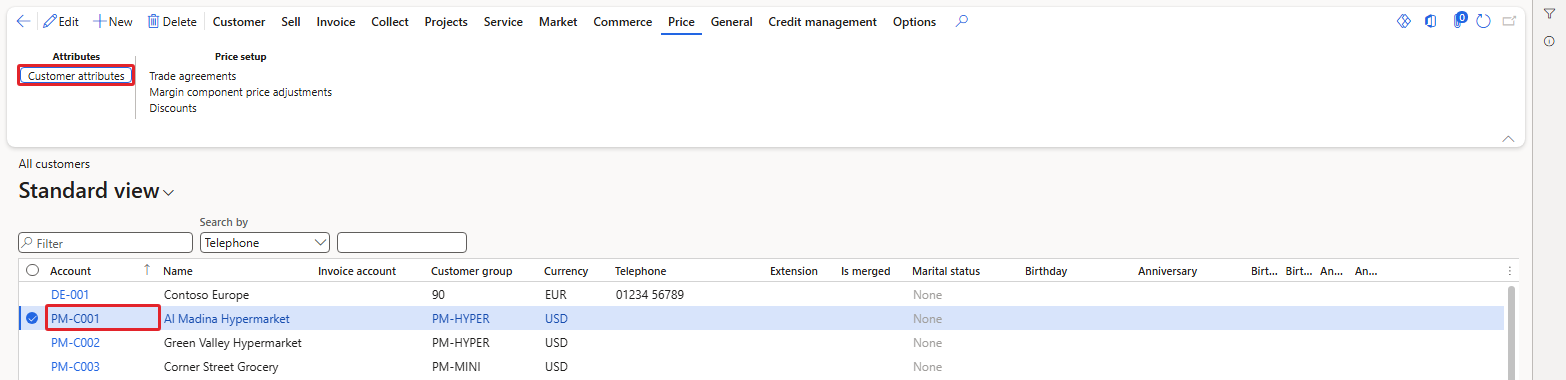
Price tab on the customer – Customer attributes
The Customer attribute values page lists every attribute of the customer attribute group, which in our case is only PM-Region. It already showed Central, the default value. For PM-C002 I changed the value to Western:
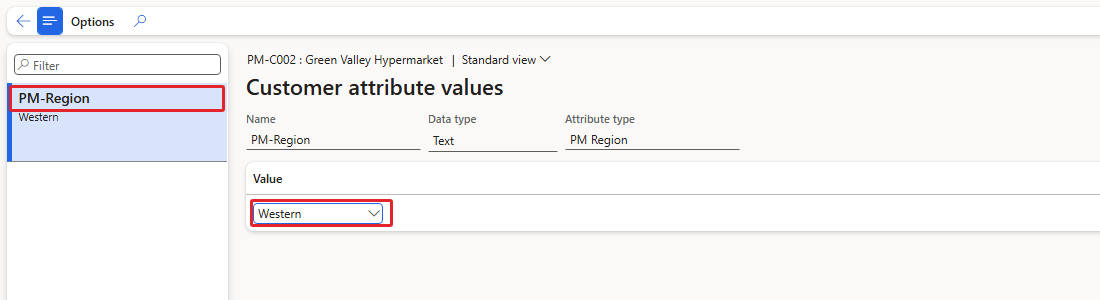
PM-C002 Green Valley Hypermarket – PM-Region = Western
I repeated this for all four customers: PM-C001 Central, PM-C002 Western, PM-C003 Central and PM-C004 Eastern. I also checked the database: all four values were saved against the customers.
5. Product price attributes
For products the principle is similar, but the link is made through a category. A product inherits all attributes of the categories it belongs to. In this environment I used the procurement category hierarchy for this.
5.1 Create a category
Navigation: Procurement and sourcing > Procurement categories > Edit category hierarchy
- Select the top node of the hierarchy and click New category node.
- Enter the Name PM FOOD PRODUCTS and the Code PMFOOD, and save.
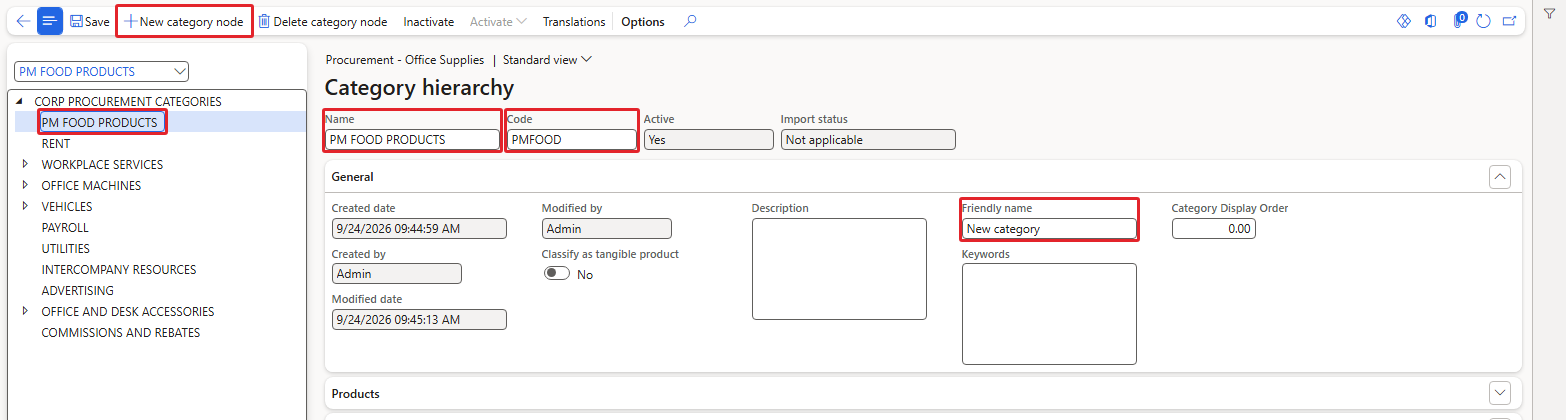
New procurement category PM FOOD PRODUCTS
5.2 Add the attribute and the products to the category
Navigation: Procurement and sourcing > Procurement categories
Select PM FOOD PRODUCTS in the tree and follow the below steps:
- On the Product attributes FastTab click Add, move PM-Brand to Selected and click OK.
- On the Products FastTab click Add, move PM-OIL-5L, PM-RICE-10 and PM-JUICE-1L to Selected and click OK.
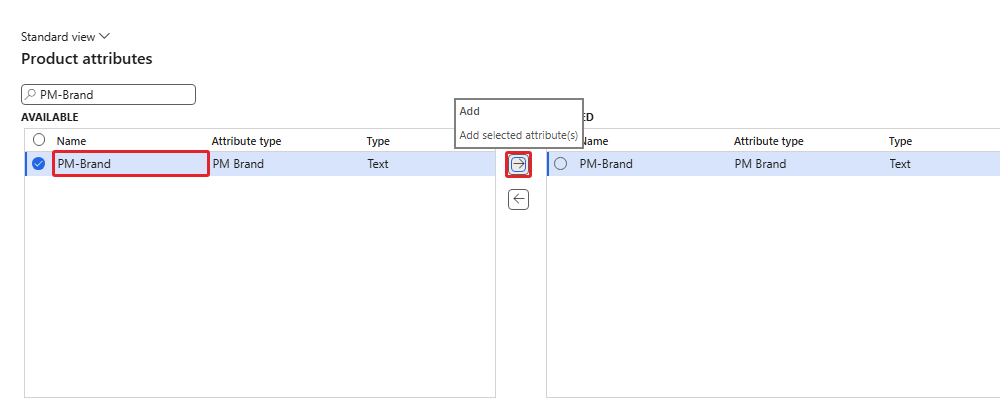
Adding PM-Brand as a product attribute of the category
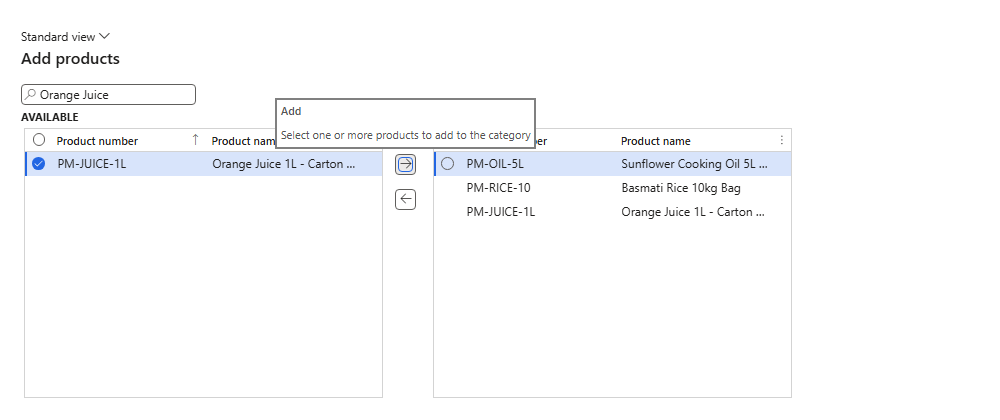
Adding our three items to the category
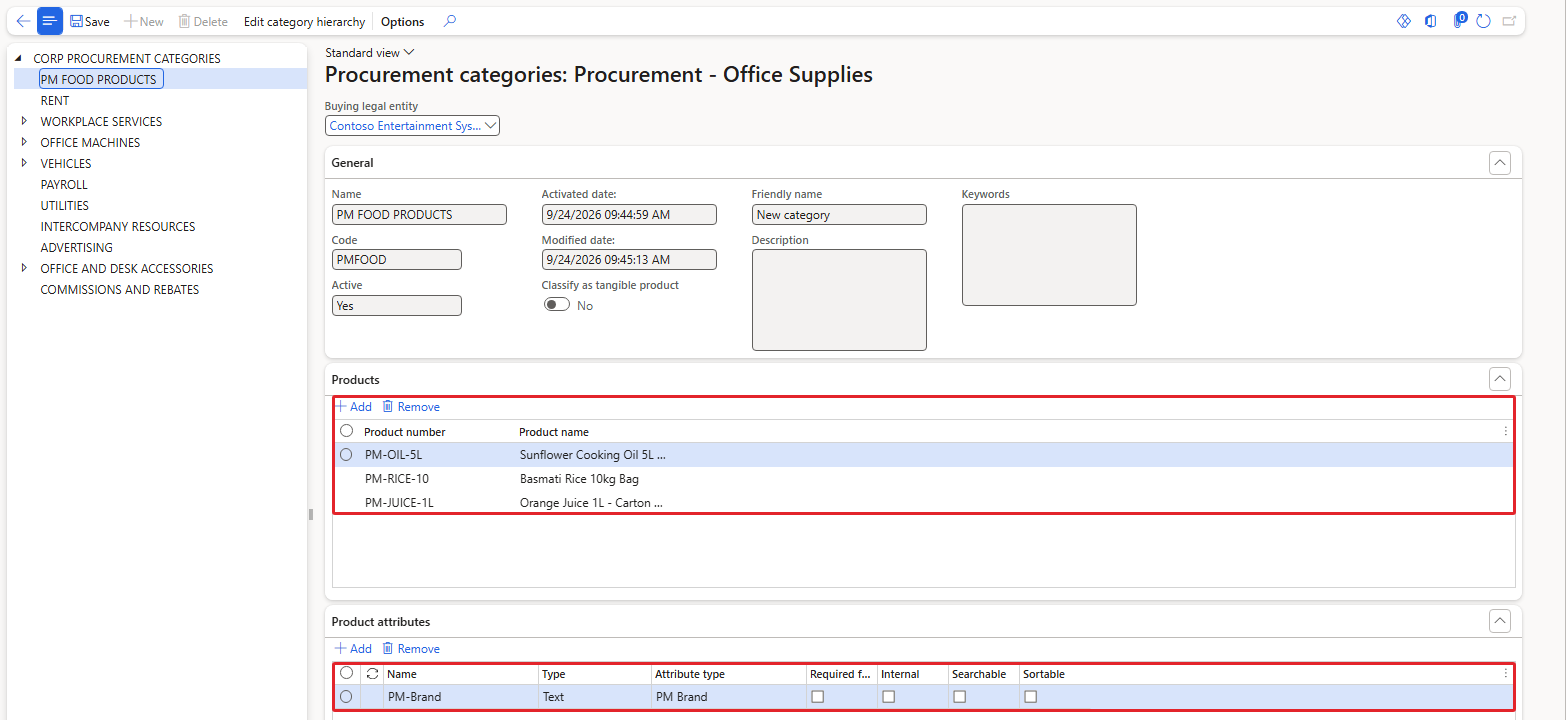
The category now holds three products and the PM-Brand attribute
| NOTE: In the Add products dialog the quick filter searches the product name, not the product number. Typing PM-OIL-5L returned nothing; typing "Sunflower" found the item. |
|---|
5.3 Give every product a brand
Navigation: Product information management > Products > Released products > Product > Product attributes
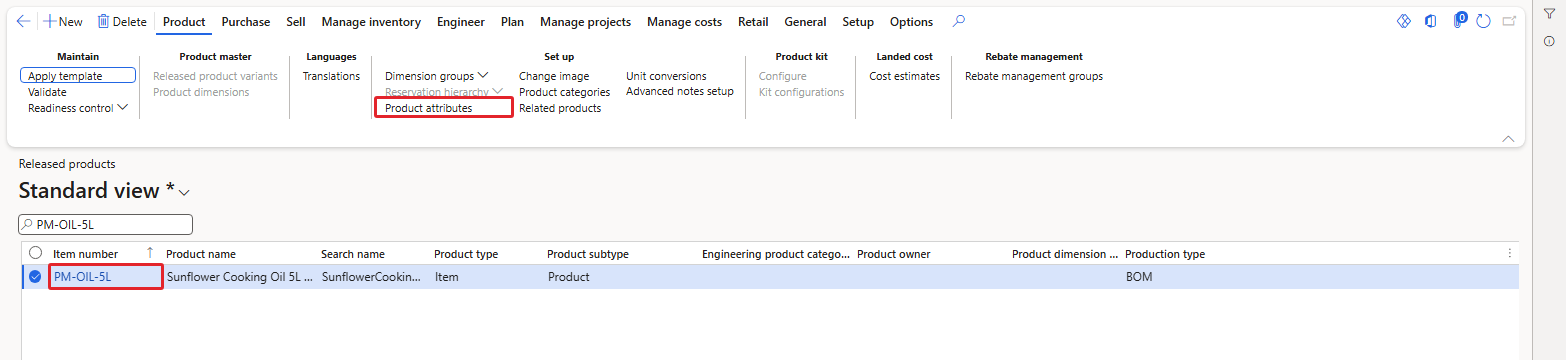
Product attributes button on the released product
The Product attribute values page shows PM-Brand, inherited from the category, with the default value SunGold. I kept SunGold for the oil and the juice and changed the rice to Royal Grain.
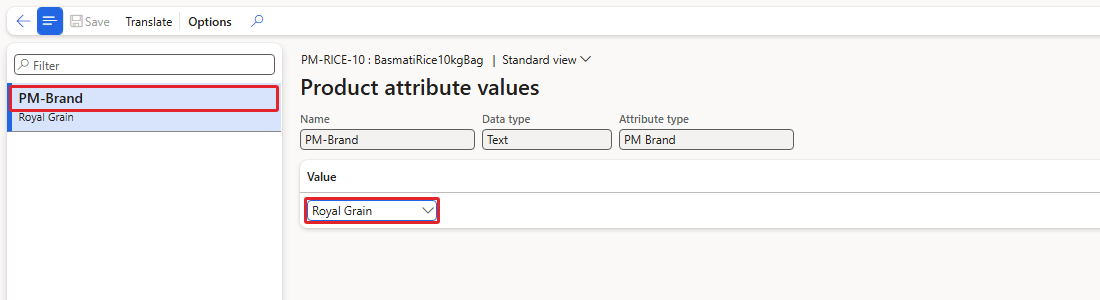
PM-RICE-10 – PM-Brand = Royal Grain
| NOTE: After changing the rice to Royal Grain and closing the page, the database still showed SunGold the first time. The change was saved only after I explicitly saved (Ctrl+S) before closing. Always save and re-open the page to confirm the value. |
|---|
6. Price attribute groups
We now have attributes with values on customers and products. The next question is: which of all these attributes does a pricing rule use? A rule cannot look at 50 attributes at the same time. This is where price attribute groups come into the picture.
A price attribute group is a selected set of attributes that together form the "condition columns" of a pricing rule. For example, a group with Customer group and PM-Region means that a rule can say "Customer group = PM-HYPER and Region = Central". In Chapter 3 we will link these groups to price component codes, and from Chapter 4 onwards every price and discount line will have exactly these columns.
Every group has a Sales order matching scope:
- Header: the attributes come from the customer and the order header (the same for every line).
- Line: the attributes come from the product on each line.
Navigation: Pricing management > Setup > Price attribute groups > Price attribute groups
The list already contained four groups – Auto charge header, Auto charge line, Customer and Product. These existed in USMF before we started. We will create our own two groups.
6.1 First attempt – and our first error
I clicked New, entered PM-LINE as the price attribute group name, a friendly name and description, set the scope to Line, and saved. The system refused:
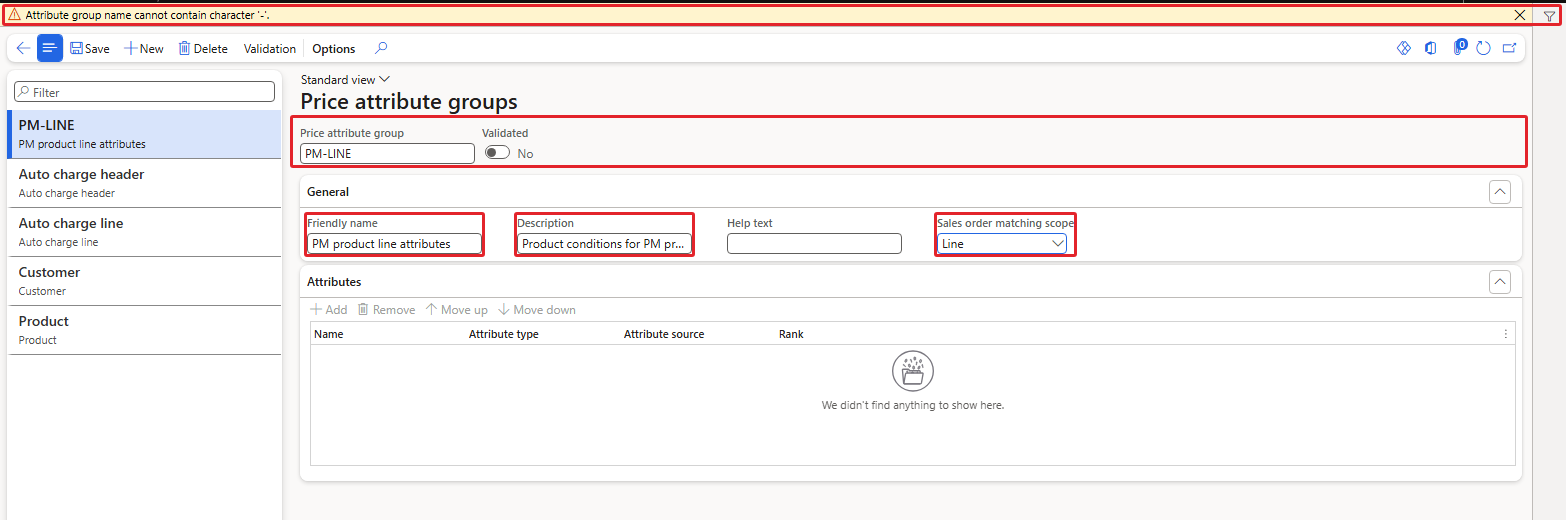
"Attribute group name cannot contain character '-'."
So price attribute group names cannot contain a hyphen. I used PMProductLine instead, and the record saved normally.
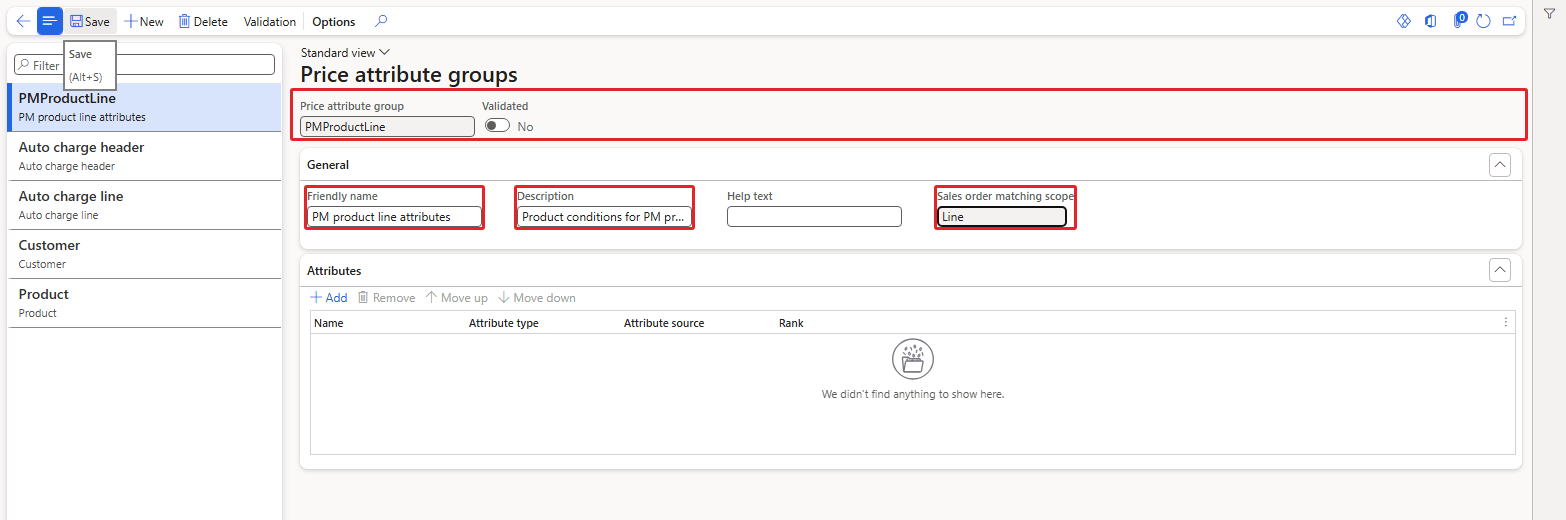
Price attribute group PMProductLine – scope Line
There are some important fields on this form:
- Price attribute group: The unique name. No hyphens allowed. It becomes read-only after saving.
- Validated: Shows whether the group is active. A new or changed group is No until you click Validation.
- Friendly name / Description / Help text: Descriptive texts for users.
- Sales order matching scope: Header or Line, as explained above.
- Attributes FastTab: The attributes of the group with their Rank. Use Add, Remove, Move up and Move down to maintain them.
6.2 Negative test – is PM-Brand available?
Remember that I created PM-Brand with Can be used as price attribute = No. On the Attributes FastTab I clicked Add to open the Add price attribute dialog. It shows all attributes allowed for the scope (Line) and source (Product):
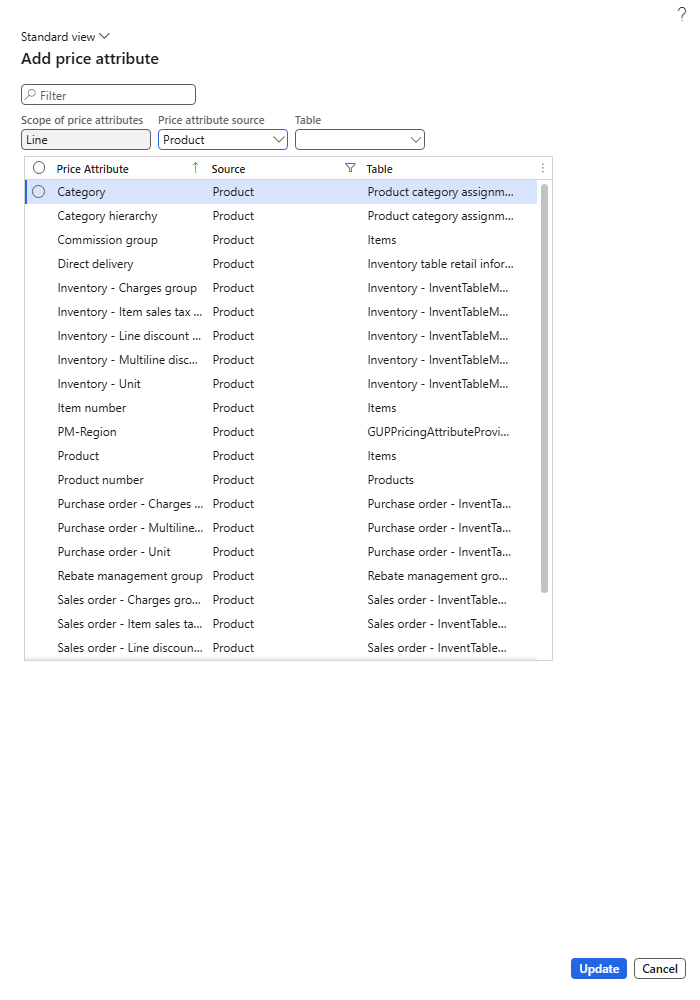
Add price attribute dialog for a Line group
Then I filtered for "PM-":
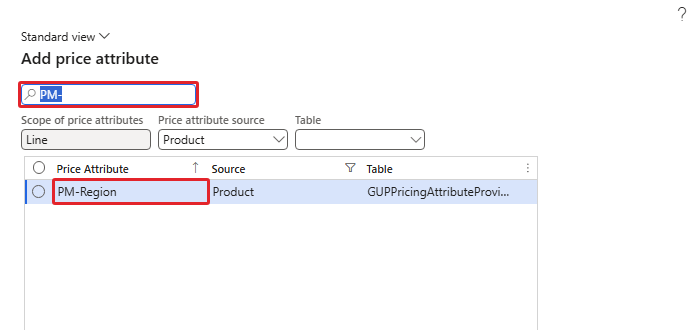
Configuration OFF – only PM-Region is found, PM-Brand is missing
| RESULT: With Can be used as price attribute = No, PM-Brand does not appear in the dialog, so it cannot be used in any pricing rule. (PM-Region does appear, with source Product, because every attribute marked as a price attribute is offered for products.) |
|---|
Then I went back to the attribute, set Can be used as price attribute = Yes and saved:
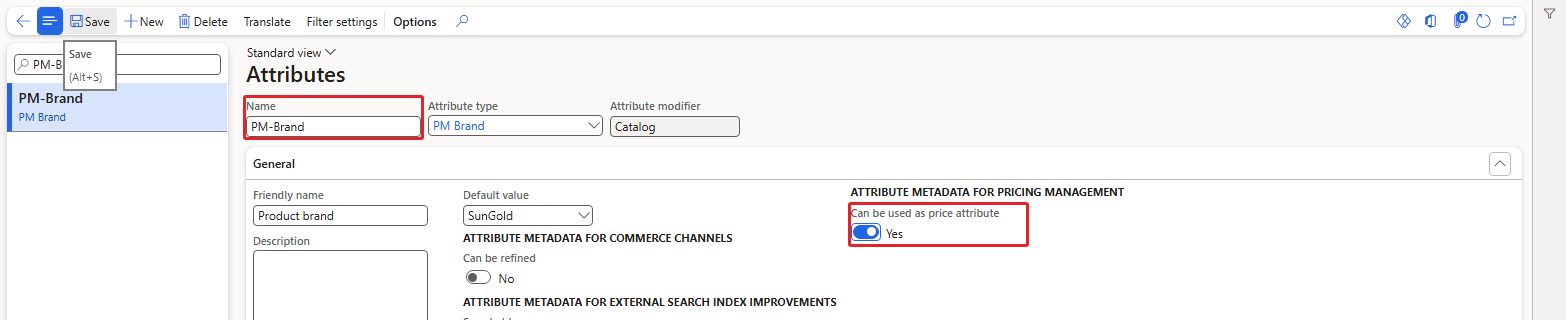
PM-Brand – Can be used as price attribute = Yes
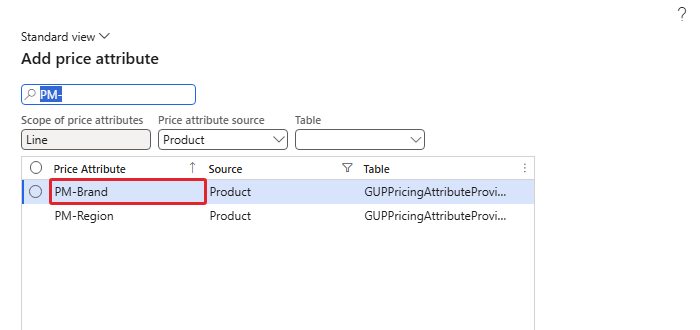
Configuration ON – PM-Brand is now offered
| RESULT: After switching the option on, PM-Brand appears in the Add price attribute dialog. So this single option decides whether an attribute can be used by Pricing Management at all. |
|---|
6.3 Build the line group
- In the Add price attribute dialog tick PM-Brand and click Update.
- Open the dialog again, tick Item number and click Update.
- Click Validation on the Action Pane.
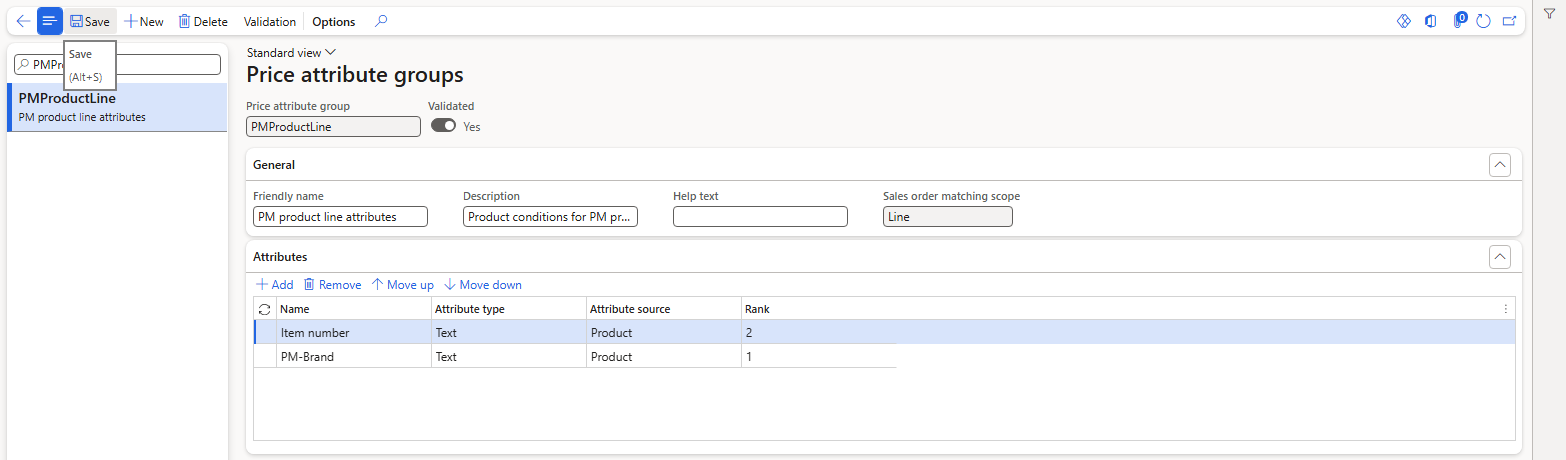
PMProductLine – Item number and PM-Brand, Validated = Yes
When I added Item number to the already validated group, the system showed: "The price attribute group 'PMProductLine' is invalidated. Please click the 'Validate' button to ensure it is suitable for further use." Every change to a group switches Validated back to No, and only validated groups can be used in pricing rules. After clicking Validation the group was valid again.
Look at the Rank column: PM-Brand got rank 1 and Item number, added later, got rank 2. The rank tells the system the order of importance of the attributes when more than one rule can match; you can change it with Move up / Move down. We will see the effect of ranks when we test competing rules in Chapter 8.
| NOTE: In the Add price attribute dialog the tick is lost when you change the filter text. Tick one attribute, click Update, and repeat for the next attribute; do not tick, filter again and tick another one. |
|---|
6.4 Build the header group
I created a second group PMCustomerHeader with scope Header. In the Add price attribute dialog, PM-Region now appears with source Customer – this is our customer attribute from section 4 coming through the Customer attribute group parameter.
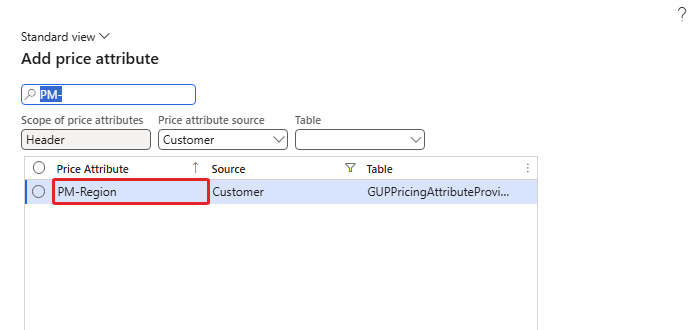
Header scope – PM-Region is offered as a Customer attribute
I added PM-Region and Customer group and validated the group.
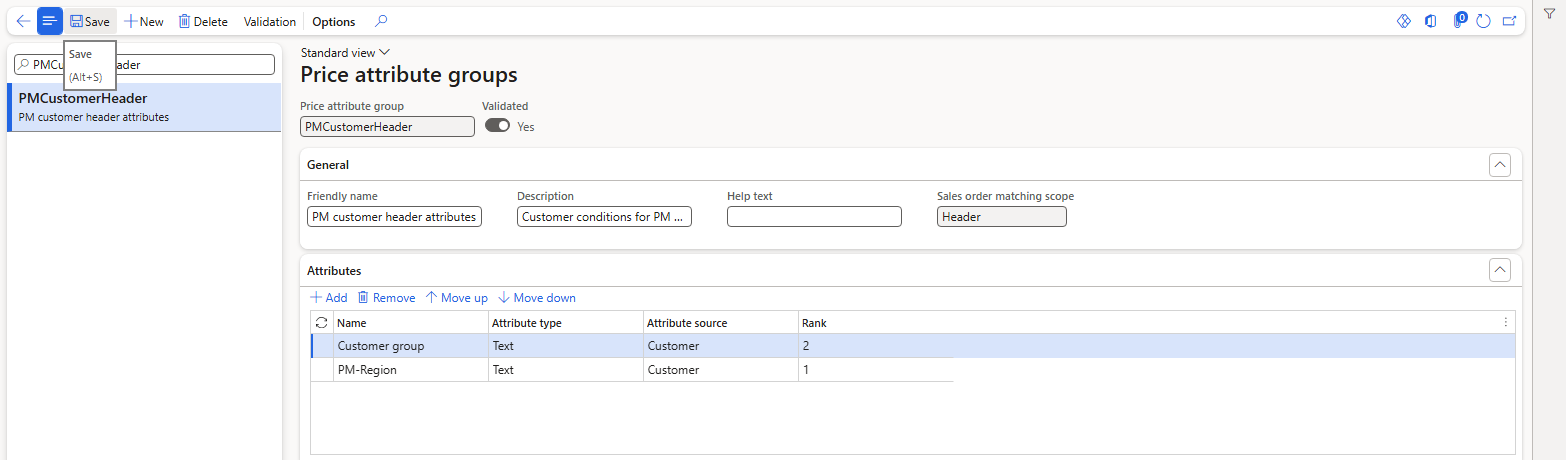
PMCustomerHeader – Customer group and PM-Region
The Price attribute source filter at the top of the dialog offered two sources for a header group: Customer and SalesTable. With SalesTable selected you get the order header fields:
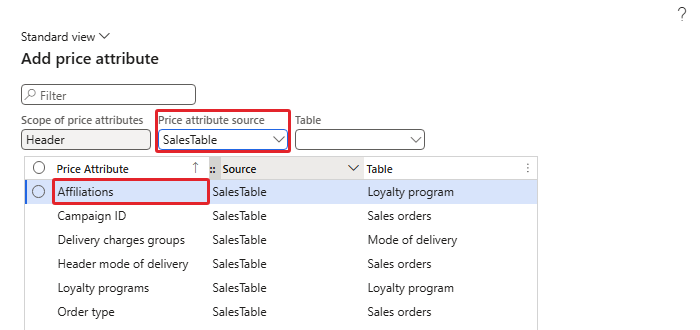
Header attributes with source SalesTable
So after this section we have two building blocks that the next chapters will use: PMCustomerHeader (who is buying) and PMProductLine (what is being bought).
7. Customer and product price attribute groups
Now let's say the business keeps talking about the same segment: "Hypermarkets in the Central region". Instead of repeating Customer group = PM-HYPER and Region = Central in every discussion, we can define that segment once, give it a name, and let the system show us who belongs to it. That is what customer price attribute groups and product price attribute groups do.
7.1 Customer price attribute group – HyperCentral
Navigation: Pricing management > Setup > Price attribute groups > Customer price attribute groups
- Click New, enter HyperCentral and the friendly name "Hypermarkets in Central region", and save. The scope is always Header for a customer group.
- On the Attributes FastTab click Add, tick Customer group, click Update. Repeat for PM-Region.
- In the Value column enter PM-HYPER for Customer group and Central for PM-Region.
- Save and click Validation.
The interesting part is the Preview matching results FastTab at the bottom. When the attribute was added but no value was entered yet, the preview listed every customer in the company:
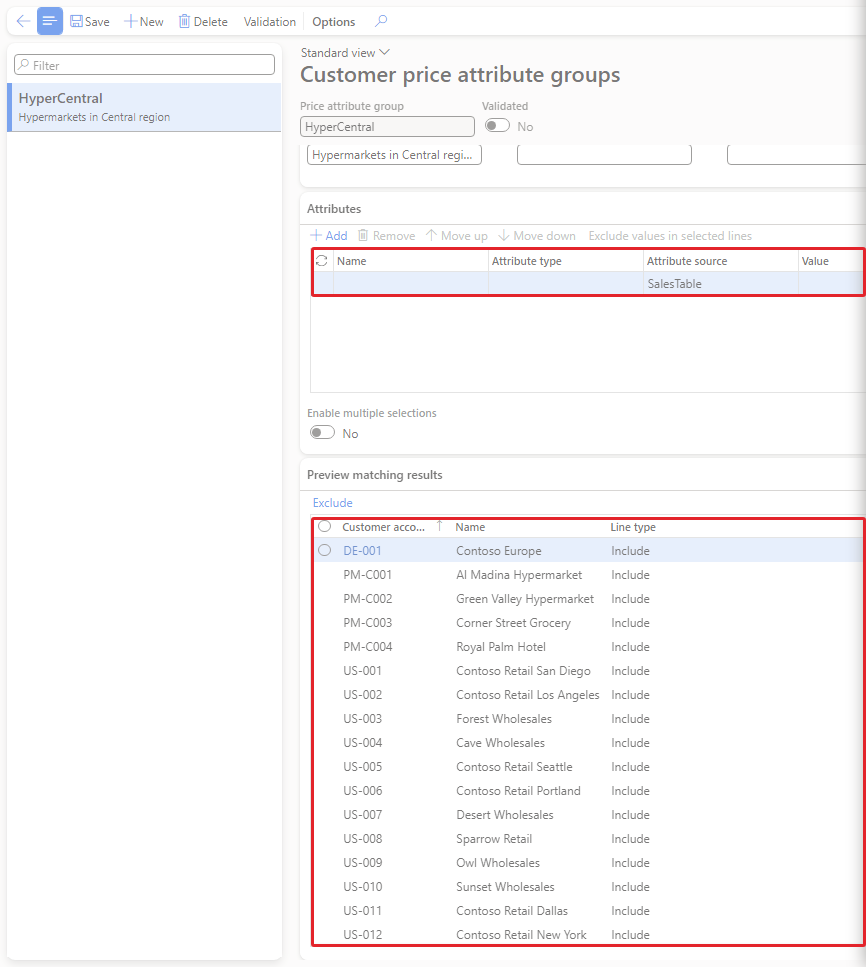
Before entering values – all customers match
After entering the two values:
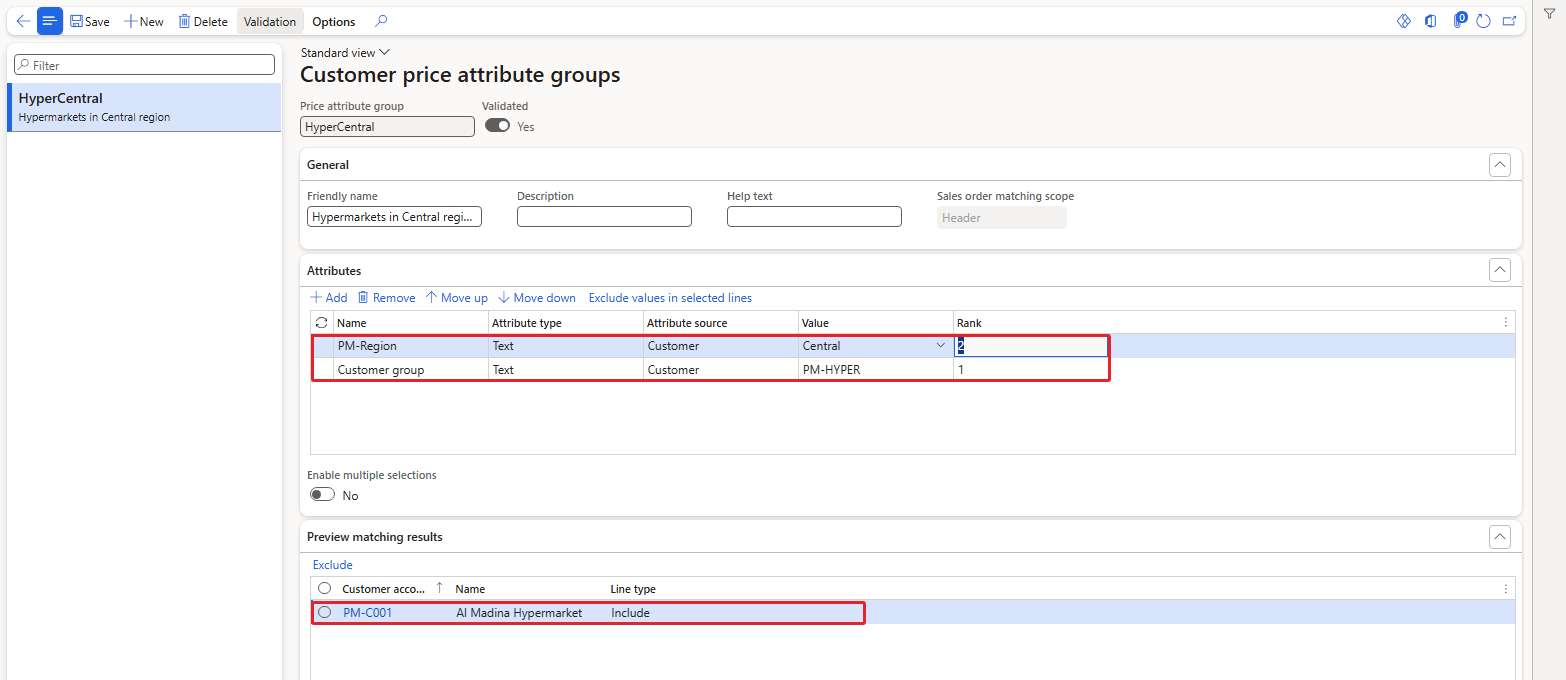
After entering the values – only PM-C001 matches
| RESULT: Only PM-C001 Al Madina Hypermarket matches. PM-C002 is a hypermarket but in the Western region, and PM-C003 is in the Central region but is a minimarket. This proves that the rows are combined with AND: a customer must match every row. If you want OR within one row (for example Central or Western), switch on Enable multiple selections and enter a comma-separated list of values. |
|---|
7.2 Product price attribute group – SunGoldRange
Navigation: Pricing management > Setup > Price attribute groups > Product price attribute groups
In the same way I created SunGoldRange (scope Line) with PM-Brand = SunGold. The preview shows PM-JUICE-1L and PM-OIL-5L – exactly the two SunGold items. The rice (Royal Grain) is not included.
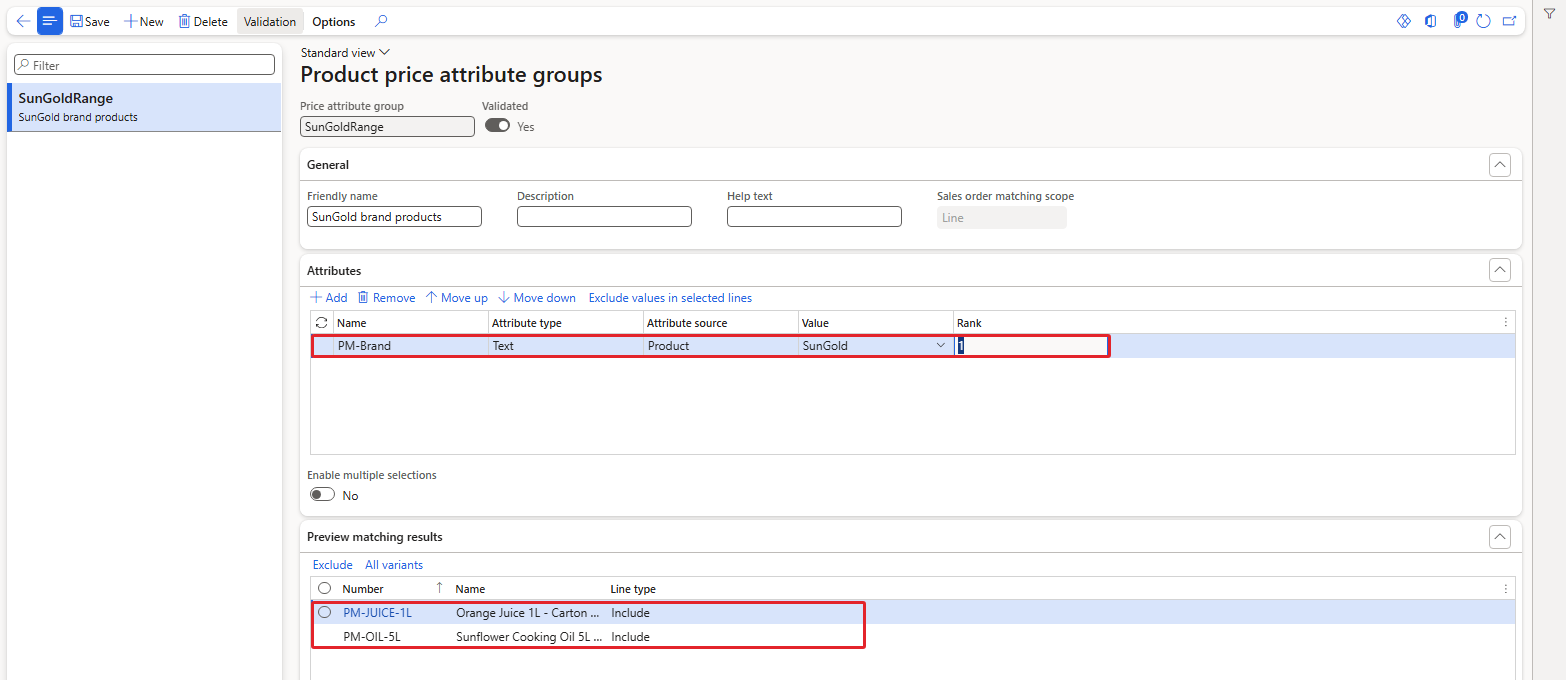
SunGoldRange – PM-JUICE-1L and PM-OIL-5L match
| NOTE: In this environment the Add price attribute dialog of a normal price attribute group did not offer the customer or product price attribute group as an attribute (the source filter only offered Customer and SalesTable for header groups). The system also contains the warning text "Customer/Product attribute group is used in price attribute group. Please delete the related attribute link.", which is raised in connection with the pricing rule hash that Pricing Management switches on. So here we use these groups to define and preview segments; using them inside pricing rules was not validated in the current environment. |
|---|
8. Where do the order attributes fit in?
We have covered customer and product attributes. The third source is the order itself, for example an attribute on the sales order header that the sales person fills in (such as a "delivery channel" or "tender type"). These are maintained through the Sales order attribute group and Sales line attribute group fields on the same Price attribute tab of the parameters, and the values are entered on the sales order with Price > Sales order attributes.
Since we have not set a sales order attribute group, the Sales order attributes page of our order 001341 is empty:
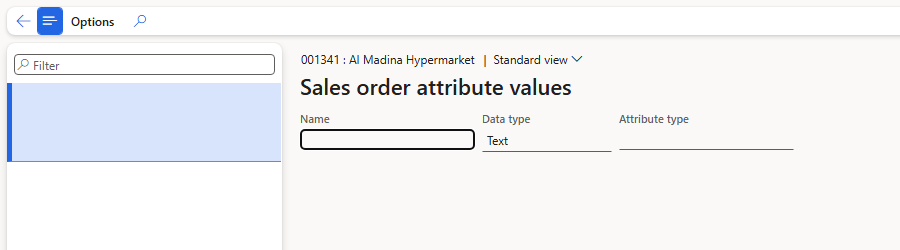
Sales order 001341 – Sales order attribute values is empty
We will come back to order attributes in Chapter 9, where we look at the sales order end to end.
9. Summary
Today we built the conditions that all our pricing rules will use:
- A price attribute is information about the customer, the order or the product that a pricing rule can check. Many come out of the box (Customer group, Item number…); custom ones are created as attributes.
- Custom attributes need an attribute type (use a fixed list) and an attribute with Can be used as price attribute = Yes. Without this option the attribute is not offered to Pricing Management – we proved it.
- Customer attributes reach pricing through an attribute group registered as the Customer attribute group in the parameters; values are entered per customer under Price > Customer attributes.
- Product attributes reach pricing through a category; values are entered under Product > Product attributes. Save explicitly and re-check the value.
- Price attribute groups select the attributes a rule uses, with a Header or Line scope. Names cannot contain "-", and every change requires Validation.
- Customer and product price attribute groups define a segment with AND logic and show the members in Preview matching results.
At this point the price is still 100 USD everywhere – we have prepared the conditions but no rule uses them yet. In the next chapter we will connect our two price attribute groups to price component codes, see how the component codes are ordered, and look at the price attribute group hierarchy for a component code. Then, from Chapter 4, the prices will finally start to change.
That's all for today, folks. See you in the next chapter!
Cheers!
Salman Ahmad
D365 F&O Consultant (Finance, SCM, Project Accounting)
← Previous: Pricing Management in Dynamics 365 SCM — Chapter 1 – Introduction, Feature Activation and Pricing Management Parameters | Next: Pricing Management Chapter 3 →