Pricing Management in Dynamics 365 SCM
Chapter 1 – Introduction, Feature Activation and Pricing Management Parameters
Hello everyone! Hope you are all doing well.
Today we are starting a new series on Pricing Management in Dynamics 365 Finance & Operations / Supply Chain Management. After the WMS series, a lot of you asked me about pricing, because in almost every implementation the same question comes up in the very first workshop: "How will the system decide which price to charge this customer?"
Pricing is one of the most sensitive parts of the sales process. Eventually every sales order line needs one number – the unit price – and if that number is wrong, the invoice is wrong, the margin is wrong and the customer is on the phone the next morning. In standard D365 we already have trade agreements for prices and discounts. They work well for simple cases, but as soon as the business says "this price is only for hypermarkets in the Central region, for this brand, during Ramadan, and on top of it a 5% deal discount", trade agreements start to struggle.
This is where Pricing Management comes into the picture. It gives us a much more flexible framework in which the final price is built from several components, and each component can depend on customer, product and order attributes, dates, quantities and priorities.
In this series I will not just list the menu items. We will build everything from scratch on a clean data set, create real sales orders, look at the calculated price and understand why the system selected that price. So, before jumping into configurations, let's first understand the basic idea, and then we will switch the module on in our environment.
Our business scenario for the whole series
To keep the examples realistic, throughout this series we will act as a food distributor. We buy and sell cooking oil, rice and juice, and our customers are hypermarkets, small grocery shops and hotels. Every customer segment expects a different price, which makes it a perfect case for Pricing Management.
All the data used in this series was created fresh in the USMF company (currency USD):
| Record | ID | Description | Base sales price |
|---|---|---|---|
| Item | PM-OIL-5L | Sunflower Cooking Oil 5L – Carton of 4 | 100.00 USD |
| Item | PM-RICE-10 | Basmati Rice 10kg Bag | 50.00 USD |
| Item | PM-JUICE-1L | Orange Juice 1L – Carton of 12 | 30.00 USD |
| Customer group | PM-HYPER | Hypermarkets and supermarkets | – |
| Customer group | PM-MINI | Minimarkets and groceries | – |
| Customer group | PM-HORECA | Hotels, restaurants and cafes | – |
| Customer | PM-C001 | Al Madina Hypermarket (PM-HYPER) | – |
| Customer | PM-C002 | Green Valley Hypermarket (PM-HYPER) | – |
| Customer | PM-C003 | Corner Street Grocery (PM-MINI) | – |
| Customer | PM-C004 | Royal Palm Hotel (PM-HORECA) | – |
Today's agenda
- What is Pricing Management and why do companies use it?
- How Pricing Management works – the basic architecture.
- Preparing our training data (items, customer groups and customers).
- Sales order price before Pricing Management is enabled.
- Enabling the Pricing Management feature.
- Pricing management parameters – every tab explained.
- What changes on the sales order after enabling Pricing Management.
- Test: what happens when we switch "Disable pricing management" on?
- A quick tour of the Pricing management module.
- Summary and what is coming next.
1. What is Pricing Management and why do we need it?
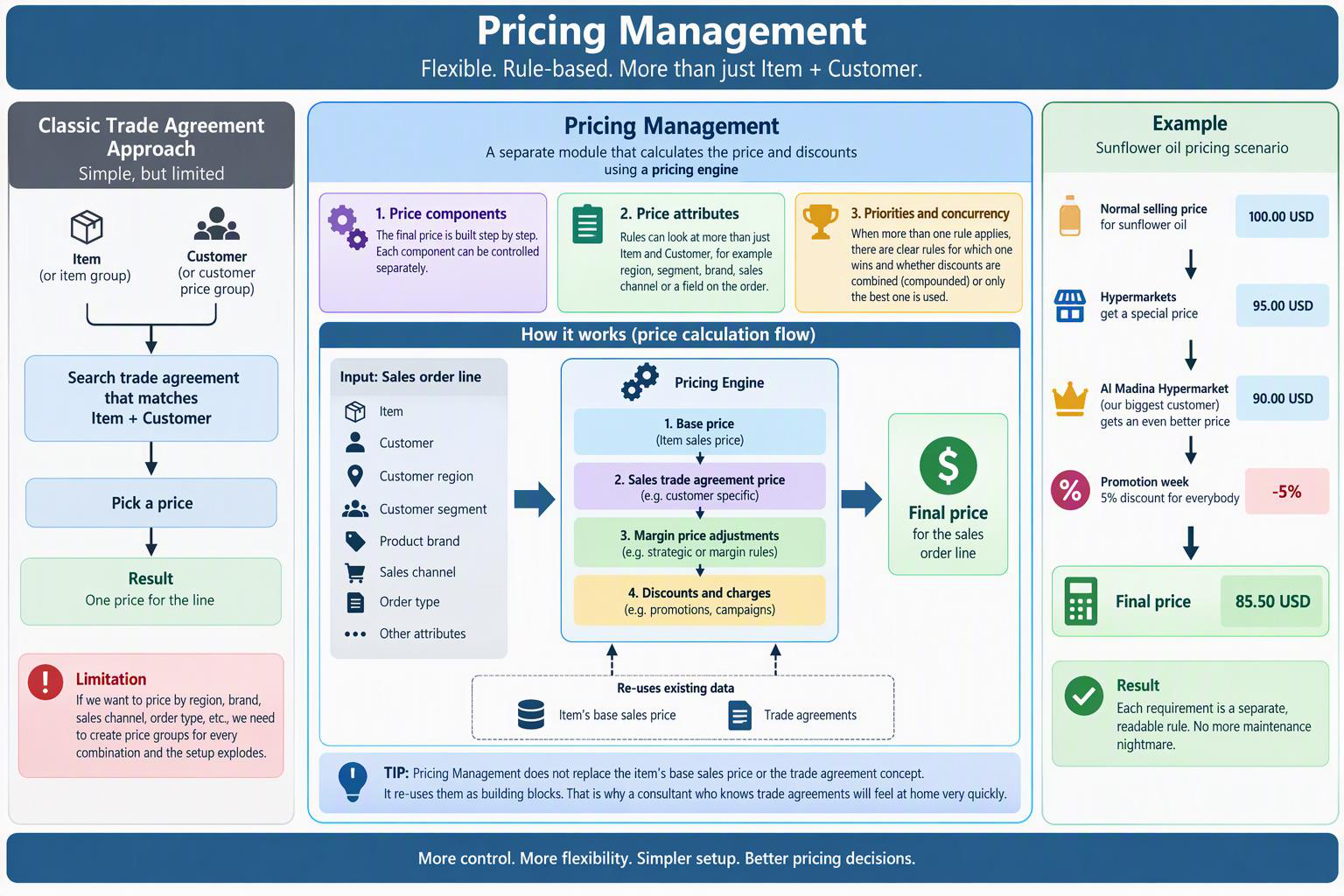
In simple words, Pricing Management is a separate module that calculates the price and discounts of a sales order line using a pricing engine, instead of the classic trade agreement search that we know from Accounts receivable.
In the classic approach, the system looks for a trade agreement that matches the item (or item group) and the customer (or customer price group), picks a price, and that is basically it. The relation is fixed: Item + Customer. If the business wants to price by region, by brand, by sales channel or by order type, we end up creating price groups for every combination and the setup explodes.
Pricing Management solves this in three ways:
- Price components: The final price is not one number. It is built step by step – a base price, then a sales trade agreement price, then margin price adjustments, then discounts and charges. Each step is a separate "component" that we can control separately.
- Price attributes: Instead of only Item and Customer, a pricing rule can look at attributes such as customer region, customer segment, product brand or a field on the sales order header. We will spend the whole of Chapter 2 on this.
- Priorities and concurrency: When more than one rule applies to the same line, Pricing Management has clear rules for which one wins, and whether discounts are combined (compounded) or only the best one is used.
Let's say our normal selling price for sunflower oil is 100 USD. Hypermarkets get a special price of 95, but Al Madina Hypermarket, being our biggest customer, gets 90, and on top of that everybody gets 5% off during a promotion week. With classic trade agreements this quickly becomes a maintenance nightmare. With Pricing Management each of these requirements is a separate, readable rule. We will build exactly this scenario in the coming chapters.
TIP: Pricing Management does not replace the item's base sales price or the trade agreement concept. It re-uses them as building blocks. That is why a consultant who knows trade agreements will feel at home very quickly.
2. How Pricing Management works – the basic architecture
Now the question is, how does Dynamics actually build the final price? The easiest way to understand it is to look at the Price details screen of a sales order line, which we will open later in this chapter. It shows the calculation in exactly this order:
| Step | What it means |
|---|---|
| Base price | The starting price of the item. In this chapter it is the item's base sales price; from Chapter 4 we will see sales trade agreement prices here. |
| Margin price adjustment | An increase or decrease on top of the base price (for example -10% for a customer segment). Covered in Chapter 6. |
| Unit price | Base price + margin price adjustment. This is the price you see on the sales order line. |
| Discount amount | Discounts calculated by Pricing Management (simple, quantity, mix and match, threshold…). Covered in Chapter 7. |
| Sales charges | Auto charges calculated by the pricing engine. |
| Subtotal / Net amount | What the customer finally pays for the line. |
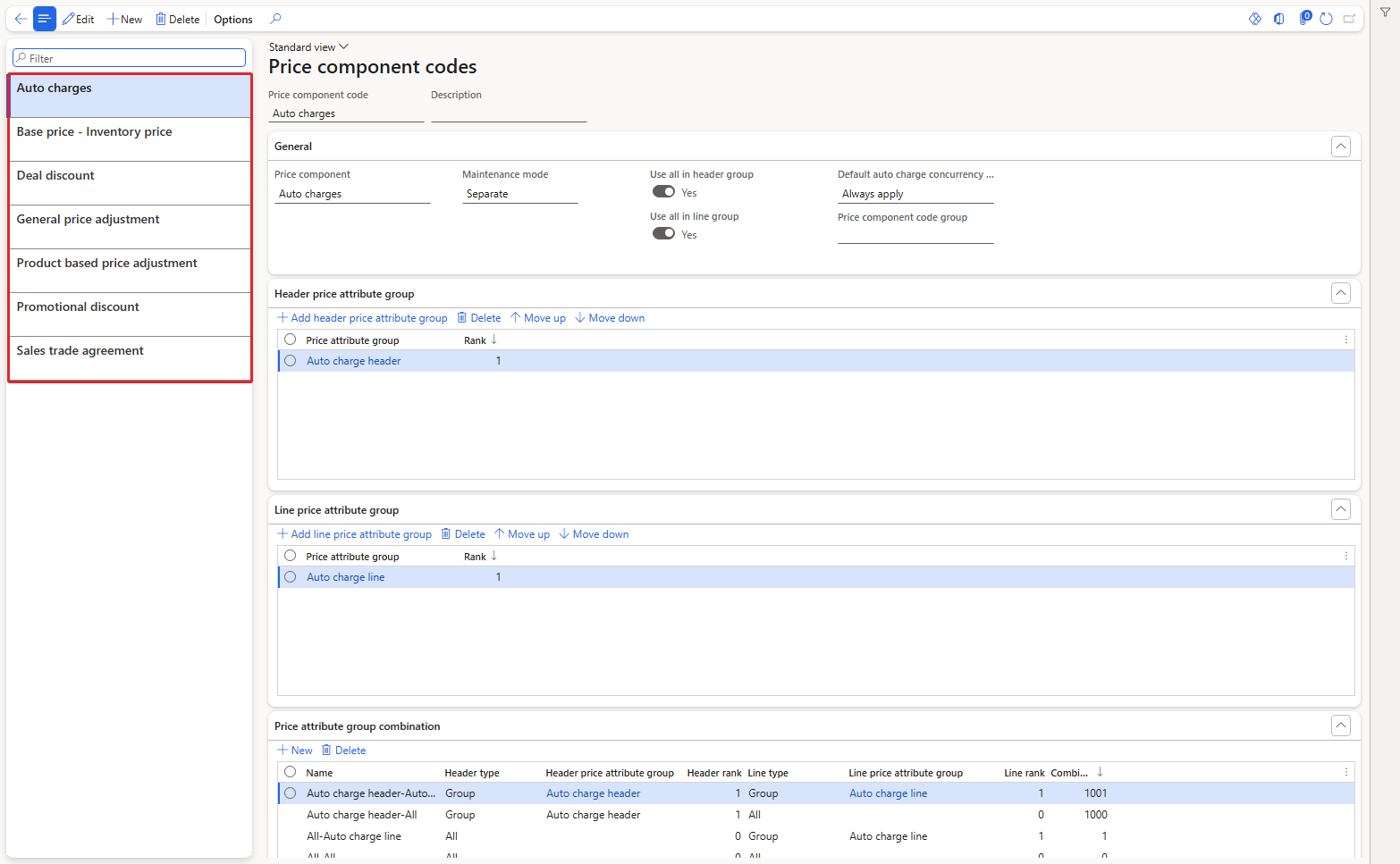
Every step in this chain is represented by a price component code. USMF already contains a set of default price component codes. We will configure them properly in Chapter 3, but it is good to see them now so the architecture is not abstract.
Navigation: Pricing management > Setup > Price component codes > Price component codes
Default price component codes that already exist in USMF
You can see seven codes in the list on the left: Auto charges, Base price – Inventory price, Deal discount, General price adjustment, Product based price adjustment, Promotional discount and Sales trade agreement. Each one has a Price component type (Auto charges, Base price, Sales trade agreement, Margin component or Discounts) and each one can be linked to price attribute groups. That is the link between the "components" and the "attributes" that we talked about above.
So the dependency chain of the whole module looks like this, and it is also the order in which this series is arranged:
- Feature and parameters (this chapter) – nothing works without them.
- Price attributes and price attribute groups (Chapter 2) – the "conditions".
- Price component codes (Chapter 3) – they refer to the attribute groups.
- Base prices and sales trade agreement prices (Chapter 4) – created under a price component code.
- Price groups and pricing priorities (Chapter 5) – decide which rule reaches which customer and which one wins.
- Margin price adjustments (Chapter 6) and discounts (Chapter 7) – built on top of the price.
- Multiple rules and concurrency (Chapter 8), the sales order end to end (Chapter 9) and troubleshooting (Chapter 10).
3. Preparing our training data
Pricing Management needs something to price, so first we need items and customers. I am sure you all know how to create these, so I will keep this part short and only show the fields that matter for pricing.
3.1 Items
Navigation: Product information management > Products > Released products
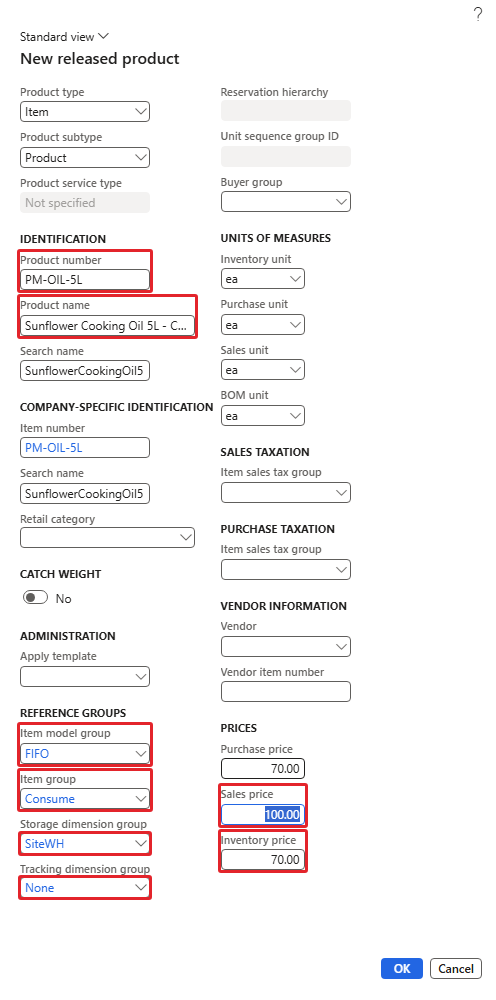
To create a new item follow the below steps:
- Click New.
- Enter the Product number and Product name (for example PM-OIL-5L – Sunflower Cooking Oil 5L – Carton of 4).
- Select Item model group = FIFO, Item group = Consume, Storage dimension group = SiteWH and Tracking dimension group = None.
- In the Prices section enter Sales price = 100 and Inventory price / Purchase price = 70.
- Click OK.
New released product dialog – PM-OIL-5L
The important field for us is the Sales price. This is the item's base sales price, and as you will see in a moment, when no pricing rule exists, this is the price that reaches the sales order. I also entered a different Inventory price (70) on purpose, so that later we can prove which of the two prices the system is using. The same way I created PM-RICE-10 (sales 50 / inventory 35) and PM-JUICE-1L (sales 30 / inventory 18).
3.2 Customer groups
Navigation: Accounts receivable > Setup > Customer groups
Customer groups are not a Pricing Management setup, but in our scenario the customer segment (hypermarket, minimarket, hotel) is one of the main pricing drivers, so it is cleaner to have one group per segment. Click New, enter the group code, description and terms of payment, and save.
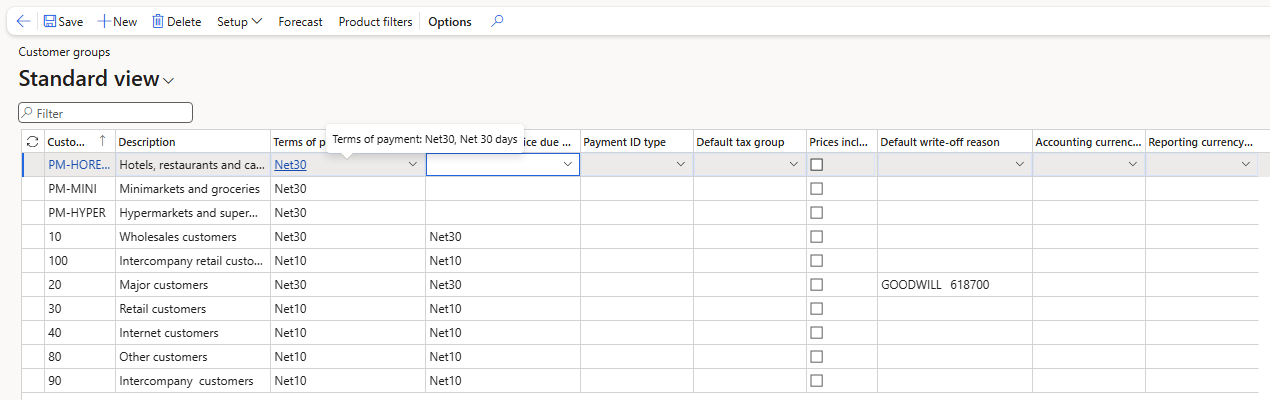
Three new customer groups: PM-HYPER, PM-MINI and PM-HORECA
3.3 Customers
Navigation: Accounts receivable > Customers > All customers
Click New, enter the Customer account, Name and Customer group, leave the currency as USD and click Save. I created four customers: PM-C001 Al Madina Hypermarket and PM-C002 Green Valley Hypermarket (PM-HYPER), PM-C003 Corner Street Grocery (PM-MINI) and PM-C004 Royal Palm Hotel (PM-HORECA).
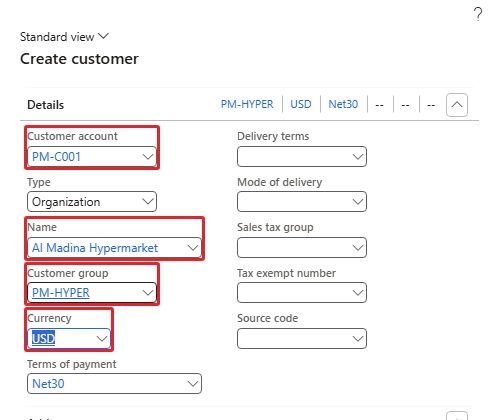
Create customer – PM-C001 Al Madina Hypermarket
4. Sales order price before Pricing Management
Before we switch anything on, let's take a baseline. This is very important, because later we want to compare "before" and "after" and see exactly what the module changed.
Navigation: Accounts receivable > Orders > All sales orders
I created sales order 001339 for customer PM-C001, with one line: item PM-OIL-5L, quantity 10, site 1, warehouse 11.
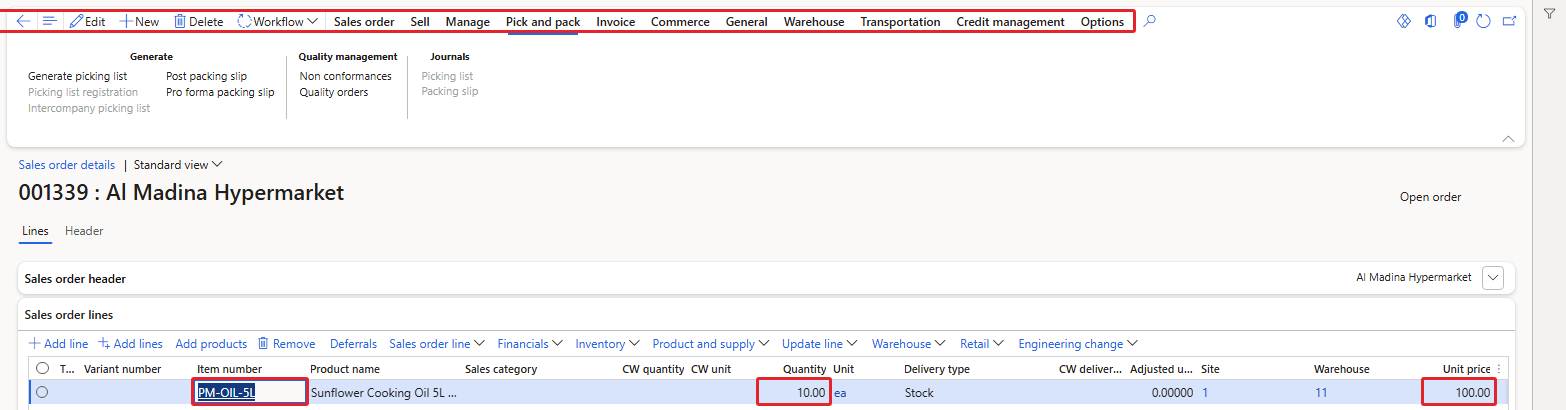
Sales order 001339 created before Pricing Management was enabled

Close-up of the line: quantity 10, unit price 100.00
As expected, the unit price is 100.00, which is the item's base sales price, and the line amount is 10 × 100 = 1,000.00. The inventory price of 70 was not used. Also note the Action Pane: Sales order, Sell, Manage, Pick and pack, Invoice, Commerce, General, Warehouse… There is no "Price" tab here. Remember this, because it will appear later.
NOTE: When I first tried to save this line the system gave the error "Field 'Site' must be filled in." because our new items have no default order settings. Enter the site and warehouse on the line (or set them in the item's Default order settings) and the line saves normally.
4.1 What happens if we open Pricing Management now?
Out of curiosity, let's try to open the Pricing management parameters before enabling the feature.
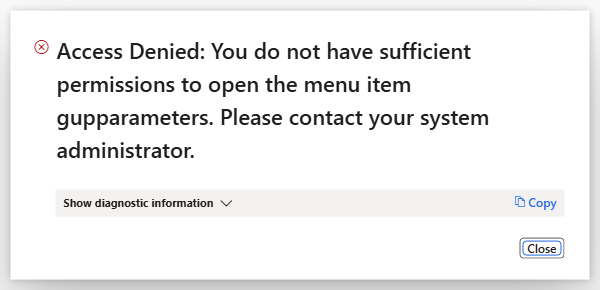
Opening Pricing management parameters while the feature is off
Even with the System administrator role the system says "Access Denied: You do not have sufficient permissions to open the menu item gupparameters." This is not a security problem. The Pricing management menu items are simply not available until the feature is enabled in Feature management. If you ever get this message on a new environment, the first thing to check is the feature, not the user's roles.
5. Enabling the Pricing Management feature
Pricing Management is delivered as a feature that is off by default. So the very first preliminary setup is to switch it on.
Navigation: System administration > Workspaces > Feature management
To enable the feature follow the below steps:
- Open Feature management and click the All tab.
- In the filter type Unified pricing management.
- Select the row Unified pricing management (module: Sales and marketing).
- Read the description on the right side and click Enable now.
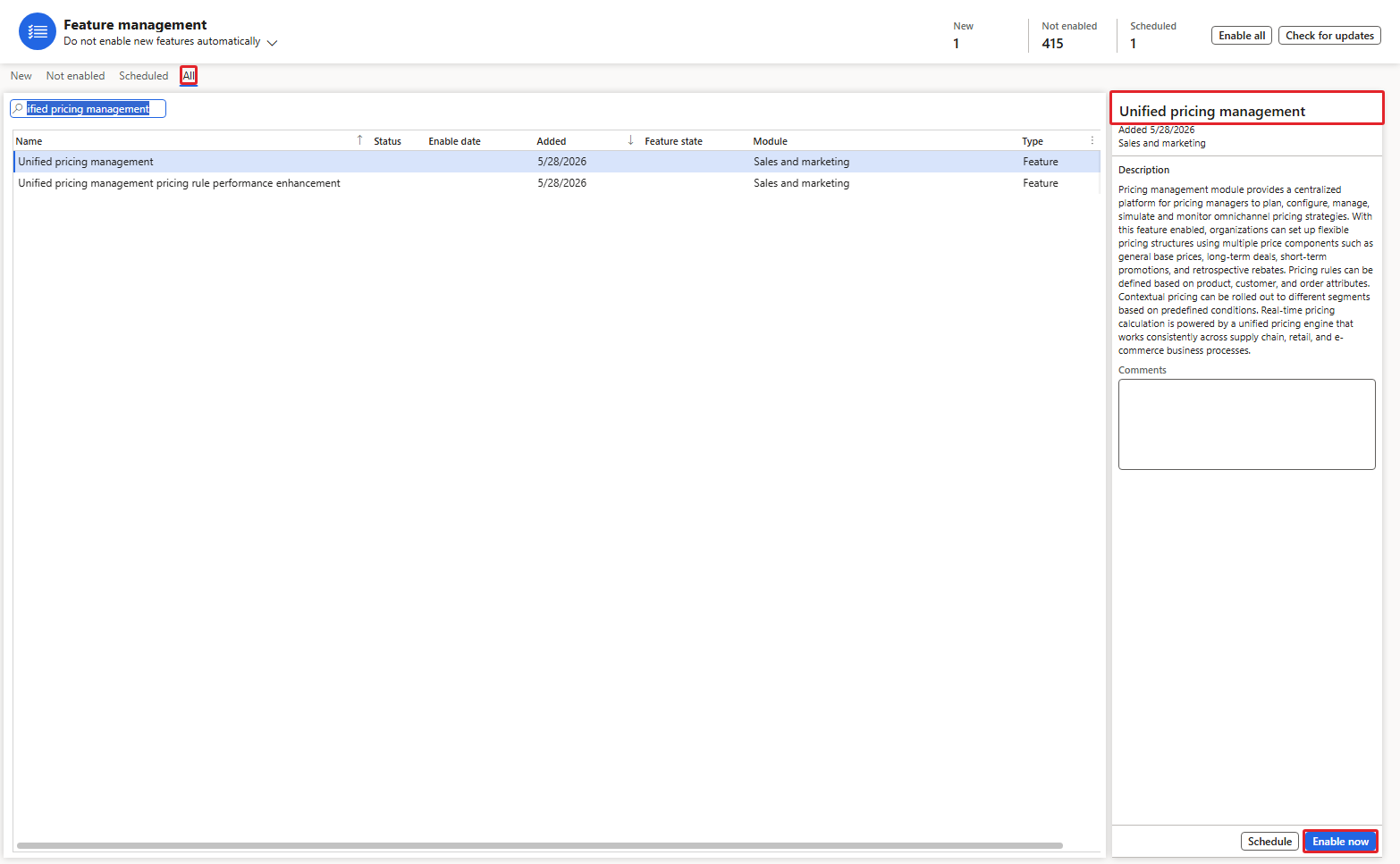
Unified pricing management – not yet enabled
The description is worth reading once: "Pricing management module provides a centralized platform for pricing managers to plan, configure, manage, simulate and monitor omnichannel pricing strategies… Pricing rules can be defined based on product, customer, and order attributes." In the list you will also see a second feature, Unified pricing management pricing rule performance enhancement. It is a performance feature for the pricing rule search; we do not need it to learn the module, so I left it off.
After clicking Enable now, the status turns green and the right pane shows "This was enabled on 9/23/2026".

Feature enabled – note the message bar at the top
At the same time the system showed this message: "Price component code setting data has been migrated to pricing tree. Please run distribution schedule job 1210 for Channel database in Retail and Commerce > Headquarters setup > Commerce scheduler." The first part tells us that during activation the system copied the price component code settings into the new price tree structure. The second part (job 1210) is only relevant if you also use Commerce channels (POS / e-commerce) that need this data in the channel database. For sales orders in the back office, which is our focus in this series, we did not need to run anything.
TIP: The feature can be disabled again from the same screen (there is a Disable button at the bottom of the right pane), but do not play with it in a live environment once pricing rules are in use. For a controlled "off switch" per company, use the Disable pricing management parameter that we test in section 8.
6. Pricing management parameters
Now that the feature is on, the module is available and we can open its parameters. Just like the WMS parameters, this form decides the general behaviour of the module for the current company, so it is worth going through each tab once. I will explain the important fields now, and we will test the behaviour-changing ones in detail in the chapters where they matter.
A small trick for finding any page in this module: type the page name in the search box at the top of D365. The result shows the full menu path, which is how I verified all the navigation paths in this document.
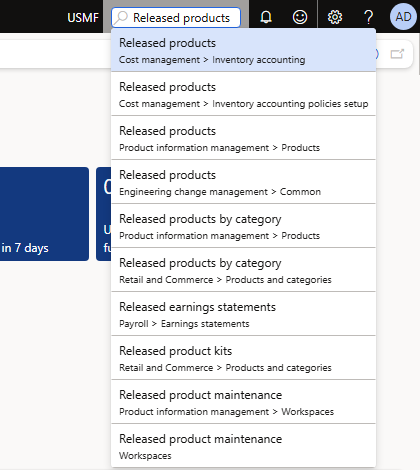
Navigation search shows the menu path: Pricing management > Setup
Navigation: Pricing management > Setup > Pricing management parameters
6.1 General tab
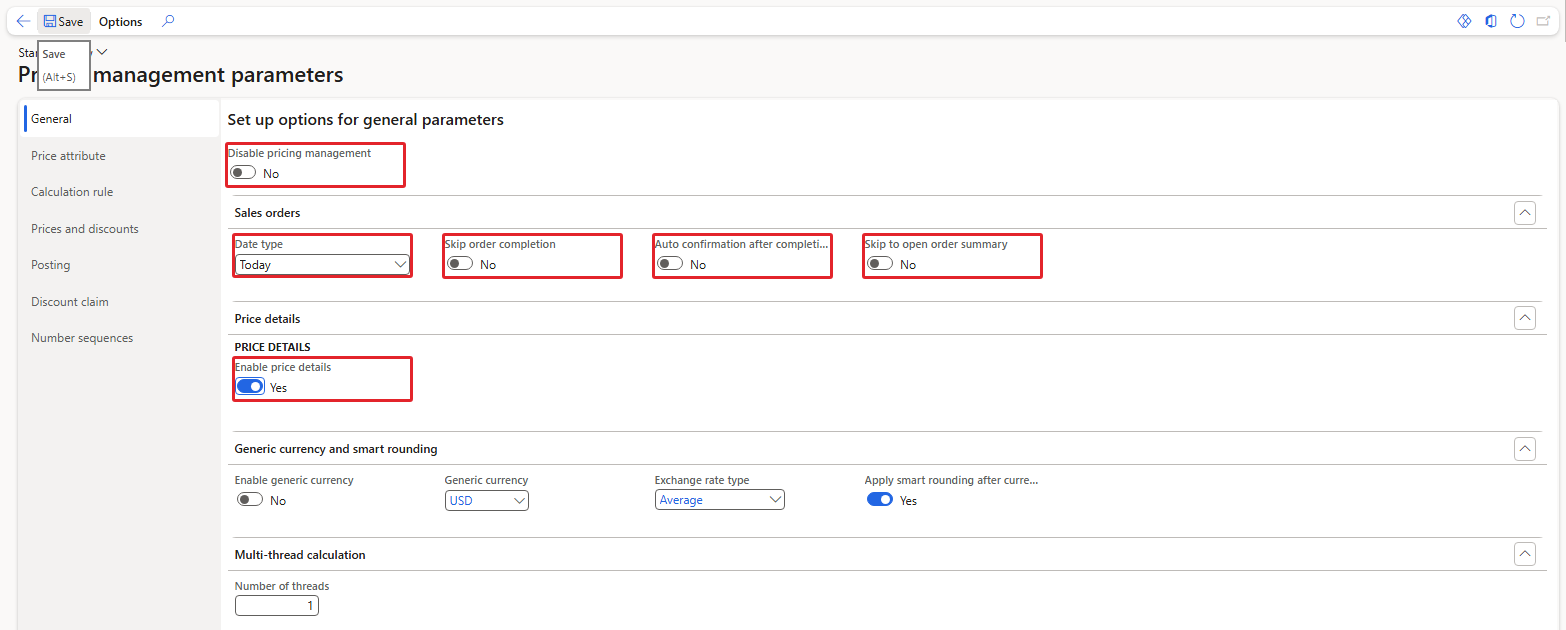
Pricing management parameters – General
There are some important fields on this tab:
- Disable pricing management: This is the per-company switch. When it is No (default), sales orders created in this company use the Pricing Management engine. When it is Yes, new sales orders go back to classic pricing. We will prove this with a real test in section 8.
- Date type: Decides which date is used to find valid prices and discounts. The options are Today, Requested ship date and Requested receipt date. The default is Today. This becomes important when we build date-effective prices in Chapter 4.
- Skip order completion: With Pricing Management a sales order has a Complete button (you will see it in section 7). According to the feature, when order completion is skipped users no longer have to click Complete before they can continue, but they should use Recalculate if prices are not up to date, and funds are not supported on such orders. We keep it No.
- Auto confirmation after completion: If Yes, the sales order is confirmed automatically after the user clicks Complete.
- Skip to open order summary: The help text says "Don't open order summary dialog after clicking complete button." We keep it No so that we can see the summary.
- Enable price details: When set to Yes, a Price details button appears on the sales order line, which shows how the price was calculated. I switched it on because we will use this screen in every chapter.
- Enable generic currency / Generic currency / Exchange rate type / Apply smart rounding after currency conversion: Used when you want to maintain prices once in one currency and convert them for orders in other currencies. Our examples are all in USD, so we leave it off.
- Number of threads: Performance setting for multi-thread price calculation. Leave it at 1 unless you have very large orders.
6.2 Price attribute tab
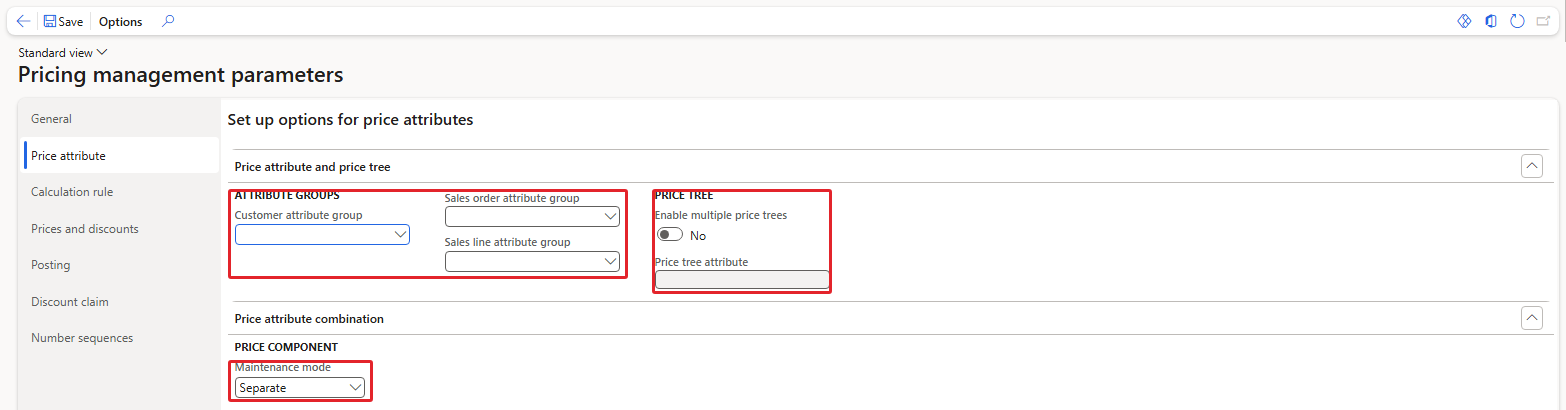
Pricing management parameters – Price attribute
- Customer attribute group: The price attribute group that holds the customer attributes (for example Region, Segment) used in pricing.
- Sales order attribute group / Sales line attribute group: The attribute groups whose values are taken from the sales order header and sales order line. This is how a field on the order itself can influence the price.
- Enable multiple price trees / Price tree attribute: Advanced option to maintain different price structures for different segments. Off by default.
- Maintenance mode: The default value for new price component codes – Separate (header and line attribute groups are ranked separately and the system combines them) or Combined (you rank each header + line combination yourself).
All these fields are empty for now because we have not created any attributes yet. This is exactly what we will do in Chapter 2, and then we will come back here and fill them in.
6.3 Calculation rule tab
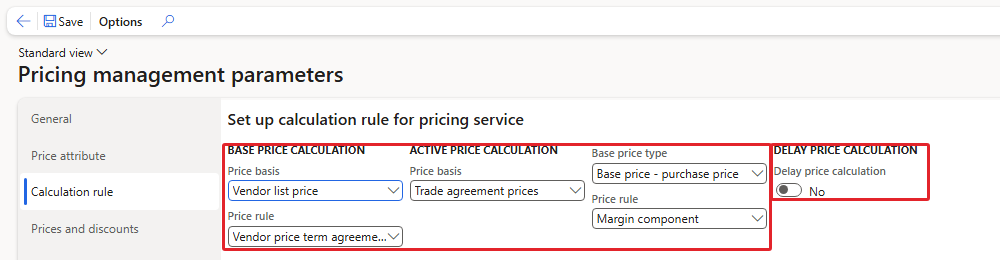
Pricing management parameters – Calculation rule
- Base price calculation – Price basis / Price rule: Defaults are Vendor list price and Vendor price term agreements. These belong to the pre-sales part of the module, where a base price is calculated from vendor list prices and price terms.
- Active price calculation – Price basis / Base price type / Price rule: Defaults are Trade agreement prices, Base price – purchase price and Margin component.
- Delay price calculation: No by default.
NOTE: The pre-sales calculation (vendor list price, price term agreements, base price versions) is an optional part of the module and is not needed for sales order pricing. Its behavior was not validated in this chapter; it is listed as an optional chapter in the series plan.
6.4 Prices and discounts tab
This is the most important tab for the behaviour of discounts, so take a moment here.
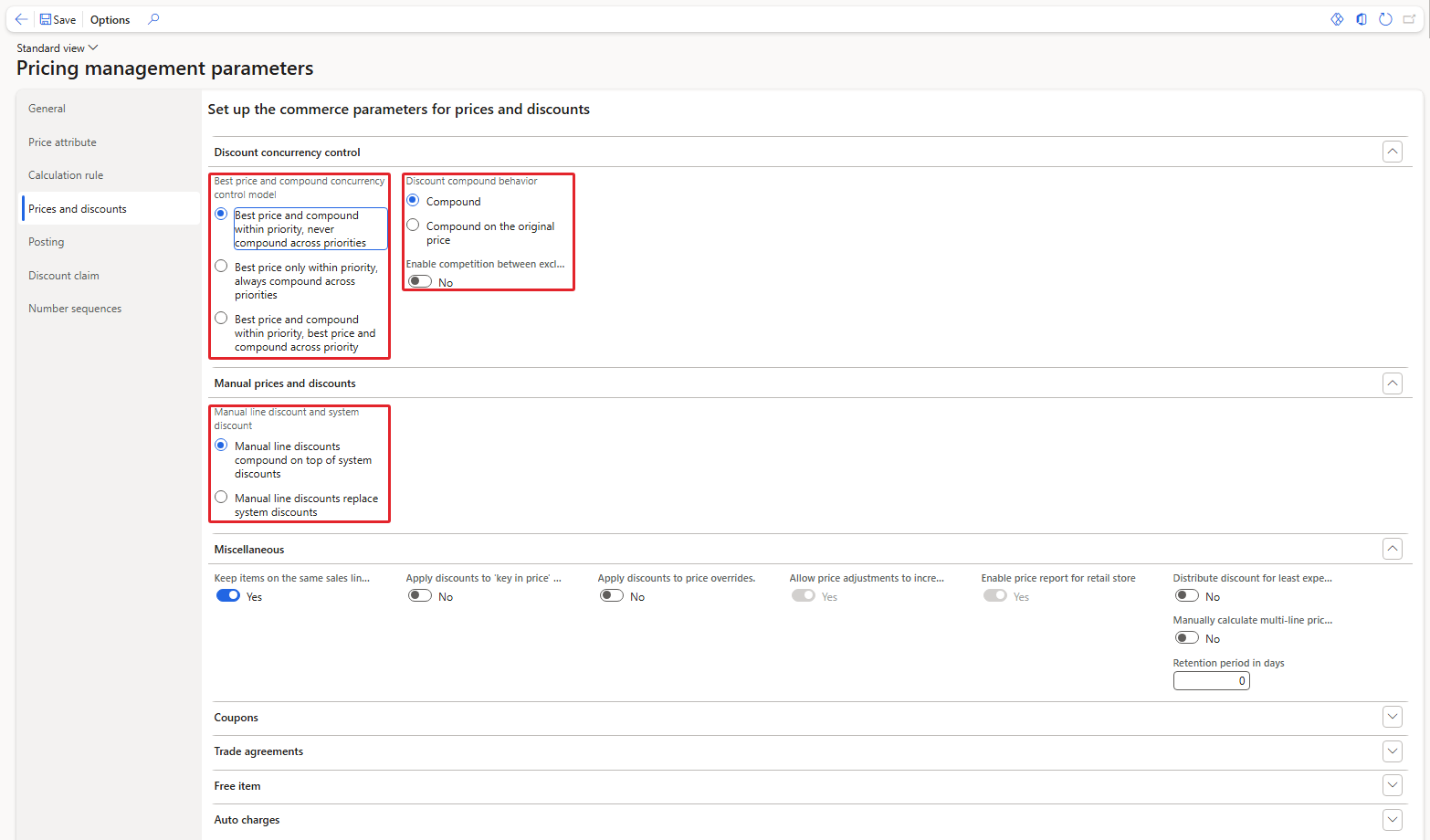
Pricing management parameters – Prices and discounts
- Discount concurrency control model: What happens when more than one discount is valid for the same line. There are three options: Best price and compound within priority, never compound across priorities (default); Best price only within priority, always compound across priorities; and Best price and compound within priority, best price and compound across priority.
- Discount compound behavior: Compound (the second discount is calculated on the already discounted price) or Compound on the original price.
- Manual line discount and system discount: Whether a discount typed manually by the user is compounded on top of the system discounts or replaces them.
- Miscellaneous toggles: for example Allow price adjustments to increase product price (Yes) and Apply discounts to price overrides (No).
- Trade agreements FastTab: contains Apply existing trade agreements (yes/no), whose help text reads "Controls whether existing trade agreements with a relation of Price (Sales) are applied", and Apply price adjustment to non-attribute sales trade agreement price.
I am intentionally not explaining the concurrency options in depth here. Words like "compound within priority" only make sense once you have two real discounts fighting for the same line. In Chapter 8 we will create exactly that situation, switch between these options and compare the results.
6.5 Posting, Discount claim and Number sequences tabs
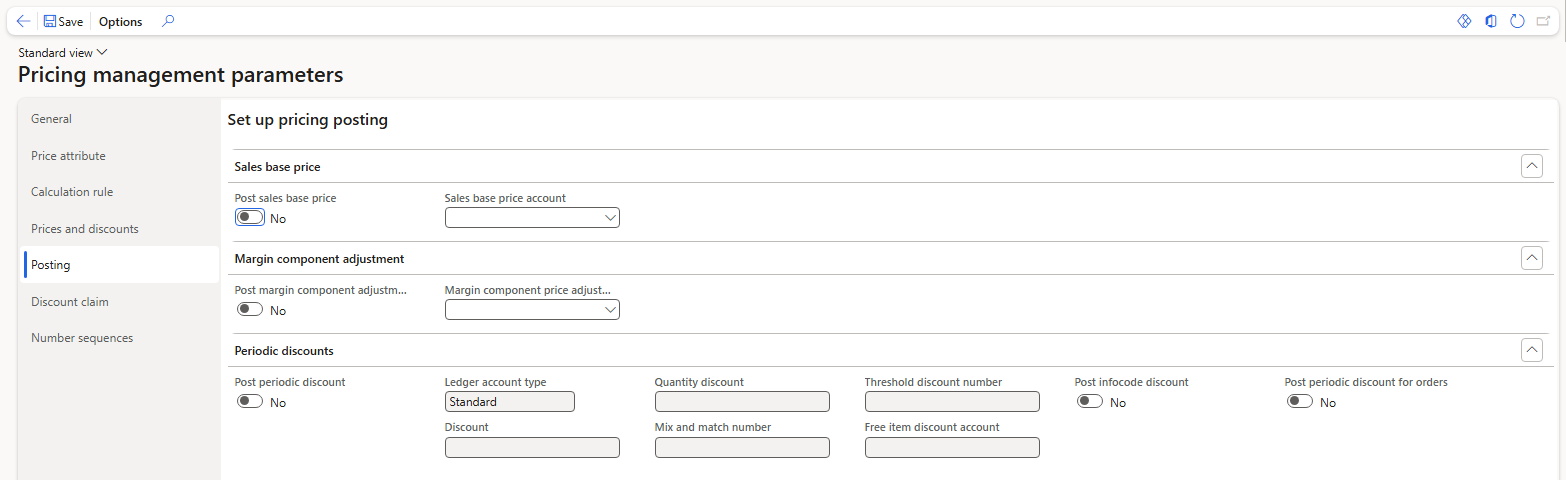
Pricing management parameters – Posting
The Posting tab decides whether the separate price components are posted to separate ledger accounts: Post sales base price with a Sales base price account, Post margin component adjustments with a Margin component price adjustment account, and Post periodic discount for discounts. By default everything is No and we leave it like that for now. Companies switch these on when finance wants to see the components separately in the ledger, for example how much revenue was given away as promotional discount. The posting behaviour was not validated in this chapter.
The Discount claim tab holds the journals for vendor discount claims, which are outside our scope for now. The Number sequences tab shows the sequences used for discount numbers, margin component adjustments, quantity and threshold discounts, free items and so on. In USMF they were already set up, so there was nothing to do.
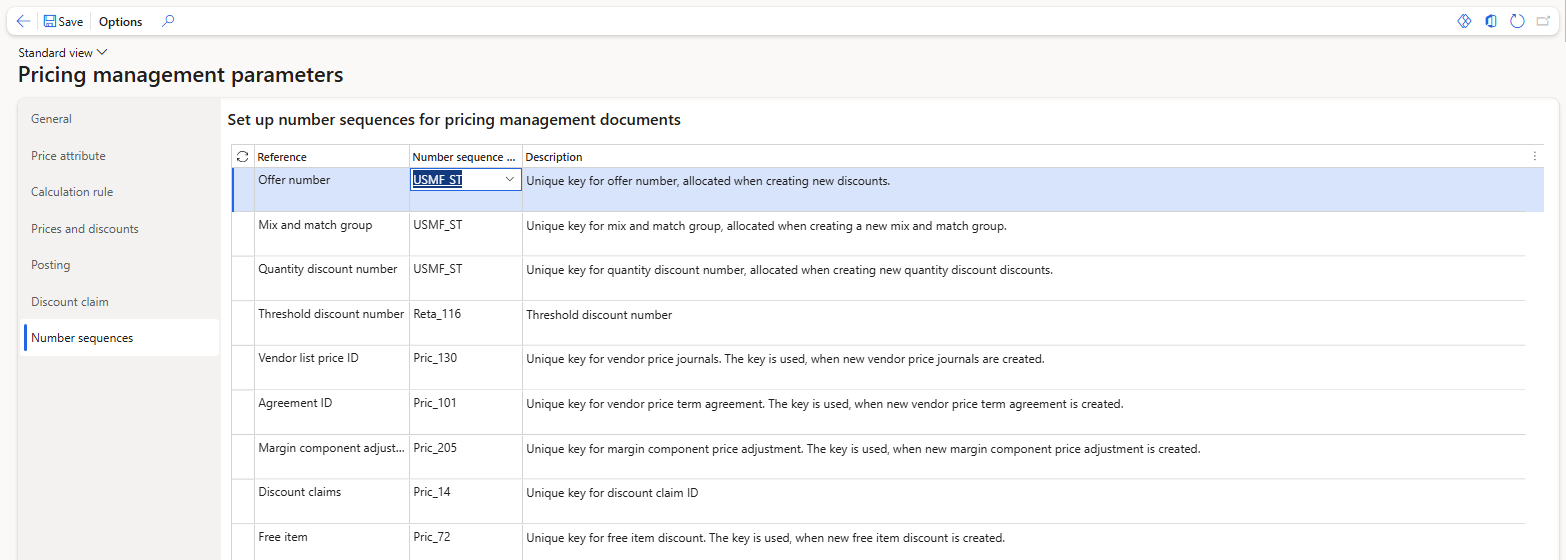
Pricing management parameters – Number sequences
TIP: On a new company, check this tab before you create the first discount or price adjustment. In USMF the references were already filled in; on a fresh legal entity they may be empty.
7. What changes on the sales order after enabling it?
Now let's repeat our baseline test. I created a new sales order 001341 for the same customer PM-C001, with the same line: PM-OIL-5L, quantity 10, site 1, warehouse 11.
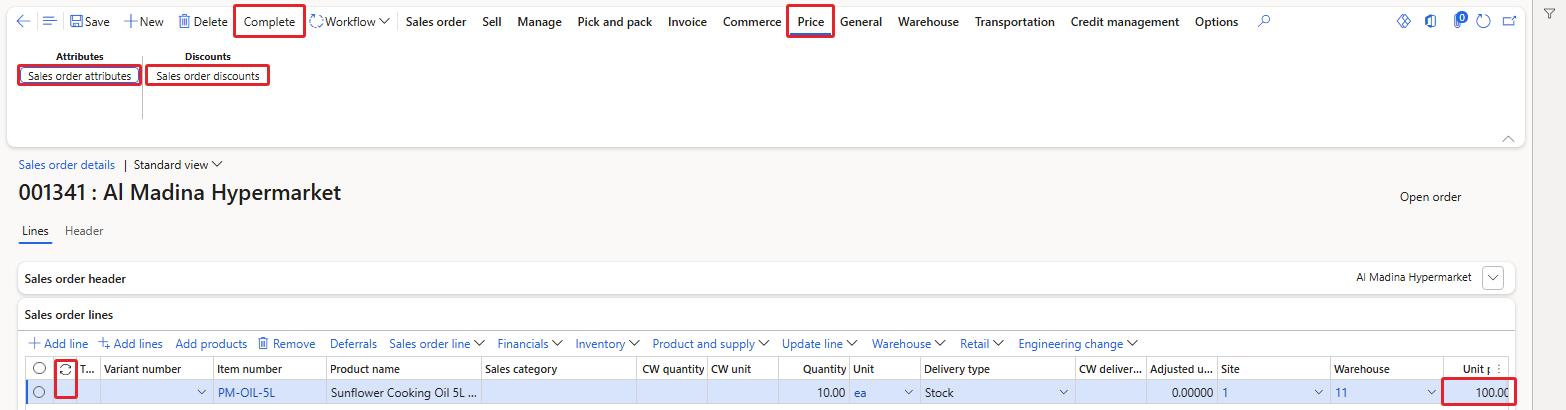
Sales order 001341 created after enabling Pricing Management

Close-up of the line: the new recalculate column (boxed) and unit price 100.00
The unit price is still 100.00. That is correct, because we have not created a single pricing rule yet. But look at what changed on the form:
- A new Price tab in the Action Pane, with Sales order attributes and Sales order discounts.
- A new Complete button next to Delete.
- A new column with a refresh (recalculate) icon at the start of every sales order line.
These three things tell you immediately that this order is priced by the Pricing Management engine.
7.1 Price details
Because we switched on Enable price details in the parameters, the line now has a Price details button.
Navigation: Sales order > Sales order lines > Sales order line > View > Price details
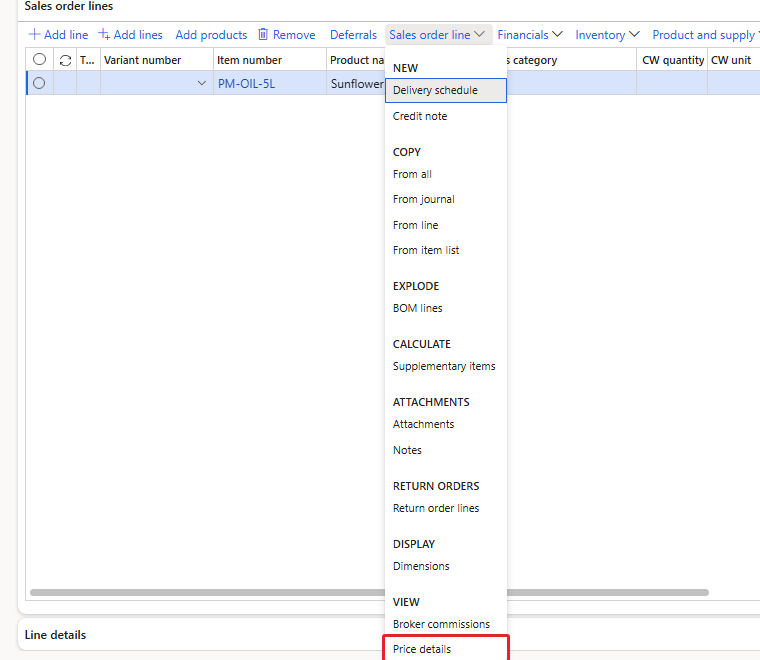
Sales order line menu – Price details
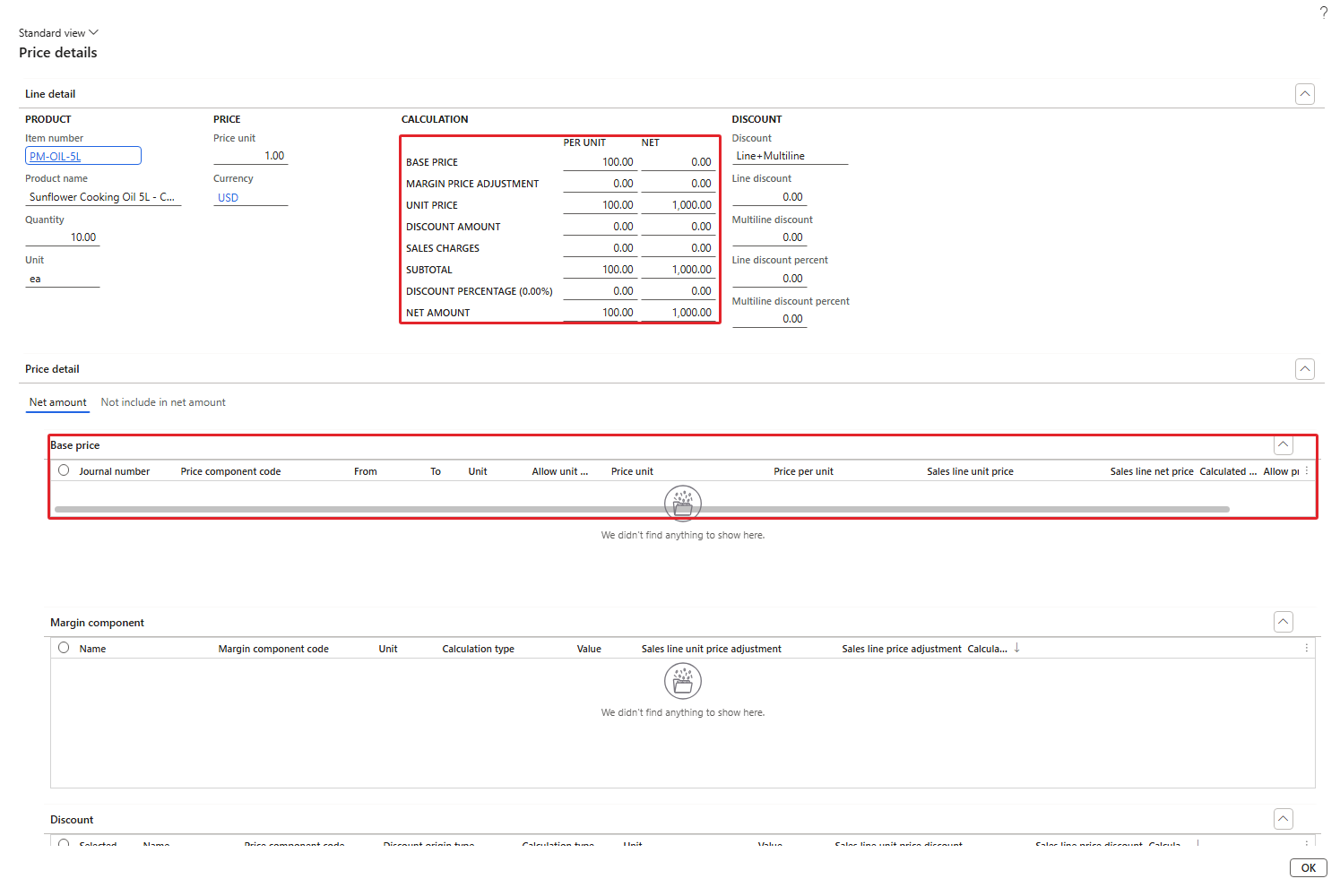
Price details of sales order 001341, line PM-OIL-5L
This screen is going to be our best friend in this series. Let's read it:
- Calculation: Base price 100.00, Margin price adjustment 0.00, Unit price 100.00, Discount amount 0.00, Sales charges 0.00, Net amount per unit 100.00 and 1,000.00 for the line.
- Base price grid (Price detail > Net amount): Empty – "We didn't find anything to show here." There is no trade agreement journal line behind this price.
- Margin component and Discount grids: Also empty.
Base Price = 100.00, Margin price adjustment = 0.00, Discount = 0.00, so Unit price = 100.00 and Net amount = 10 × 100.00 = 1,000.00. D365 produced exactly this result.
So with no rules in place, the engine falls back to the item's base sales price (100), not the inventory price (70). From Chapter 4 onwards, as soon as we create trade agreement prices, adjustments and discounts, you will see these grids filling up line by line, and this screen will tell us exactly which rule produced which part of the price.
7.2 What about sales orders that existed before?
Here is something that surprised me during testing. I opened our old baseline order 001339, created before the feature was enabled. It still has no Price tab and no Complete button.
The reason is that the decision "use the Pricing Management engine for this order" is stamped on the order when it is created. Orders created before the feature was enabled stay on classic pricing; only new orders use the new engine. I verified this in the database as well: order 001341 has the unified pricing engine flag set on its retail sales order record, and order 001339 does not have it.
NOTE: Enabling Pricing Management does not convert open sales orders. If you switch it on in a live company, orders that are already open keep calculating prices the old way. Plan the go-live so that open orders are finished or re-entered.
8. Test: what happens when we disable pricing management?
The first parameter on the General tab was Disable pricing management. Let's not just trust the label; let's test it.
Configuration ON (Disable pricing management = Yes)

Disable pricing management = Yes
I set the toggle to Yes and saved. Then I did two things:
- Opened the existing order 001341 (created with Pricing Management).
- Created a brand-new order 001342 for PM-C001 with the same line.
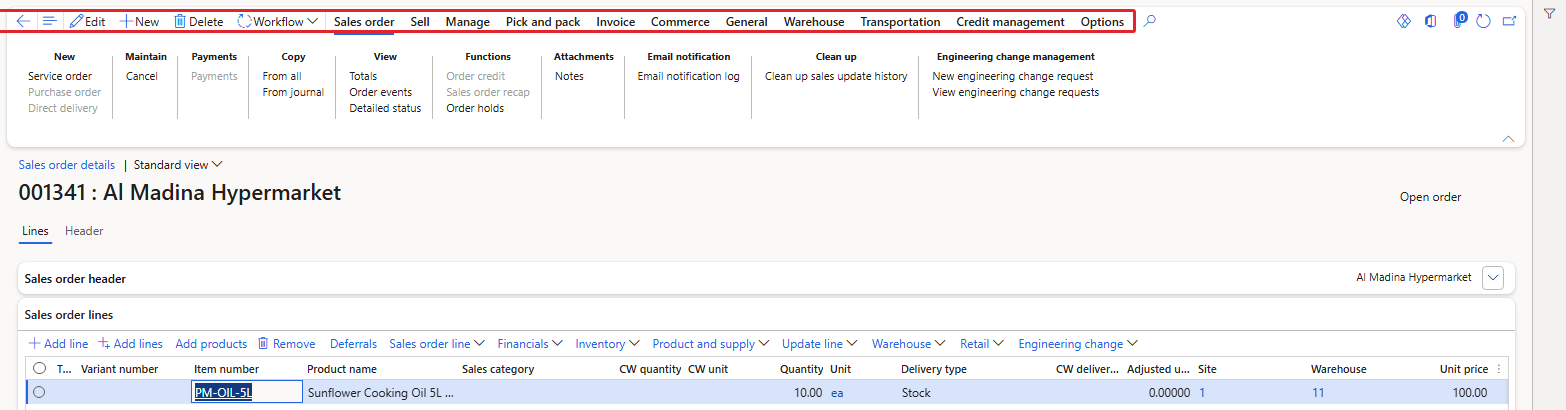
Order 001341 while pricing management is disabled – the Price tab and Complete button are gone
RESULT: Order 001341: the Price tab, the Complete button and the recalculate column disappeared. The price stayed 100.00. New order 001342: also no Price tab, no Complete button. The price was 100.00 from the item's base sales price, exactly like classic pricing.
Configuration OFF again (Disable pricing management = No)
I switched the toggle back to No. Order 001341 again shows the Price tab and the Complete button. But order 001342, which was created while pricing management was disabled, did not get the new engine: in the database its unified pricing flag is empty, the same as our old order 001339.
So this option controls whether new sales orders in this company are priced by Pricing Management. It hides the Pricing Management functions on existing orders while it is on, and orders created during that time stay on classic pricing even after you switch it back off.
TIP: Disable pricing management is a useful emergency switch per company (for example if one legal entity is not ready to go live), but remember that every order created while it is on will remain a classic-pricing order.
9. A quick tour of the Pricing management module
Let's finish by walking through the module menu, so that you know where everything lives. All paths below were verified in the environment with the navigation search.
Navigation: Pricing management > Workspaces > Pricing management
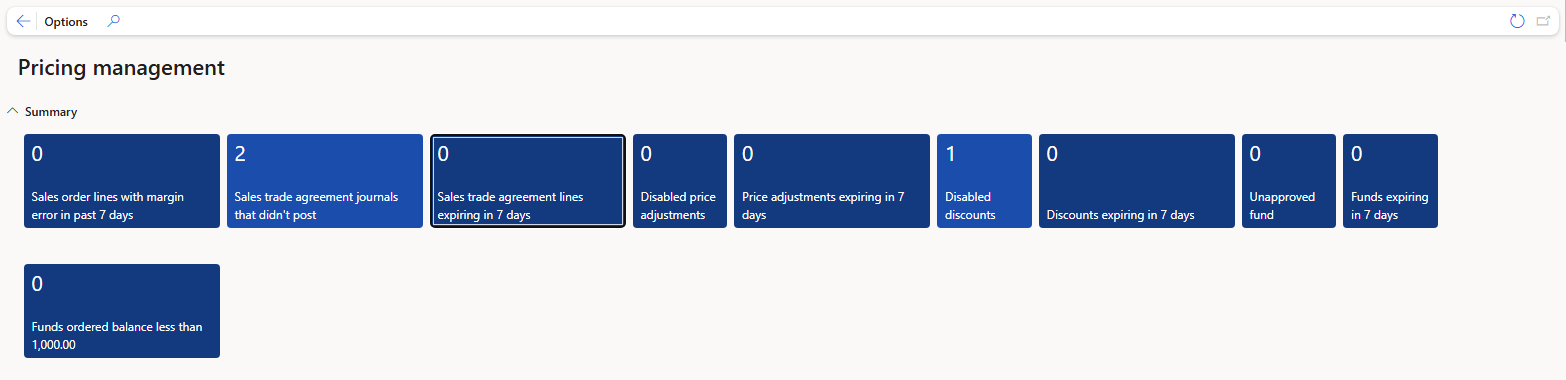
Pricing management workspace
The workspace gives the pricing manager a daily overview: sales order lines with margin errors, trade agreement journals that were not posted, price adjustments and discounts that are disabled or expiring in 7 days, and funds. The counts you see here (for example 2 trade agreement journals not posted and 1 disabled discount) come from the existing Contoso data in USMF, not from our training data.
The menu itself is organised by the life cycle of a price:
- Pre-sales pricing: Vendor price term codes, Vendor price term agreements, Vendor list price, Base price versions. Used to calculate a base price from the purchase side.
- During-sales pricing: The heart of the module – Price groups (Pricing priorities, All price groups), Sales trade agreement price (Trade agreement journals, Attribute-based price rules and rule groups), Price adjustments (Margin component price adjustments), Discounts (All discounts, Discounts, Quantity discounts, Mix and match, Threshold discounts, Shipping, Tender, Free item, Coupons), Charges setup and the Price simulator.
- Discount claims and Fund control: Claiming discounts back from vendors and controlling promotional funds.
- Inquiries and reports: Price attribute group hierarchy view, Price report, Trade agreements, Margin component price adjustments and Discounts inquiries.
- Periodic tasks: Recalculate price, Pricing rule cleanup, Generate pricing rule hash value, Generate pricing rule lookup data, Update valid base price, Price report history cleanup, Process discount claims.
- Setup: Pricing management parameters, Price attribute groups, Vendor list price groups, Price component codes (codes, groups, setup, price trees), Trade agreement prices (journal names, smart rounding) and Posting.
Don't worry if this looks like a lot. We will not use all of it; we will go through the setups in dependency order, and every chapter will end with a real sales order.
10. Summary
Let's quickly recap what we learned today:
- Pricing Management calculates sales prices with a pricing engine built from price components, price attributes and priorities.
- It must first be enabled in Feature management (Unified pricing management). Before that, its menu items give "Access Denied" even for an administrator.
- Pricing management parameters control the general behaviour per company. The most important ones for now are Disable pricing management, Date type and Enable price details.
- A sales order priced by the engine shows a Price tab, a Complete button and a recalculate column on the lines.
- With no pricing rules, the engine uses the item's base sales price (100 in our example), and Price details shows an empty base price grid.
- Only orders created after the feature is enabled (and while Disable pricing management = No) are priced by the engine.
In the next chapter we will start with the foundation of every pricing rule: Price attributes and price attribute groups. We will give our customers a region and a segment, give our products a brand, and prepare the conditions that our price rules will use.
That's all for today, folks. See you in the next chapter!
Cheers!
Salman Ahmad
D365 F&O Consultant (Finance, SCM, Project Accounting)