Pricing Management in Dynamics 365 SCM
Chapter 9 – The Sales Order, End to End
Hello everyone! Hope you are all doing well.
Over eight chapters we built prices, price groups, margin adjustments and discounts, and every time we created a fresh sales order to see the result. Real order takers work differently: they open old orders, change a price by hand, remove a discount the customer should not get, and they need a rule that depends on how the order came in. This chapter follows the sales order through these everyday situations.
Today's agenda
- The pricing buttons on the sales order.
- Recalculating an existing order.
- A manual price on the line.
- Removing a discount from one order: Sales order discounts.
- Complete and the sales order summary.
- Sales order attributes: a discount for web orders.
- What was not covered.
- Summary.
1. The pricing buttons on the sales order
On an order that uses the pricing engine (Chapter 1) these buttons are relevant:
- Action Pane – Complete: recalculates and opens the sales order summary.
- Sell > Calculate – Recalculate: recalculates prices and discounts of the order lines. Remove price lock, Recalculate line margins and Push price and totals are in the same group.
- Price > Attributes – Sales order attributes: the price attributes of the order header.
- Price > Discounts – Sales order discounts: the discounts applied to the order, with the option to deselect them.
- Sales order line – Price details: the full calculation of a line (used in every chapter).
- Line grid columns Price locked, Estimated margin % and Margin alert.

Sell > Calculate – Recalculate, Remove price lock, Recalculate line margins, Push price and totals
2. Recalculating an existing order
In Chapter 3 we created order 001346 for Corner Street Grocery before any price existed. It still showed the item base price 100.00. Since then the price group PMCENTRAL (96.00) and the SunGold discount (10%) were set up, but, as we saw in Chapter 4, new prices do not change existing lines.
Navigation: Accounts receivable > Orders > All sales orders > 001346 > Sell > Calculate > Recalculate
I clicked Recalculate. No dialog appeared; the line was updated and saved immediately:
| Unit price | Discount per unit | Net amount | |
|---|---|---|---|
| Before | 100.00 | 0.00 | 1,000.00 |
| After Recalculate | 96.00 | 9.60 | 864.00 |

Order 001346 after Recalculate – 96.00
| RESULT: Recalculate brings an existing order up to date with the current prices, price groups, adjustments and discounts. |
|---|
3. A manual price on the line
New order 001596 for Corner Street Grocery, 10 × oil: 96.00 with the SunGold discount 9.60. Then I typed a unit price of 90.00 on the line and saved:

Manual unit price 90.00 – no discount on the line any more
| Step | Unit price | Discount per unit | Net amount |
|---|---|---|---|
| Line entered | 96.00 | 9.60 | 864.00 |
| Unit price typed: 90 | 90.00 | 0.00 | 900.00 |
| Sell > Recalculate | 90.00 | 0.00 | 900.00 |
| Sell > Remove price lock, then Recalculate | 90.00 | 0.00 | 900.00 |
Three observations:
- When the price was typed, the automatic discount disappeared from the line.
- Recalculate did not overwrite the manual price. In the database the line got a manual entry change policy (field Manual entry change policy on the sales line), which is how Dynamics 365 remembers that a value was entered by hand. The Price locked flag of the line stayed No.
- Remove price lock followed by Recalculate did not bring back 96.00 either – the manual entry is released in a different way (next section).
3.1 Releasing the manual price
The manual entry is released when a field that triggers a new price search changes on the line – for example the quantity. The system then opens the dialog Overwrite prices and discounts: "Do you want to overwrite the following fields with standard prices and discounts? If not, deselect the check box(es) and click OK", with one toggle per field that was entered by hand (here: Unit price).
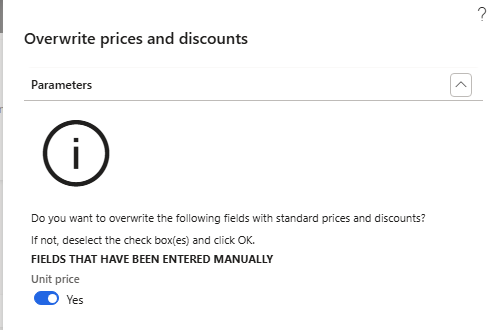
Overwrite prices and discounts – Unit price entered manually
Negative test first – quantity 10 → 11 and Unit price = No: the manual price 90.00 stays (net 990.00). A second question "Lead time changed, recalculate ship and receipt dates?" appears after it (answered No).
Then quantity 11 → 10 with Unit price = Yes: the unit price is overwritten with the standard price again and the automatic discount comes back:
| Step | Unit price | Discount per unit | Net amount |
|---|---|---|---|
| Qty 11, Unit price = No | 90.00 | 0.00 | 990.00 |
| Qty 10, Unit price = Yes | 96.00 | 9.60 | 864.00 |
In the database the Manual entry change policy of the line is back to 0 – the line is priced by the engine again.
| NOTE: Train order takers: a typed price stays on the line even when prices are recalculated, and it removes the automatic discount of that line. |
|---|
4. Removing a discount from one order: Sales order discounts
Sometimes a discount must not be given on one particular order – for example the customer already got a special deal. Pricing Management offers a page for that:
Navigation: Sales order > Price > Discounts > Sales order discounts
The page lists the discounts applied to the order with Selected, Discount, Discount type, Price component code, Original total discount amount and Current total discount amount. For order 001346 it showed ST100026 (SunGold) with 96.00.
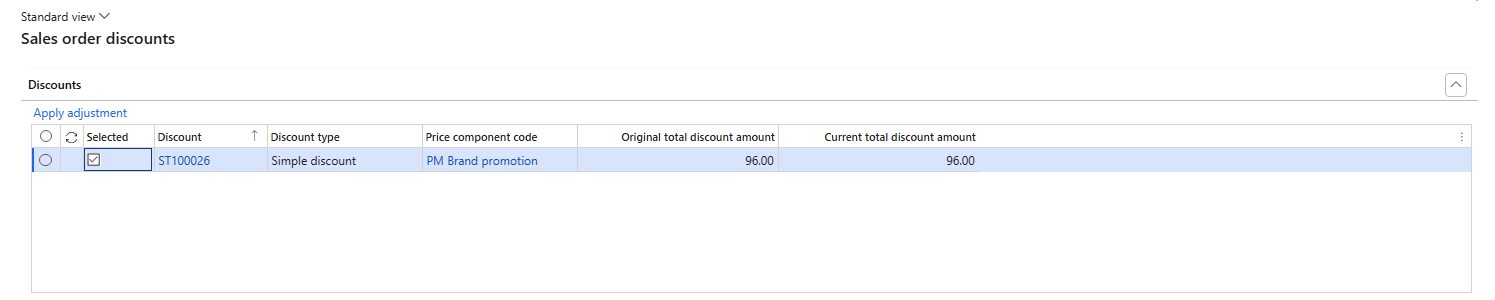
Sales order discounts – ST100026 selected, 96.00
- Clear Selected for the discount.
- Click Apply adjustment, then OK.
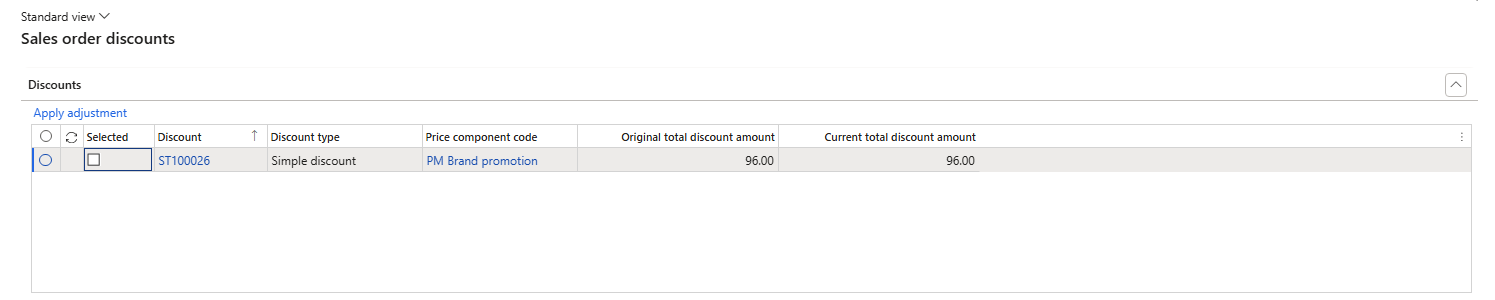
Selected cleared
The line changed from 96.00 − 9.60 (net 864.00) to 96.00 without discount (net 960.00). I then clicked Recalculate again: the line stayed at 960.00.
| RESULT: Deselecting a discount in Sales order discounts removes it from this order, and a later Recalculate respects that decision. The discount itself stays enabled for other orders. |
|---|
5. Complete and the sales order summary
Complete (on the Action Pane) recalculates the order and opens the Sales order summary with the totals, payment and installment information. For 001346 the sales total was 960.00. The message bar also said "No tiered charges found." – the Complete step checks tiered charges as well.
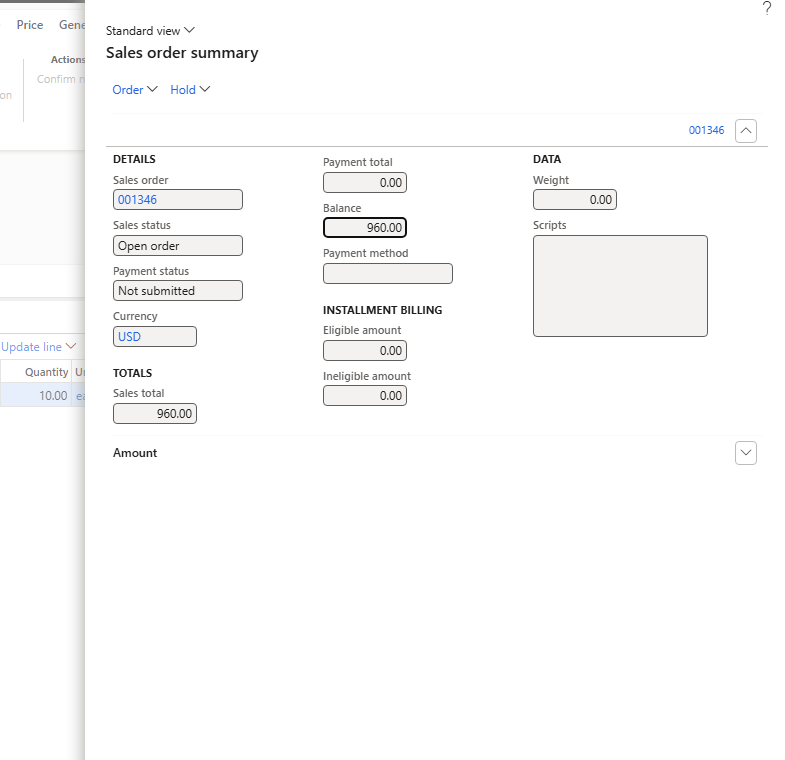
Sales order summary after Complete – sales total 960.00
In Chapter 7 we saw that Complete also applies rules that work on the whole order: the Max per order limit of a discount was only enforced after Complete. The parameters Skip order completion, Auto confirmation after completion and Skip to open order summary (Chapter 1) control this step; their effect was not validated in the current environment.
6. Sales order attributes: a discount for web orders
Requirement: orders that come in through the web shop get 3% off, phone and field sales orders do not. The channel is not a property of the customer or the product but of the order – exactly what sales order attributes are for.
When I first opened Sales order attributes on an order, the page was empty: the company had no sales order attribute group. The setup has five steps.
6.1 Attribute type and attribute
Navigation: Product information management > Setup > Categories and attributes > Attribute types
- Attribute type PM Order channel, Fixed list = Yes, values Phone, Web, Field sales.
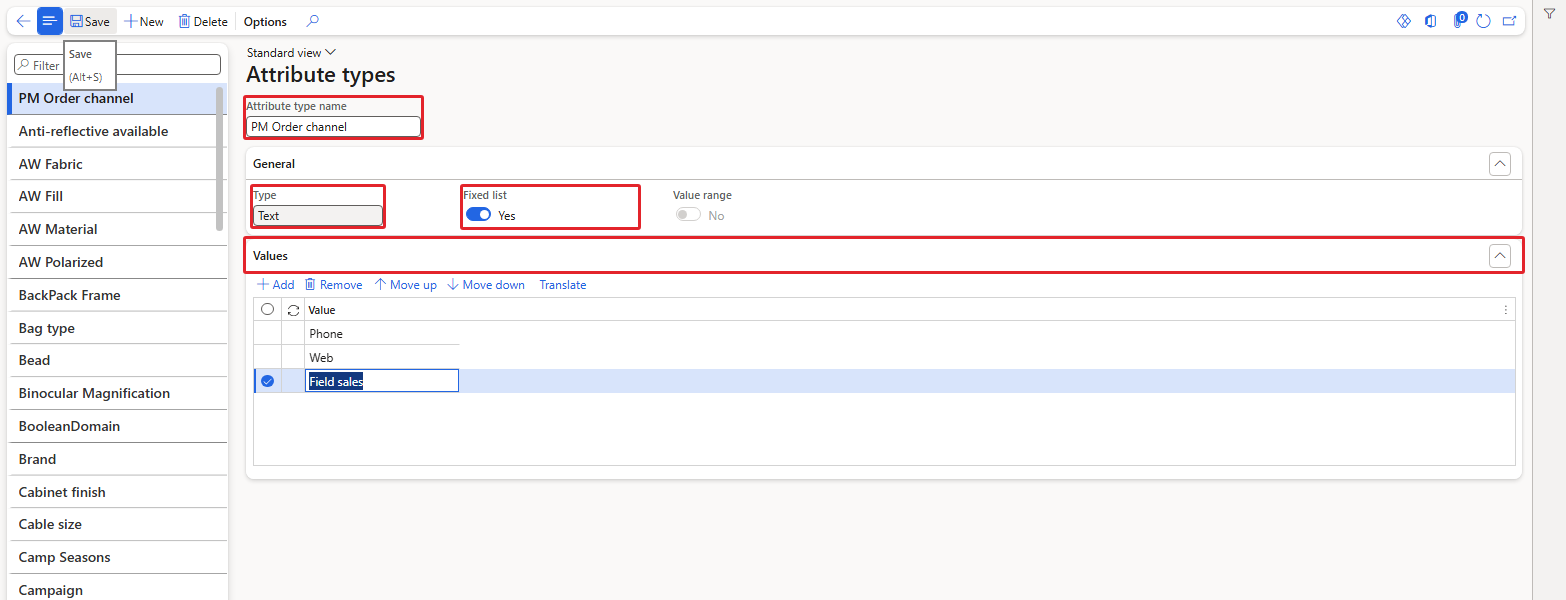
Attribute type PM Order channel
Navigation: Product information management > Setup > Categories and attributes > Attributes
- Attribute PM-Channel, type PM Order channel, friendly name Order channel, Can be used as price attribute = Yes. The default value became Phone (the first value of the list).
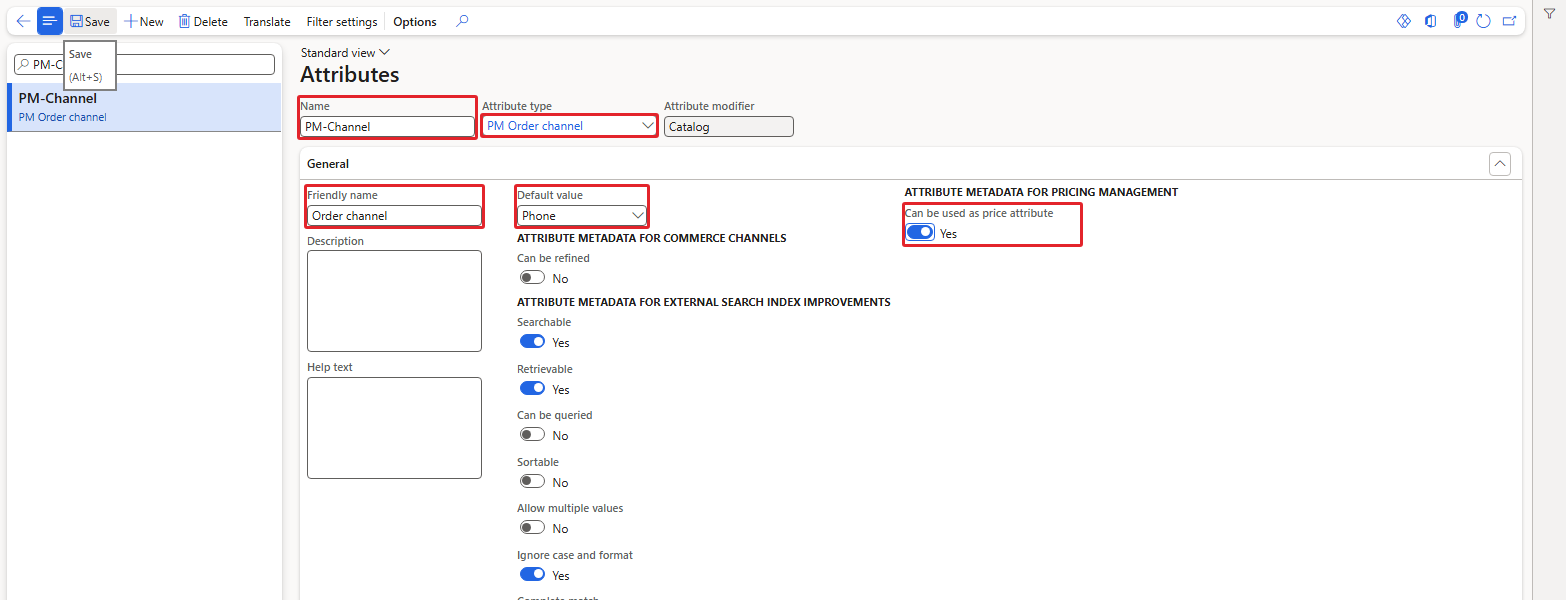
Attribute PM-Channel
6.2 Attribute group and parameter
Navigation: Product information management > Setup > Categories and attributes > Attribute groups
- Attribute group PM Sales order price attributes with the attribute PM-Channel.
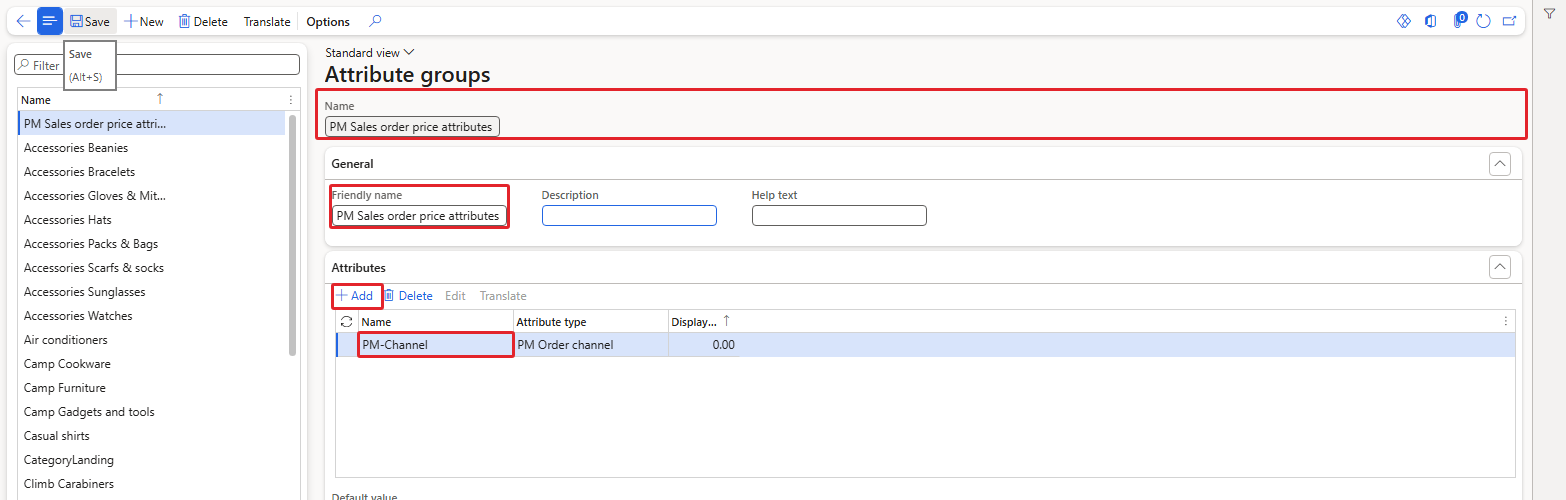
Attribute group with PM-Channel
Navigation: Pricing management > Setup > Pricing management parameters > Price attribute
- Set Sales order attribute group = PM Sales order price attributes. (Next to it is the Customer attribute group from Chapter 2 and a Sales line attribute group.)
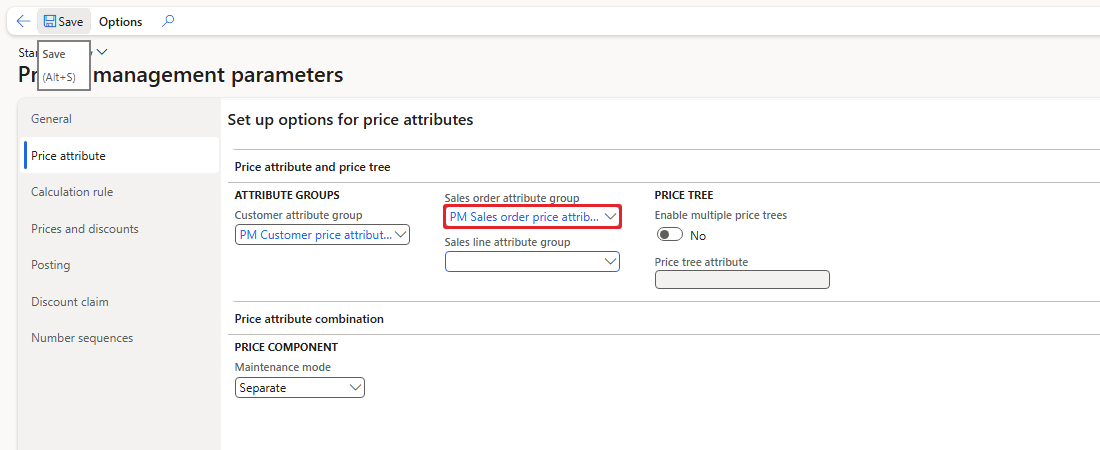
Sales order attribute group parameter
After this, Sales order attributes on order 001346 showed PM-Channel = Phone (the default value).
6.3 Price attribute group for the order header
Navigation: Pricing management > Setup > Price attribute groups > Price attribute groups
- New group PMOrderHeader, scope Header.
- Add price attribute: in the dialog switch the source from Customer to SalesTable. The SalesTable source offers Affiliations, Campaign ID, Delivery charges groups, Header mode of delivery, Loyalty programs, Order type, PM-Channel, Program tier, Retail Channel Id, Sales order price group and Site. Tick PM-Channel, Update, then Validation – the group became valid.
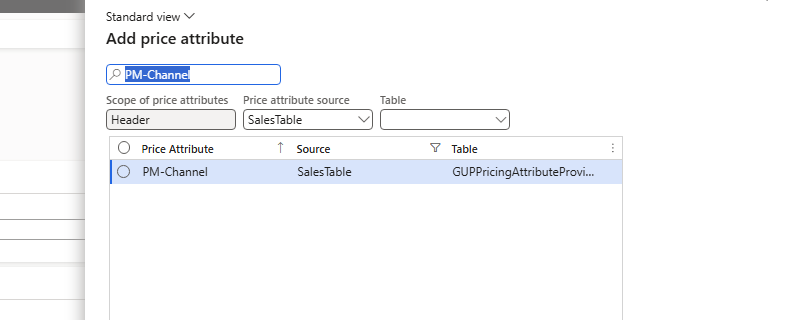
Add price attribute – source SalesTable, PM-Channel
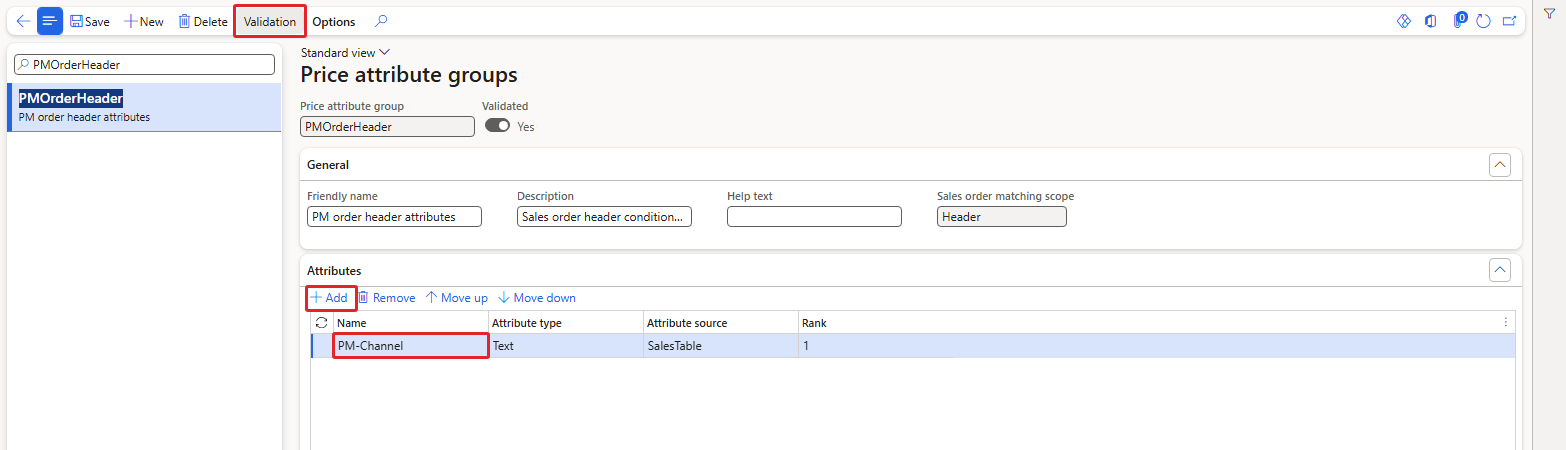
PMOrderHeader with PM-Channel
6.4 Component code and discount
- On the price component code PM Brand promotion add the header price attribute group PMOrderHeader. It got rank 2 and the system generated the combinations PMOrderHeader-PMProductLine (2001) and PMOrderHeader-All (2000).
- Simple discount ST100050 "Web orders 3% off": header Group type Group, PMOrderHeader, PM-Channel = Web; line combination PMOrderHeader-All, unit ea, Percentage off 3; enabled.
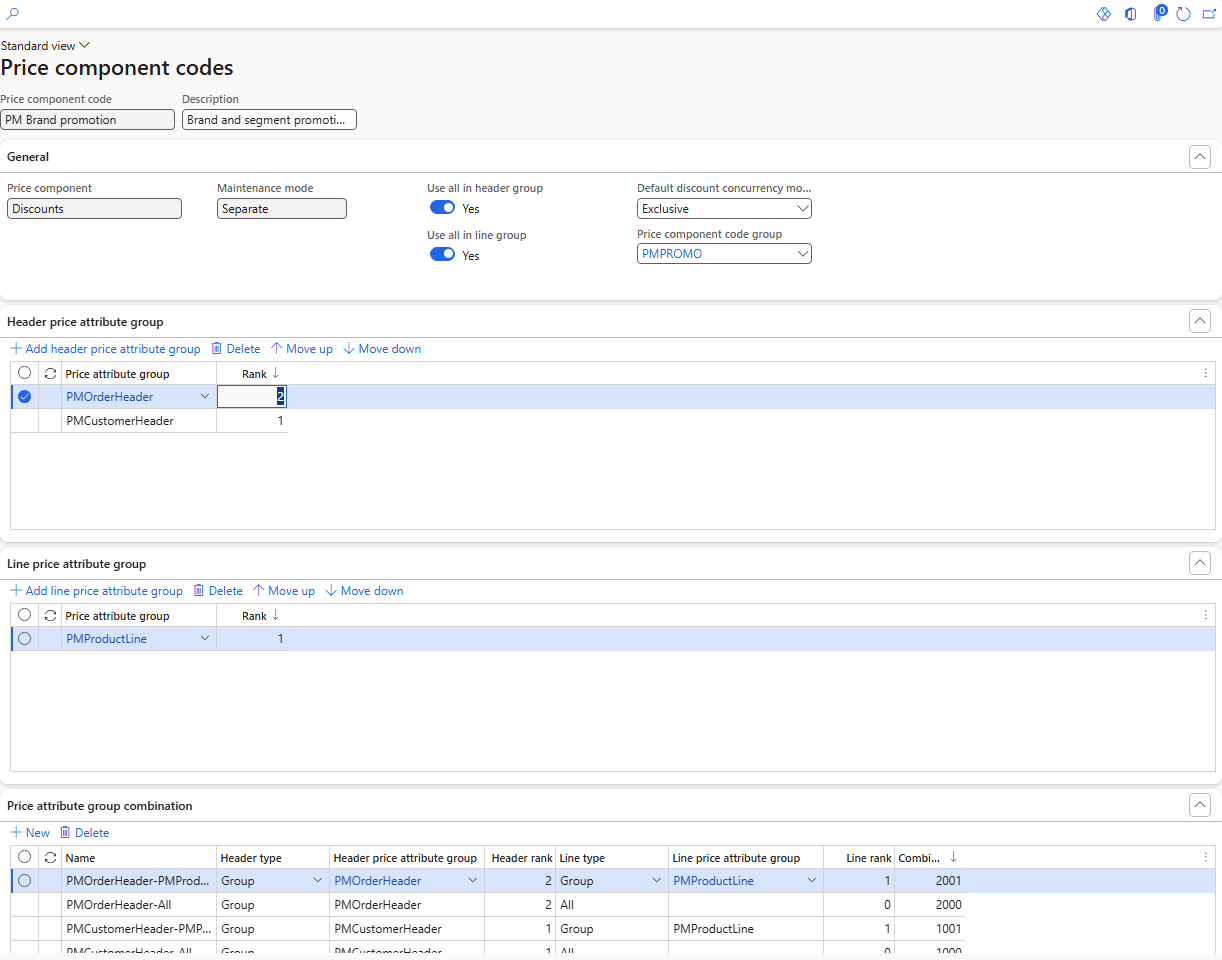
PM Brand promotion with the header groups PMOrderHeader (rank 2) and PMCustomerHeader
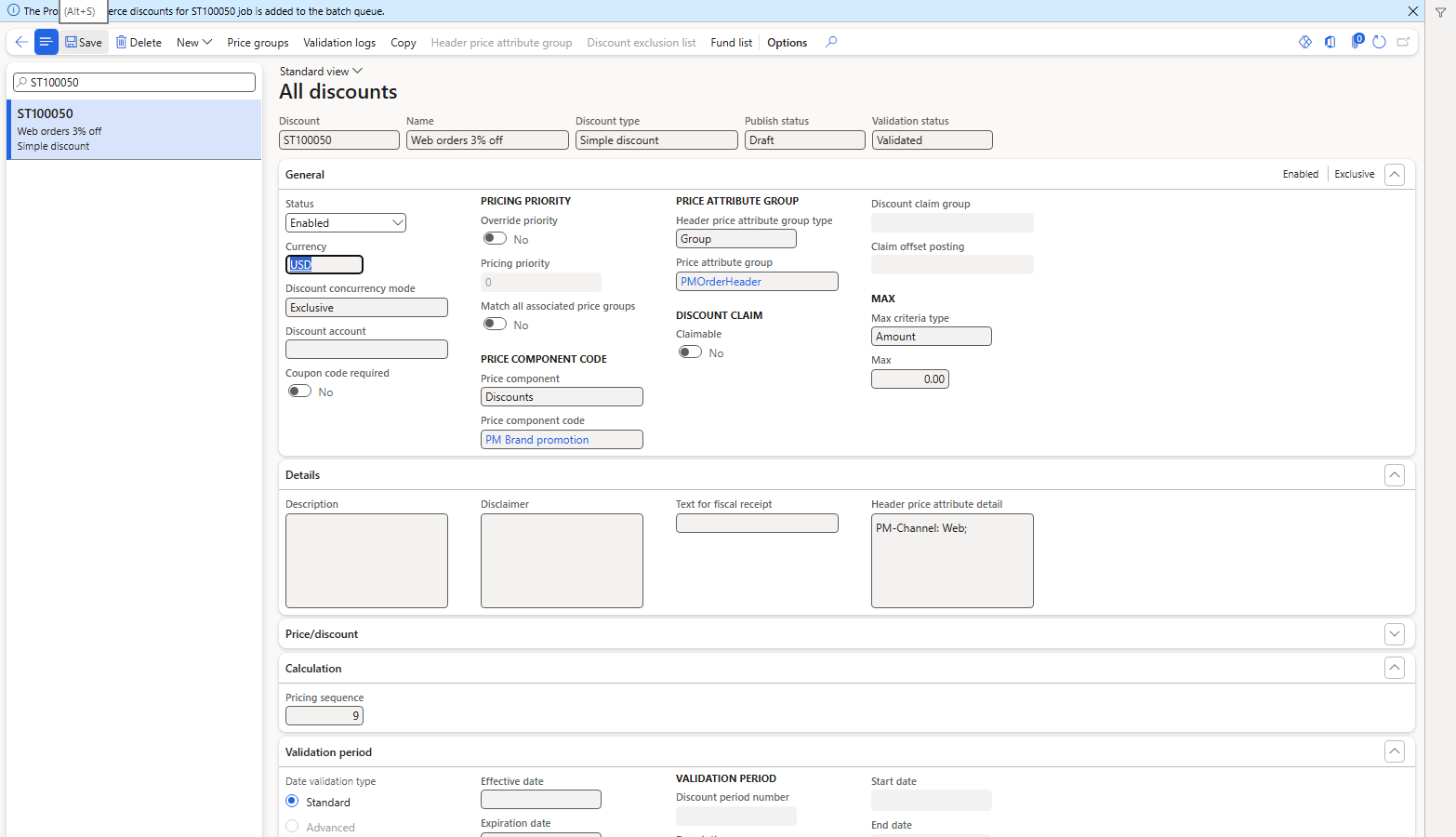
ST100050 enabled – header condition PM-Channel = Web
6.5 Test
Order 001611 for Green Valley Hypermarket, 5 bags of rice (48.00, below the other rice and order value discounts):
| Step | PM-Channel | Discount per unit | Net amount |
|---|---|---|---|
| Order created | Phone (default) | 0.00 | 240.00 |
| Value changed + Recalculate | Field sales | 0.00 | 240.00 |
| Value changed + Recalculate | Web | 1.44 (3%) | 232.80 |
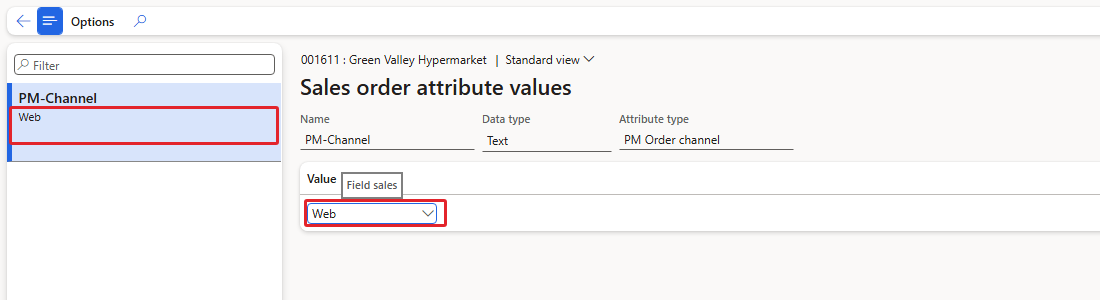
Sales order attribute values – PM-Channel = Web
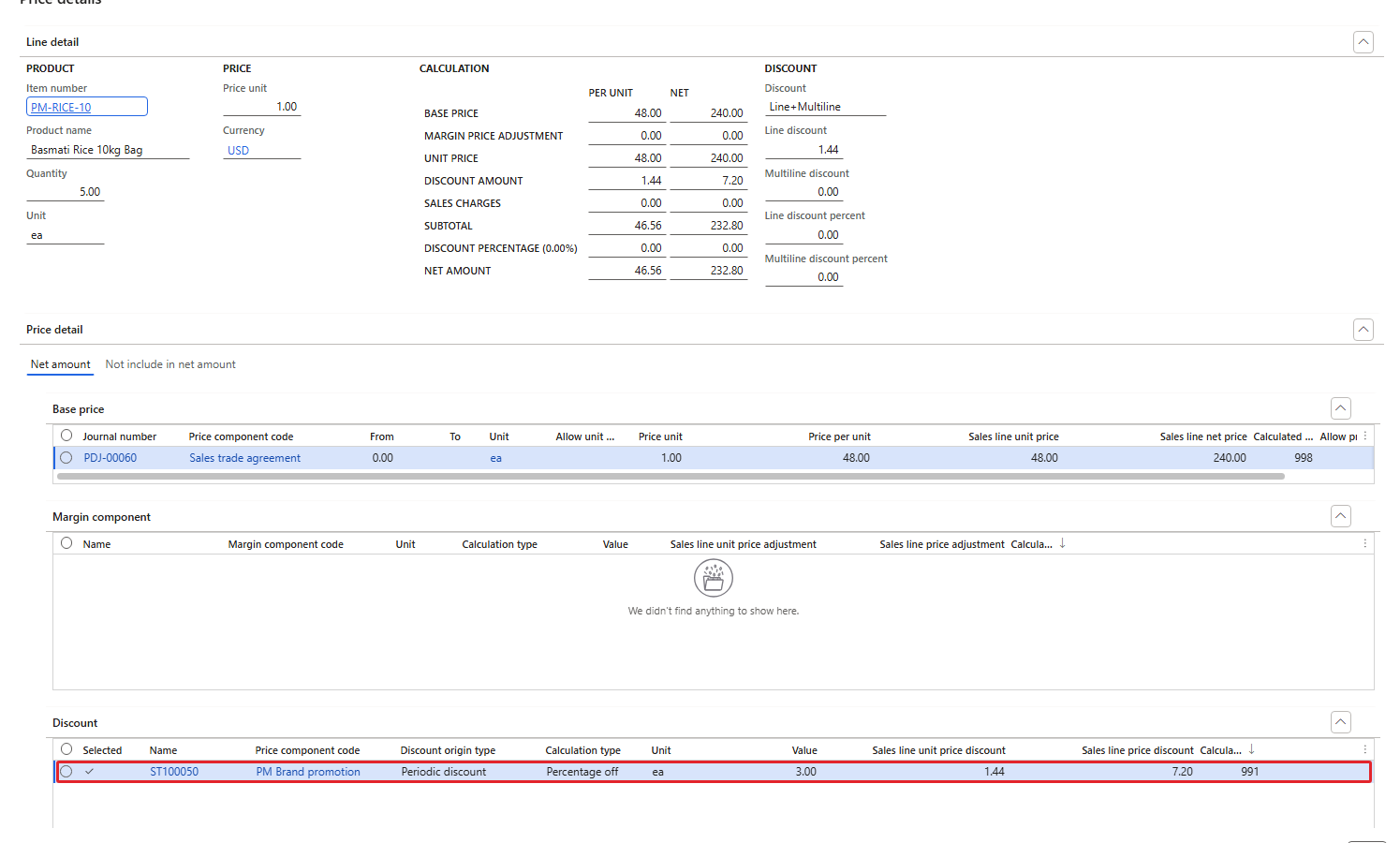
Price details of 001611 – ST100050, Percentage off 3.00 = 1.44
| RESULT: A price attribute on the order header works like the customer and product attributes: the web discount applied only when the order had PM-Channel = Web. After changing the attribute the order has to be recalculated. |
|---|
7. What was not covered
Not validated in the current environment: auto charges and tiered charges, Recalculate line margins and the margin alert, Push price and totals, sales line attributes (the Sales line attribute group parameter).
8. Summary
- Recalculate updates an existing order with the current rules (001346: 100.00 → 96.00 − 9.60).
- A typed price is kept by Recalculate and removes the automatic discount of the line.
- Sales order discounts lets you deselect a discount for one order; Recalculate respects it.
- Complete recalculates and shows the sales order summary; order-level limits such as Max per order are applied here.
- Sales order attributes need an attribute group in the parameters and a header price attribute group with the SalesTable source; then any rule can use them (web orders 3%).
Data added in USMF: attribute type PM Order channel, attribute PM-Channel, attribute group PM Sales order price attributes (parameter), price attribute group PMOrderHeader (on PM Brand promotion), discount ST100050 enabled.
In the last chapter we look at troubleshooting and the periodic jobs of Pricing Management – with a checklist built from every trap we met in this series.
That's all for today, folks. See you in the next chapter!
Cheers!
Salman Ahmad
D365 F&O Consultant (Finance, SCM, Project Accounting)
← Previous: Pricing Management in Dynamics 365 SCM — Chapter 8 – When Rules Compete: Concurrency | Next: Pricing Management Chapter 10 →