
Fixed Assets
Fixed Asset Series, Chapter 2
FIXED ASSETS
Hi everyone hope you all are doing well.
Let’s continue our journey regarding learning fixed assets modules in D365 F&O, we will continue from where we left hope these blogs will help you to illuminate your learning journey.
Create a depreciation profile
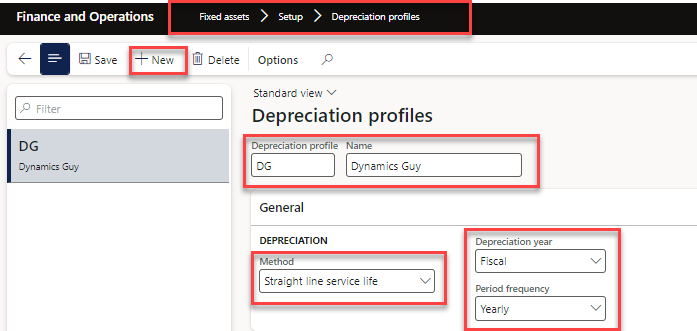
Go to Fixed assets > Setup > Depreciation profiles.
Click New.
- In the Depreciation profile field, type a value.
- In the Name field, type a value.
- In the Method field, select an option. If selecting reducing balance, you will need to enter a percentage in the Percentage field.
- In the Depreciation year field, select an option.
- In the Period frequency field, select an option.
- Close the page.
After you set up depreciation profiles, you must create the required books for your assets. Each book tracks an independent financial lifecycle of an asset. Books can be configured to post associated transactions to the general ledger. This configuration is the default setting, because it's typically used for corporate financial reporting. Books that don't post to the general ledger post only to the Fixed asset subledger and are typically used for tax reporting purposes.
A primary depreciation profile is assigned to every book. Books also have an alternative or switchover depreciation profile, if this type of profile is applicable. To automatically include the fixed asset book in depreciation runs, you must enable the Calculate depreciation option. If this option isn't enabled for an asset, the depreciation proposal skips the asset.
You can also set up derived books. The specified derived transactions are posted against the derived books as an exact copy of the primary transaction. Therefore, derived transactions are typically set up for acquisitions and disposals, not for depreciation transactions
Create a book
- Go to Fixed assets > Setup > Books.
- Select New.
- In the Book field, enter a value.
- In the Description field, enter a value.
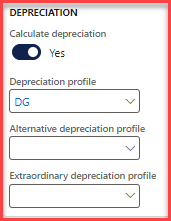
- Set the Calculate depreciation option to Yes.
![Note:] If the Calculate depreciation field is set to Yes, the associated asset book will be included in depreciation](/assets/img/fixed-assets-series-chapter-2/img-03.png)
[! Note:] If the Calculate depreciation field is set to Yes, the associated asset book will be included in depreciation proposals. If it's set to No, the asset book won't automatically be depreciated.
- In the Depreciation profile field, enter or select a value.
- An alternative depreciation profile is also known as a switchover method of depreciation. The depreciation proposal will switch to this profile when the alternative profile calculates a depreciation amount that is equal to or greater than the default depreciation profile.
- The extraordinary depreciation profile is used for additional depreciation of an asset in unusual circumstances. For example, you might use this to record depreciation that results from a natural disaster.
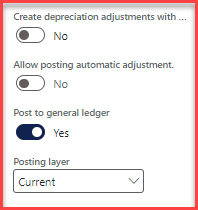
- If you select Create depreciation adjustments with basis adjustments, depreciation adjustments will be automatically created when the value of the asset is updated. Otherwise, the updated asset value will affect only future depreciation calculations.
Depreciation profiles determine the type and the frequency of depreciation for an asset.
- Set the Create depreciation adjustments with basis adjustments option to Yes.
- By default, fixed asset book transactions are posted to the general ledger. However, you can disable posting to the general ledger for the book by setting the Post to general ledger option to No. Books that aren't posted to the general ledger are typically used for tax reporting. This option gives you more flexibility to delete historical transactions for the asset book, because the transactions haven't been committed to the general ledger.
- By default, the Posting layer field is set to the Current layer if the book is posted to the general ledger and None if the book isn't posted to the general ledger. Update the value of the Posting layer field if transactions for this book should be posted to a different layer.
- Calculate positive depreciation.
- By default, the Calculate positive depreciation option is set to No. This setting indicates that depreciation will credit the selected asset book. In addition, the Allow net book value higher than acquisition price and Allow negative net book value options are both set to No, and the settings can be changed independently.
- To calculate positive depreciation, set the Calculate positive depreciation option to Yes. This setting indicates the depreciation will debit the fixed asset book. When the Calculate positive depreciation option is set to Yes, the Allow net book value higher than acquisition price and Allow negative net book value options will automatically be set to Yes, and will be locked. This lock helps ensure that positive depreciation will be applied only to fixed assets that were acquired with negative book value (credit).
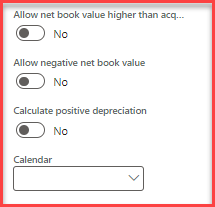
- In the Calendar field, enter or select a value.
- Derived books will post transactions to different books at the same time. You create the transactions with the primary book and during posting, an exact copy of the transaction is posted to the derived book. There is no recalculation with derived book transactions, so it should not be used for depreciation transactions.
Derived books
The purpose of derived books is to simplify the posting of fixed asset book transactions that are planned for regular intervals. You choose one book as the primary book. This usually is the book that is used for accounting depreciation. You then attach to it other books that are set up to post transactions in the same intervals as the primary book. Tax depreciation books are often set up as derived books.
The most common transactions to set up to post to derived books are acquisitions, acquisition adjustments, and disposals.
Example
Book B and book C are set up as derived books for book A for the Acquisition transaction type. In book A, you enter an acquisition transaction for asset 123 for 1,500.00.
When the transaction is posted, an acquisition transaction is generated and posted in asset 123 for book B and in asset 123 for book C for 1,500.00. When you prepare the transactions of the primary book for posting in the fixed asset journal, you can also view and modify the transactions of the derived books. If you prepare the primary book transactions in another journal, the transactions of the derived value are not displayed. However, they are posted to the appropriate accounts and posting layers when you post the primary book Transactions
Set up fixed asset groups
- Go to Fixed assets > Setup > Fixed asset groups.
- Select New.
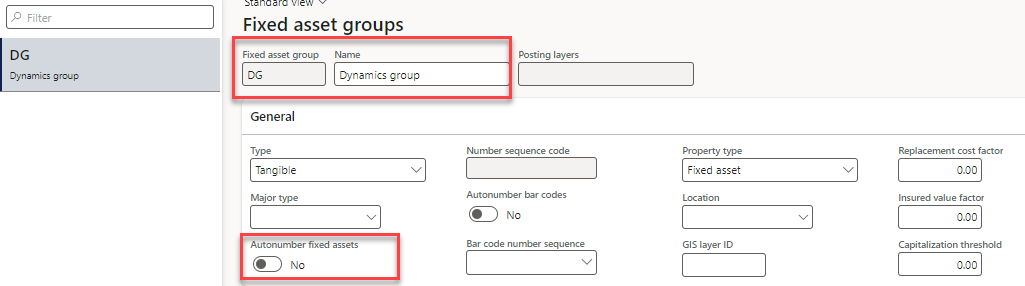
- In the Fixed asset group field, type a value.
- In the Name field, type a value. Auto number fixed assets and Number sequence code on the Fixed asset group will override the settings on the Fixed assets parameters. You can change it here if the assets in this fixed asset group will have different numbering from other groups.
- Select Books.
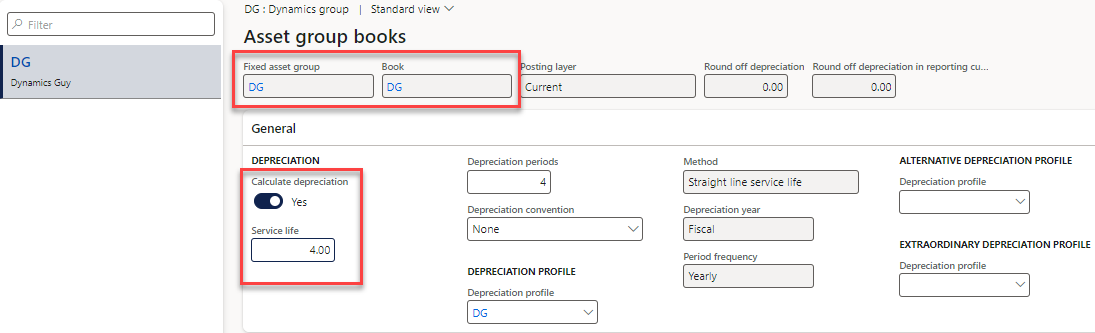
- In the Book field, enter or select a value. The Calculate depreciation field is set to Yes, so the asset book will be included in depreciation proposals. If Calculate depreciation is set to No, the asset will not be automatically depreciated.
- Set the Service life of the asset, in years. Note that the Depreciation periods field value is calculated after setting the Service life.
- In the Depreciation convention field, select an option.
- Close the page
Create Fixed Asset:
Go to Fixed assets > Fixed assets > Fixed assets.
Click on new (and press Alt + N to create a new record)
Enter the following data.
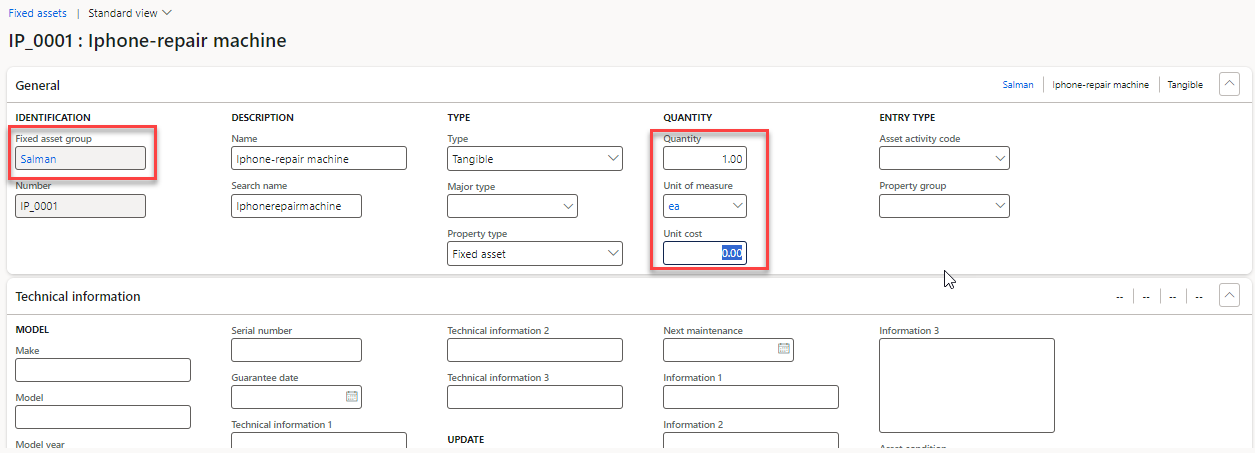
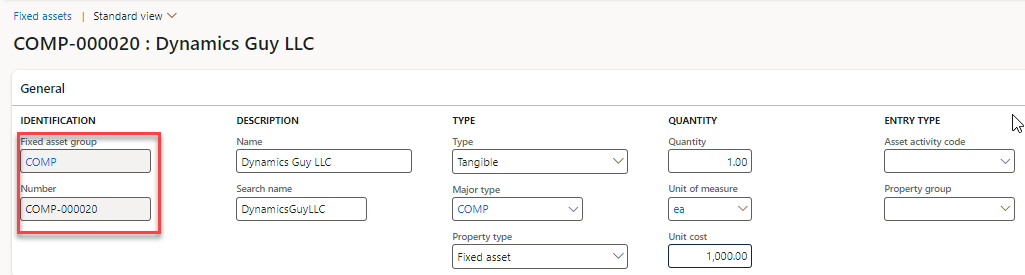
Here, the Fixed asset group and Number fields are the mandatory fields. When the user selects the Fixed asset group value, the number is automatically created. Enter the Name and Search name of the fixed assets under Description, as shown in the following screenshot:
Propose fixed asset acquisitions
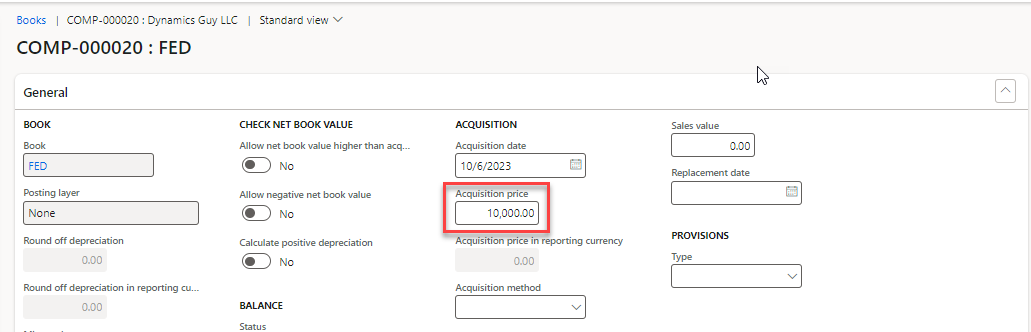
To acquire a fixed asset through a fixed asset proposal journal, you must first create the fixed asset record, and then define the acquisition price in the asset book.
Only fixed assets with the acquisition date and acquisition price set on the book will be included in the acquisition proposal.
Go to fixed assets> fixed asset> create a new.
Now go to the fixed asset books and define the Acquisition cost.
Create an asset acquisition proposal
Complete the following steps to create an asset acquisition proposal.
Go to Fixed assets > Journal entries > Fixed assets journal.
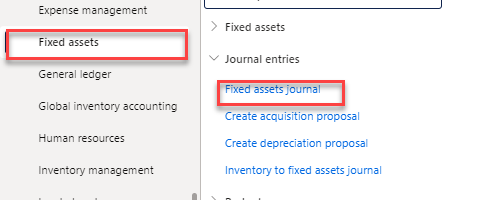
Select New.
In the Name field, enter or select a value.
In the Action Pane, select Lines.
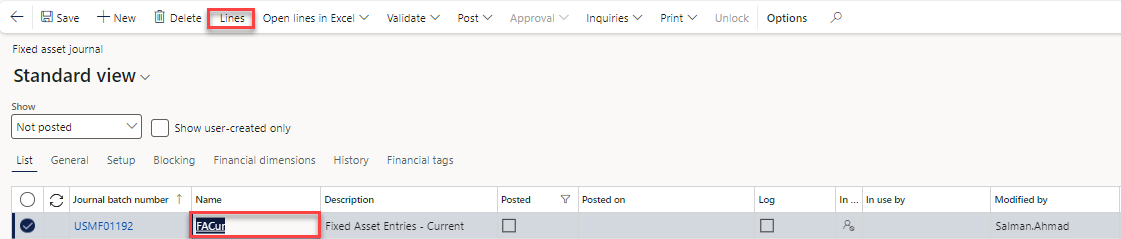
Select Proposals.
Select Acquisition proposal.
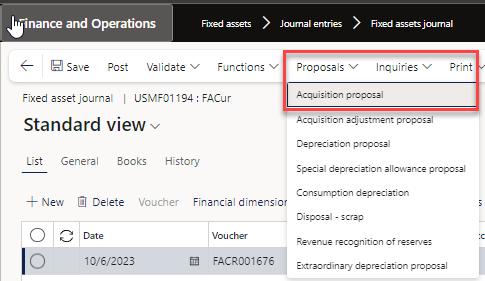
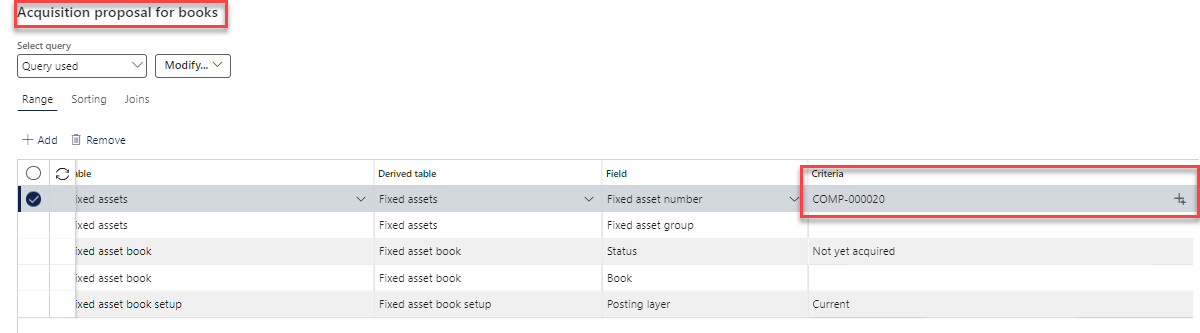
Select Filter. Select Reset to clear previous values.
Select the Fixed asset number row.
In the Criteria field, enter or select a value. Set the remaining criteria for the fixed assets that you want to acquire with this proposal.
Select OK twice to exit out of the pane.
Verify that the transaction lines are created.
On the page, select the Books tab.
Select Post.
More is Coming 😊 Cheers
Happy learning.
Salman Ahmad
Senior Functional Consultant F&O(Finance,PMA,SCM,WMS)
Dynamics Solutions & Technology
← Previous: Fixed Assets | Next: Fixed Assets (Fixed Asset Series, Chapter 3) →