
Fixed Assets
Fixed Asset Series, Chapter 3
FIXED ASSETS
Hi everyone hope you all are doing well.
Let’s continue our journey regarding learning fixed assets modules in D365 F&O, we will continue from where we left hope these blogs will help you to illuminate your learning journey.
Please find the below links for 1st and 2nd blogs
1st Blog: https://www.linkedin.com/posts/salman-ahmad-9450311b0_fixed-assets-chapter-1-in-d365-fo-activity-7231660927459196928-Dz_V?utm_source=share&utm_medium=member_desktop
2nd Blog : https://www.linkedin.com/posts/salman-ahmad-9450311b0_fixed-asset-series-c-2-dynamics-365-finance-activity-7232048885098024960-fjw3?utm_source=share&utm_medium=member_desktop
Enter an addition to a fixed asset
This procedure shows how to add an addition to an existing fixed asset. The purpose of Fixed asset additions is to track item additions, maintenance, or improvements for an asset, and is informational only. Any changes to the fixed asset value or service life must be made separately.
The procedure uses the accountant role and demo data for the USMF legal entity.
Go to Fixed assets > Fixed assets > Fixed assets.
In the list, find and select the fixed asset for the addition.
In the list, click the link in the selected row.
On the Action Pane, click Fixed asset.
Click Fixed asset additions.
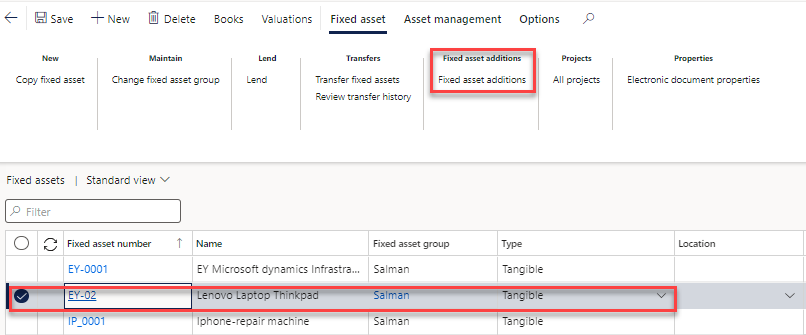
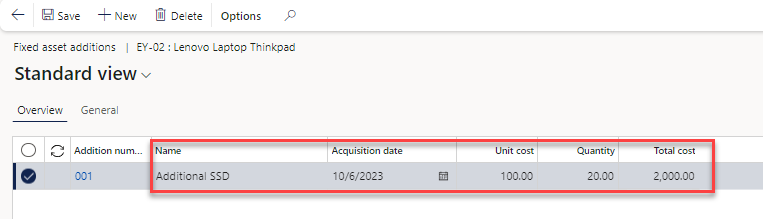
Click New.
In the Name field, type a value.
In the Acquisition date field, set the date of the addition purchase or service.
In the Unit cost field, enter the cost of the item, maintenance, or other improvement for the asset.
In the Quantity field, enter a number. The total cost will have no impact on the value of the fixed asset and is for tracking and informational purposes only. If the cost will be capitalized, then a write-up adjustment transaction must be posted separately.
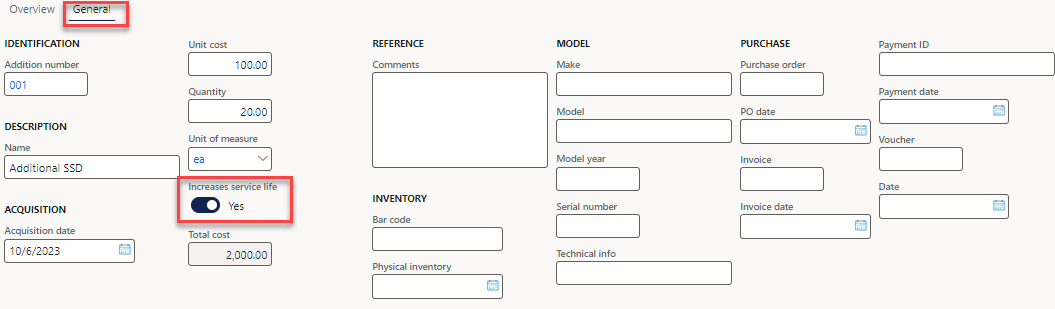
Click the General tab.
Note:
Set Increases service life to Yes if the addition increases the service life of the asset.
This field is informational only. To increase the service life, modify the Service life on the Value models and/or Depreciation books for the asset.
Fixed assets reclassification
Now, we will cover the fixed asset reclassification functionality. This function is used to reclassify a fixed asset to another fixed asset from two perspectives; the first perspective is accounting, and the second perspective is the fixed asset group. The reclassification function incorporates changing the asset group by canceling the old one and creating a fixed asset, and this will generate the necessary financial entries. new
Let's assume that there is a fixed asset in an acquired status, and this asset should be reclassified to a new fixed asset ID. The main account, which represents the acquisition, will also be reclassified to another account. The execution of this process will close the original fixed asset, reverse the acquisition entry of the original fixed asset, and create a new entry representing the new asset acquisition.
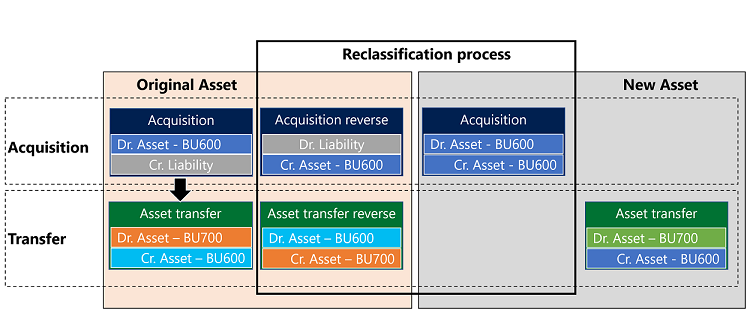
Follow these steps to reclassify a fixed asset:
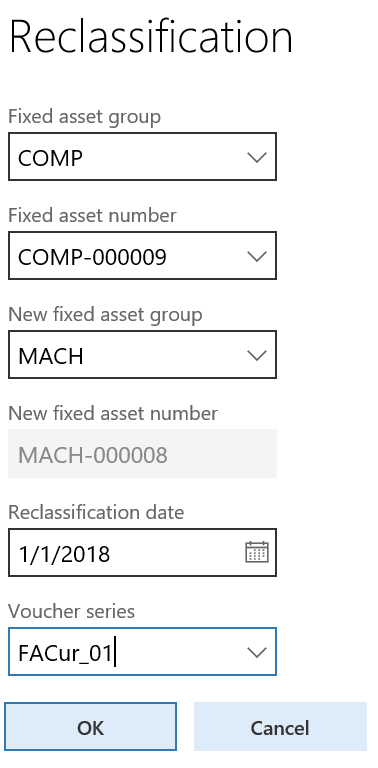
- Go to Fixed assets > Periodic tasks > Reclassification.
- In the Fixed asset group field, select the group to reclassify.
- In the Fixed asset number field, select the fixed asset to reclassify.
- In the New fixed asset group field, select a group to transfer the fixed asset to.
- If the new fixed asset group is attached to a number sequence, the New fixed asset number field is updated with the number from the new fixed asset group number sequence. Otherwise, the New fixed asset number field is updated with the number from the number sequence that is set up on the Fixed asset parameters page. If a number sequence is not set up on the Fixed asset parameters page, enter a number in the New fixed asset number field.
- In the Reclassification date field, enter a date.
- In the Voucher series field, enter or select a value.
- Select OK.
The system will create a new fixed asset record

The original fixed asset status is changed to closed, the acquisition entry is reversed, and the newly created fixed asset is acquired
Transfer A Fixed Asset:
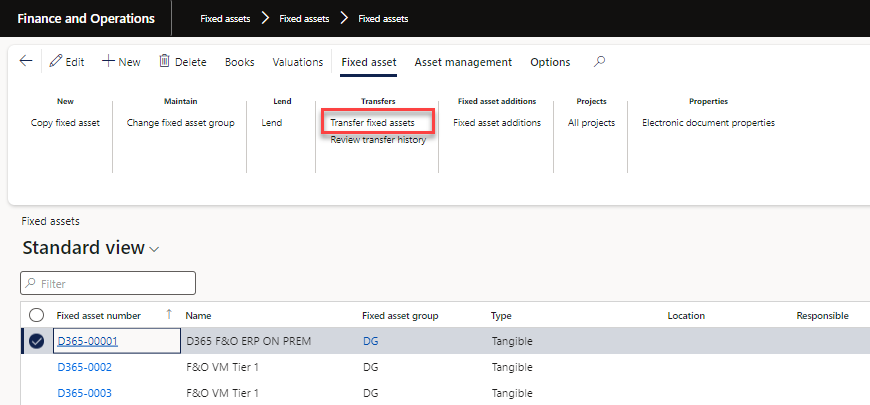
Go to Fixed assets > Fixed assets > Fixed assets.
In the list, find and select the fixed asset to transfer.
On the Action Pane, click Fixed asset.
Click Transfer fixed assets.
In the Transfer date field, enter a date.
Enter comments to describe the transfer.
This list shows all books for the fixed asset.
Mark the books you want to transfer to a new financial dimension set.
This list shows the existing financial dimension values for the selected book.
Select the financial dimension you want to update for the selected fixed asset book.
In the Financial dimension field, click the drop down button to open the lookup.
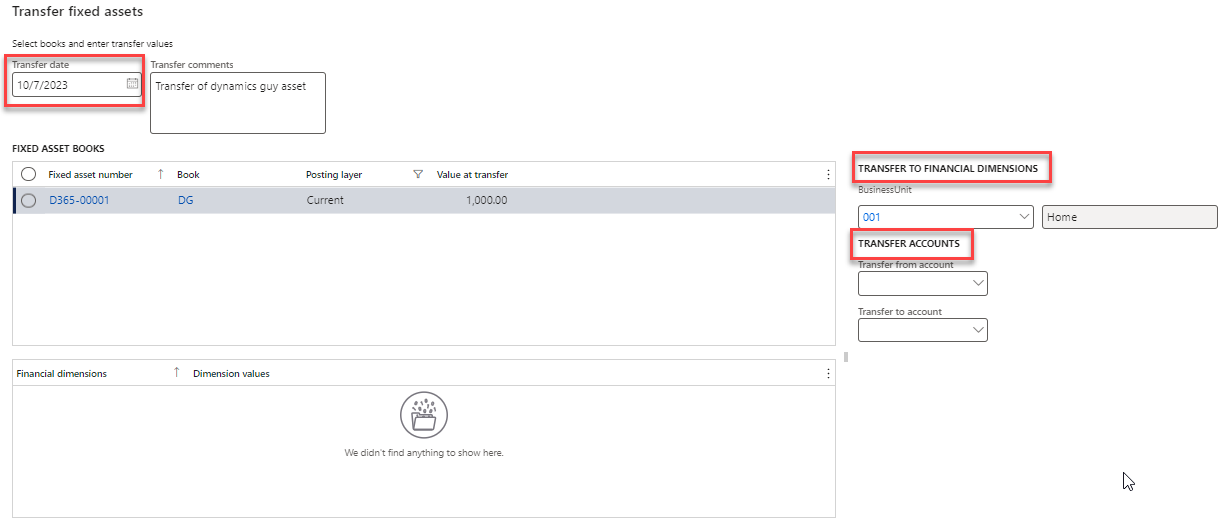
Set other financial dimension values as appropriate.
All financial dimension values change when a transfer occurs, whether a value has been entered or left blank. For example, if you entered a value for the BusinessUnit and left the CostCenter and Department financial dimensions blank. If your account structure allows blank values for CostCenter and Department, the transfer would result in each value model having the new value for BusinessUnit and a blank value for CostCenter and Department.
Click Update.
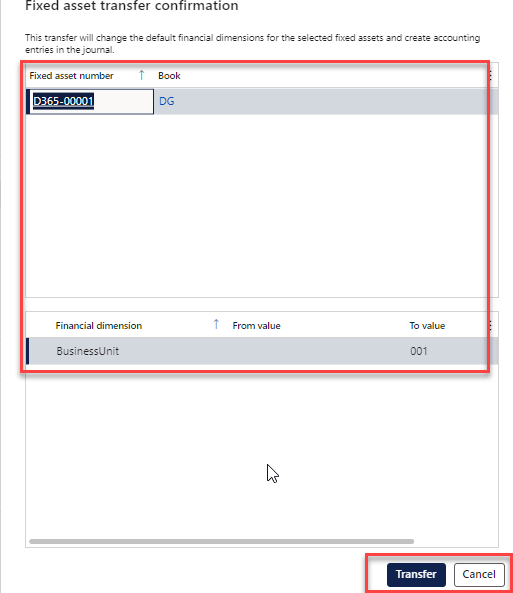
You have the opportunity to preview the changes before finalizing the transfer.
Review results before transferring the fixed asset books.
Click Transfer.
More is Coming 😊 Cheers
Happy learning.
Salman Ahmad
Senior Functional Consultant F&O(Finance,PMA,SCM,WMS)
Dynamics Solutions & Technology
← Previous: Fixed Assets (Fixed Asset Series, Chapter 2)