Project Management and Accounting in Dynamics 365 Finance — Chapter 1: Introducing Project Management and Accounting
Project management and accounting is the module of Dynamics 365 Finance that records what a project costs, what it earns and when that cost and revenue reach the general ledger. A construction company uses it to follow each building contract, a consulting firm uses it to bill the hours of its consultants, and any company can use it to collect the cost of an asset it builds for itself before that cost becomes a fixed asset.
In this chapter, we will cover the following topics:
- The people who work with the module and the modules it posts to
- Finding your way through the Project management and accounting menu
- The building blocks: project contract, project, project group and transactions
- The six project types, and what each of them allows and refuses
- Creating the project groups of this book and testing the type rules in the New project panel
- The three case companies used throughout the book, and the conventions of the book
Who works with Project management and accounting
Several roles share the module. Each chapter of this book is written for the role that does the work, but the setup in Part I is done by the project accountant or the implementation consultant, because every later process depends on it.
| Role | Typical work in the module | Chapters |
|---|---|---|
| Project accountant / controller | Setup of project groups, posting, categories and prices; month-end revenue recognition; reconciliation with the general ledger | 2–8, 19, 22–24 |
| Project manager | Creates projects and work breakdown structures, reviews timesheets, approves invoice proposals, follows budget and cost | 10, 11, 13, 14, 22 |
| Resource manager | Maintains resources and roles, fulfils resource requests, watches utilisation | 6, 10 |
| Consultant / site engineer | Enters timesheets and expenses | 11, 12 |
| Buyer and warehouse staff | Purchase orders, item requirements and subcontracts for projects | 18, 21 |
| Billing clerk | Creates and posts invoice proposals, on-account and retention invoices | 14, 17, 20 |
How the module is connected to the rest of Dynamics 365 Finance
Project management and accounting does not work alone. Most project transactions start in another module, carry a project ID, and are then valued and posted by the project module. The following diagram shows the modules that exchange data with it:
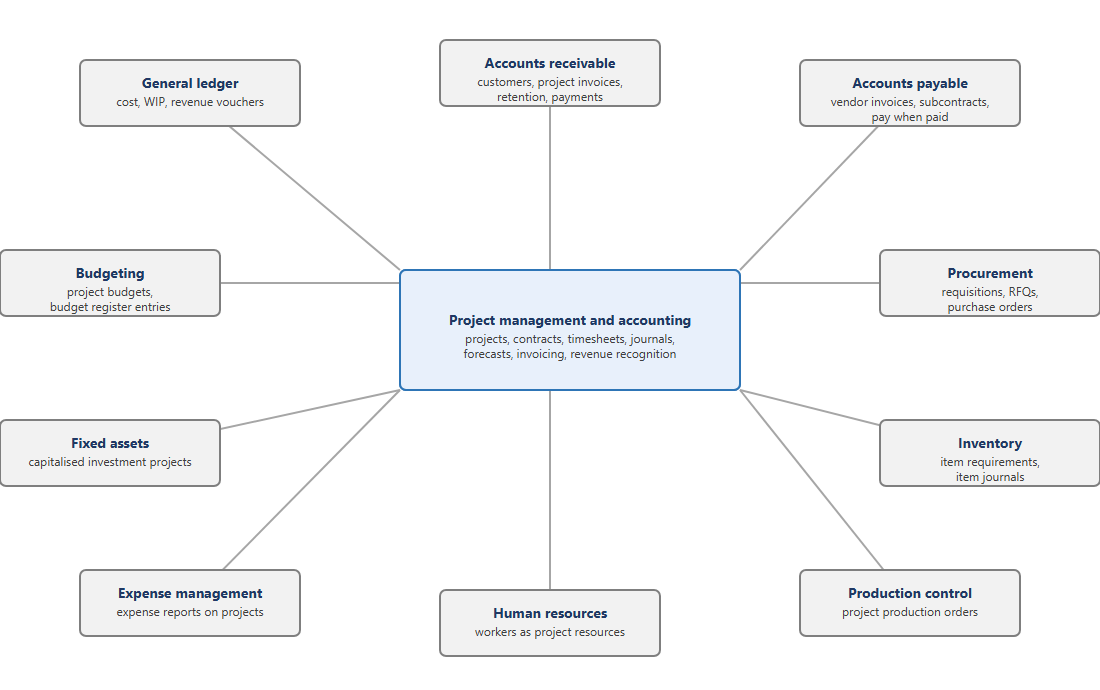
- General ledger: every project transaction that is posted to the ledger creates a voucher. Which accounts are used is decided by the project group and the ledger posting setup (Chapter 3).
- Accounts receivable: the customer of a project contract, the project invoices, customer retention and payments.
- Accounts payable: vendor invoices charged to a project, subcontract invoices, vendor retention and pay-when-paid.
- Procurement and sourcing: purchase requisitions, requests for quotation and purchase orders created from a project.
- Inventory management: item requirements and item journals that issue stock to a project.
- Production control: production orders that belong to a project.
- Human resources: workers become project resources that can be scheduled and that record hours.
- Expense management: expense reports whose lines are charged to a project.
- Fixed assets: an investment project is finally capitalised to a fixed asset (Chapter 21).
- Budgeting: project forecasts can be copied to the budget register, and project budgets can stop spending (Chapter 13).
Finding your way through the menu
To open the module, click the navigation pane button in the top left corner of the page, click Modules, and then click Project management and accounting. The menu opens with its main areas collapsed:
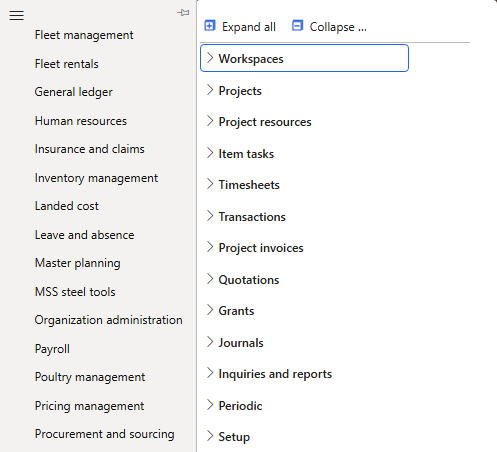
The menu has 267 menu items in 14 areas. The following table shows what each area contains and how many menu items it holds:
| Menu area | Menu items | Content |
|---|---|---|
| Projects | 3 | Project list pages and project contracts |
| Project resources | 5 | Resources, availability and resource requests |
| Item tasks | 7 | Item requirements, purchase requisitions, purchase orders, sales orders, RFQs, production and subcontract orders of projects |
| Timesheets | 5 | Entry, review and history of timesheets |
| Transactions | 7 | Forecasts, pending and posted project transactions, intercompany transactions |
| Project invoices | 4 | Invoice proposals, invoices, intercompany invoices, e-invoices |
| Project debit notes | 2 | Brazil only |
| Quotations | 4 | Project quotations |
| Grants | 3 | Grants and grant transactions |
| Fiscal documents | 3 | Brazil only |
| Journals | 6 | Hour, expense, item, fee and beginning balance journals |
| Inquiries and reports | 118 | Transaction and forecast inquiries and all project reports |
| Periodic | 49 | Batch tasks: invoicing, revenue recognition, posting, clean-up |
| Setup | 51 | Parameters and every setup form of the module |
Throughout the book, a path such as Project management and accounting | Setup | Posting | Project groups means: open the module, expand Setup, then Posting, and click Project groups. Appendix A of the book lists every menu item with the chapter in which it is used.
TIP: Most forms can also be opened with the search box at the top of the page. Type the name of the form, for example project groups, and select it from the list. The search shows the menu path next to each result, which is a quick way to learn where a form lives in the menu.
NOTE: Project debit notes and Fiscal documents are used only by Brazilian legal entities, and the Electronic invoices and CFDI items only in Italy and Mexico. They are visible in the menu of a US company, but they apply to legal entities in those countries, so the book does not demonstrate them.
The building blocks of the module
Before we create anything, it helps to know the records that every project process uses and how they relate to each other:
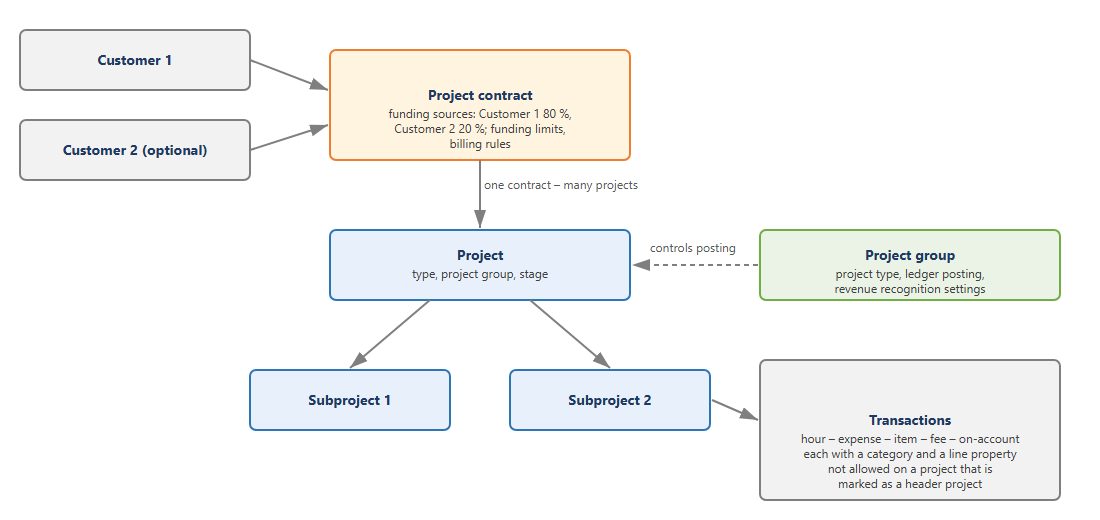
- Project contract: the agreement with the customer. It holds one or more funding sources – the customers, or grants, that pay for the work and in which percentage – and optionally funding limits and billing rules. Only Time and material and Fixed-price projects have a contract.
- Project: the unit that collects cost and revenue. Each project has a project type, a project group and a project stage. A project can have subprojects, and one contract can finance several projects.
- Project group: decides how the transactions of its projects are posted to the ledger, and which revenue recognition settings apply. The project type is set on the group, and a project can only use a group of its own type.
- Category: classifies every transaction, for example consulting hours or crane hire, and decides the accounts and the default prices (Chapters 4 and 5).
- Line property: decides whether a transaction is chargeable to the customer and whether its revenue is accrued before invoicing (Chapter 3).
Every cost or revenue on a project is one of five transaction types. The following table shows where each type is entered; the chapters that use them are given in the last column:
| Transaction type | Entered through | Chapters |
|---|---|---|
| Hour | Timesheets, hour journal | 11, 12 |
| Expense | Expense journal (a general journal with project lines), expense reports, vendor invoices without items | 12, 18 |
| Item | Item journal, item requirements, purchase orders and production orders of the project | 12, 18, 21 |
| Fee | Fee journal – revenue without cost, for example a licence fee | 12 |
| On-account | On-account transactions of the project – amounts invoiced in advance or by milestone | 17 |
Understanding project types
The project type is the first decision when a project is created, and it cannot be changed on the project group after the group has been saved. It decides whether the project has a customer contract, whether it can be invoiced, which transaction types it accepts and how its costs are posted. The following table summarises the rules. The column on the right shows the chapter in which you will see the rule at work:
| Rule | T&M | Fixed-price | Investment | Cost project | Internal | Time project | See |
|---|---|---|---|---|---|---|---|
| Project contract ID | Required | Required | – | – | – | – | This chapter |
| Customer field on the project | Yes | Yes | Yes | Yes | Yes | – | This chapter |
| Invoice proposals and invoices | Yes | Yes | – | – | – | – | Ch. 14, 17 |
| On-account transactions | Yes | Yes | – | – | – | – | Ch. 17 |
| Fee transactions | Yes | Yes | – | – | – | – | Ch. 12 |
| Hour transactions | Yes | Yes | Yes | Yes | Yes | Yes | Ch. 11, 12 |
| Expense and item transactions | Yes | Yes | Yes | Yes | Yes | – | Ch. 12 |
| Purchase orders and item requirements from the project | Yes | Yes | Yes | Yes | Yes | – | Ch. 18 |
| Project sales orders | Yes | – | – | – | – | – | Ch. 18 |
| Cost template and period code required on the group | – | Yes | Yes | – | – | – | This chapter |
| Post costs – hour on the group | Selectable | Selectable | Selectable | Profit and loss, fixed | Selectable | Never ledger, fixed | This chapter |
When a transaction breaks one of these rules, Dynamics 365 Finance refuses it with a message that names the project type. For example, a fee journal line on an internal project is refused with Project type Internal does not allow recording in this project. We will meet this message in Chapter 12.
A short description of each type:
- Time and material: the customer pays for the hours, expenses, items and fees recorded, at sales prices. Revenue can be accrued as the work is done and is invoiced through invoice proposals. Case B uses this type.
- Fixed-price: the customer pays an agreed amount, invoiced as on-account amounts or milestones. Revenue is recognised through revenue recognition (estimates), for example by percentage of completion. Case A uses this type.
- Investment: the company builds something for itself. Costs are held as work in progress and later eliminated, for example to a fixed asset. There is no customer invoice. Case C uses this type.
- Cost project: collects costs that are not invoiced and not capitalised, for example an internal improvement programme. Costs go straight to profit and loss.
- Internal: like a cost project, but the group can choose how hour, expense and item costs are posted. Used for internal work such as training or pre-sales.
- Time project: records hours only, without cost in the ledger – for example bench time or absence of consultants, used for utilisation reporting.
Creating the project groups of this book
The quickest way to see what the project type changes is to create one project group of each type and compare the forms. We create them now with only an ID, a name and a type; the ledger accounts and the remaining fields are completed in Chapter 3.
Prerequisites for this scenario
Nothing has to be set up before this section; the project groups are the first records of the book. We will create the following groups:
| Project group | Name | Project type |
|---|---|---|
| PRJ-TM | Time and material projects (Case B) | Time and material |
| PRJ-FP | Fixed-price projects (Case A) | Fixed-price |
| PRJ-INV | Investment projects (Case C) | Investment |
| PRJ-COST | Cost projects | Cost project |
| PRJ-INT | Internal projects | Internal |
| PRJ-TIME | Time projects (bench and absence) | Time project |
Creating a project group
Navigation: Project management and accounting | Setup | Posting | Project groups
To create the Time and material group, follow these steps:
- Navigate to Project management and accounting | Setup | Posting | Project groups.
- Click New on the Action Pane.
- In the Project group field, enter PRJ-TM.
- In the Name field, enter Time and material projects (Case B).
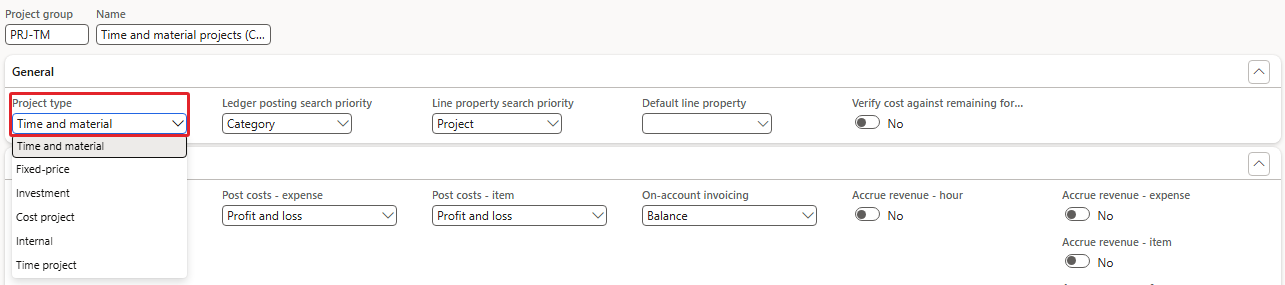
- On the General FastTab, open the Project type list. It offers six values: Time and material, Fixed-price, Investment, Cost project, Internal and Time project. Select Time and material.
- Click Save.
After saving, the form looks as follows:
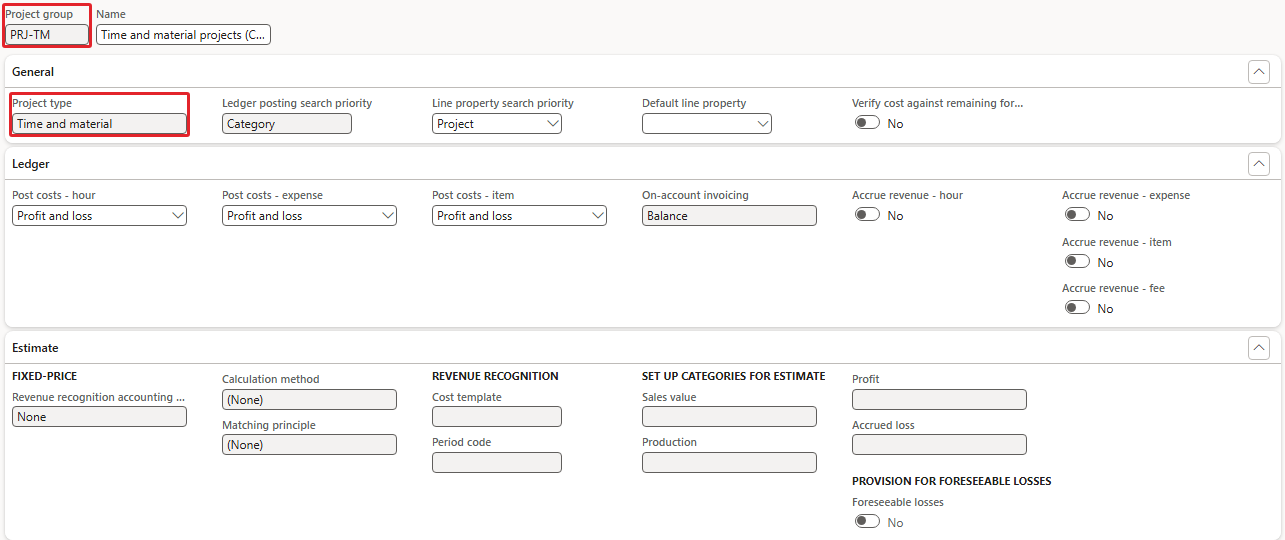
Three things are visible on this screen:
- Project group and Project type are now grey. The type of a saved group cannot be changed; to use another type you create another group.
- The Ledger FastTab offers Post costs – hour, Post costs – expense and Post costs – item, all set to Profit and loss, and On-account invoicing is filled with Balance and cannot be changed.
- The fixed-price and revenue recognition fields on the Estimate FastTab (Revenue recognition accounting rule, Calculation method, Matching principle, Cost template, Period code) are grey. They are not used by Time and material projects in this form.
Repeat the steps for the internal, cost and time groups. The following three screenshots show the top of each form after saving:
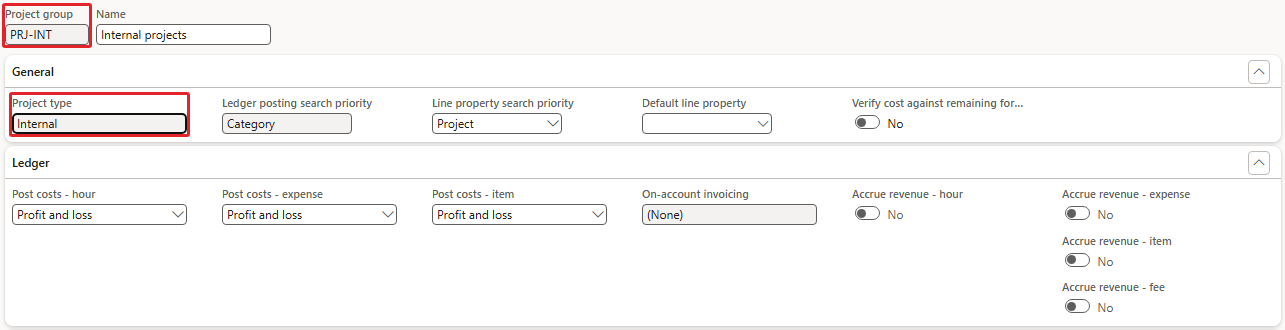
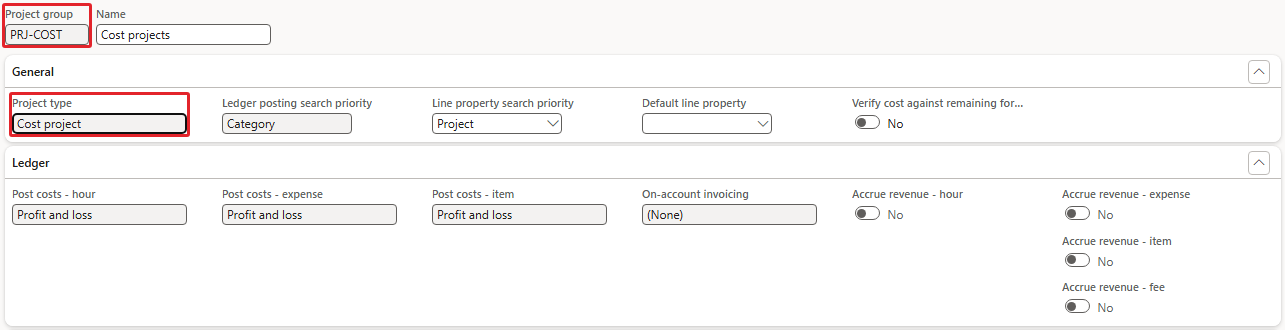
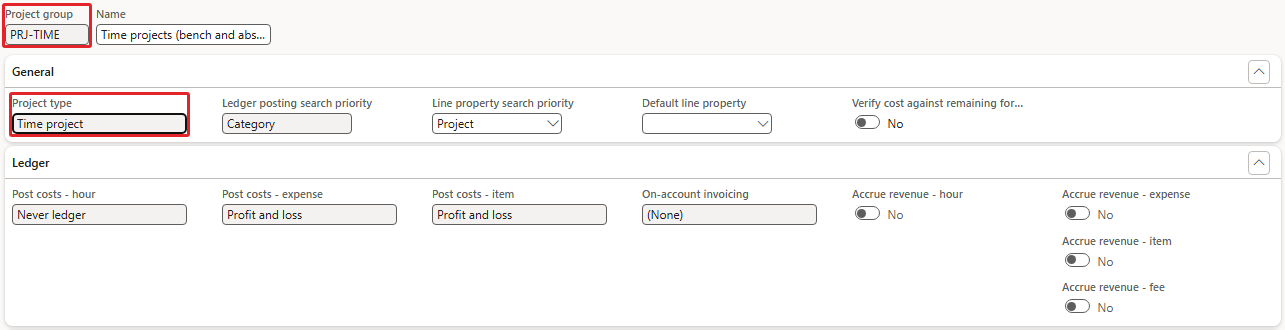
The internal group lets you decide how its costs reach the ledger. The cost project group always posts its costs to profit and loss. The time project group sets Post costs – hour to Never ledger and does not allow a change: hours on a time project are counted but never create a ledger voucher.
The fixed-price and investment groups
Now create PRJ-FP with type Fixed-price in the same way and click Save. The group is not saved:
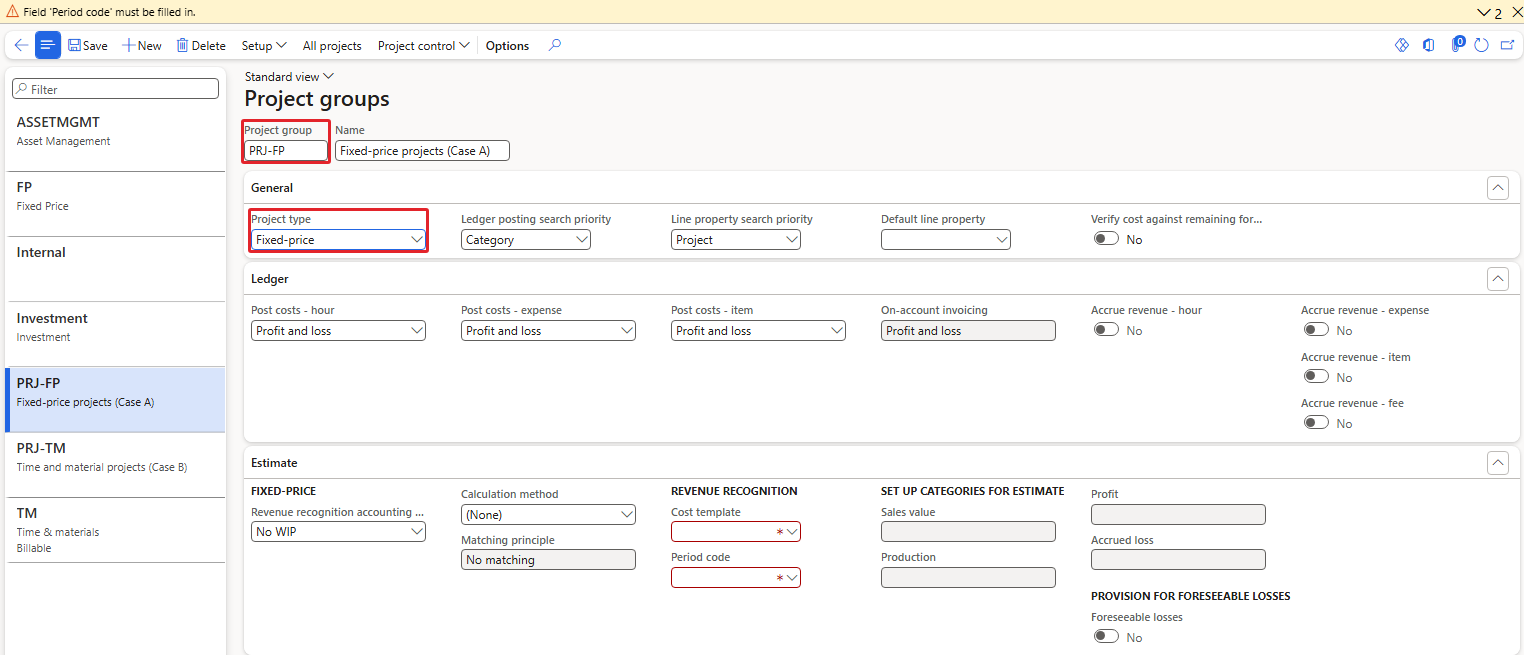
The message bar shows Field 'Period code' must be filled in, and a second message (the counter shows 2) says Field 'Cost template' must be filled in. Both fields on the Estimate FastTab are marked in red. As soon as Fixed-price was selected, the form also filled Revenue recognition accounting rule with No WIP and Matching principle with No matching.
PRJ-INV with type Investment gives the same two messages:
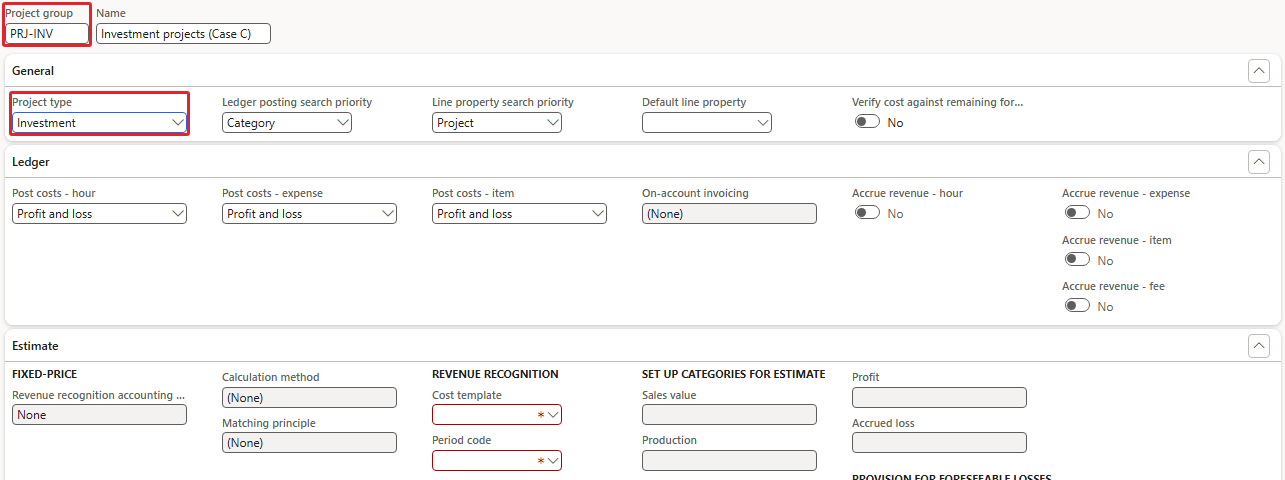
Fixed-price and investment projects are the two types that go through revenue recognition (estimates), so their group needs a cost template, which defines how the degree of completion is calculated, and a period code, which defines the periods in which estimates are made. We create both in Chapter 3 and save PRJ-FP and PRJ-INV there. Until then, leave the two groups unsaved: when you click New for the next group, the unsaved record is discarded.
Checking the result
The list pane of the Project groups form now shows PRJ-COST, PRJ-INT, PRJ-TIME and PRJ-TM. PRJ-FP and PRJ-INV are not in the list. The four groups have the following ledger settings:
| Project group | Project type | Post costs – hour | Post costs – expense | Post costs – item | On-account invoicing |
|---|---|---|---|---|---|
| PRJ-TM | Time and material | Profit and loss | Profit and loss | Profit and loss | Balance |
| PRJ-COST | Cost project | Profit and loss | Profit and loss | Profit and loss | (None) |
| PRJ-INT | Internal | Profit and loss | Profit and loss | Profit and loss | (None) |
| PRJ-TIME | Time project | Never ledger | Profit and loss | Profit and loss | (None) |
How the project type controls the New project panel
The project type also changes the panel in which a project is created. We open the panel and look at it for three types without creating a project.
Navigation: Project management and accounting | Projects | All projects, then New on the Action Pane
- Navigate to Project management and accounting | Projects | All projects.
- Click New. The New project panel opens on the right, with Project type set to Time and material.
- Change Project type to Internal, and then to Time project, and watch the Project contract ID and Customer fields.
- Click Cancel to close the panel without creating a project.
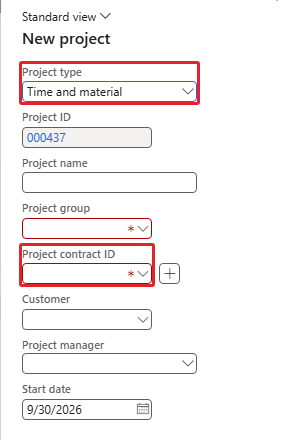
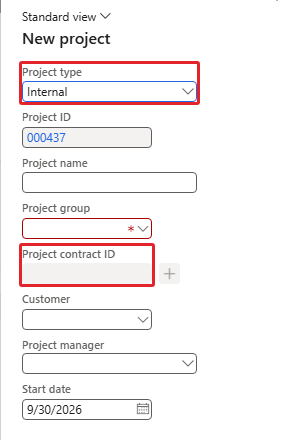
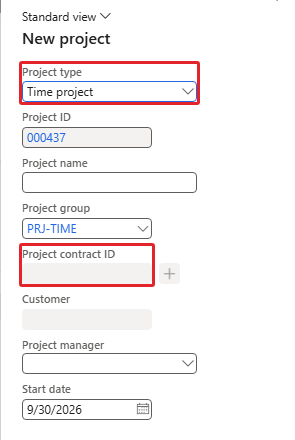
For Time and material, and also for Fixed-price, the Project contract ID field is mandatory, shown by the red asterisk. For Investment, Cost project and Internal it cannot be entered. For Time project the Customer field is closed as well.
The panel also proposes a project group. When only one group of the selected type exists, the panel fills it in; this is why it shows PRJ-COST for Cost project and PRJ-TIME for Time project. When there is more than one, as for Time and material and Internal, where the demo company already has the groups TM and Internal, the field stays empty and you choose the group yourself.
NOTE: The panel takes the next project ID from the number sequence as soon as it opens. When you cancel the panel, that ID is not used again, so gaps in the project numbers are normal. Chapter 2 explains the number sequences of the module.
Testing the rules – what the panel refuses
Two tests show that the rules are enforced. Neither creates a project.
Test 1 – A Time and material project without a contract
- Open the New project panel again. Leave Project type on Time and material.
- In Project name, enter PRJ test – no contract.
- In Project group, enter PRJ-TM.
- Leave Project contract ID empty and click Create project.
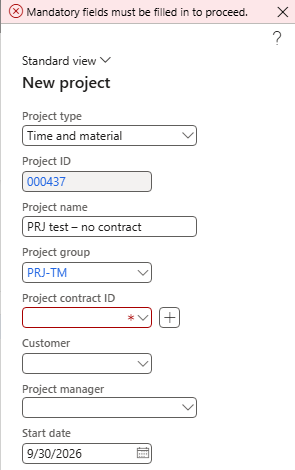
The panel stays open with the message Mandatory fields must be filled in to proceed. The project is not created.
Test 2 – A group of the wrong type
- Change Project type to Internal. The Project contract ID field closes and the Project group field is cleared.
- In Project name, enter PRJ test – wrong group.
- In Project group, type PRJ-TM – our Time and material group – and click Create project.
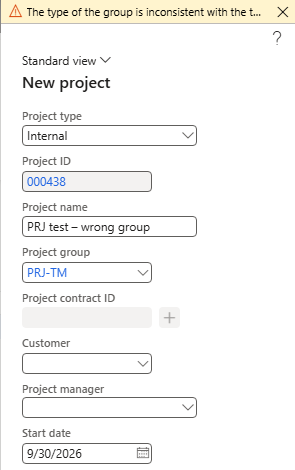
The panel accepts the typed group, but Create project is refused with The type of the group is inconsistent with the type of the project. Click Cancel.
If you now search All projects for PRJ test, the list is empty: neither attempt created a project.
TIP: When you name project groups, put the type in the ID, as we did with PRJ-TM, PRJ-FP and so on. The Project group lookup of the panel shows ID and name, and a clear ID prevents the second error.
The three cases of this book
The examples use USMF, the US company of the Dynamics 365 demo data, so that you can follow every step on a demo or test system. The customers, vendors, workers, items and projects of the examples are created in the book, and every one of them starts with PRJ-, so that you can find them quickly and keep them apart from the demo data. The processes are organised around three cases:
| Case A – Steel contractor | Case B – IT consulting | Case C – Investment project | |
|---|---|---|---|
| Story | USMF fabricates and erects the steel structure of a warehouse for a logistics customer | USMF implements an ERP system for a retail customer | USMF builds its own automated packing line |
| Customer | PRJ-C001 Harbor Point Logistics | PRJ-C002 Brightline Retail Group, with its parent company as a second funding source | None |
| Project type and group | Fixed-price, PRJ-FP; subprojects Engineering, Fabrication, Erection, Handover | Time and material, PRJ-TM; a Time project (PRJ-TIME) for bench time | Investment, PRJ-INV; a cost project (PRJ-COST) for comparison |
| Contract | USD 1,250,000; milestones 10 / 40 / 35 / 15 %; 10 % customer retention | Rate card by role; not-to-exceed limit USD 180,000; expenses at cost plus 10 % | Capital budget USD 400,000 |
| Costs | Steel from stock and from purchase orders, fabrication labour, crane hire, an erection subcontractor with 5 % retention and pay-when-paid | Consultant timesheets, travel and hotel expenses, a licence fee, one consultant from USSI (intercompany) | Robot cell purchase order, conveyor parts from stock, engineering hours, a contractor |
| Revenue | On-account invoices, revenue recognition by percentage of completion, retention release | Accrued revenue, invoice proposals with billing rules, a credit note | None – the cost is eliminated to fixed asset PRJ-FA-LINE3 |
| Chapters | 16–20 | 9–15, 26 | 21 |
NOTE: The customer, vendor and company names of the cases are invented for this book.
Part I (Chapters 2 to 8) builds the setup that all three cases share. Part II follows Case B, Part III Case A and Part IV Case C. Part V uses the transactions of all three cases for control, reporting and period-end tasks.
Conventions used in this book
- The examples use the USMF demo company and dates from October 2026 onwards. If you work in another period, move all dates by the same number of months.
- Menu paths are written as Module | Area | Group | Form.
- In screenshots, a red box marks the field or button used in the step.
- Messages of the system are quoted exactly as they appear.
- NOTE boxes explain behaviour that is easy to miss; TIP boxes give practical advice.
Summary
In this chapter, we looked at the roles that use Project management and accounting and at the modules it posts to. We found the module in the navigation pane and saw how its menu is organised. We met the project contract, the project, the project group and the five transaction types.
We created four of the six project groups of the book. The screens showed how the project type changes the form: time projects never post hour cost to the ledger, cost projects always post to profit and loss, and fixed-price and investment groups cannot be saved without a cost template and a period code. In the New project panel, the type decided whether a contract and a customer can be entered, and two tests showed the messages for a missing contract and for a group of the wrong type.
In the next chapter, we set up the Project management and accounting parameters and number sequences, which every later chapter depends on.